
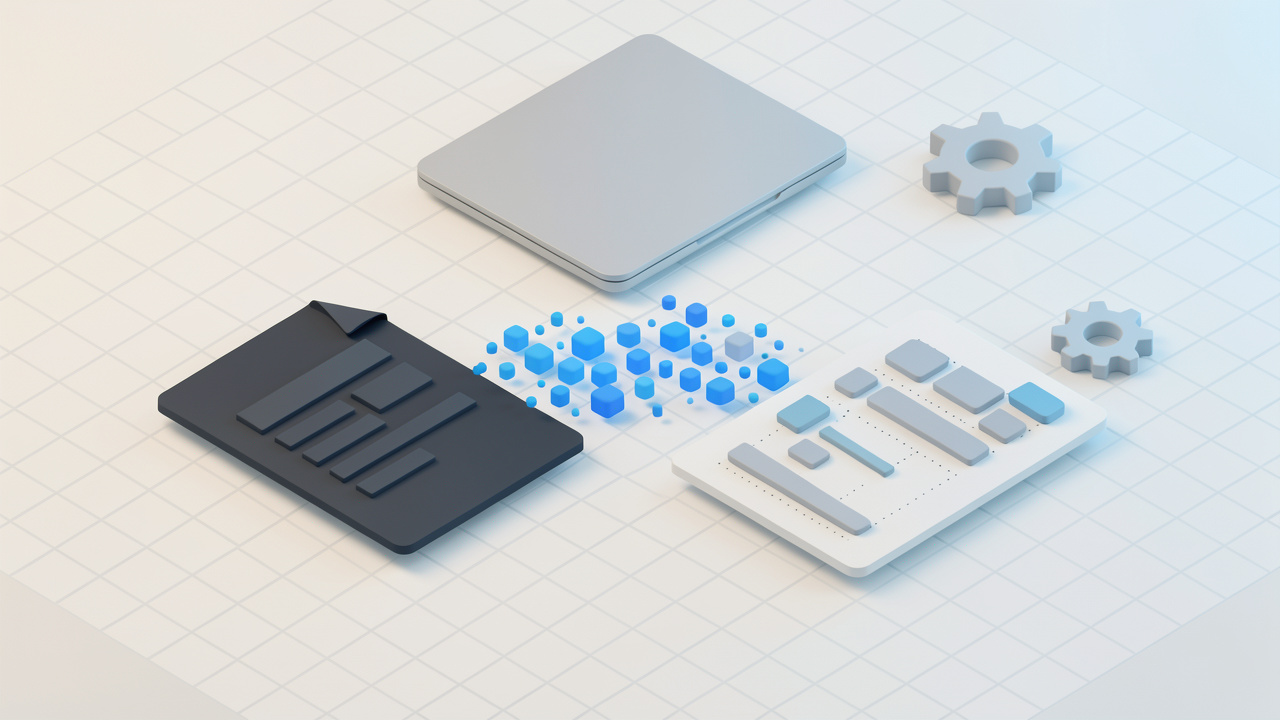
You have a PDF that needs editing, a client asking for a Word file, or a contract trapped in a scanned image. Converting a PDF into an editable Word document is one of those everyday productivity tasks that can save hours of manual retyping. Fortunately, there are reliable, free ways to do it that work for small business owners, freelancers, developers, and anyone who values speed and accuracy.
This article explains what a free Pdf to word converter actually does, the trade-offs to expect, how conversion works behind the scenes, and clear, practical steps to get the job done quickly and safely. Read on to choose the right approach for your file type, privacy requirements, and desired outcome.
What is a Pdf to word converter?
A Pdf to word converter is a tool that transforms a Portable Document Format file into an editable Microsoft Word document, usually .doc or .docx. The goal is to preserve the original layout, text, images, tables, and fonts as closely as possible while producing content you can change, comment on, or repurpose.
Not all conversions are the same. A simple text PDF created from a Word export converts with high fidelity because the PDF already contains selectable text. A scanned PDF, which is an image of each page, requires optical character recognition, or OCR, to extract text. OCR adds complexity and often requires trade-offs between accuracy, formatting, and speed.
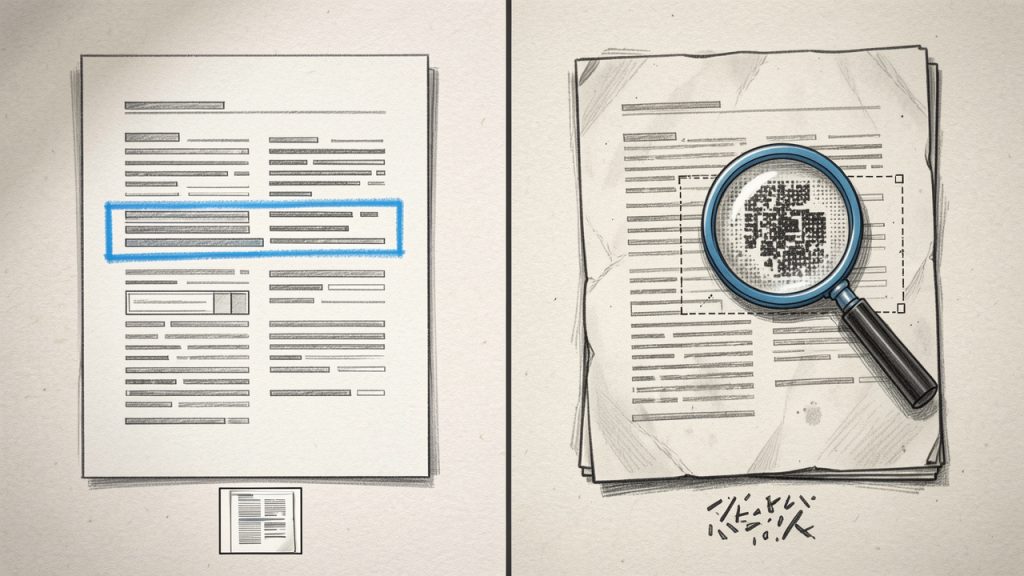
Think of conversion like translating a printed newsletter into a document template. You want the translation to keep headlines, columns, and images in place, but you also want the text to be editable without extra cleanup. A good free converter balances that, and this article helps you pick one depending on the file you have and the result you need.
Key Aspects of Pdf to word converter
Accuracy and formatting fidelity
When you search for Pdf to word converter, accuracy will be the central concern. Tools differ in how well they preserve fonts, spacing, columns, headers and footers, and image placement. Converting a one-page resume is usually straightforward, but multi-column brochures, complex tables, or documents with custom fonts often need manual tweaks after conversion.
Accuracy generally depends on how the PDF was created. PDFs generated from digital sources like Word or InDesign contain embedded text and layout information that converters can map to Word styles. Scanned documents require OCR, which introduces possible misreads for unusual fonts, low-resolution scans, or handwritten notes.
OCR and scanned documents
A free converter that includes OCR is essential if your PDF is a scan. OCR analyzes the pixels and predicts letters and words. Modern OCR is quite good with printed text at reasonable resolution, but expect to proofread and correct errors, especially in columnar layouts and tables.
Some free OCR tools let you choose the language, output format, and recognition accuracy. Higher accuracy may increase processing time, and cloud-based OCR tools might upload files to remote servers, which raises privacy considerations.
Privacy and security
Privacy is a major factor for business and freelance users. Free online converters often process files on remote servers. If you are converting confidential contracts, financial statements, or personally identifiable information, verify the service’s privacy policy and retention rules. Desktop or open-source solutions that run locally avoid the upload step and keep data on your machine.
Always check whether the converter uses encryption during upload, how long temporary files are retained, and whether the provider explicitly deletes files after conversion. When in doubt, use an offline method.
File size limits and batch conversion
Free online converters commonly impose file size limits or daily quotas. If you work with large PDFs or need bulk conversions, these restrictions can slow workflows. Desktop tools usually handle larger files and batch processing more efficiently, but may require more setup.
Batch conversion capability is a practical consideration for agencies and freelancers who need to convert dozens of files at once. A free desktop solution or scripted approach tends to scale better than free web forms.
Compatibility and output quality
Not all converters produce the same .docx structure. Some convert visually, embedding text into text boxes and fixed positions, which preserves appearance but makes editing awkward. Others reconstruct paragraph styles and headings, which creates a more natural editing experience in Word. For long-form documents or those you plan to revise, prefer tools that produce editable flow text rather than fixed-position blocks.
Speed and convenience
For quick one-off conversions, an online free converter is often the fastest option. For repetitive work, desktop tools and integrated solutions like Google Docs or Microsoft Word may save time. Developers may prefer command-line or API-based free tools they can script into pipelines.
How to Get Started
Quick decision guide
Begin by evaluating three factors: sensitivity of the document, complexity of layout, and how often you need to convert files. If the document is confidential, choose an offline method. If layout is complex and fidelity matters, test a couple of tools and compare the outputs. If you convert frequently, invest time in a desktop or scripted solution.
Prerequisites
Before converting, ensure the PDF is high enough quality for OCR if needed. Scanned PDFs should be at least 200 to 300 DPI for better OCR accuracy. Make sure you have an editor that can open .doc or .docx files, and confirm you have permission to convert and edit the document. As a safety measure, keep a copy of the original PDF before conversion.
Step-by-step: Converting with a free online tool
- Upload the PDF file to the converter website.
- Select the output format as Microsoft Word (.doc or .docx).
- Choose OCR options if your file is a scanned image.
- Start the conversion and wait for the process to finish.
- Download the resulting Word document and open it for proofreading.
This process is fast for simple documents and convenient when you are away from your main workstation.
Step-by-step: Converting offline using desktop software
- Open Microsoft Word and choose File, Open, then select the PDF.
- Allow Word to convert the PDF to an editable document.
- Review the converted document and correct any formatting or OCR errors.
- Save the file as .docx.
If you prefer open-source, LibreOffice can import PDFs and let you export to editable document formats, though results vary with layout complexity.
Tips for best results
Start with the highest-quality PDF available. If the PDF contains multiple languages, select the appropriate OCR language. After conversion, focus on headings, lists, tables, and special characters during proofreading. If fonts are missing, substitute similar ones to maintain layout while keeping text editable.
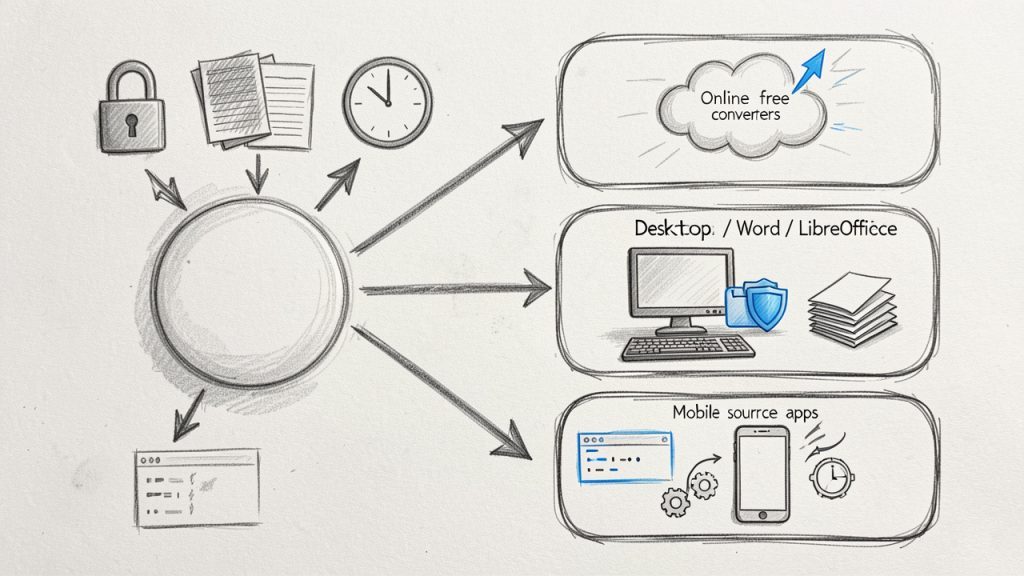
Comparison table: Types of free converters
Type | Cost | Best for | Pros | Cons |
|---|---|---|---|---|
Online free converters | Free, sometimes limited | Quick single-file conversions | Fast, no install, easy UI | File size limits, potential privacy concerns |
Desktop converters (Word, LibreOffice) | Free with existing software | Frequent users, large files | Local processing, no upload needed | Variable fidelity with complex layouts |
Open-source tools and CLI | Free | Developers, automated workflows | Scriptable, no vendor lock-in | Requires setup, technical knowledge |
Mobile apps | Free tiers available | Scanning and quick edits on the go | Handy for fieldwork, built-in camera OCR | Ads, in-app limits, privacy trade-offs |
Handling complex elements: tables, images, and forms
Tables often cause the most trouble during conversion. Simple tables typically convert cleanly, but nested tables or those with merged cells may break into image elements or text blocks. If preserving table data is critical, consider extracting tables to CSV using a tool designed for table recognition, then reinsert or rebuild them in Word.
Images generally convert as embedded images that retain position. For forms and fillable fields, converting to Word will not preserve form functionality. If you need an editable form, consider recreating it in Word or using form-building tools after conversion.
Privacy-conscious workflows
If privacy matters, run conversions locally whenever possible. Use desktop applications, virtual machines, or open-source CLI tools that keep files on your device. If you must use online services, choose providers with clear data-deletion policies and TLS encryption. Avoid uploading files containing sensitive personal data or financial information unless the service explicitly supports secure workflows.
Common pitfalls and how to fix them
A frequent issue with a free Pdf to word converter is layout breakup, where paragraphs become text boxes or headings lose their styles. To fix this, paste the text into a fresh document and reapply styles, or use Word’s Find and Replace to remove extra line breaks.
Another pitfall is misrecognized characters after OCR, such as confusion between 0 and O or l and 1. A quick skim for common patterns and language-specific spell-check tools substantially reduces these errors.
Finally, images or graphics may lose resolution during conversion. If image quality is critical, extract the original images from the PDF before conversion and reinsert high-resolution copies into the Word document.
When to choose paid tools
Free converters cover many needs, but paid solutions become worthwhile for high-volume workflows, guaranteed security, batch automation, or the best possible fidelity for complex layouts. If you often convert legal documents, marketing collateral, or large manuals, evaluate paid options that offer enterprise-grade OCR, batch processing, and SLAs for data handling.
Conclusion
A Pdf to word converter is an indispensable tool for modern productivity when used with an awareness of its limits. For quick edits and one-off files, free online converters are efficient, while desktop and open-source solutions are better for privacy and bulk work. Understand whether your PDF contains selectable text or scanned images, choose the right tool for fidelity and privacy, and always proofread the converted Word file.
Next step: try a short test conversion with a non-sensitive PDF to compare results. If you need help choosing tools based on a specific document type or workflow, share a brief description and I will recommend a tailored approach.
Leave a Reply