
A bloated PNG can quietly slow down your website, break an email attachment limit, or frustrate a client who just wants a simple photo upload. If you need to convert PNG to JPG online, the good news is that it usually takes less than a minute. The catch is that not every converter handles quality, transparency, privacy, and compression the same way.
That matters more than most people realize. A PNG with a transparent background can turn into a white box. A colorful product image can shift slightly if the color profile is mishandled. And if you upload sensitive graphics to the wrong tool, convenience can come at a privacy cost. The best approach is not just finding a converter, but choosing the right one for your use case.
This guide explains when PNG-to-JPG conversion makes sense, how online tools work, what settings to choose, and which free tools are worth using. It also covers the less obvious details, like metadata, sRGB color consistency, progressive JPGs, and how to avoid common quality problems.
Why convert PNG to JPG? When and why it matters
PNG and JPG solve different problems. PNG is lossless, which means it preserves image data more faithfully and supports transparency. That makes it ideal for logos, interface elements, screenshots, and images you may want to edit again later. JPG is lossy, which means it compresses image data to create a much smaller file, often with little visible difference at sensible settings.
For many real-world tasks, that smaller size is the whole point. A large PNG photo might be several megabytes, while a JPG version at good web quality could be dramatically smaller. That reduction improves page speed, speeds up uploads, and makes file sharing easier. For a blog, ecommerce gallery, listing photo, or portfolio image, JPG is often the more practical format.
PNG vs JPG: the real trade-off
The simplest way to think about it is this, PNG prioritizes fidelity and flexibility, while JPG prioritizes efficiency. If your image is a photograph, especially one without transparency, JPG usually makes more sense for online use. If it is a logo with crisp edges or an asset layered into a design workflow, PNG may still be the better choice.
The major compromise is that JPG does not support transparency. Any transparent area in a PNG must be flattened onto a solid background, typically white, black, or a custom color. JPG also introduces compression artifacts if quality is set too low, which can show up as blur, haloing, or blocky gradients.
Common reasons to convert
Small business owners and freelancers often convert PNG to JPG online for practical reasons. Product photos on a store need to load faster. Images for a CMS may need a more common web-friendly format. Email systems may reject large attachments. Social platforms and marketplaces may also handle JPG more predictably than PNG.
Developers and productivity-focused users often convert in batches to streamline asset preparation. If you are optimizing screenshots for a documentation site, compressing article images for better Core Web Vitals, or preparing image uploads for clients, JPG is often the fastest path to a lighter workflow.
When you should not convert
There are cases where converting is the wrong move. If you need transparent backgrounds, keep the file as PNG or switch to a modern format that supports alpha transparency. If the image is part of an editing pipeline, repeated JPG saves can degrade quality over time.
You should also avoid converting archival master files just to save space. Keep the original PNG if it matters. A good rule is simple, publish a JPG if you need speed, but preserve the source PNG if you may need to edit, reuse, or repurpose the file later.
How online PNG-to-JPG conversion works
At a basic level, an online converter takes the source PNG, removes or flattens any transparency, applies JPG compression, and gives you a downloadable output file. What differs from tool to tool is where the conversion happens, what settings you can control, and what happens to your file during and after the process.
Some tools run the conversion on their servers after you upload the image. Others, especially privacy-focused browser apps, do the work locally in your browser. That distinction affects both speed and trust.
Client-side vs server-side conversion
A server-side converter uploads the image to a remote system, processes it there, and then provides the JPG for download. This is often convenient and can support more formats, automation, and larger workflows. It is common in tools like CloudConvert, Convertio, and Zamzar.
A client-side converter performs the work directly in your browser. The main advantage is privacy, because the file may never need to leave your device. This is why tools like Squoosh stand out. For sensitive images, browser-based conversion is often the smarter option, assuming the tool truly processes locally.
Color profiles, metadata, and quality settings
Not all converters treat image data the same way. Many tools let you choose a quality setting, usually as a slider or percentage. For most web images, 75 to 85 quality is a strong starting point. Lower than that can create noticeable artifacts. Higher than that may preserve detail but reduce the file-size benefit.
Metadata is another overlooked detail. Your PNG or converted JPG may contain information such as timestamps, authoring details, or embedded color profile data. Some tools strip metadata automatically, which helps reduce file size and protect privacy. Others preserve it. Neither behavior is universally better, so it is worth checking if that matters for your project.
Handling transparency correctly
When you convert a transparent PNG to JPG, the transparent pixels must be replaced with something. Most tools either flatten them to white by default or let you choose a custom background color. If the converter does this poorly, you may see jagged edges or dark halos around formerly transparent regions.
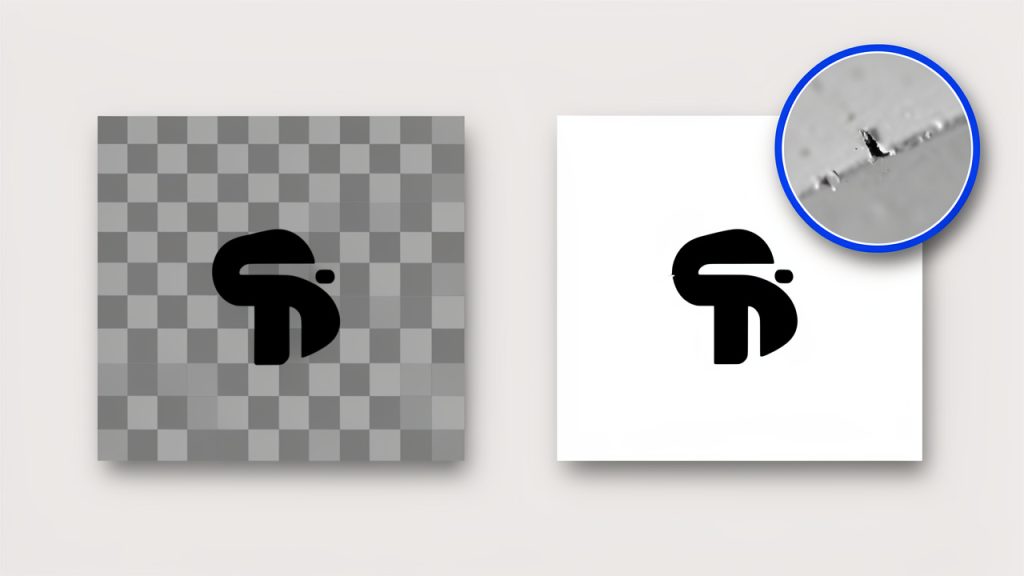
This is especially noticeable with logos, icons, and cutout product images. If you know the image will sit on a white web page, a white background is usually the cleanest choice. If it will appear on a colored layout, choose a matching background to avoid ugly edge artifacts.
Step-by-step: Convert PNG to JPG online
The workflow is usually simple, but small setting choices can have a big effect on the result. If you want a fast, dependable process, use this general method.
Step 1, choose a trusted tool
Start with a converter that has a solid reputation, a clear privacy policy, and enough controls for your needs. If the image is sensitive, lean toward a client-side tool. If you need batch conversion, cloud storage imports, or advanced settings, a server-based service may be more convenient.
Step 2, upload the PNG
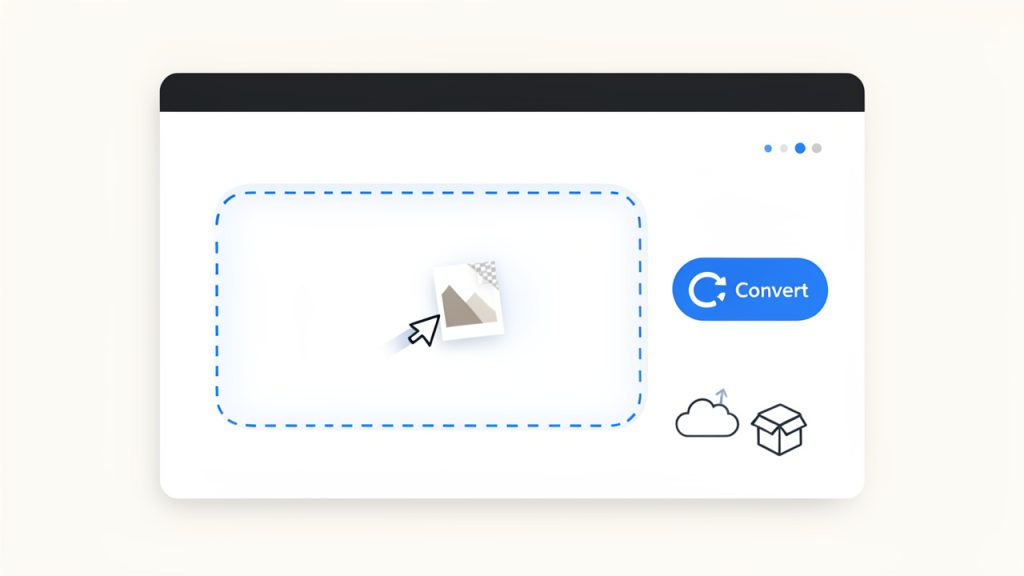
Most tools support drag-and-drop, which is the fastest option. You can also browse for files manually or import from cloud services in some cases. If you are converting multiple images, check whether the tool supports batch upload before you begin.
Step 3, choose output options
If the tool offers settings, set the output format to JPG, then choose your quality level. For web images, a quality setting around 75 to 85 usually gives the best balance between clarity and size. If the PNG has transparency, select an appropriate background color.
Some converters also let you resize before export. This is useful because a smaller image dimension often cuts file size more than compression alone. If your website only displays an image at 1200 pixels wide, exporting a 4000-pixel JPG is wasted weight.
Step 4, convert and download
Once the settings are in place, run the conversion and download the file. On some tools this happens instantly. On others, especially server-based services, there may be a brief processing step. If batch files are involved, you may receive a ZIP archive.
Step 5, verify quality and metadata
Open the new JPG and inspect it before publishing. Look for soft detail, color shifts, edge artifacts, or an unexpected background color where transparency used to be. If the file still feels too large, try resizing first, then adjusting compression slightly.
Also check whether metadata was preserved or removed if privacy or workflow compatibility matters. This step is easy to skip, but it is the difference between a quick conversion and a polished one.
1. Convertio
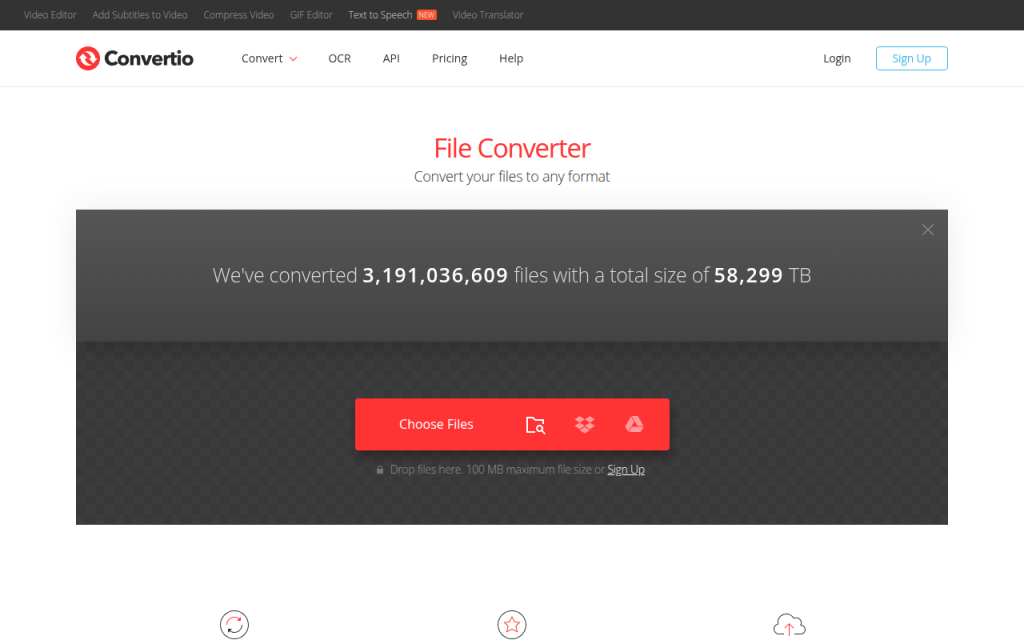
Convertio is one of the most recognizable names for people who need to convert PNG to JPG online quickly. Its main appeal is convenience. The interface is clean, drag-and-drop works well, and the service supports a huge range of file types beyond images, which makes it especially useful for freelancers and small business owners who want one tool for occasional format changes across different media. Convertio supports cloud imports, basic batch workflows, and a familiar conversion flow that does not overwhelm non-technical users.
Convertio is very beginner-friendly, quick to set up for one-off conversions, and convenient for cloud import/export. The trade-offs are that processing happens on their servers, which may not suit sensitive files, advanced image controls are not as deep as specialist tools, and free usage limits can be restrictive for heavy users.
Website: https://convertio.co
2. CloudConvert
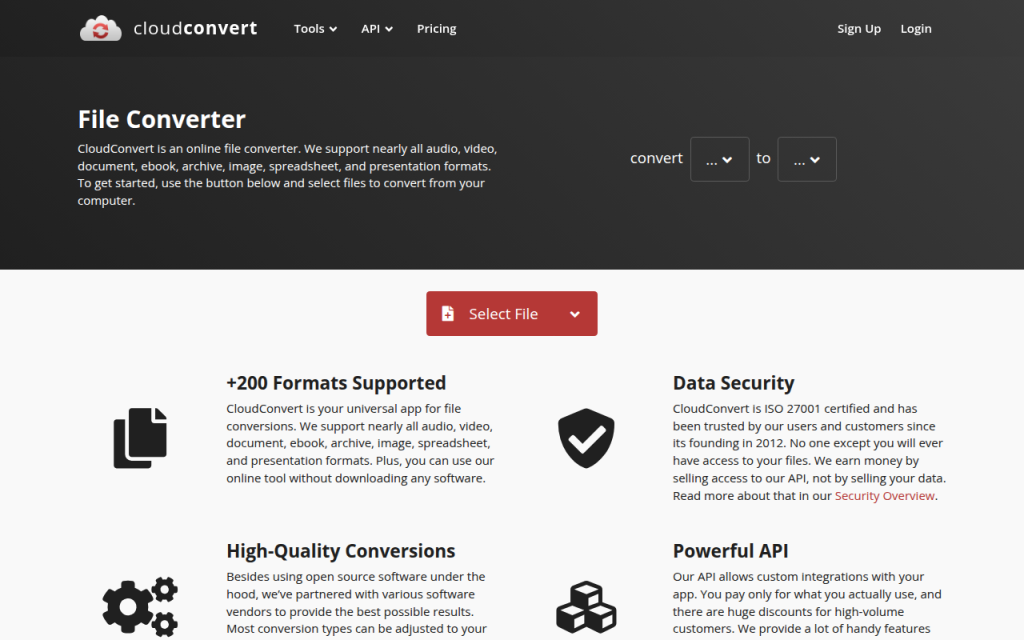
CloudConvert is a strong option for users who want more control and a professional feel. It supports image conversion well and caters to users who care about workflow reliability, API access, and configurable settings. If you are a developer, power user, or agency handling recurring conversions, CloudConvert often feels more robust than lightweight web converters. It provides a high-quality engine, advanced settings for supported formats, and API access for automation and integration, which makes it especially useful when you need consistency across batches or must integrate conversion into a larger workflow.
CloudConvert is reliable for professional use, supports good format coverage and workflow flexibility, and works well for teams and developers. Its downsides are server-side uploads, a less casual feel than ultra-simple converters, and limited free credits for frequent users.
Website: https://cloudconvert.com/
3. Zamzar
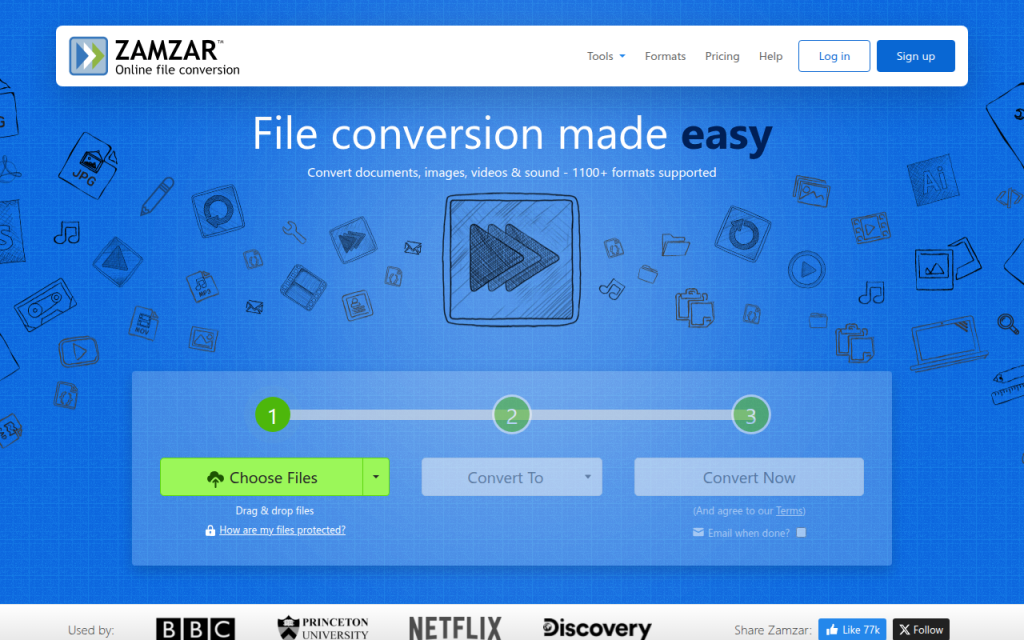
Zamzar is a long-standing, no-frills choice for straightforward online file conversion. If you want to upload a PNG, choose JPG, and download the result without worrying about many settings, Zamzar does the job. It supports a broad range of file types and is simple to use, making it a good fit for occasional users and business users who need low-friction conversions.
Zamzar offers a straightforward conversion flow and broad file support, but its optimization controls are limited, processing is server-side, and it may feel basic to users who want detailed compression tuning.
Website: https://www.zamzar.com/
4. Squoosh
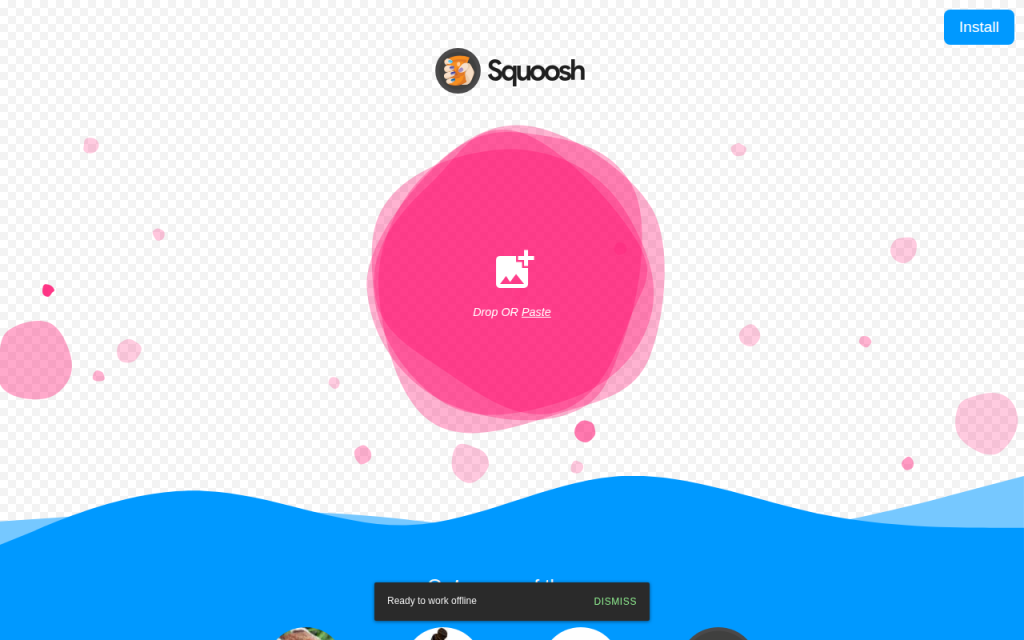
Squoosh is the standout choice if privacy and image optimization matter more than generic file conversion convenience. Built as a browser-based image app, much of the processing can happen client-side, directly on your device. For users who do not want to upload sensitive visuals to a remote server, that is a major advantage. Squoosh also provides visual before-and-after comparisons and fine-grained optimization controls, letting you see the effect of compression before exporting and make smarter decisions about file size.
Squoosh is excellent for privacy-conscious users and for fine tuning quality, and it is ideal for web optimization workflows. Its limitations are that it is less general-purpose than multi-format converters, can feel more technical for beginners, and is not primarily designed for batch handling.
Website: https://squoosh.app/
5. Online-Convert.com
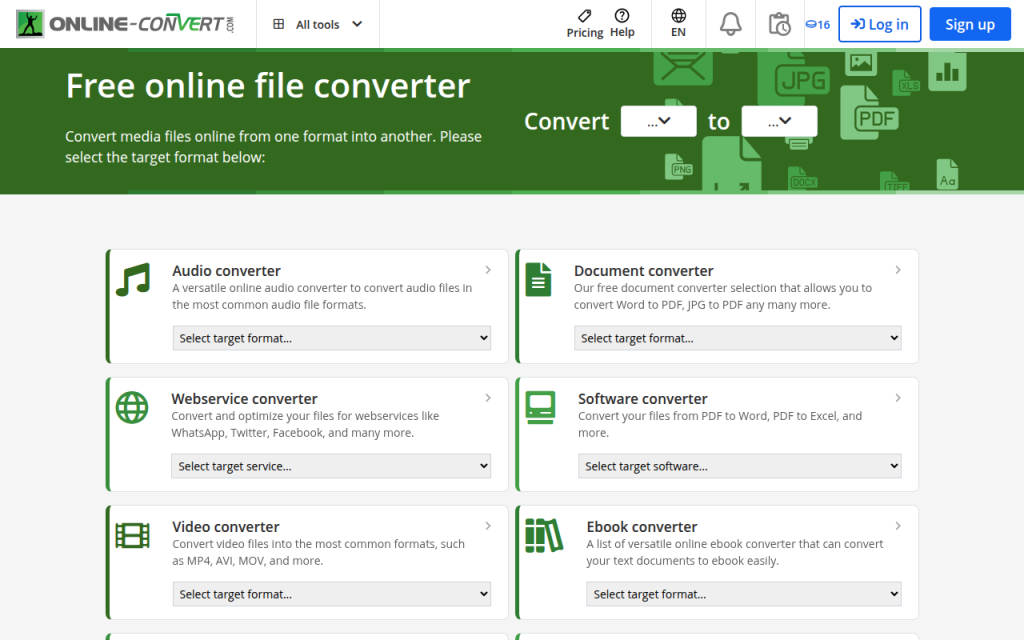
Online-Convert.com sits in a practical middle ground. It offers more settings than the simplest converters while remaining accessible to non-experts. If you want to tweak output behavior, adjust image-related parameters, or work with a range of file types from one platform, it is a solid pick.
Online-Convert.com is more configurable than many casual tools and strikes a good balance between ease and control. The trade-offs are server-side conversion, a busier interface than minimalist competitors, and free limits that may apply depending on usage.
Website: https://www.online-convert.com/
Quick comparison of the best PNG to JPG online tools
| Tool | Best for | Privacy model | Batch support | Quality controls | Ease of use |
|---|---|---|---|---|---|
| Convertio | Fast everyday conversions | Server-side | Yes | Basic to moderate | Very easy |
| CloudConvert | Professional and repeat workflows | Server-side | Yes | Moderate to strong | Easy |
| Zamzar | Occasional simple use | Server-side | Limited to moderate | Basic | Very easy |
| Squoosh | Privacy and optimization | Client-side | Limited | Strong | Moderate |
| Online-Convert.com | Flexible utility use | Server-side | Yes | Moderate | Easy |
Best practices and tips to preserve quality and reduce size
The best JPG is not always the smallest one. Over-compress an image and it looks cheap, keep it too large and your page speed suffers. The sweet spot for most photographic web images is quality 70 to 85, especially after resizing to appropriate display dimensions.
If you are working with screenshots, graphics with text, or UI elements, be cautious. JPG can blur edges and introduce artifacting around letters or sharp lines. In many of those cases, PNG may still be the better choice. Conversion is most effective when the source is photo-like rather than graphic-heavy.
Resize before you obsess over quality
A lot of oversized images remain too large because users only change compression. Dimension matters more than people think. Reducing an image from 4000 pixels wide to 1600 pixels wide can slash file size while keeping the image perfectly usable on most websites. Cropping also helps. If part of the image does not contribute to the message, remove it before exporting. Less visual information often means a lighter file and a stronger composition at the same time.
Use progressive JPG and sRGB when possible
A progressive JPG loads in layers, which can make pages feel faster to users, even if the total file size is similar to a baseline JPG. Not every converter exposes this option, but it is worth using for web publishing when available. For color consistency, sRGB is the safest choice for the web. If your tool or editor lets you convert or embed an sRGB profile, do it to reduce the chances of washed-out or oversaturated images on different screens and browsers.
Strip metadata when privacy or speed matters
Metadata can include location, timestamps, device information, and editing details. If you are publishing to the web or sending files externally, removing unnecessary metadata can slightly reduce size and improve privacy. If you are a photographer or need EXIF data for workflow reasons, keep it. Otherwise, stripping it is usually the smarter default for public-facing images.
Privacy, security, and legal considerations
Uploading files to an online converter is not a neutral act. Once the file leaves your device, you are trusting the service to process it responsibly, delete it promptly, and not reuse it in ways you did not intend. That is fine for generic stock-style visuals, but not always for client assets, internal documents, or unreleased product imagery.
If the image contains confidential information, copyrighted material under restricted use, or customer data, think twice before using a server-side tool. A browser-based converter like Squoosh, or a local desktop app, is often safer.
What to check before uploading
Look for a clear privacy policy, retention timeline, and deletion policy. Check whether files are auto-deleted after a short period and whether the provider states how uploads are handled. If that information is hard to find, that alone is a warning sign.
Also consider the legal side. If you are converting client work, licensed visuals, or partner assets, make sure your use of a third-party conversion service does not conflict with contract terms or platform restrictions.
Troubleshooting: Common conversion problems and fixes
Even the best online tool can produce a disappointing result if the settings or source image are not right. Most issues fall into a handful of predictable categories, and they are usually fixable.
Blurry output or banding artifacts
If the JPG looks soft or shows ugly transitions in skies, shadows, or gradients, the quality setting is probably too low. Raise the compression quality slightly and try again. If the source image is extremely detailed, resize it first rather than forcing ultra-heavy compression. Banding is especially common in areas with subtle tonal shifts. Some tools simply handle those cases better than others, so switching converters can help too.
Color shifts or dull-looking images
If the image looks less vibrant after conversion, the problem is often the color profile. Exporting or converting to sRGB usually helps. If the tool does not expose profile controls, try a different converter or use a desktop editor for that file. Also compare the file in a proper image viewer rather than relying only on browser thumbnails, which can sometimes mislead.
Output file is still too large
If the JPG remains bigger than expected, check the image dimensions first. A large-resolution file at moderate compression can still be huge. Resize to the actual needed display size, then export again at around 75 to 85 quality. If the image contains large flat-color areas, text, or interface elements, JPG may simply be inefficient for that kind of content. In that case, PNG or another modern format may perform better.
Transparency turned into the wrong background
This happens when a transparent PNG is flattened automatically, often to white or black. If the result looks wrong, choose a specific background color during export if the tool allows it. Matching the destination page background usually produces the cleanest edges.
Alternatives: Desktop and command-line options
Online tools are convenient, but they are not always the best choice. If you handle sensitive files, large batches, or recurring asset work, local software is often faster and safer in the long run.
On macOS, Preview can export many images to JPG easily. On Windows, Paint or Photos can handle basic conversions. Free tools like GIMP and IrfanView offer more control and are better for repeat use.
For developers and power users, ImageMagick is one of the most efficient options available, excellent for batch conversion, scripting, and automation. Here are a few practical examples:
magick input.png -background white -flatten -quality 85 output.jpg
This command converts a PNG to JPG, fills transparent areas with white, and uses a quality setting of 85.
magick input.png -resize 1600x -background white -flatten -quality 80 output.jpg
This version resizes the image to 1600 pixels wide before converting, which is often a better way to reduce file size.
magick *.png -background white -flatten -quality 82 *.jpg
For batch workflows, commands like this can save enormous time, though exact shell behavior may vary by system. If you handle dozens or hundreds of files regularly, automation quickly becomes more efficient than any online interface.
Quick FAQ
Will converting PNG to JPG reduce quality permanently?
Yes, potentially. JPG is a lossy format, so some image data is discarded during compression. At good settings the loss may be hard to notice, but it is still there. Keep the original PNG if you may need it later.
Can I convert a transparent PNG to JPG and keep transparency?
No, JPG does not support transparency. The transparent area must be replaced with a solid background color.
What is the best JPG quality setting for web use?
For most photos, 75 to 85 is the practical sweet spot. Start there, then adjust based on image detail and file-size goals.
Are online converters safe?
Some are reasonably safe for routine files, but not all are equal. For sensitive images, use a client-side tool or local software. Always review privacy and deletion policies before uploading.
Recommended workflows by use case
If you just need to convert one ordinary image fast, a simple service like Convertio or Zamzar is usually enough. If you need more reliability or batch-friendly workflows, CloudConvert or Online-Convert.com makes more sense. If privacy matters, Squoosh is the strongest web-based choice because it is geared toward local, browser-side processing.
If you routinely prepare images for websites, the best workflow is often this: start with the original file, resize to the actual needed dimensions, convert to JPG at around 80 quality, use sRGB for consistent color, and remove metadata unless you explicitly need it. Then preview the final file before publishing.
A final check goes a long way. Confirm the background looks correct, inspect the image at full size, verify the file size is reasonable, and keep the source PNG stored safely. That way you get the speed benefits of JPG without losing control of quality, privacy, or future editing flexibility.
Leave a Reply