
If you work with audio files regularly, you already know how quickly WAV files can become inconvenient. They sound great, but they are bulky, slow to share, and often far larger than you need for everyday use. That is where Wav to mp3 conversion becomes practical, it turns high-quality, uncompressed audio into a smaller, easier-to-manage format without making your workflow more complicated.
For small business owners, freelancers, developers, and productivity-minded users, this is more than a file format choice, it is about saving storage, speeding up uploads, making files easier to distribute, and keeping your audio usable across devices and platforms. Whether you are handling podcast clips, voice notes, training materials, or music samples, knowing when and how to convert WAV to MP3 can streamline your entire process.
What is Wav to mp3?
WAV to MP3 is the process of converting an audio file from the WAV format into the MP3 format. WAV, short for Waveform Audio File Format, is typically uncompressed, which means it preserves a lot of audio detail but creates very large files. MP3, on the other hand, uses compression to reduce file size while keeping the sound quality acceptable for most everyday uses.
The difference is easy to understand if you think of it like packaging. WAV is the full original box, with every part included exactly as it was recorded. MP3 is the same content packed into a much smaller container, making it easier to carry, send, and store. For many use cases, that trade-off is worth it.
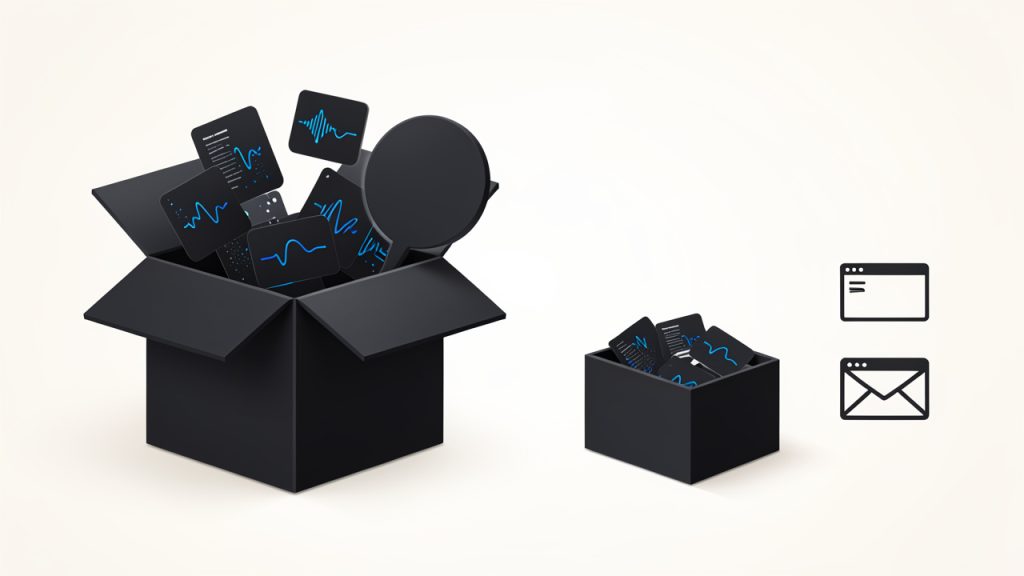
This is why WAV to MP3 conversion is so common in content creation, business communication, and digital publishing. A file that once took up hundreds of megabytes can often shrink dramatically after conversion, which makes it much easier to upload to websites, attach to emails, or keep organized on your computer.
Why WAV files are often converted
WAV files are excellent when you need maximum fidelity, such as in recording, editing, mastering, or archiving original audio. But once that stage is over, the large file size can become a problem. If you are publishing a voice recording, distributing a lesson, or sharing a sound asset with a client, you usually do not need the full weight of a WAV file.
MP3 is widely supported across phones, laptops, media players, apps, and browsers. That broad compatibility makes it a convenient final format for distribution. In practice, many users keep a WAV master for editing and export an MP3 version for everyday access.
What changes during conversion
When converting WAV to MP3, the file is compressed, which means some audio information is removed to reduce size. The quality difference is not always obvious, especially at higher bitrates, but the file becomes much smaller and more practical.
This makes bitrate an important part of the decision, a higher bitrate MP3 usually sounds better and preserves more detail, while a lower bitrate creates a smaller file. The right choice depends on what you are using the file for. A training clip or spoken audio file can usually be compressed more aggressively than a music track intended for close listening.
Key Aspects of Wav to mp3
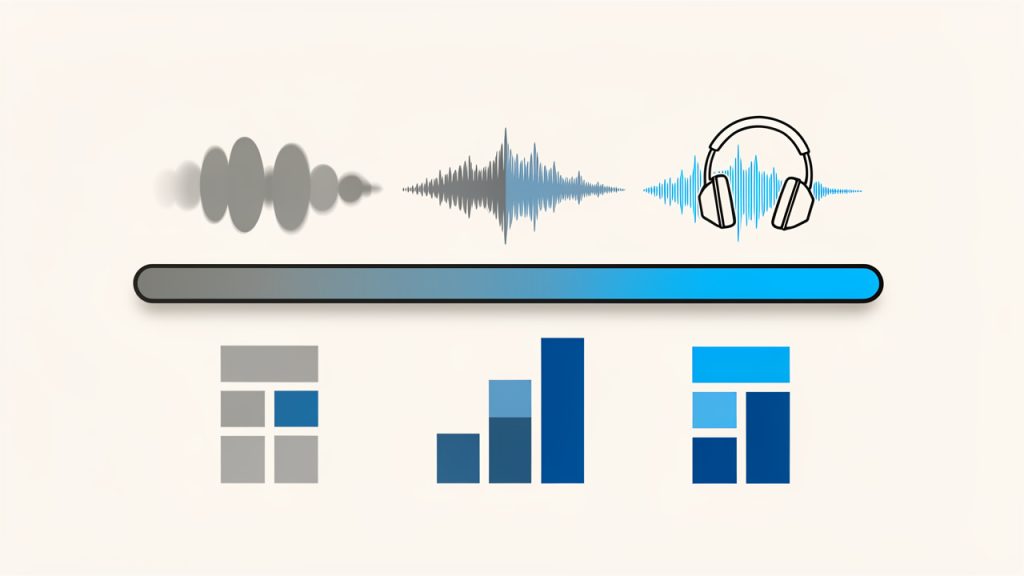
The most important thing to understand about WAV to MP3 is that it is not just a technical conversion, it is a balance between quality and convenience. If you want the highest possible quality for production work, WAV is often the safer choice. If you want portability and efficiency, MP3 usually wins.
Audio quality is the first factor people worry about, and for good reason. MP3 is a lossy format, which means it sacrifices some audio data during compression. That does not automatically make it bad, it simply means that the output is optimized for smaller size, not perfect preservation. For most spoken audio, business use, and casual listening, the difference is often acceptable.
File size is the second major consideration. A WAV file can be several times larger than the same audio saved as MP3. That matters when you are uploading multiple files, working with limited storage, or sending content to clients and collaborators. Smaller files also load faster, which can improve user experience on websites and in apps.
Compatibility is another reason MP3 remains so popular. While WAV is supported by many systems, MP3 is nearly universal. If you need a format that works reliably across platforms, MP3 is usually the safer bet. That is especially helpful when you are publishing files for an audience you do not control.
Quality versus convenience
The quality-versus-size trade-off is the heart of the conversation. A WAV file is often the right choice during production because it gives you more flexibility for editing and processing. An MP3 is often the right choice at the end of the workflow because it is smaller and easier to distribute.
For example, if you are a freelancer delivering audio samples to a client, you might keep the project in WAV while editing, then export the final version as MP3 for easy review. If you are a business owner uploading a podcast episode preview or an internal announcement, MP3 is likely more efficient than sending a huge WAV file.
When MP3 makes more sense
MP3 is usually the better option when the audio is meant for listening rather than editing. That includes interviews, lectures, voice memos, marketing assets, and basic website audio. In these situations, the practical benefits of compression usually outweigh the minor quality loss.
If the audio will be heavily edited later, or if it serves as a master archive, staying in WAV may be wiser. The key is to match the format to the purpose. That is the real productivity win, choosing the right file type before storage and sharing become a bottleneck.
Common use cases
| Use case | Better format | Why |
|---|---|---|
| Final audio for web upload | MP3 | Smaller size and broad compatibility |
| Editing and mastering | WAV | Uncompressed quality preserves detail |
| Voice memos and meetings | MP3 | Easier to store and share |
| Audio archives | WAV | Better for long-term preservation |
| Client delivery for review | MP3 | Convenient and lightweight |
How to Get Started with Wav to mp3
Getting started with WAV to MP3 conversion is usually straightforward. You do not need advanced technical knowledge, and in many cases you can complete the process in a browser using a free online tool. The key is knowing what to look for before you upload anything.
First, check whether the tool supports your audio file size and whether it allows you to choose bitrate settings. A good converter should be simple enough for quick use, but flexible enough to let you control output quality. If your source file is important, it is also smart to use a converter that handles files securely and deletes uploads after processing.
Before converting, make sure your original WAV file is clean and ready. If you are using audio from a recording session, trimming silence, removing noise, or making edits first can save time later. Conversion will not improve the sound, so it is best to finalize the audio before changing formats.
What to look for in a converter
A practical WAV to MP3 tool should be easy to use, fast, and reliable. It should not make you dig through confusing settings just to complete a simple task. For many users, the best tools are the ones that make the process feel almost invisible.
- Ease of use: The upload and conversion process should be simple and intuitive.
- Bitrate control: Higher bitrate options help preserve better sound quality.
- Security: Upload handling should be safe, especially for business or client files.
- Speed: Fast conversion saves time when dealing with multiple files.
- Compatibility: The tool should work on desktop and mobile browsers when needed.
Choosing the right bitrate
Bitrate has a direct impact on the final MP3 quality and file size. Higher bitrates generally sound better but create larger files. Lower bitrates reduce size further, but they can introduce noticeable audio artifacts, especially in music or complex recordings.
For speech, a moderate bitrate is often enough. For music or branded audio where quality matters more, a higher bitrate is usually the safer choice. If you are unsure, it is better to start a little higher, then reduce only if file size becomes a problem.
A simple workflow for conversion
A practical workflow usually looks like this: prepare the WAV file, upload it to the converter, choose the output settings, and download the MP3 version. That sounds basic, but the value is in consistency. Once you establish a repeatable process, you can convert files quickly without thinking about it each time.
If you work with audio often, it helps to keep both versions when appropriate. The WAV file can serve as your master copy, while the MP3 is your shareable version. That gives you flexibility later if you need to edit again or export into another format.
Best practices for everyday use
One of the smartest habits is to keep your original WAV files organized before converting anything. That way, if you ever need a different bitrate or a fresh export, you are not forced to start over. A clear folder structure saves time and reduces mistakes.
It also helps to name files clearly. Instead of generic labels, use descriptive names that tell you what the file contains, such as a project name, date, or version number. That small habit makes a big difference once your audio library starts growing.
Conclusion
WAV to MP3 conversion is one of those simple tasks that can make a big difference in your workflow. WAV gives you quality and flexibility, while MP3 gives you convenience and reach. When you understand the trade-offs, it becomes much easier to choose the right format for the job instead of defaulting to one option every time.
The next step is to look at your own audio workflow and decide where file size, compatibility, and speed matter most. If the goal is sharing, publishing, or everyday listening, MP3 is often the practical choice. If the goal is editing, preservation, or production work, keep the WAV file as your source and convert only when you are ready.
Leave a Reply