

Removing the background from an image does not have to be expensive or technically intimidating. Whether you sell products online, create social posts, build websites, or prepare presentations, a clean subject on a transparent background makes your visuals pop and improves professionalism. This article explains how to remove the background from an mage, what to expect from free tools, and practical steps to produce high-quality cutouts without costly subscriptions.
You will learn the difference between automated and manual methods, how to choose the right approach for your workflow, and quick tactics to improve results. The goal is to give small business owners, freelancers, and productivity-minded users a clear, actionable path to remove backgrounds effectively while avoiding common traps like low-resolution output or hidden watermarks.
What is it?
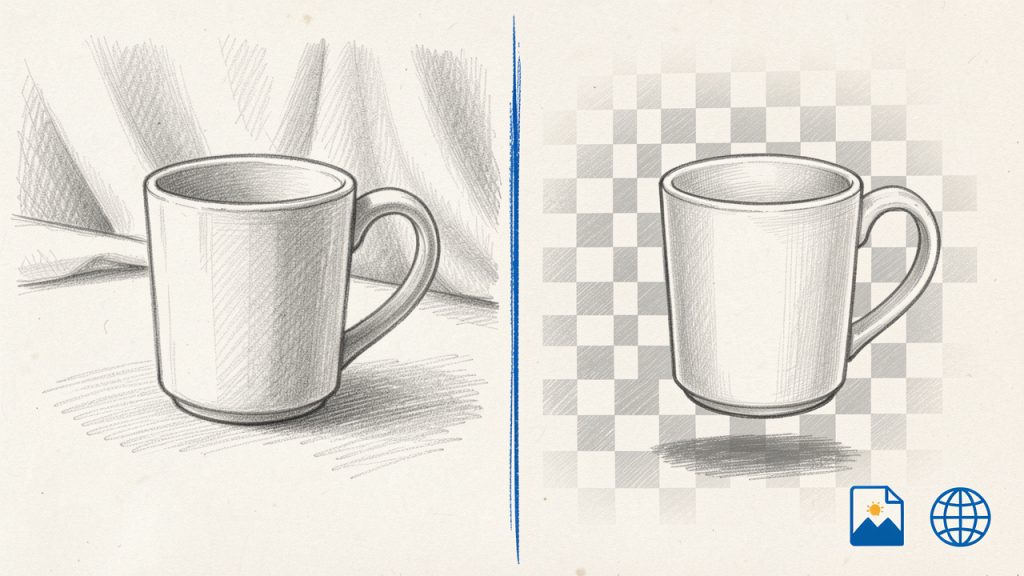
Removing a background means isolating the main subject of an image and replacing or making the surrounding area transparent. When you remove a background from an image, you use tools or techniques that let you create a transparent PNG, a clipped object for placement on colored banners, or a neatly masked subject for more advanced editing. The end result can be used for product listings, profile pictures, marketing assets, or layered designs.
There are two broad approaches. Automated tools use machine learning and edge detection to create a quick cutout with minimal input, often delivered in seconds. Manual methods rely on selection tools, masks, and brushwork, giving precise control for difficult edges like hair or transparent materials. Both approaches produce a similar goal, but they trade speed for control.
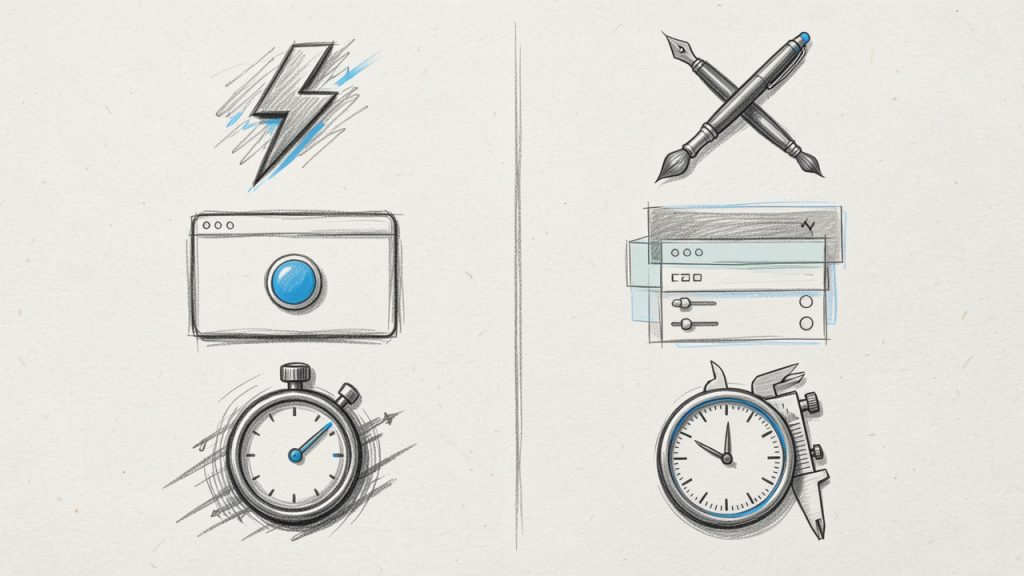
Technical concepts helpful to understand include alpha channels, masks, and clipping paths. An alpha channel stores transparency information so parts of the image can be fully or partially transparent. Masks allow non-destructive editing, letting you refine edges without permanently altering the original pixels. Clipping paths are vector outlines often used in eCommerce to guarantee crisp silhouettes.
Key Aspects of a background remover
Accuracy versus convenience
When considering free background removal, accuracy and convenience usually move in opposite directions. Fully automated web tools are convenient and fast, often delivering usable results for simple subjects on contrasting backgrounds. For complex scenes, manual refinement will be necessary to achieve professional quality. Understand that a single-click solution may require subsequent touch-ups to remove halos, preserve hair detail, or handle semi-transparent objects.
Output formats and resolution
Most users who remove backgrounds want a transparent result. PNG is the most common free format for transparency, while WebP can offer smaller file sizes with transparency support. Free tools sometimes limit output resolution, so check whether the tool preserves original image size or downsamples. If you plan to print or display large images, prioritize tools that maintain full resolution.
Privacy and data handling
Free online services may process images on remote servers. If your images contain sensitive information or unreleased product photos, consider an offline tool or verify the service privacy policy. Many reputable tools state they delete files after processing, but always confirm data retention policies before uploading proprietary assets.
Batch processing and workflow
Volume matters. For single images, an automated free tool is usually faster. For catalogs or multiple items, look for a method that supports batch processing. Some free desktop apps and web services offer batch options, while others require manual repetition. Time spent organizing a consistent shooting setup, with a solid background and even lighting, can drastically reduce time spent editing later.
Cost traps and licensing
A background remover can conceal limitations. Free tiers might add watermarks, impose daily credits, or restrict commercial use. Read the terms, and if you need high-volume or commercial licensing, evaluate paid plans. Free tools are excellent for testing and occasional use, and for long-term business consistency, plan whether a subscription is worth the efficiency gains.
How to Get Started
Before you begin, gather a few simple prerequisites to improve every result and speed up your workflow.
- High-resolution image: Higher pixel counts retain detail after masking.
- Contrasting background: A solid, contrasting background makes automatic detection more accurate.
- Good lighting: Even lighting reduces shadows and color spill that confuse algorithms.
- Original file: Keep the original unedited file so you can retry different methods.
Follow these steps to remove a background quickly using a typical free online tool, then use the alternative offline method if you prefer local editing.
- Upload your image to the free background removal tool of your choice.
- Allow the automatic process to detect and remove the background.
- Inspect the result at 100 percent zoom for edge artifacts and missed areas.
- Use the refine brush or eraser to fix hairlines, semi-transparent edges, or small leftover pixels.
- Export the final cutout as a PNG with transparency or WebP if file size is a concern.
- Save a copy with a layer mask in a layered format if you plan further edits.
If you prefer an offline method for privacy or precise control, use a free editor such as GIMP or a web-based editor that supports masks. Open the image, create a duplicate layer, and use selection tools such as the foreground select, path tool, or quick mask to isolate the subject. Convert the selection to a mask and paint in or out to refine edges. Export as a transparent PNG when satisfied.
Tips to improve difficult cases
Working with hair, fur, glass, or motion blur can be challenging. Refine masks with feathering and contrast adjustments, manually paint on masks with a soft brush at low opacity to smooth transitions, and use color decontamination tools to remove background color bleeding from edges. For shiny or transparent objects, accept that some reflection or transparency is part of the object; sometimes adding a subtle shadow on a new layer gives a more natural result than trying to fully isolate transparent materials.
Troubleshooting common problems
If your cutout shows color fringes, add a small negative or positive contract to the mask edge to remove halos. If the tool fails on low-contrast subjects, try converting the image to higher contrast temporarily, perform the selection, then reapply to the original image. When hair is lost, switch to manual brush refinement and work at a high zoom level for precision.
Comparison of Free Background Removal Methods
Method | Ease of use | Quality | Output format | Best for | Limitations |
|---|---|---|---|---|---|
Automated web AI | Very high | Good for simple subjects | PNG/WebP | Single images, speed | May downscale, limits/credits |
Web-based editor (manual + auto) | High | Very good with refinement | PNG, layered exports | Fast manual fixes, browser-based | Learning curve, browser performance |
Desktop editor (GIMP) | Moderate | Professional with time | PNG, PSD export via plugins | Privacy, full control | Requires skill, manual work |
Mobile apps | Very high | Varies, often good | PNG | Quick social media edits | Quality varies, in-app purchases |
Vector-based tracing | Moderate | Crisp for flat graphics | SVG, PNG | Logos and icons | Not suitable for photos, manual paths needed |
Conclusion
Removing a background from an image for free is accessible and practical for business owners, freelancers, and developers who need clean visuals without heavy investment. Automated tools provide speed and convenience for straightforward images, while free desktop editors offer the privacy and precision needed for high-value or complex subjects. Pay attention to output formats, privacy policies, and any usage limits that may affect commercial workflows.
Next step, pick one approach and try it with a recent product photo or portrait. Practice with a high-contrast image to build confidence, then tackle more challenging shots as you learn masking techniques. If your needs grow, consider a paid option for batch processing and guaranteed resolution, but for many day-to-day tasks, free solutions deliver excellent results.
Leave a Reply