JNTZN

[태그:] image-conversion

  • 온라인에서 PNG를 JPG로 변환하는 방법 — 빠르고 안전하며 고품질

    온라인에서 PNG를 JPG로 변환하는 방법 — 빠르고 안전하며 고품질

    과다한 PNG 파일은 웹사이트를 느리게 만들고 이메일 첨부파일 한도를 깨뜨리거나 간단한 사진 업로드를 원하는 클라이언트를 짜증나게 할 수 있습니다. 온라인에서 PNG를 JPG로 변환해야 한다면 보도는 보통 1분도 채 걸리지 않는다는 점이 다행입니다. 다만 모든 변환기가 품질, 투명도, 개인 정보 및 압축을 동일하게 처리하는 것은 아닙니다.

    그 점은 대부분의 사람들이 실현하는 것보다 더 중요한 문제입니다. 투명 배경이 있는 PNG는 흰 박스로 바뀔 수 있습니다. 색상 프로파일이 잘못 다루어지면 다채로운 제품 이미지가 약간 달라질 수 있습니다. 또한 민감한 그래픽을 잘못된 도구에 업로드하면 편리함이 개인정보 비용으로 이어질 수 있습니다. 최선의 접근법은 단지 변환기를 찾는 것이 아니라, 사용 사례에 맞는 올바른 도구를 선택하는 것입니다.

    이 가이드는 PNG에서 JPG로의 변환이 언제 합리적인지, 온라인 도구가 어떻게 작동하는지, 어떤 설정을 선택해야 하는지, 그리고 어떤 무료 도구를 사용할 가치가 있는지에 대해 설명합니다. 또한 메타데이터, sRGB 색상 일관성, 프로그레시브 JPG와 같은 덜 명확한 세부사항과 일반적인 품질 문제를 피하는 방법도 다룹니다.

    PNG를 JPG로 변환하는 이유? 언제 그리고 왜 중요한가

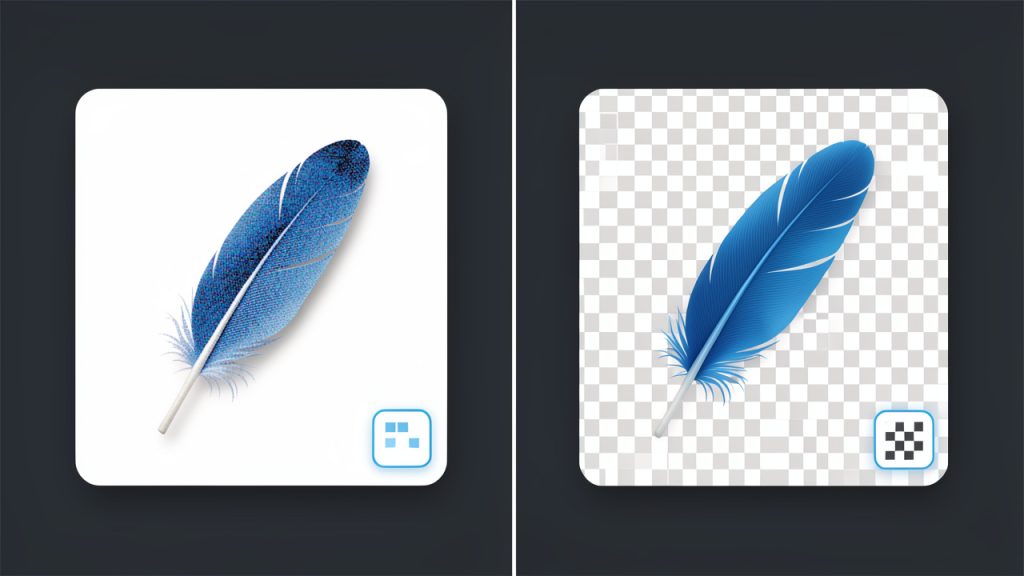
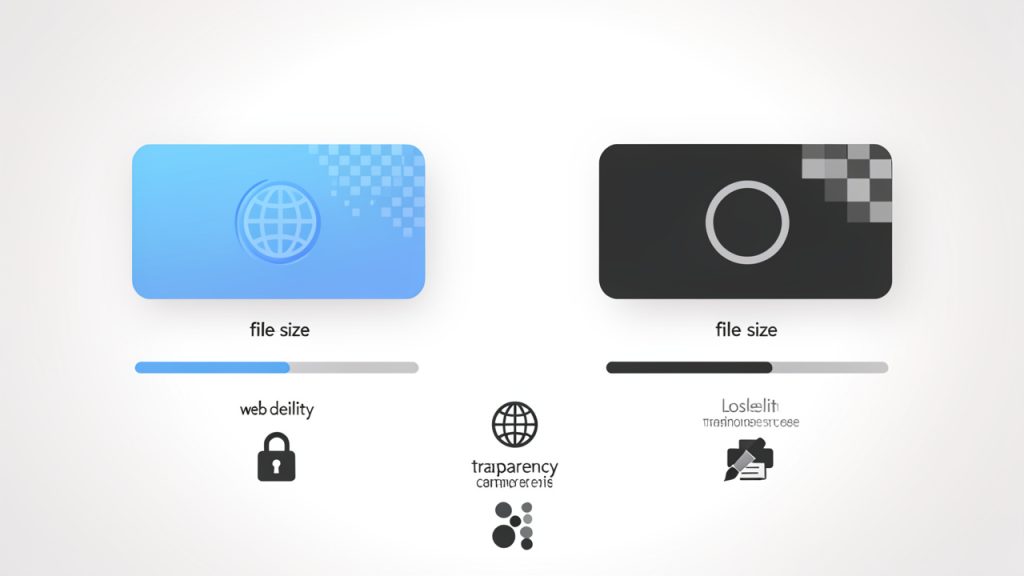
    PNG와 JPG는 서로 다른 문제를 해결합니다. PNG는 무손실로, 이미지 데이터를 더 충실하게 보존하고 투명성을 지원합니다. 이는 로고, 인터페이스 요소, 스크린샷 및 나중에 다시 편집하고 싶은 이미지에 이상적입니다. JPG는 손실 형식으로, 이미지를 압축해 파일 크기를 크게 줄이고 합리적인 설정에서 눈에 띄는 차이가 거의 없을 수 있습니다.

    많은 실제 작업에서 더 작은 크기가 바로 핵심 포인트입니다. 큰 PNG 사진은 수 메가바이트일 수 있지만, 웹 품질이 좋은 JPG 버전은 훨씬 작아질 수 있습니다. 이 축소는 페이지 속도를 개선하고 업로드를 빠르게 하며 파일 공유를 용이하게 만듭니다. 블로그, 전자상거래 갤러리, 목록 사진 또는 포트폴리오 이미지의 경우 JPG가 종종 더 실용적인 형식입니다.

    PNG 대 JPG: 실제 트레이드오프

    이를 가장 간단하게 생각하면, PNG는 충실도와 유연성을 우선시하고, JPG는 효율성을 우선시합니다. 이미지가 사진이고 특히 투명성이 없으면 온라인 사용에 일반적으로 JPG가 더 타당합니다. 선명한 가장자리를 가진 로고나 디자인 워크플로우에 계층화된 자산인 경우 PNG가 여전히 더 나은 선택일 수 있습니다.

    주요 절충은 JPG가 투명성을 지원하지 않는다는 점입니다. PNG의 모든 투명 영역은 일반적으로 흰색, 검은색 또는 사용자 정의 색상의 단색 배경으로 평탄화되어야 합니다. 품질이 너무 낮게 설정되면 압축 인공물이 발생하여 흐림, 후광 또는 블록형 그라데이션으로 나타날 수 있습니다.

    자주 변환하는 일반적인 이유

    중소기업 소유주와 프리랜서는 실용적인 이유로 종종 온라인에서 PNG를 JPG로 변환합니다. 매장의 제품 사진은 더 빨리 로드되어야 합니다. CMS용 이미지는 더 일반적인 웹 친화적 형식이 필요할 수 있습니다. 이메일 시스템은 큰 첨부 파일을 거부할 수 있습니다. 소셜 플랫폼과 마켓플레이스도 PNG보다 JPG를 더 예측 가능하게 처리하는 경우가 많습니다.

    개발자와 생산성 중심의 사용자는 자산 준비를 간소화하기 위해 종종 배치 변환을 수행합니다. 문서 사이트용 스크린샷 최적화, Core Web Vitals 개선을 위한 글의 이미지 압축, 또는 고객용 이미지 업로드 준비와 같은 작업에 대해 JPG는 더 빠르게 경량 워크플로를 만드는 경로가 되는 경우가 많습니다.

    언제 변환하지 말아야 합니까

    변환이 잘못된 선택인 경우가 있습니다. 투명 배경이 필요한 경우 파일을 PNG로 유지하거나 알파 투명성을 지원하는 최신 형식으로 전환하세요. 이미지가 편집 파이프라인의 일부인 경우 반복적인 JPG 저장은 시간이 지남에 따라 품질을 저하시키는 원인이 될 수 있습니다.

    공간 절약을 위해 보관용 원본 파일을 변환하는 것도 피해야 합니다. 사본이 중요하다면 원래 PNG를 보관하십시오. 간단한 규칙은 이렇습니다: 속도가 필요하면 JPG로 게시하지만, 나중에 편집, 재사용 또는 재목적화가 필요할 수 있는 경우 원본 PNG를 보존하십시오.

    온라인 PNG-에서 JPG로 변환이 작동하는 방식

    기본적으로 온라인 변환기는 소스 PNG를 받아 투명성을 제거하거나 평탄화하고, JPG 압축을 적용한 후 다운로드 가능한 출력 파일을 제공합니다. 도구마다 다른 점은 변환이 어디에서 일어나는지(서버 측인지 클라이언트 측인지), 제어할 수 있는 설정, 프로세스 전후에 파일이 어떻게 처리되는지입니다.

    일부 도구는 이미지를 업로드한 후 서버에서 변환을 실행합니다. 다른 도구는 특히 개인정보에 중점을 둔 브라우저 앱은 브라우저에서 로컬로 작업합니다. 이 구분은 속도와 신뢰성 모두에 영향을 미칩니다.

    클라이언트 측 대 서버 측 변환

    서버 측 변환기는 이미지를 원격 시스템으로 업로드하고 거기에서 처리한 다음 JPG를 다운로드할 수 있게 제공합니다. 이는 종종 편리하며 더 많은 형식, 자동화 및 대규모 워크플로를 지원할 수 있습니다. CloudConvert, Convertio, Zamzar와 같은 도구에서 일반적입니다.

    클라이언트 측 변환기는 브라우저에서 직접 작업을 수행합니다. 주된 이점은 프라이버시로, 파일이 사용자의 기기를 벗어나지 않아도 되기 때문입니다. 이것이 Squoosh 같은 도구가 돋보이는 이유입니다. 민감한 이미지의 경우, 브라우저 기반 변환이 더 스마트한 옵션인 경우가 많으며, 도구가 실제로 로컬에서 처리다고 가정합니다.

    색상 프로파일, 메타데이터 및 품질 설정

    모든 변환기가 이미지 데이터를 동일하게 다루는 것은 아닙니다. 많은 도구에서 품질 설정을 선택할 수 있는데, 일반적으로 슬라이더나 백분율로 표시됩니다. 대부분의 웹 이미지는 75에서 85 사이의 품질이 시작점으로 강력합니다. 그보다 낮으면 뚜렷한 인공물이 생길 수 있고, 그보다 높으면 디테일은 보존되지만 파일 크기 이점이 줄어들 수 있습니다.

    메타데이터도 간과하기 쉬운 세부사항입니다. PNG나 변환된 JPG에는 타임스탬프, 저작 정보, 내장 색상 프로필 데이터 등이 포함될 수 있습니다. 일부 도구는 메타데이터를 자동으로 제거해 파일 크기를 줄이고 프라이버시를 보호합니다. 다른 도구는 이를 보존합니다. 어느 쪽이 항상 더 낫다고 말하기 어렵기 때문에 프로젝트에 그것이 중요한지 확인하는 것이 좋습니다.

    투명도 올바르게 처리하기

    투명 PNG를 JPG로 변환하면, 투명한 픽셀은 어떤 배경으로든 대체해야 합니다. 대부분의 도구는 기본적으로 흰색으로 평탄화하거나 사용자가 커스텀 배경색을 선택하도록 합니다. 변환기가 이를 제대로 처리하지 않으면 이전에 투명했던 영역 주위에 톱니 모양의 가장자리나 어두운 후광이 보일 수 있습니다.

    "Transparency

    이 현상은 로고, 아이콘 및 커팅된 제품 이미지에서 특히 두드러집니다. 이미지가 흰색 웹 페이지에 표시될 경우 흰 배경이 일반적으로 가장 깔끔한 선택입니다. 색상 배치가 있는 레이아웃에 표시될 경우, 거친 가장자리 아티팩트를 피하기 위해 페이지와 맞춰 배경색을 선택하세요.

    단계별: 온라인으로 PNG를 JPG로 변환

    작업 흐름은 보통 간단하지만 작은 설정 선택이 결과에 큰 영향을 미칠 수 있습니다. 빠르고 신뢰할 수 있는 프로세스를 원한다면 이 일반적인 방법을 사용하세요.

    1단계, 신뢰할 수 있는 도구를 선택

    평판이 좋고 명확한 개인정보 처리방침과 필요에 맞는 충분한 제어 기능이 있는 변환기에서 시작하세요. 이미지가 민감한 경우 클라이언트 측 도구를 택하는 것이 좋습니다. 배치 변환, 클라우드 저장소 가져오기 또는 고급 설정이 필요하다면 서버 기반 서비스가 더 편리할 수 있습니다.

    2단계, PNG 업로드

    "Drag-and-drop

    대부분의 도구는 드래그 앤 드롭을 지원하며 이는 가장 빠른 옵션입니다. 수동으로 파일을 찾아 업로드하거나 경우에 따라 클라우드 서비스에서 가져올 수도 있습니다. 여러 이미지를 변환하는 경우 시작하기 전에 도구가 배치 업로드를 지원하는지 확인하세요.

    3단계, 출력 옵션 선택

    도구에 설정이 있다면 출력 형식을 JPG로 설정하고 품질 수준을 고르세요. 웹 이미지의 경우 대략 75에서 85의 품질이 선명도와 크기 사이의 최적 균형을 제공합니다. PNG에 투명성이 있는 경우 적절한 배경 색상을 선택하세요.

    일부 변환기는 내보내기 전에 크기를 조정하는 옵션도 제공합니다. 이는 작은 이미지 차원이 압축만으로 얻는 것보다 파일 크기를 더 많이 줄이기 때문에 유용합니다. 웹사이트가 이미지가 1200픽셀 너비로만 표시된다면 4000픽셀 JPG로 내보내는 것은 불필요한 용량이 됩니다.

    4단계, 변환하고 다운로드

    설정이 완료되면 변환을 실행하고 파일을 다운로드하세요. 일부 도구에서는 즉시 처리되며, 다른 도구는 특히 서버 기반 서비스의 경우 짧은 처리 단계가 있을 수 있습니다. 여러 파일이 포함된 경우 ZIP 아카이브를 받을 수 있습니다.

    5단계, 품질과 메타데이터 확인

    새로운 JPG를 열어 게시하기 전에 확인하십시오. 부드러운 디테일, 색상 이동, 가장자리 인공물 또는 투명했던 영역에 의도하지 않은 배경색이 있는지 살펴보세요. 파일 크기가 아직 크다면 먼저 크기를 조정한 다음 압축률을 살짝 조정해 보십시오.

    프라이버시나 워크플로와의 호환성이 중요하다면 메타데이터가 보존되었는지 제거되었는지도 확인하십시오. 이 단계는 건너뛰기 쉽지만, 빠른 변환과 매끄러운 변환의 차이를 만듭니다.

    "Screenshot

    1. Convertio

    Convertio는 온라인에서 PNG를 JPG로 빠르게 변환해야 하는 사람들에게 가장 잘 알려진 이름 중 하나입니다. 주된 매력은 편의성입니다. 인터페이스가 깔끔하고 드래그 앤 드롭이 잘 작동하며, 서비스는 이미지뿐만 아니라 다양한 파일 형식을 폭넓게 지원합니다. 이는 프리랜서와 다양한 미디어에서 가끔 형식 변경이 필요한 소기업 소유자에게 특히 유용합니다. Convertio는 클라우드 가져오기, 기본 배치 워크플로를 지원하며 비전문 사용자도 쉽게 이해하는 변환 흐름을 제공합니다.

    Convertio는 초보자 친화적이고 일회성 변환을 빠르게 설정하기에 좋으며 클라우드 가져오기/내보내기에 편리합니다. 다만 처리 과정이 그들의 서버에서 이루어지므로 민감한 파일에는 적합하지 않을 수 있고, 고급 이미지 제어 기능은 전문 도구만큼 깊지 않으며 무료 사용 한도가 자주 사용하는 사용자에게는 제한적일 수 있습니다.

    웹사이트: https://convertio.co

    "Screenshot

    2. CloudConvert

    CloudConvert는 더 많은 제어와 전문가적인 느낌을 원하는 사용자에게 강력한 옵션입니다. 이미지 변환을 잘 지원하고 워크플로의 안정성, API 접근성 및 구성 가능한 설정에 관심이 있는 사용자에게 적합합니다. 개발자나 파워 유저, 반복 변환을 다루는 에이전시라면 CloudConvert가 경량 웹 변환기보다 더 견고하게 느껴질 때가 많습니다. 고품질 엔진과 지원 형식에 대한 고급 설정, 자동화 및 통합을 위한 API 접근을 제공하여 배치 간 일관성이 필요하거나 더 큰 워크플로에 변환을 통합해야 할 때 특히 유용합니다.

    CloudConvert는 전문적인 용도에 신뢰할 수 있으며 형식 범위와 워크플로 유연성을 잘 지원하고 팀과 개발자에게 잘 작동합니다. 단점으로는 서버 측 업로드, 초단순 변환기보다 덜 캐주얼한 느낌, 자주 사용하는 사용자를 위한 무료 크레딧이 제한적일 수 있습니다.

    웹사이트: https://cloudconvert.com/

    "Screenshot

    3. Zamzar

    Zamzar는 간단하고 불필요한 설정 없이 온라인 파일 변환을 하는 오래된 선택지입니다. PNG를 업로드하고 JPG를 선택해 결과를 다운로드하면 되므로 설정에 신경 쓸 필요가 거의 없습니다. 광범위한 파일 형식을 지원하고 사용이 간편하여 잦지 않은 사용자와 형식 변경이 필요한 비즈니스 사용자에게 적합합니다.

    Zamzar는 간단한 변환 흐름과 폭넓은 파일 지원을 제공하지만 최적화 컨트롤은 제한적이고 서버 측에서 처리되며 세부적인 압축 조정이 필요한 사용자는 다소 기본적으로 느낄 수 있습니다.

    웹사이트: https://www.zamzar.com/

    "Screenshot

    4. Squoosh

    Squoosh는 프라이버시와 이미지 최적화가 일반 파일 변환의 편의성보다 더 중요할 때 돋보이는 선택입니다. 브라우저 기반 이미지 앱으로 설계되어 처리의 많은 부분이 로컬에서 이루어질 수 있습니다. 민감한 이미지를 원격 서버에 업로드하고 싶지 않은 사용자에게 이는 큰 이점입니다. Squoosh는 시각적 전후 비교와 미세한 최적화 제어를 제공하여 압축의 효과를 확인하고 파일 크기에 대해 더 현명한 결정을 내릴 수 있게 합니다.

    Squoosh는 프라이버시를 중시하는 사용자와 품질 미세 조정에 탁월하며 웹 최적화 워크플로에 이상적입니다. 다만 다형식 변환기에 비해 일반적이지 않으며 초보자에게 다소 기술적으로 느껴질 수 있고 배치 처리에는 최적화되어 있지 않습니다.

    웹사이트: https://squoosh.app/

    "Screenshot

    5. Online-Convert.com

    Online-Convert.com은 실용적인 중간 지대에 위치합니다. 가장 단순한 변환기보다 더 많은 설정을 제공하면서도 비전문가에게도 접근하기 쉽습니다. 출력 동작을 조정하고 이미지 관련 매개변수를 조정하거나 한 플랫폼에서 다양한 파일 형식 작업을 원한다면 견고한 선택입니다.

    Online-Convert.com은 많은 캐주얼 도구보다 더 구성 가능하며 사용 편의성과 제어 사이의 균형이 잘 잡혀 있습니다. 단점으로는 서버 측 변환, 바쁜 인터페이스가 있을 수 있고, 사용량에 따라 적용될 수 있는 무료 제한이 있습니다.

    웹사이트: https://www.online-convert.com/

    최고의 PNG-에서 JPG 온라인 도구에 대한 빠른 비교

    도구추천 대상개인정보 모델배치 지원품질 제어사용 편의성
    Convertio일상적인 빠른 변환서버 측기본에서 보통매우 쉬움
    CloudConvert전문적이고 반복 워크플로서버 측보통에서 강함쉬움
    Zamzar가끔 간단한 사용서버 측보통까지 제한됨기본매우 쉬움
    Squoosh프라이버시와 최적화클라이언트 측제한적강력보통
    Online-Convert.com유연한 유틸리티 사용서버 측보통쉬움

    품질을 유지하고 용량을 줄이기 위한 모범 사례 및 팁

    가장 작은 JPG가 항상 최선은 아닙니다. 이미지를 과도하게 압축하면 저렴하게 보이고, 너무 크게 유지하면 페이지 속도가 저하될 수 있습니다. 대부분의 사진 웹 이미지에 대한 최적 품질은 70에서 85 사이이며, 특히 표시 크기에 맞게 리사이징한 경우에 그렇습니다.

    스샷, 텍스트가 포함된 그래픽 또는 UI 요소를 다룰 때는 주의하십시오. JPG는 가장자리를 흐리게 만들고 문자 주변이나 선명한 선에서 아티팩트를 유발할 수 있습니다. 이러한 경우 PNG가 더 나은 선택일 수 있습니다. 변환은 원본이 사진에 가까울수록 효과적이며 그래픽이 많은 경우에는 덜 효과적일 수 있습니다.

    품질에 집착하기 전에 크기를 조정하세요

    과도하게 큰 이미지는 대개 사용자가 압축만 바꾸기 때문입니다. 차원은 사람들의 생각보다 더 중요합니다. 이미지를 4000픽셀 너비에서 1600픽셀 너비로 줄이면 대부분의 웹사이트에서 사용할 수 있을 만큼 이미지 품질을 유지하면서 파일 크기를 크게 줄일 수 있습니다. 잘라내기도 도움이 됩니다. 이미지의 일부가 메시지에 기여하지 않는 경우 내보내기 전에 제거하세요. 시각적 정보가 적을수록 파일이 가벼워지고 같은 시간에 구성이 더 강해집니다.

    가능하다면 프로그레시브 JPG와 sRGB를 사용하세요

    프로그레시브 JPG는 계층적으로 로드되어 총 파일 크기가 기본 JPG와 비슷하더라도 사용자에게 페이지를 더 빠르게 느끼게 할 수 있습니다. 모든 변환기가 이 옵션을 제공하는 것은 아니지만 가능할 때 웹 게시에 이용하는 것이 좋습니다. 색상 일관성을 위해서는 웹에 사용할 때 sRGB가 가장 안전한 선택입니다. 도구나 편집기가 sRGB 프로파일로 변환하거나 삽입할 수 있다면 그렇게 하여 서로 다른 화면과 브라우저에서 이미지가 흐려지거나 과도하게 채도 높아지는 현상을 줄이세요.

    프라이버시나 속도가 중요할 때 메타데이터를 제거

    메타데이터에는 위치, 타임스탬프, 디바이스 정보 및 편집 정보가 포함될 수 있습니다. 웹에 게시하거나 파일을 외부로 보낼 때 필요 없는 메타데이터를 제거하면 용량이 약간 줄고 프라이버시가 향상될 수 있습니다. 사진가이거나 워크플로를 위해 EXIF 데이터가 필요한 경우 이를 보관하십시오. 그렇지 않다면 공개적으로 표시되는 이미지에 대해 메타데이터를 제거하는 것이 일반적으로 더 현명한 기본값입니다.

    개인정보, 보안 및 법적 고려사항

    온라인 변환기에 파일을 업로드하는 것은 중립적인 행위가 아닙니다. 파일이 기기를 벗어나면 서비스를 책임감 있게 처리하고, 즉시 삭제하며, 의도하지 않은 방식으로 재사용하지 않을 것을 신뢰하게 됩니다. 일반적인 스톡 스타일의 비주얼에는 괜찮지만, 클라이언트 자산, 내부 문서 또는 아직 발표되지 않은 제품 이미지의 경우 항상 해당하지는 않습니다.

    이미지에 기밀 정보, 제한된 사용 권한의 저작권 자료 또는 고객 데이터가 포함된 경우 서버 측 도구를 사용하기 전에 두 번 생각해 보십시오. Squoosh와 같은 브라우저 기반 변환기나 로컬 데스크톱 앱이 종종 더 안전합니다.

    업로드하기 전에 확인할 사항

    명확한 개인정보 처리방침, 보존 기간 및 삭제 정책을 확인하세요. 파일이 짧은 기간 후 자동 삭제되는지, 업로드가 어떻게 처리되는지 공급자가 명시하는지 확인하십시오. 그 정보가 쉽게 찾기 어렵다면 그것만으로도 경고 신호일 수 있습니다.

    또한 법적 측면도 고려하십시오. 클라이언트 작업, 라이선스가 부여된 시각 자료 또는 파트너 자산을 변환하는 경우 제3자 변환 서비스 사용이 계약 조건이나 플랫폼 제한과 충돌하지 않는지 확인하십시오.

    문제 해결: 일반적인 변환 문제와 해결 방법

    설정이나 원본 이미지가 올바르지 않으면 최고의 온라인 도구조차도 실망스러운 결과를 낳을 수 있습니다. 대부분의 문제는 몇 가지 예측 가능한 범주로 나뉘며 보통 해결 가능합니다.

    흐림 또는 밴딩 인공물

    JPG가 흐릿하게 보이거나 하늘, 그림자 또는 그라데이션에서 보기 흉한 전환이 나타나면 품질 설정이 너무 낮은 경우가 많습니다. 압축 품질을 살짝 높여 다시 시도하세요. 원본 이미지가 매우 자세한 경우에는 초고압축을 강제하기보다는 먼저 크기를 조정하는 것이 좋습니다. 그라데이션이 미묘한 영역에서는 밴딩이 일반적으로 더 흔합니다. 도구마다 이러한 경우를 다루는 방식이 다르므로 변환기를 바꿔 보는 것도 도움이 될 수 있습니다.

    색상 이동 또는 칙칙한 이미지

    변환 후 이미지가 생생하지 않다면 색상 프로파일이 문제일 가능성이 큽니다. sRGB로 내보내거나 변환하는 것이 보통 도움이 됩니다. 도구가 프로파일 컨트롤을 노출하지 않는 경우 다른 변환기를 사용하거나 해당 파일에 대해 데스크톱 편집기를 사용해 보세요. 또한 브라우저 썸네일에만 의존하기보다는 적절한 이미지 뷰어에서 파일을 확인해 보세요. 때때로 이것이 오해를 불러일으킬 수 있습니다.

    출력 파일 크기가 여전히 너무 큼

    JPG가 예상보다 크다면 먼저 이미지 차원을 확인하세요. 고해상도 파일은 중간 정도의 압축에서도 여전히 커질 수 있습니다. 필요한 표시 크기로 조정한 다음 75~85 품질로 다시 내보내세요. 이미지에 큰 단색 영역, 텍스트 또는 인터페이스 요소가 포함된 경우 JPG가 해당 콘텐츠에 비효율적일 수 있습니다. 그 경우 PNG나 다른 현대 형식이 더 나을 수 있습니다.

    투명성이 잘못된 배경으로 변환됨

    투명 PNG가 자동으로 흰색이나 검은색으로 평탄화될 때 이러한 일이 발생합니다. 결과가 잘못 보이면 도구가 허용하는 경우 내보내기 시 특정 배경색을 선택하세요. 대상 페이지의 배경과 일치시키면 가장 깔끔한 가장자리를 얻는 경우가 많습니다.

    대안: 데스크탑 및 명령줄 옵션

    온라인 도구는 편리하지만 항상 최선의 선택은 아닙니다. 민감한 파일, 대규모 배치 또는 반복적인 자산 작업을 다룬다면 로컬 소프트웨어가 장기적으로 더 빠르고 안전한 경우가 많습니다.

    macOS에서는 미리보기(Preview)가 많은 이미지를 쉽게 JPG로 내보낼 수 있습니다. Windows에서는 Paint나 Photos로 기본 변환을 처리할 수 있습니다. GIMP와 IrfanView 같은 무료 도구는 더 많은 제어 기능을 제공하며 반복 사용에 더 좋습니다.

    개발자 및 파워 유저를 위한 ImageMagick은 대량 변환, 스크립팅 및 자동화에 탁월한 가장 효율적인 옵션 중 하나입니다. 아래는 몇 가지 실용적인 예입니다:

    magick input.png -background white -flatten -quality 85 output.jpg
    

    이 명령은 PNG를 JPG로 변환하고 투명 영역을 흰색으로 채우며 품질 설정을 85로 사용합니다.

    magick input.png -resize 1600x -background white -flatten -quality 80 output.jpg
    

    이 버전은 변환하기 전에 이미지를 가로 1600픽셀로 크기 조정하며, 일반적으로 파일 크기를 줄이는 더 나은 방법입니다.

    magick *.png -background white -flatten -quality 82 *.jpg
    

    배치 워크플로에는 이러한 명령이 엄청난 시간을 절약해 줄 수 있지만, 시스템에 따라 정확한 셸 동작이 달라질 수 있습니다. 수십에서 수백 개의 파일을 정기적으로 다룬다면 자동화가 온라인 인터페이스보다 훨씬 효율적일 수 있습니다.

    빠른 FAQ

    PNG를 JPG로 변환하면 품질이 영구적으로 감소합니까?

    네, 가능성은 있습니다. JPG는 손실 형식이므로 압축 과정에서 일부 이미지 데이터가 버려집니다. 좋은 설정에서 손실은 눈에 잘 띄지 않을 수 있지만 여전히 존재합니다. 나중에 필요할 수 있다면 원본 PNG를 보관하십시오.

    투명한 PNG를 JPG로 변환하고 투명성을 유지할 수 있습니까?

    아니요, JPG는 투명성을 지원하지 않습니다. 투명 영역은 단색 배경으로 대체되어야 합니다.

    웹 사용에 가장 적합한 JPG 품질 설정은 무엇입니까?

    대부분의 사진의 경우 75에서 85가 실용적인 황금 비율입니다. 이미지 세부 정보 및 파일 크기 목표에 따라 거기에서 시작하고 조정하십시오.

    온라인 변환기는 안전합니까?

    일부는 일반적인 파일에 대해 합리적으로 안전하지만 모두 다 같지는 않습니다. 민감한 이미지는 클라이언트 측 도구나 로컬 소프트웨어를 사용하세요. 업로드하기 전에 항상 프라이버시 및 삭제 정책을 검토하세요.

    사용 사례별 권장 워크플로

    단일 일반 이미지를 빠르게 변환해야 한다면 Convertio나 Zamzar 같은 단순한 서비스로도 충분합니다. 더 신뢰성 있거나 배치 친화적인 워크플로가 필요하다면 CloudConvert나 Online-Convert.com이 더 적합합니다. 프라이버시가 중요하다면 Squoosh가 로컬 및 브라우저 측 처리에 맞춰 가장 강력한 웹 기반 선택지입니다.

    웹사이트용 이미지를 일상적으로 준비한다면 최상의 워크플로는 보통 이렇습니다: 원본 파일에서 시작하여 필요한 실제 차원으로 크기를 조정하고, 약 80의 품질로 JPG로 변환하며, 색상 일관성을 위해 sRGB를 사용하고 메타데이터는 명시적으로 필요하지 않다면 제거합니다. 그런 다음 게시하기 전에 최종 파일을 미리 확인합니다.

    마지막으로 한 번의 체크로 큰 차이가 납니다. 배경이 올바르게 보이는지 확인하고, 전체 크기로 이미지를 검사하고, 파일 크기가 합리적인지 확인하며, 원본 PNG를 안전하게 보관하십시오. 이렇게 하면 JPG의 속도 이점을 얻으면서도 품질, 프라이버시 및 향후 편집 유연성을 잃지 않게 됩니다.
  • Base64를 이미지 파일로 변환하는 방법(빠른 가이드)

    Base64를 이미지 파일로 변환하는 방법(빠른 가이드)

    Base64 이미지 문자열은 실제 파일로 변환하거나 브라우저에 표시하거나 렌더링을 거부하는 이유를 디버깅해야 할 때까지는 해롭지 않아 보입니다. 바로 그 부분에서 대부분의 사람이 막힙니다. API에서 온 문자열이거나 HTML 이메일, 데이터베이스 내보내기, 혹은 프런트엔드 앱에서 온 것일 수 있으며, 당신이 정말로 원하는 것은 결국 사용할 수 있는 이미지 한 장일 뿐입니다.

    다음은 좋은 소식입니다. 어떤 형식을 보유하고 있는지, 그것을 어떻게 정리할지, 워크플로에 맞는 도구가 무엇인지 알면 Base64를 이미지로 변환하는 것이 간단합니다. 서버에 파일을 저장하는 개발자이든, API 응답을 테스트하는 프리랜서이든, 또는 단발 작업에 온라인 도구를 사용하는 소기업 소유주이든 같은 규칙이 적용됩니다.

    이 가이드는 Base64가 하는 일, 왜 이미지가 이렇게 인코딩되는지, 여러 언어로 Base64를 이미지 파일로 변환하는 방법, 그리고 시간을 낭비하는 일반적인 실수를 피하는 방법을 설명합니다. 또한 많은 튜토리얼에서 다루지 않는 이미지 유형 감지, 보안 점검, 성능 트레이드오프, 문제 해결과 같은 부분도 다룹니다.

    Base64란 무엇이며 왜 이미지를 위해 사용되는가

    Base64 인코딩이 하는 일

    Base64는 이미지와 같은 이진 데이터를 일반 텍스트 문자로 표현하는 방법입니다. 컴퓨터는 이미지를 원시 바이트로 저장하지만, 많은 시스템은 텍스트의 안전한 이동을 위해 설계되어 있습니다. Base64는 번역가처럼 작동하여 이진 콘텐츠를 문자로 구성된 텍스트 친화적 형식으로 변환합니다. 이 형식은 문자, 숫자, +, / 그리고 때때로 =로 이루어져 있어 패딩에 사용됩니다.

    그 텍스트 자체는 이미지가 아닙니다. 이는 이미지 데이터의 인코딩된 버전일 뿐입니다. Base64를 이미지로 변환하려면 문자열을 원래 바이트로 다시 디코드한 다음 해당 바이트를 PNG, JPEG, GIF, WebP 또는 다른 이미지 형식으로 저장하거나 표시합니다.

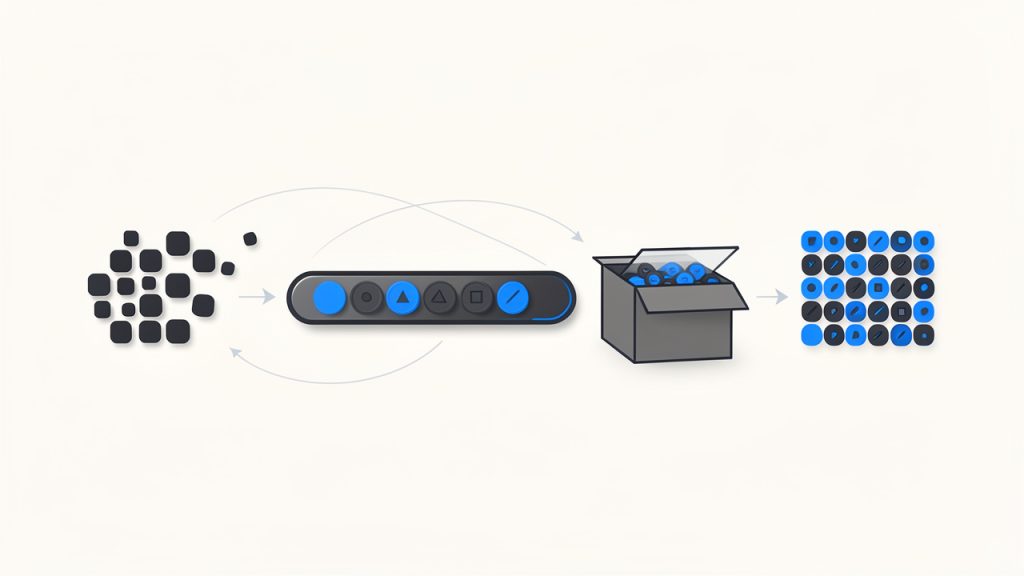
    유용한 마음 모델은 이렇습니다: Base64는 물건을 운송 시스템에 더 잘 맞는 배송 상자에 포장하는 것과 같습니다. 상자는 부피를 늘리지만, 텍스트를 선호하는 경로를 통해 물건이 이동하는 데 도움을 줍니다.

    Visual metaphor showing raw image bytes being 'packed' into a Base64 text string and then unpacked back into bytes — include a simple conveyor: bytes (binary) -> Base64 characters (A–Z, a–z, 0–9, +, /, =) boxed for transport -> decoded bytes (image file).

    왜 이미지는 Base64로 삽입되는가

    이미지는 특정 맥락에서 전송 및 임베딩을 더 쉽게 만들기 때문에 자주 Base64로 삽입됩니다. 가장 일반적인 예 중 하나는 데이터 URI로, data:image/png;base64,...처럼 보입니다. 이것은 브라우저가 문자열에서 직접 이미지를 렌더링하도록 하여 별도의 파일 URL을 요청하지 않아도 됩니다.

    이 방법은 HTML이나 CSS에서 인라인 이미지를 다룰 때 특히 유용합니다. 아이콘, 자리 표시자, 아주 작은 로고와 같은 매우 작은 자산에 적합합니다. 이메일 템플릿도 경우에 따라 임베디드 이미지를 사용하며, 외부 이미지 로딩이 차단되거나 지연될 수 있기 때문입니다. 일부 API는 Base64 이미지 데이터를 반환하기도 하는데, 이는 JSON 응답에 별도 파일 저장소나 서명된 URL이 필요하지 않도록 번들로 묶을 수 있기 때문입니다.

    여기에는 편리함이 있지만 트레이드오프가 있습니다. Base64는 이미지 데이터를 쉽게 이동할 수 있게 하지만, 저장이나 전달에 항상 가장 효율적인 형식은 아닙니다.

    Diagram of a data URI embedded in HTML: show a browser window rendering an <img> whose src is a long data:image/png;base64,... string — include a highlighted snippet of the data URI and an arrow to the rendered inline image (no separate network request).

    이미지에 Base64를 사용할 때의 장단점

    가장 큰 단점은 크기입니다. Base64는 원본 이진 파일에 비해 대략 33%의 오버헤드를 추가합니다. 예를 들어 300KB 이미지는 인코딩되면 약 400KB 이상이 될 수 있습니다. 이는 대역폭, API 페이로드 크기, 페이지 무게, 메모리 사용에 영향을 미칩니다.

    캐싱도 또 다른 중요한 요소입니다. 이미지가 데이터 URI로 HTML이나 CSS에 직접 임베드되면 브라우저는 해당 파일과 분리된 캐시를 만들 수 없습니다. 페이지가 변경되면 이미지가 문서의 일부로 다시 다운로드될 수 있습니다. 반면 외부 이미지 파일은 독립적으로 캐시되어 여러 페이지에서 재사용될 수 있습니다.

    장점은 아주 작은 자산에 대한 HTTP 요청이 줄고, API 패키징이 간단해지며, 텍스트만 처리하는 시스템에서 호환성이 더 쉽다는 점입니다. 작은 아이콘이나 한 번에 임베딩하는 이미지의 경우 Base64가 실용적일 수 있습니다. 큰 사진, 제품 갤러리, 반복적인 자산의 경우에는 외부 파일이 보통 더 낫습니다.

    Base64 문자열을 이미지로 변환하는 방법, 빠른 예제

    온라인 변환기와 사용 시기

    빠른 결과가 필요하고 민감한 데이터를 다루지 않는 경우, 온라인 Base64를 이미지로 변환기가 가장 빠른 옵션입니다. 문자열을 붙여넣으면 도구가 이를 디코드하고 이미지를 미리 보거나 다운로드합니다.

    이는 API 응답 디버깅, 문자열의 유효성 확인, 혹은 일회성 자산 변환에 대해 잘 작동합니다. 이는 개인 고객 파일, 내부 문서, 또는 보안에 민감한 자료에는 덜 적합합니다. 이러한 경우 로컬 변환이 더 안전합니다.

    신뢰할 수 있는 도구라면 디코딩된 이미지를 미리 보고, 파일 유형을 식별하며, Base64가 잘못되어 있음을 경고해 주어야 합니다.

    브라우저에서 JavaScript를 사용해 Base64를 이미지로 변환

    브라우저에서는 이미 전체 데이터 URI를 가지고 있는 상황이 가장 간단합니다. 이를 이미지 요소에 직접 할당할 수 있습니다.

    <img id="preview" alt="Preview" />
    <script>
      const base64 = "data:image/png;base64,iVBORw0KGgoAAAANSUhEUgAA...";
      document.getElementById("preview").src = base64;
    </script>
    

    원시 Base64 문자열을 다운로드 가능한 파일로 만들고 싶다면 먼저 접두사를 제거하고 디코드한 다음 Blob을 구축합니다.

    const input = "data:image/png;base64,iVBORw0KGgoAAAANSUhEUgAA...";
    const match = input.match(/^data:(image/[a-zA-Z0-9.+-]+);base64,(.+)$/);
    const mimeType = match ? match[1] : "image/png";
    const base64Data = match ? match[2] : input;
    const byteCharacters = atob(base64Data);
    const byteNumbers = new Array(byteCharacters.length);
    for (let i = 0; i < byteCharacters.length; i++) {
      byteNumbers[i] = byteCharacters.charCodeAt(i);
    }
    const byteArray = new Uint8Array(byteNumbers);
    const blob = new Blob([byteArray], { type: mimeType });
    const url = URL.createObjectURL(blob);
    const a = document.createElement("a");
    a.href = url;
    a.download = "image.png";
    a.click();
    URL.revokeObjectURL(url);
    

    이 방법은 프런트엔드 도구 및 브라우저 기반 이미지 미리보기에 유용합니다. 다만 아주 큰 페이로드의 경우 전체 문자열을 한 번에 디코드하기 때문에 많은 메모리를 사용할 수 있습니다.

    브라우저에서 Node.js를 사용해 Base64를 이미지로 변환

    Node.js는 Buffer를 사용하면 이를 쉽게 만듭니다. 문자열에 데이터 URI 접두사가 포함되어 있으면 먼저 제거합니다.

    const fs = require("fs");
    const input = "data:image/png;base64,iVBORw0KGgoAAAANSUhEUgAA...";
    const base64Data = input.replace(/^data:image/[a-zA-Z0-9.+-]+;base64,/, "");
    const buffer = Buffer.from(base64Data, "base64");
    fs.writeFileSync("output.png", buffer);
    console.log("Image saved as output.png");
    

    파일 형식을 미리 알지 못하는 경우, 확장자를 선택하기 전에 형식을 감지하는 것이 중요합니다. 이는 사용자가 보내거나 제3자 API에서 이미지를 받는 생산 시스템에서 특히 중요합니다.

    Python을 사용해 Base64를 이미지로 변환

    파이썬의 내장 base64 모듈은 디코딩을 깔끔하게 처리합니다.

    import base64
    import re
    input_data = "data:image/png;base64,iVBORw0KGgoAAAANSUhEUgAA..."
    base64_data = re.sub(r"^data:image/[a-zA-Z0-9.+-]+;base64,", "", input_data)
    image_bytes = base64.b64decode(base64_data)
    with open("output.png", "wb") as f:
        f.write(image_bytes)
    print("Image saved as output.png")
    

    더 엄격한 유효성 검사를 원하면 base64.b64decode(base64_data, validate=True)를 사용하여 잘못된 문자가 오류를 발생시키도록 하되, 무시되진 않도록 합니다.

    PHP를 사용해 Base64를 이미지로 변환

    PHP에는 대부분의 경우에 충분한 base64_decode()가 포함되어 있습니다.

    <?php
    $input = "data:image/png;base64,iVBORw0KGgoAAAANSUhEUgAA...";
    $base64 = preg_replace('/^data:image/[a-zA-Z0-9.+-]+;base64,/', '', $input);
    $data = base64_decode($base64, true);
    if ($data === false) {
        die("Invalid Base64 data");
    }
    file_put_contents("output.png", $data);
    echo "Image saved as output.png";
    ?>
    

    base64_decode의 두 번째 인수는 엄격 모드를 활성화하여 잘못된 입력을 조기에 잡는 데 도움이 됩니다.

    명령줄 도구를 사용해 Base64를 이미지로 변환

    리눅스나 macOS에서 명령줄 디코딩은 빠르고 디버깅에 실용적입니다.

    echo 'iVBORw0KGgoAAAANSUhEUgAA...' | base64 -d > output.png
    

    시스템에 따라 다른 플래그를 사용하는 경우가 있습니다:

    echo 'iVBORw0KGgoAAAANSUhEUgAA...' | base64 --decode > output.png
    

    데이터가 다른 처리 단계 후에 16진수로 인코딩되어 있다면 xxd가 도움이 될 수 있지만, 일반적인 Base64를 이미지로 변환의 경우 base64 -d가 보편적인 도구입니다.

    일반적인 Base64 변형 및 함정 다루기

    데이터 URI 접두사 제거

    많은 변환 실패는 입력이 단순 Base64가 아닐 때 발생합니다. data:image/jpeg;base64, 같은 접두사가 포함될 수 있습니다. 이 헤더는 MIME 타입을 알려주므로 유용하지만, 대부분 디코더는 쉼표 다음의 내용만 필요로 합니다.

    안전한 패턴은 문자열이 data:로 시작하는지 감지하고 첫 번째 쉼표에서 나누는 것입니다. 그 이후의 모든 내용이 실제 Base64 페이로드입니다. 이 단계를 잊으면 디코더가 오류를 내거나 손상된 파일이 생성될 수 있습니다.

    URL-안전 Base64 vs 표준 Base64

    모든 Base64 문자열이 같은 알파벳을 사용하는 것은 아닙니다. URL-안전 Base64는 +-로, /_로 대체합니다. 이 변형은 웹 토큰, 쿼리 문자열 및 일부 API에서 URL에서 문제를 일으킬 수 있는 문자를 피하기 위해 사용됩니다.

    일반 디코더로 URL-안전 Base64를 디코드하려고 하면 먼저 표준 형태로 해당 문자를 되돌려야 실패하지 않는 경우가 많습니다. 많은 라이브러리가 URL-안전 디코딩을 명시적으로 지원하지만, 모든 Base64가 동일하다고 가정하기보다는 문서를 확인하는 것이 좋습니다.

    패딩 문자 및 언제 중요한가

    Base64 문자열 끝의 = 문자는 패딩입니다. 인코딩 길이가 Base64의 블록 구조에 맞도록 보장하는 데 도움이 됩니다. 일부 시스템은 패딩을 생략합니다. 특히 URL-안전 변형에서 그렇습니다.

    패딩이 없다고 해서 항상 디코딩이 실패하는 것은 아니지만, 일부 디코더는 이를 필요로 합니다. 길이가 4의 배수가 되도록 =를 추가하는 간단한 수정이 있습니다. 그래도 페이로드가 실패하면 패딩 문제만은 아닙니다.

    잘못된 문자 및 오류 처리

    공백, 줄 바꿈, 전송 오류, 또는 실수로 복사-붙여넣기 변경은 Base64 문자열을 깨뜨릴 수 있습니다. 그 결과 예외가 발생하거나 손상된 이미지가 생성되거나 열리지 않는 출력 파일이 생길 수 있습니다.

    권장 관행은 디코딩하기 전에 유효성을 검사하고 디코드 단계를 오류 처리로 감싸는 것입니다. 파이썬에서는 엄격한 검증을 사용하고, PHP에서는 엄격 모드를 사용합니다. 자바스크립트와 Node.js에서는 입력 형식을 확인하고 디코딩된 바이트가 예상 이미지 시그니처와 일치하지 않으면 우아하게 실패하도록 하십시오.

    대용량 페이로드 및 메모리 고려사항

    아주 큰 Base64 문자열은 텍스트 버전이 이미 이진 파일보다 크고 디코딩 시 메모리에 추가 복사본이 생성되므로 메모리 부담을 줄 수 있습니다. 이것이 페이로드가 큰 경우 브라우저의 탭이 멈추는 이유 중 하나입니다.

    서버에서는 가능하면 아주 큰 파일에 대해 전체 버퍼 디코딩을 피하십시오. 입력을 스트리밍하고 청크 단위로 디코딩한 다음 디스크나 객체 저장소에 직접 기록합니다. 이는 이미지가 많은 앱, 업로드 서비스 및 대규모로 사용자 생성 콘텐츠를 수용하는 서비스에서 특히 중요합니다.

    Base64로 부터 이미지 형식 감지

    데이터 URI MIME 타입이 있으면 사용하기

    Base64 문자열이 data:image/webp;base64,처럼 시작하면 이미지 형식에 대한 가장 단순한 단서를 이미 얻은 셈입니다. 많은 워크플로에서 이것으로 파일 확장자를 선택하고 올바른 Content-Type을 설정하기에 충분합니다.

    그래도 맹신하지 마세요. 악의적이거나 buggy 소스는 페이로드를 PNG로 표시할 수 있지만 실제로는 다른 형식일 수 있습니다. 보안에 민감한 경우 선언된 MIME 타입과 실제 디코드된 바이트를 비교하십시오.

    매직 바이트 방식

    대다수의 이미지 형식은 파일 시작 부분에 알아볼 수 있는 매직 바이트를 가지고 있습니다. Base64 문자열의 일부를 디코드한 후 처음 몇 바이트를 확인하여 형식을 식별할 수 있습니다.

    다음은 일반적인 시그니처입니다:

    형식매직 바이트(16진수)비고
    PNG89 50 4E 47“.PNG” 시그니처로 시작합니다
    JPEGFF D8 FF“.jpg” 및”.jpeg”에 일반적입니다
    GIF47 49 46ASCII GIF
    WebP52 49 46 46 + 57 45 42 50RIFF 컨테이너에 WEBP 마커

    이 기술은 파일 이름이나 MIME 접두어만 신뢰하는 것보다 더 안정적입니다. 사용자 업로드를 저장하거나 서드파티 API 콘텐츠를 처리할 때 현명한 검사입니다.

    형식 자동 감지를 위한 라이브러리 및 도구

    이 작업을 자주 한다면 라이브러리를 사용하세요. Node.js에서는 file-type이 버퍼를 검사하고 형식을 감지할 수 있습니다. Python에서는 python-magicPillow가 일반적인 선택입니다. PHP에서는 finfo, GD, 또는 Imagick가 실제 파일 형식 확인 및 이미지가 안전하게 열리는지 확인하는 데 도움을 줍니다.

    자동화는 데이터 접두사가 없고 확장명이 알려지지 않은 경우 특히 유용합니다.

    보안 고려사항

    Base64에 숨겨진 악의적 페이로드

    Base64는 내용을 안전하게 만들지 않습니다. 표현 방식만 바꿉니다. 해로운 파일도 여전히 Base64로 인코딩되어 API, 양식, 데이터베이스를 통해 전달될 수 있습니다.

    여기에는 잘못된 파일, 과도한 페이로드, 이미지로 가장하는 폴리글롯 파일, 은닉 콘텐츠 기술인 스테가노그래피가 포함됩니다. 시스템이 Base64 이미지 업로드를 허용하는 경우 이를 신뢰할 수 없는 파일 업로드로 간주하십시오.

    표시하거나 저장하기 전에 이미지 콘텐츠 유효성 검사

    최선의 방어는 데이터를 디코드하고 실제 이미지 형식을 확인한 다음 신뢰할 수 있는 이미지 라이브러리로 여는 것입니다. 많은 경우 가장 안전한 패턴은 Pillow, GD 또는 Imagick과 같은 라이브러리를 사용해 이미지를 PNG나 JPEG와 같은 잘 알려진 형식으로 재인코딩하는 것입니다.

    이는 예기치 않은 메타데이터를 제거하고 구조를 표준화하며 잘못되었거나 위장된 콘텐츠를 통과시키는 위험을 줄입니다. 또한 크기 제한, 해상도 및 파일 형식 제한을 시행할 수 있습니다.

    속도 제한 및 자원 고갈 공격

    Base64 문자열은 텍스트이므로 대량으로 보내기 쉽습니다. 공격자는 이를 악용해 CPU, 메모리, 디스크 공간 또는 대역폭을 소비할 수 있습니다. 합법적인 사용자도 매우 큰 인라인 이미지를 업로드해 문제를 일으킬 수 있습니다.

    엄격한 페이로드 최대 크기를 설정하고, 가능하면 디코드 시간을 제한하며, Base64 이미지 데이터를 받는 엔드포인트에 속도 제한을 적용하십시오. 문자열 길이가 이미 정책 임계값을 초과하는 경우 디코드 전에 요청을 거부하십시오.

    디코드된 이미지를 안전하게 제공하기

    디코드된 이미지를 저장하고 서빙하는 경우 올바른 Content-Type 헤더를 전송하고 콘텐츠 스니핑 문제를 피하십시오. 데이터를 직접 페이지에 렌더링하는 경우, CSP 규칙을 검토해 data: URL이 적절한 위치에서만 허용되도록 하십시오.

    이미지 데이터가 사용자 생성인 경우 관련 메타데이터를 정화하고 맥락에 맞는 escaping 없이 HTML에 직접 넣지 마십시오. 위험은 이미지 바이트뿐만 아니라 주변 콘텐츠를 어떻게 다루는지에 달려 있습니다.

    성능 모범 사례 및 대안

    Base64 vs 외부 이미지 파일 사용 시점

    간단한 규칙은 이렇습니다. 요청 수를 줄이는 것이 더 중요한 아주 작은 자산에는 Base64를 사용하고, 중간 크기 이상이거나 큰 자산(특히 사진, 제품 이미지, 사용자 업로드, 반복 UI 자산)에는 외부 파일을 사용하십시오.

    예를 들어 1KB 아이콘을 인라인으로 넣는 것은 괜찮을 수 있습니다. JSON에 200KB짜리 제품 이미지를 인라인으로 넣는 것은 보통 나쁜 거래(트레이드오프)입니다.

    페이지 속도와 캐싱에 대한 영향

    Base64는 요청 수를 줄일 수 있지만 문서 크기를 증가시킵니다. 이는 느린 네트워크와 모바일 기기에서 특히 중요합니다. 이미지가 HTML, CSS 또는 JavaScript 번들에 임베드되면 브라우저는 이미지를 재사용하기 전에 해당 파일 전체를 다운로드해야 합니다.

    외부 이미지 파일은 별도로 캐시될 수 있고, 지연 로드될 수 있으며, CDN에서 제공되고 여러 페이지에서 재사용될 수 있습니다. 이는 모든 것을 인라인하는 것보다 실제 세계의 성능을 더 자주 향상시킵니다.

    크기 감소 기술

    이미지를 Base64로 옮겨야 한다면 기본 이미지를 먼저 최적화하십시오. 압축하고, 크기를 조정하고, 최신 포맷을 선택하십시오. 대형 PNG나 JPEG를 WebP나 AVIF로 변환하면 Base64 인코딩 전에 파일 크기를 크게 줄일 수 있습니다.

    서버 측 압축은 주변 페이로드에 도움이 될 수 있지만 Base64 자체가 여전히 오버헤드라는 점을 기억하십시오. 일반적으로 최적의 절감은 이미지 최적화에서 오며, 인코딩된 텍스트를 더 작게 만드는 데서 오는 것은 아닙니다.

    CDN 및 데이터 URI의 트레이드오프

    이미지가 분리된 파일일 때 CDN은 빛납니다. 사용자를 가까운 곳에서 캐시하고 최적화된 전달을 적용하며 원점 서버의 부하를 줄일 수 있습니다. 데이터 URI는 이미지가 상위 파일에 연결되어 있기 때문에 이러한 이점을 우회합니다.

    컴팩트한 인라인 그래픽이 필요한 워크플로가 있다면 간단한 벡터 아이콘에는 인라인 SVG를, 엄격하게 제어된 자산에는 전통적인 스프라이트 전략을 고려하십시오. 이러한 옵션은 특정 UI 요소에 대해 Base64보다 더 효율적일 수 있습니다.

    고급 시나리오 및 도구

    이메일에 이미지 임베딩

    이메일은 Base64 이미지를 자주 사용하는 고전적인 장소 중 하나이지만 클라이언트 지원이 일관되지 않습니다. 일부 클라이언트는 이미지를 차단하고, 일부는 특정 구문을 제거하며, 큰 이메일 본문은 전달성에 악영향을 줄 수 있습니다.

    작은 로고나 아이콘의 경우 인라인 임베딩이 작동할 수 있습니다. 큰 이미지는 연결된 호스팅 파일이 더 관리하기 쉽습니다. 이메일 총 크기를 낮게 유지하고 주요 클라이언트에서 테스트한 후에 임베디드 이미지를 많이 의존하십시오.

    데이터베이스에 Base64 이미지를 저장

    데이터베이스에 Base64를 직접 저장하는 것은 편리하지만 일반적으로 비효율적입니다. 33%의 크기 오버헤드를 부담하고, 행 크기를 증가시키며 백업을 더 무겁게 만듭니다. 쿼리도 더 느려지거나 메모리 사용이 더 많아질 수 있습니다.

    더 나은 패턴은 이미지를 이진 데이터로 객체 스토리지나 파일 시스템에 저장한 다음 데이터베이스에는 메타데이터와 URL/키만 저장하는 것입니다. API 계층에서 Base64를 받아들여야 한다면 즉시 디코드하고 원래 인코딩된 문자열 대신 이진 결과를 저장하십시오.

    매우 큰 이미지를 위한 스트리밍 디코드

    매우 큰 입력의 경우 스트리밍이 올바른 아키텍처입니다. Node.js에서는 전체 페이로드를 버퍼링하는 대신 스트림으로 들어오는 데이터를 처리할 수 있습니다. 파이썀에서는 청크 단위 처리나 업로드 핸들러가 메모리 부담을 줄일 수 있습니다.

    이는 가끔 발생하는 소형 파일에는 덜 중요하지만 대량의 배치 시스템, 미디어 파이프라인, 대규모로 사용자 생성 콘텐츠를 수용하는 서비스에서 훨씬 더 중요합니다.

    자동화된 변환 파이프라인 및 도구

    워크플로가 반복적으로 Base64 이미지를 다루는 경우 파이프라인을 구축하십시오. 디코드, 형식 감지, 치수 검증, 표준 형식으로 재인코딩, 최적화 및 저장을 수행합니다.

    유용한 도구로는 Node의 file-type과 기본 Buffer, 파이썬의 Pillowpython-magic, PHP의 GD 또는 Imagick과 같은 이미지 라이브러리가 포함됩니다. 명령줄 도구도 스크립트 및 CI 파이프라인에 빠른 검사용으로 맞을 수 있습니다.

    단계별 문제 해결 체크리스트

    당신의 Base64를 이미지로 변환 변환이 실패하면 아래를 순서대로 확인하십시오:

    1. 접두사 확인: 문자열이 data:image/...;base64,로 시작하면 디코딩하기 전에 쉼표 앞의 모든 것을 제거하십시오.
    2. 변형 확인: -_를 포함하면 URL-안전 Base64일 수 있으며 표준 형태로 정규화가 필요합니다.
    3. 패딩 수정: 길이가 4의 배수가 되지 않는 경우 4의 배수가 될 때까지 =를 추가하십시오.
    4. 바이트 확인: 디코딩 후 PNG, JPEG, GIF, 또는 WebP 시그니처를 처음 바이트에서 확인하십시오.
    5. MIME 타입 검증: 선언된 타입과 실제 콘텐츠가 일치하는지 확인하십시오.
    6. 메모리 한도 확인: 큰 문자열은 브라우저 탭을 충돌시키거나 서버 메모리를 고갈시킬 수 있습니다. 큰 파일은 스트리밍을 사용하십시오.
    7. CSP 규칙 검토: 브라우저가 인라인 데이터 URI를 표시하지 않는 경우, 당신의 Content-Security-Policy 규칙이 data: 소스의 허용 위치를 제어할 수 있습니다.

    간단한 명령줄 확인으로도 빠르게 확인할 수 있습니다:

    echo 'YOUR_BASE64_STRING' | base64 -d > test_image.bin
    file test_image.bin
    

    만약 file이 유효한 이미지 형식을 보고한다면, Base64는 대개 문제가 없고 문제는 MIME 타입이나 프런트엔드 렌더링 같은 다른 곳일 가능성이 큽니다.

    예제 및 일반 사용 사례

    단일 페이지 앱에서의 인라인 아바타

    단일 페이지 앱은 초기 렌더링 중 추가 요청을 피하기 위해 아주 작은 기본 아바타를 Base64로 임베딩할 수 있습니다. 이는 아주 작은 자리 표시자에 대해 수용 가능할 수 있습니다.

    하지만 사용자가 실제 프로필 사진을 업로드하면 외부 파일 저장소가 더 낫습니다. 사진은 크기를 조정하고, 독립적으로 캐시되며, CDN을 통해 전달될 수 있습니다.

    이메일에 임베디드된 작은 아이콘 스프라이트

    소수의 아주 작은 모노크로밍 아이콘이 포함된 이메일 템플릿은 원격 로딩 의존도를 줄이기 위해 임베디드 이미지 데이터를 사용할 수 있습니다. 이는 일부 클라이언트에서 브랜드 일관성을 더 높일 수 있습니다.

    여전히 전체 메시지 크기가 중요합니다. 500바이트 아이콘에 잘 맞더라도 마케팅 이메일이 HTML에 여러 큰 이미지를 직접 임베드하면 문제가 됩니다.

    Base64 이미지를 반환하는 API vs URL 반환

    일부 내부 API는 단일 JSON 응답을 단순화하기 위해 Base64를 반환합니다. 서명, QR 코드, 생성된 썸네일에는 괜찮습니다. 더 큰 자산의 경우 URL을 반환하는 것이 일반적으로 더 낫고, API 응답을 더 작게 유지하며 클라이언트가 필요한 것만 가져오도록 해줍니다.

    이것은 앱이 커지면서 팀이 다시 생각하는 가장 흔한 설계 선택지 중 하나입니다. 초기에는 단순해 보이는 것이 나중에는 비용이 많이 들 수 있습니다.

    레거시 Base64 저장소를 현대 워크플로로 변환

    레거시 시스템은 고객 이미지를 데이터베이스의 Base64 텍스트로 저장할 수 있습니다. 그 설정을 마이그레이션하는 일반적인 방식은 각 레코드를 디코드하고, 실제 유형을 감지하고, 필요하다면 재인코딩하고, 파일을 객체 저장소에 저장하고 텍스트 필드를 참조로 교체하는 것입니다.

    팀은 종종 즉시 이점을 봅니다: 데이터베이스 크기 축소, 더 빠른 백업, 더 쉬운 CDN 전달, 더 간단한 프런트엔드 렌더링.

    리소스, 라이브러리 및 온라인 도구

    언어별 추천 라이브러리

    다음 도구들은 널리 사용되며 실용적입니다:

    언어라이브러리 / 도구권장 용도
    Node.jsBuffer, file-typeBase64 디코딩 및 이미지 형식 탐지
    Pythonbase64, Pillow, python-magic디코드, 검증, 재인코드
    PHPbase64_decode, GD, Imagick, finfo디코드 및 이미지 내용 검증
    CLIbase64, file, xxd빠른 검증 및 디버깅

    온라인 Base64를 이미지로 변환하는 도구 및 검증기

    일회성 작업의 경우 온라인 도구가 시간을 절약해 줍니다. 최고의 도구는 미리보기, MIME 감지 및 검증을 제공합니다. 민감하지 않은 콘텐츠에만 사용하거나, 개인정보 문제가 있다면 내부적으로 자체 호스팅 버전을 사용하십시오.

    클라이언트 데이터, 재무 문서 또는 사용자 업로드를 다루는 경우 로컬 또는 서버 측 변환이 더 안전한 선택입니다.

    추가 읽기 및 공식 문서

    공식 언어 문서는 예외 상황과 엄격한 디코딩 동작에 대한 최선의 소스입니다. 프로덕션 시스템의 경우 이미지 라이브러리 문서, 저장소 플랫폼 가이드, 파일 업로드 및 콘텐츠 검증에 대한 보안 권고도 함께 검토하십시오.

    결론 및 빠른 참조

    실제 페이로드를 데이터 URI 접두사와 분리하고, 적절한 도구로 디코드하며, 결과 바이트를 확인하면 Base64를 이미지로 변환하는 일은 쉽습니다. 가장 흔한 실수는 MIME 타입을 맹신하거나 URL-안전 변형을 무시하거나 일반 이미지 파일이 더 잘 작동하는 상황에서 Base64를 사용하는 것입니다.

    다음 단계는 사용 사례에 따라 다릅니다. 빠른 한 번이라면 온라인 변환기를 사용하세요. 앱 개발의 경우 JavaScript, Node.js, Python 또는 PHP에서 로컬로 디코드하세요. 프로덕션 시스템의 경우 유효성 검사, 파일 유형 감지, 크기 제한 및 불필요한 Base64 부피를 피하는 저장 전략을 추가하세요.

    자주 쓰이는 명령 및 코드 조각

    작업코드 조각
    브라우저 미리보기<img src="data:image/png;base64,..." />
    Node.js에서 파일 저장fs.writeFileSync("output.png", Buffer.from(base64Data, "base64"))
    Python에서 파일 저장open("output.png", "wb").write(base64.b64decode(base64_data))
    PHP에서 파일 저장file_put_contents("output.png", base64_decode($base64, true))
    Linux 디코드`echo ‘BASE64’`
    데이터 URI 접두사 제거디코딩하기 전에 data:image/...;base64,를 제거합니다
    누락된 패딩 수정길이가 4의 배수가 되도록 =를 추가합니다
    PNG 바이트 탐지89 50 4E 47
    JPEG 바이트 탐지FF D8 FF
    GIF 바이트 탐지47 49 46

    이미지용 워크플로를 구축한다면 가장 똑똑한 움직임은 간단합니다: 먼저 디코드하고, 신중하게 검증하고, 실제 이미지를 최적화하고, 배송에 적합한 포맷으로 파일을 저장하는 것입니다.

  • JPG를 PNG로: 변환 시점, 도구 및 모범 사례

    JPG를 PNG로: 변환 시점, 도구 및 모범 사례

    A quick JPG to PNG conversion can solve the right problem, or create a bigger one. That is why so many people end up with bloated files, disappointing image quality, or a transparent background that still looks rough around the edges.

    If you are a small business owner updating product images, a freelancer sending client assets, or a developer preparing web graphics, the format you choose matters. This guide explains what JPG to PNG really means, when it helps, when it does not, and how to convert files the right way using built-in tools, desktop software, online converters, and developer-friendly methods.

    What “JPG to PNG” Means and When to Convert

    What is JPG/JPEG?

    JPG, also written as JPEG, is one of the most common image formats in the world. It was designed primarily for photographs and complex images with lots of colors, gradients, and visual detail. Its biggest advantage is small file size, which comes from lossy compression.

    Lossy compression means the file discards some image data to reduce storage space. In many cases, especially at high quality settings, that loss is hard to notice with the naked eye. But once the data is removed, it is gone. Re-saving a JPG over and over can gradually make artifacts, soft edges, and blocky areas more visible.

    JPG also does not support true transparency. If you need a logo with no background, or a cutout product photo that sits cleanly on a webpage, JPG is usually the wrong final format. It can store metadata such as EXIF camera data and color profiles, but its core strength remains efficient photo compression.

    What is PNG?

    PNG stands for Portable Network Graphics. It uses lossless compression, which means image data is preserved rather than thrown away during saving. That makes PNG a strong choice when you want to keep sharp lines, crisp text, interface elements, screenshots, diagrams, and graphics intact.

    PNG also supports transparency, including smooth alpha transparency. This matters for logos, icons, signatures, overlays, and product images that need to blend into different backgrounds without a white box around them.

    In practical terms, PNG is often better for graphics than photos. It can preserve detail very well, but the trade-off is file size. A PNG made from a photograph can be much larger than the original JPG without looking noticeably better.

    Split-screen comparison: JPG vs PNG, lossy vs lossless and transparency support

    Common reasons to convert JPG to PNG

    There are several legitimate reasons to convert JPG to PNG. One common case is editing. If you must continue editing an image multiple times, saving your working file as PNG can help you avoid further lossy degradation that would happen with repeated JPG exports.

    Another reason is design workflow. If you are placing an image into presentations, mockups, apps, or websites and you need transparency or cleaner edges, PNG is often more practical. This is especially true for logos, badges, UI elements, and screenshots.

    It can also make sense for archival of a current state, but with an important caveat. Converting a JPG to PNG preserves the current image without introducing new JPG compression on future saves. However, it does not recover quality already lost in the JPG. Think of it like photocopying a document into a protective sleeve. You preserve what you have now, but you do not magically recreate the original.

    When You Should Not Convert JPG to PNG

    Quality misconceptions

    The biggest myth around JPG to PNG is that conversion improves quality. It does not. If a JPG already has compression artifacts, blur, banding, or noise, saving it as PNG will simply preserve those flaws in a different container.

    This matters because people often convert a low-quality JPG hoping it will become sharper. It will not. A PNG can stop further lossy damage if you continue working with the file, but it cannot reconstruct discarded image information.

    If you still have the original source file, such as a RAW photo, PSD, AI, or an earlier export, use that instead. Starting from the best source is always better than converting a compressed derivative.

    File size considerations

    For photographs, JPG is often preferable because it gives you a strong balance between visual quality and compact size. A high-resolution photo that is 1 MB as a JPG might become 5 MB, 10 MB, or more as a PNG with little visible improvement.

    That increase matters if you store many images, send them by email, upload them to client portals, or publish them online. PNG is efficient for flat-color graphics and transparent assets, but it is rarely the best format for everyday photo delivery.

    A simple rule helps here: if the image is mostly a photo, keep it as JPG unless you have a specific reason to use PNG. If the image is mostly graphics, text, interface elements, or transparency, PNG becomes more attractive.

    File-size tradeoffs: photo vs graphics, JPG vs PNG

    Caption: Photo → usually JPG; Graphics/Transparency → usually PNG.

    Web performance implications

    For websites, unnecessary PNGs can hurt page speed. Larger files increase bandwidth usage and slow loading, especially on mobile connections. If you convert every photo from JPG to PNG, your site may become heavier without any meaningful visual benefit.

    That has real business impact. Slow pages can reduce conversions, increase bounce rate, and weaken SEO performance. Google does not rank a page higher just because an image is PNG. It values user experience, and faster pages usually win.

    For web delivery, modern formats like WebP and AVIF are often better than either JPG or PNG for many use cases. PNG still has a role, especially for transparency and graphics, but it should be chosen intentionally.

    How to Convert JPG to PNG, Step-by-Step Methods

    Using built-in OS tools

    If you want the fastest possible method, your operating system may already be enough.

    On Windows, Paint can convert JPG to PNG in a few clicks:

    1. Open the JPG file in Paint.
    2. Click File.
    3. Choose Save As.
    4. Select PNG picture.
    5. Rename the file and save it.

    On macOS, Preview is just as straightforward:

    1. Open the JPG in Preview.
    2. Click File and then Export.
    3. Choose PNG from the format dropdown.
    4. Select a location and save.

    These built-in tools are convenient for one-off tasks. They are not ideal for advanced color management, transparency editing, or bulk workflows, but they work well when speed matters.

    Using free desktop software

    Desktop tools give you more control, especially if you care about resizing, metadata, transparency, or batch conversion. IrfanView is excellent for Windows users who want a lightweight option. GIMP is a powerful free editor for Windows, macOS, and Linux. Photoshop is still the standard in many design environments.

    In IrfanView, you typically open the JPG, choose Save As, then select PNG. In GIMP, you open the image and use Export As to choose PNG. In Photoshop, you can use Save a Copy or Export As depending on your workflow. These tools also let you prepare the image before conversion, which is often more important than the format switch itself.

    If the file name matters, use clear versioning. Something like product-shot-v2.png is more useful than image-final-new-3.png. For client work, consistent naming saves time and avoids accidental overwrites.

    Using online converters

    Online converters are popular because they are quick and require no installation. Services such as CloudConvert, Convertio, and Online-Convert are widely used for JPG to PNG tasks.

    They are best for occasional conversions when the image is not sensitive. Upload the JPG, choose PNG, wait for processing, then download the result. Most platforms also support drag and drop and can handle a few files at once.

    Before using any online converter, check three things. First, confirm the site uses HTTPS. Second, review the file deletion policy to see how long uploaded files are stored. Third, avoid uploading confidential client documents, IDs, contracts, or private photos unless you fully trust the service and your compliance requirements allow it.

    Converting in bulk

    If you need to convert dozens or hundreds of images, manual methods become painful. Batch workflows are much better.

    Many desktop apps support bulk conversion through a dedicated batch tool. IrfanView has a built-in batch conversion window. Photoshop supports Actions and Image Processor. GIMP can be extended with batch plugins or external tools.

    For developers and power users, command-line tools are faster and more repeatable. ImageMagick is one of the best options. A simple example looks like this:

    magick input.jpg output.png
    

    To convert multiple JPG files in a folder, you can script it with shell tools or platform-specific automation. This is especially helpful for product catalogs, content migrations, or asset pipelines.

    Converting programmatically

    If conversion is part of an app, workflow, or upload pipeline, Python Pillow is a practical choice. It gives you programmatic control over format conversion and post-processing.

    Here is a basic example using Pillow:

    from PIL import Image
    img = Image.open("input.jpg")
    img.save("output.png", "PNG")
    

    If you want to preserve color consistency, inspect the source image mode and profile before saving. In production workflows, it is also smart to validate file type rather than relying only on the file extension.

    For quick automation from the terminal, ImageMagick remains excellent because it is scriptable, cross-platform, and mature. It is especially useful when you need resizing, metadata stripping, or format conversion in one step.

    Best Tools and Services for JPG to PNG Conversion

    Choosing the best JPG to PNG tool depends on what you care about most: speed, privacy, batch support, editing control, or automation. Built-in tools are ideal for occasional use. Online services are convenient when you are on any device and need immediate results. Desktop apps win when you need advanced editing or bulk work. Developer tools are best for repeatable workflows.

    The table below gives a practical comparison.

    Tool Best for Ease of use Batch support Privacy Cost
    Paint / Preview Quick one-off conversion Very easy Limited High, local files Free
    CloudConvert Fast online conversion Easy Moderate Medium, upload required Free tier / paid
    Convertio Browser-based convenience Easy Moderate Medium, upload required Free tier / paid
    Online-Convert Flexible online settings Moderate Moderate Medium, upload required Free tier / paid
    IrfanView Lightweight desktop batch work Easy Strong High, local files Free for personal use
    GIMP Free advanced editing Moderate Moderate High, local files Free
    Photoshop Professional editing workflows Moderate Strong High, local files Paid
    ImageMagick / Pillow Automation and developer workflows Advanced Excellent High, local files Free

    Security, privacy, and batch limits

    If privacy matters, local tools are safer by default because files never leave your machine. That makes Preview, Paint, GIMP, Photoshop, IrfanView, ImageMagick, and Pillow strong choices for business documents, sensitive assets, and client work.

    For online tools, read the fine print. Look for file retention windows, deletion guarantees, maximum file size, daily conversion caps, and whether API access or batch processing is hidden behind a paywall. A free tool can be perfect for occasional use, but frustrating for heavy workflows.

    Optimizing PNGs After Conversion

    Reducing PNG file size

    A converted PNG is not always ready to use. In many cases, it needs optimization. This is where tools like optipng, pngcrush, and pngquant become valuable.

    pngquant is especially useful when you can reduce the image to a limited color palette. That can shrink file size dramatically for logos, icons, illustrations, and UI graphics. optipng and pngcrush focus on lossless optimization, which means they attempt to reduce file size without changing visible quality.

    Here are two practical commands:

    optipng output.png
    
    pngcrush -rem allb -reduce input.png optimized.png
    

    The -rem allb option strips unnecessary metadata chunks, and -reduce tries to use a more efficient PNG structure where possible.

    When to use PNG-8 vs PNG-24/32

    PNG-8 uses a limited color palette, usually up to 256 colors. It is a strong fit for simple graphics, flat illustrations, icons, and logos where the image does not need millions of colors.

    PNG-24 supports far more color detail and is better for richer graphics. PNG-32 usually refers to 24-bit color plus an 8-bit alpha channel for full transparency. That is often what people mean when they want smooth transparent edges.

    For photos, even PNG-24 can become very large. For simple graphics, PNG-8 can offer a much better size-to-quality balance. That is why optimization is not just compression, it is also about choosing the right PNG variant.

    Preserving or removing metadata

    PNG files can carry metadata, although not always in the same way as JPG EXIF. Some workflows preserve embedded color profiles or textual information, while others strip it.

    If you need accurate color reproduction across devices, retaining the ICC profile may be important. If file size matters more and the image is simple web artwork, stripping metadata can save space. This trade-off is small on one file, but significant across hundreds of assets.

    Compressing without notable quality loss

    The best practical tip is to optimize after conversion, not before. First convert the image. Then run a PNG optimizer or export through a tool that supports palette reduction and metadata control.

    If the image is a screenshot or flat graphic, try palette reduction. If it is a logo with transparency, test PNG-8 first. If you see banding or rough edges, move back to PNG-24 or PNG-32. This simple testing cycle often produces much better results than blindly saving everything at maximum settings.

    Handling Transparency and Backgrounds

    How to remove or make background transparent

    Converting JPG to PNG does not automatically create transparency. If your JPG has a white background, converting it to PNG will usually give you a PNG with the same white background. Transparency must be created by editing the image.

    In Photoshop, open the image, unlock the background layer, select the background using the Magic Wand, Quick Selection, or Select Subject, refine the mask, then export as PNG. In GIMP, add an alpha channel first, select the background, delete it, refine edges if needed, and export as PNG.

    Automatic online background removers can help with simple product shots or portraits. They are convenient, but results vary. Hair, soft shadows, and semi-transparent materials often need manual touch-up afterward.

    Edge smoothing and anti-aliasing

    The hardest part of transparency is not removing the background, it is making the edges look natural. Jagged edges, white halos, and rough outlines are common when the original JPG was compressed heavily or placed on a bright background.

    To improve results, feather the selection slightly, refine masks carefully, and zoom in around complex edges. If a light fringe appears, use defringe or edge cleanup tools in your editor. This is especially important for logos, people, and product cutouts displayed on dark backgrounds.

    Common pitfalls when converting photos vs graphics

    Photos are harder than graphics. A screenshot or icon usually has clear boundaries and cleaner color transitions. A real-world photo may have motion blur, hair strands, shadows, reflections, and compression noise that make clean transparency difficult.

    That is why JPG to PNG works best for graphics when transparency is needed. For photos, PNG is not a magic background-removal format. The quality of your masking work matters more than the file extension.

    Performance, Accessibility, and SEO Considerations

    Page speed and modern formats

    For websites, PNG should be used with purpose. If you need sharp graphics with transparency, PNG is a strong option. If you are serving photos, WebP or AVIF will often provide much smaller files at similar visual quality.

    SVG is also better than PNG for many logos and icons because it is resolution-independent and often tiny in size. This means the best web workflow is not always JPG to PNG. Sometimes the better answer is JPG to WebP or rebuilding the asset as SVG.

    Alt text and accessibility

    Changing image format does not change accessibility on its own. What matters is how the image is described and used. If you replace a JPG with a PNG on a website, keep or improve the alt text so screen readers still convey the right meaning.

    Decorative images should have appropriate empty alt attributes. Informative images should describe their purpose clearly. Accessibility is about communication, not file type.

    Responsive images and multiple formats

    Developers should think beyond one output file. A good image strategy often means generating several sizes and formats, then serving the best option depending on the browser and screen size.

    A common pattern is to provide modern formats first, with a fallback:

    <picture>
      <source srcset="image.webp" type="image/webp">
      <source srcset="image.png" type="image/png">
      <img src="image.png" alt="Product logo">
    </picture>
    

    This approach balances compatibility and performance. It also fits well into responsive image workflows where the same visual asset needs to look sharp on different devices.

    Common Problems and Troubleshooting

    Poor quality after conversion

    If the PNG looks bad, the problem usually started with the original JPG. Compression artifacts, blur, and soft edges carry over into the PNG. Re-export from the original source file if possible. If not, mild sharpening or cleanup may help, but do not expect miracles.

    Another common issue is scaling. If you enlarged the image before conversion, it may look worse because you are stretching limited detail. Conversion is not enhancement.

    Huge PNG files

    Very large PNGs usually happen when a photo is saved losslessly without optimization. Check dimensions first. A 4000-pixel image used in a 400-pixel webpage slot is wasting space.

    Then check image type. If it is a photo, use JPG, WebP, or AVIF instead. If it must remain PNG, try palette reduction, metadata stripping, and optimization tools like optipng or pngquant.

    Color profile and ICC issues

    If the converted file looks washed out or overly saturated, a color profile mismatch may be the cause. Some apps preserve embedded profiles, others convert or discard them. This leads to different rendering across browsers, editors, and operating systems.

    A safer workflow is to standardize around sRGB for web graphics. For print or color-critical work, preserve the correct ICC profile and test in the target environment.

    Failed conversions or corrupted files

    If a conversion fails, the file may be damaged, mislabeled, or partially downloaded. Try opening it in another app first. If that works, re-save it and convert again.

    If a command-line tool fails, inspect the actual file format instead of trusting the extension. A file named .jpg might not always be a valid JPEG internally. Using another converter can also help, because some tools are better at handling edge cases than others.

    FAQs, Quick Answers

    • Does converting JPG to PNG improve quality? No. It prevents additional JPG-style compression on future saves, but it does not restore lost detail.
    • Can PNG files be larger than JPG? Yes, often much larger, especially for photographs.
    • Is PNG better for web? Sometimes. It is better for transparency, logos, screenshots, and graphics. It is usually not the best choice for large photos.
    • How do I convert multiple files at once? Use a batch-capable app like IrfanView or Photoshop, or automate with ImageMagick or Pillow.

    Resources and Further Reading

    If you want to go deeper, the best next step is to use official documentation and proven image tools rather than relying on random snippets. ImageMagick is excellent for command-line workflows. Pillow is the standard Python imaging library for many automation tasks. The official PNG specification is useful if you work closely with image pipelines, metadata, or browser rendering.

    A small cheat sheet can save time when you do this often:

    magick input.jpg output.png
    
    optipng output.png
    
    pngquant --quality=65-85 output.png
    

    For most users, the right workflow is simple. Convert JPG to PNG only when you need lossless editing, transparency, or cleaner graphic handling. If the image is a photo for the web, pause first and ask whether JPG, WebP, or AVIF would do the job better.

    Your next step is to test one image with the method that matches your use case. Use Preview or Paint for a quick one-off conversion, GIMP or Photoshop if you need transparency, and ImageMagick or Pillow if you want scalable automation. The best conversion is not just successful, it is appropriate for the way the image will actually be used.

  • WebP에서 PNG로: 변환 시기, 도구 및 명령

    WebP에서 PNG로: 변환 시기, 도구 및 명령

    WebP를 PNG로 변환하는 일은 실제로 모든 곳에서 작동해야 할 때까지는 간단하게 들립니다. 어쩌면 디자인 팀이 레거시 워크플로에서 투명한 이미지를 필요로 할 수도 있습니다. 어쩌면 CMS가 WebP 업로드를 거부할 수도 있습니다. 어쩌면 예기치 않은 문제 없이 편집할 수 있는 래스터 파일이 필요할 수도 있습니다.

    다행스러운 소식은 WebP를 PNG로 변환하는 것을 쉽게 만들어 주는 빠른 온라인 도구, 신뢰할 수 있는 데스크탑 앱, 개발자 친화적 명령이 있다는 것입니다. 더 좋은 소식은 항상 변환할 필요가 없다는 점입니다. 많은 경우 WebP를 유지하는 것이 더 현명한 선택입니다.

    1. WebP란 무엇이며 왜 PNG로 변환해야 하나요?

    WebP는 구글이 만든 최신 이미지 포맷으로, 시각적 품질을 유지하면서 파일 크기를 줄이는 것을 목표로 합니다. 또한 손실 압축무손실 압축를 모두 지원하며, 투명도도 지원하여 로고, UI 자산, 잘라낸 이미지 등에 유용합니다.

    PNG은 더 오래되었지만 여전히 매우 중요한 포맷입니다. 무손실 포맷이므로 재압축으로 인한 품질 저하 없이 이미지 데이터를 보존합니다. PNG은 브라우저, 운영 체제, 편집 앱, 인쇄 지향 워크플로우 전반에 걸쳐 널리 지원되기 때문에 스크린샷, 그래픽, 그리고 일관된 처리가 필요한 파일의 기본 선택으로 남아 있습니다.

    Side-by-side visual comparison showing a WebP file and a PNG file: icons or thumbnails with callouts for key attributes (lossy/lossless support, typical file size, transparency support, common use cases like web delivery vs editing/printing). Include a small bar or numeric indicator showing typical file-size difference.

    Overview of WebP: origins, features, and typical use cases

    WebP은 대역폭이 중요할 때를 especially 웹에 맞춰 설계되었습니다. 일반적으로 PNG보다 더 작은 파일을 제공하며, 콘텐츠에 따라 JPEG보다도 더 작아질 수 있습니다. 웹사이트, 반응형 이미지 전달, 전자상거래 목록, 성능이 중요한 콘텐츠 중심 페이지에 이상적입니다. 이미지가 브라우저에 표시될 예정이고 환경을 제어할 수 있다면 WebP는 종종 더 효율적인 형식입니다.

    Overview of PNG: features, strengths, and when it’s preferred

    정확한 시각적 충실도가 필요할 때 PNG가 돋보입니다. 특히 스크린샷, 아이콘, 다이어그램, UI 자산, 투명한 배경이 필요한 이미지에 좋습니다. 또한 소프트웨어 호환성이 중요할 때도 선호됩니다. 많은 구형 애플리케이션, 인쇄 도구, DAM 시스템, 콘텐츠 워크플로우에서도 PNG가 WebP보다 더 안정적으로 처리되는 경우가 많습니다.

    Why conversion is needed: compatibility, editing, transparency, and printing

    WebP를 PNG로 변환하는 가장 흔한 이유는 호환성 때문입니다. 일부 앱, 플랫폼, 레거시 시스템은 여전히 WebP를 수용하지 않습니다. 다른 경우에는 편집 파이프라인이나 대량 가져오기 워크플로우에서 WebP를 잘 받아들이지 못합니다. 많은 경우 PNG가 이미지 편집에 더 적합한 편이며, 포토샵 대안 소프트웨어, 데스크탑 뷰어, 자산 관리 도구에서 예측 가능한 동작을 하기 때문입니다. 인쇄 작업, 보관해야 하는 자산, 또는 시각적으로 일관성을 유지해야 하는 스크린샷이 있다면 PNG가 더 안전한 형식인 경우가 많습니다.

    2. When you should and shouldn’t convert WebP to PNG

    이 결정은 대부분의 사람들이 건너뛰는 것이지만, 중요합니다. PNG가 실제 문제를 해결할 때 변환이 유용합니다. 이유가 습관일 뿐이라면 WebP를 유지하는 것이 더 낫습니다.

    When to convert: compatibility, editing, archiving, design work, screenshots and raster manipulation

    파일이 레거시 앱에서 작동해야 하거나, WebP를 잘 처리하지 않는 도구에서 편집되어야 하거나, PNG를 기대하는 워크플로우에서 사용되어야 할 때 PNG로 변환하십시오. 또한 스크린샷, UI 목업, 기술 다이어그램, 주석을 달거나 리터치하거나 장기 보관을 위한 래스터 자산에 적합한 경우에도 좋은 선택입니다. 이러한 경우 PNG의 예측 가능성이 실용적인 장점으로 작용합니다.

    When to keep WebP: web performance, storage, responsive images

    이미지가 주로 웹 전달용이고 속도, 저장 효율성, 더 낮은 대역폭 사용을 중요시하는 경우 WebP를 유지하십시오. 현대 웹사이트의 경우 WebP가 더 나은 균형을 제공하는 경우가 많으며, 반응형 이미지를 통해 WebP를 제공하면 특히 사진이 많은 페이지의 페이로드 크기를 크게 줄일 수 있습니다.

    Trade-offs: file size, quality, metadata, alpha/transparency fidelity

    가장 큰 트레이드오프는 파일 크기입니다. PNG는 일반적으로 WebP보다 크며 때로는 훨씬 큽니다. 이는 저장 공간, 백업, 업로드, 페이지 무게에 영향을 줍니다. 품질은 더 미묘합니다. 원본 WebP가 손실형인 경우 PNG로 변환해도 손실된 디테일이 복원되지는 않습니다. 현재 해독된 픽셀만 보존됩니다. 투명도는 보통 잘 유지되지만 도구에 따라 색상 프로필과 메타데이터가 항상 전송되지 않을 수 있습니다. 간단한 규칙은 이렇습니다: 호환성이 파일 크기보다 더 중요하다면 변환하고, 성능이 보편적 편집 지원보다 더 중요하다면 WebP를 유지하십시오.

    Quick decision checklist

    • Will this image be edited, printed, or archived? PNG is often better.
    • Will it be served on a modern website only? WebP is often better.
    • Does the target app reject WebP? Convert it.
    • Is file size critical? Keep WebP if possible.

    A simple decision flowchart for the "Quick decision checklist": start node asks questions (Will this be edited/printed/archived? Is it for a modern website only? Does target app reject WebP? Is file size critical?) with arrows to outcomes: "Convert to PNG", "Keep WebP", or "Generate both (derive PNG for legacy)".

    3. Quick online tools to convert WebP to PNG

    If you need the fastest path, online converters are hard to beat for one-off conversions, quick proofs, and non-sensitive assets. Popular services include CloudConvert, Convertio, Ezgif, FreeConvert, and Online-Convert. They vary by batch support, metadata handling, file-size limits, and privacy posture. CloudConvert is flexible and supports batch jobs and an API. Convertio is fast and easy. Ezgif is lightweight and approachable for simple image tasks. FreeConvert and Online-Convert offer broad format support and more tuning options on paid tiers. For privacy-sensitive images, avoid third-party uploads and use an offline method instead.

    CloudConvert: https://cloudconvert.com, Convertio: https://convertio.co, Ezgif: https://ezgif.com, FreeConvert: https://www.freeconvert.com, Online-Convert: https://www.online-convert.com

    Security and privacy considerations for uploading images

    온라인 도구는 편리하지만 위험을 초래합니다. 이미지에 고객 작업물, 비공개 제품 샷, 민감한 문서, 내부 스크린샷 또는 개인 식별 정보가 포함되어 있다면 제3자 서비스에 업로드하는 것이 부적절할 수 있습니다. 메타데이터도 또 다른 문제입니다. EXIF 데이터에는 카메라 정보, 위치, 타임스탬프, 소프트웨어 세부정보가 포함될 수 있습니다. 일부 변환기는 메타데이터를 자동으로 제거하고, 다른 도구는 일부를 보존합니다. 프라이버시가 중요하다면 아무 것도 가정하지 말고 도구의 동작을 확인하십시오. 파일이 기밀인 경우 오프라인 데스크톱 방법을 사용하는 것이 좋습니다.

    4. Converting WebP to PNG on desktop

    Desktop conversion gives you more control, better privacy, and stronger batch workflow support. It is the right choice when you work with many files or care about repeatability.

    Windows: built-in and third-party options

    Windows users sometimes try Photos or Paint first. The trouble is that built-in tools can be inconsistent depending on version and installed codecs. A more dependable option is IrfanView, which is fast for image conversion and batch processing when the proper plugins are installed. The common workflow is to open the WebP file, choose save or export, and select PNG.

    Websites: https://www.microsoft.com/windows, https://www.irfanview.com

    macOS: Preview, ImageMagick, GraphicConverter

    On macOS, Preview is often enough for individual files: open the WebP, then export as PNG. For more control, ImageMagick is excellent for batch jobs, repeatable conversions, and automation. GraphicConverter provides a polished GUI with deep format support for users who want extensive options.

    Websites: https://www.apple.com, https://imagemagick.org, https://www.lemkesoft.de

    Linux: ImageMagick, GIMP, command-line examples

    Linux users typically rely on command-line tools. ImageMagick is the workhorse, and GIMP is a reliable GUI fallback. For a single file:

    magick input.webp output.png
    

    If your system uses the older command syntax:

    convert input.webp output.png

    For batch conversion in a directory:

    mkdir -p png आउट
    for f in *.webp; do magick "$f" "png/${f%.webp}.png"; done

    ImageMagick usually preserves transparency automatically when the source supports alpha.

    Website: https://www.gimp.org

    Batch conversion with desktop apps

    Batch conversion is where desktop tools become much more efficient than online converters. IrfanView, GraphicConverter, and ImageMagick all support batch workflows. Processing dozens or thousands of files with consistent naming and predictable output makes desktop tools the smarter long-term option.

    5. Command-line and developer-friendly methods

    For developers, the command line is often the cleanest path because it is scriptable, auditable, and easy to integrate into build systems.

    ImageMagick: commands and flags

    ImageMagick can convert WebP to PNG, preserve alpha, and be integrated into shell scripts or CI jobs:

    magick input.webp output.png

    To keep metadata when possible:

    magick input.webp -define png:preserve-iCCP=true output.png

    Avoid -strip unless you want metadata removed. For batch conversion:

    for f in *.webp; do magick "$f" "${f%.webp}.png"; done

    ffmpeg: when to use it and example commands

    ffmpeg is useful in media pipelines, especially when WebP is part of a broader video or animation workflow. For a single WebP frame:

    ffmpeg -i input.webp output.png

    For animated WebP, ffmpeg can extract frames or inspect timing, though specialized WebP tools may be simpler for some tasks.

    Website: https://ffmpeg.org

    libwebp tools: dwebp usage and options

    The libwebp toolkit offers dwebp, a precise decoder for WebP files. For a dedicated WebP-to-PNG path:

    dwebp input.webp -o output.png

    libwebp tools can be easier to reason about than a general-purpose image suite when you need specific decoding behavior.

    Website: https://developers.google.com/speed/webp

    Node.js and Python libraries with sample code

    For application code, use libraries that already understand both formats.

    Node.js with sharp:

    import sharp from "sharp";
    await sharp("input.webp")
    ## .png()
      .toFile("output.png");
    

    sharp is fast and widely used in production.

    Python with Pillow:

    from PIL import Image
    img = Image.open("input.webp")
    img.save("output.png", "PNG")
    

    Pillow is ideal for scripts, automation, and lightweight batch jobs.

    Websites: https://sharp.pixelplumbing.com, https://python-pillow.org

    6. Automating conversion in workflows and CMS

    Manual conversion does not scale. If your team handles images regularly, automation will save time and reduce mistakes.

    Automated server-side conversion

    A common pattern is convert-on-upload. Store the original WebP, then create a PNG derivative for compatibility or downstream systems. This lets modern browsers receive WebP while legacy systems, admin tools, or print workflows get PNG. Another pattern is on-demand conversion, useful when PNG output is rare and you do not want to store multiple variants. The trade-off is extra compute at request time.

    Plugins and integrations for WordPress, Shopify, and headless CMSs

    Many CMS platforms have plugins or media pipelines that can serve format-specific variants. WordPress users often rely on image optimization plugins that generate or serve WebP while allowing fallback formats. For Shopify and headless CMS setups, the image pipeline around the platform is usually where conversion logic belongs, for example a middleware function that converts WebP to PNG only for systems that require it.

    Build-time conversion in static site generators

    Static site generators such as Gatsby, Hugo, and Eleventy are a strong fit for build-time image processing. If the site is rebuilt during deployment, you can generate PNG derivatives once and cache them as part of the output. This is useful when one source image must produce both a WebP asset for the site and a PNG asset for tooling that still expects PNG.

    7. Quality, color, and transparency pitfalls, and how to avoid them

    Conversion is usually safe, but subtle issues can surprise you.

    Common issues: color shifts, banding, alpha channel problems

    Color shifts often happen when color profiles are ignored or reinterpreted by different tools. Banding can appear if gradients are limited or if a lossy WebP is decoded and then viewed in contexts that expose quantization artifacts. Alpha channel issues are less common, but they matter. If transparency is present, make sure the tool preserves it and the target app understands the PNG alpha channel correctly.

    How to preserve transparency and color profiles

    Prefer tools known to preserve alpha reliably, such as ImageMagick, libwebp’s dwebp, Pillow, or sharp. For color accuracy, use tools that keep embedded profiles when possible. Avoid unnecessary metadata stripping unless intentional. When moving assets between design software and web workflows, verify the image in the target environment as part of QA.

    Testing and validation

    Open the converted PNG in at least two different viewers and compare it against the original. For teams, automate basic checks for dimensions, transparency presence, file size thresholds, and checksum tracking so problems show up before assets ship.

    8. Performance, storage, and best practices

    PNG is dependable, but it can be expensive in storage terms, so be selective.

    File size comparisons: WebP vs PNG

    As a rough rule, WebP often beats PNG on file size by a wide margin for photographic content and many mixed images. PNG can be acceptable for simple graphics, but it grows quickly with color complexity. For example, a 1 MB WebP might become a 3 MB or 5 MB PNG, depending on the image.

    When to use PNG-8 vs PNG-24 vs indexed palettes

    If the image has a limited color set, PNG-8 or indexed palettes can dramatically reduce size, which helps icons, simple logos, and flat graphics. Use PNG-24 for full color and smooth gradients. Test indexed palettes visually before adopting aggressive color reduction.

    Optimizing PNGs after conversion

    After converting, further shrink the result with PNG optimizers such as pngcrush, optipng, or zopflipng. A typical workflow is convert first, then optimize the PNG. That keeps quality decisions separate from compression tuning.

    Websites: http://optipng.sourceforge.net, https://pmt.sourceforge.io/pngcrush/, https://github.com/google/zopfli

    9. Privacy, security, and legal considerations

    Image conversion sounds harmless, but in business settings it can carry real risk.

    Risks of uploading images to third-party converters

    Third-party converters may store files temporarily, log metadata, or process uploads on infrastructure outside your control. For internal prototypes that may be fine. For client materials, unreleased product images, or sensitive screenshots, use offline tools.

    EXIF, IPR, and redistribution concerns

    EXIF metadata can reveal camera details, timestamps, and sometimes location data. When converting and redistributing assets, review metadata intentionally. Also remember conversion does not change ownership or usage rights. If you do not have the right to reuse an image, converting it does not make it safer to publish.

    Recommended safeguards and policies for teams

    Define when online conversion is allowed and when offline tools are mandatory. Use offline tools for anything confidential, strip metadata when appropriate, and document which conversion pipeline is used for public assets. That keeps compliance and process hygiene under control.

    10. Troubleshooting and FAQs

    Why does my converted PNG look different?

    Common causes include color profile differences, lossy source compression, or viewer discrepancies. If the source WebP was lossy, some detail loss is permanent. Try a different conversion tool, check whether metadata and profiles were preserved, and compare the image in a second viewer.

    How do I convert animated WebP to PNG?

    A single PNG cannot preserve animation. Animated WebP must be handled as frames. If you need still images, extract each frame. If you need animation preserved, consider GIF or MP4. ffmpeg or specialized WebP tools can help with frame extraction.

    I get errors with ImageMagick, what should I check?

    Confirm your ImageMagick build includes WebP support, check file permissions and path names, and use the correct command syntax for your version. On newer systems, use magick instead of the older convert command.

    How do I batch-convert thousands of images efficiently?

    Use a script and process files in chunks. ImageMagick or sharp are common choices. Add logging, retry handling, and post-conversion optimization so the workflow remains stable at scale.

    11. Cheat-sheet: commands and tools at a glance

    TaskToolCommand
    Convert one WebP to PNGImageMagickmagick input.webp output.png
    Batch convert a folderImageMagickfor f in *.webp; do magick "$f" "${f%.webp}.png"; done
    Decode with libwebpdwebpdwebp input.webp -o output.png
    Convert in Node.jssharpsharp("input.webp").png().toFile("output.png")
    Convert in PythonPillowimg.save("output.png", "PNG")
    Extract from animation workflowffmpegffmpeg -i input.webp output.png

    For one-offs, use a trustworthy online converter for non-sensitive images. For offline desktop work, Preview, Paint, IrfanView, or GraphicConverter are convenient. For bulk server-side conversion, ImageMagick and sharp are strong general-purpose choices. For precision WebP decoding, use dwebp.

    Checklist before converting: confirm whether you really need PNG, whether the file contains transparency, and whether metadata matters. After converting, verify dimensions, transparency, color, and file size.

    12. Conclusion and recommended workflow

    The best WebP to PNG workflow depends on the job. If you need speed and the file is harmless, an online converter is fine. If you need control, privacy, or batch processing, use ImageMagick, dwebp, sharp, or Pillow. If you are building a modern web stack, consider keeping WebP for delivery and generating PNG only where compatibility demands it.

    A practical default is simple, keep WebP for performance, convert to PNG only when compatibility, editing, or workflow constraints require it. That approach saves storage, avoids unnecessary recompression, and keeps your image pipeline cleaner.

    Next step: choose one offline method, test it on a sample image with transparency and metadata, and standardize that conversion path for your team.