
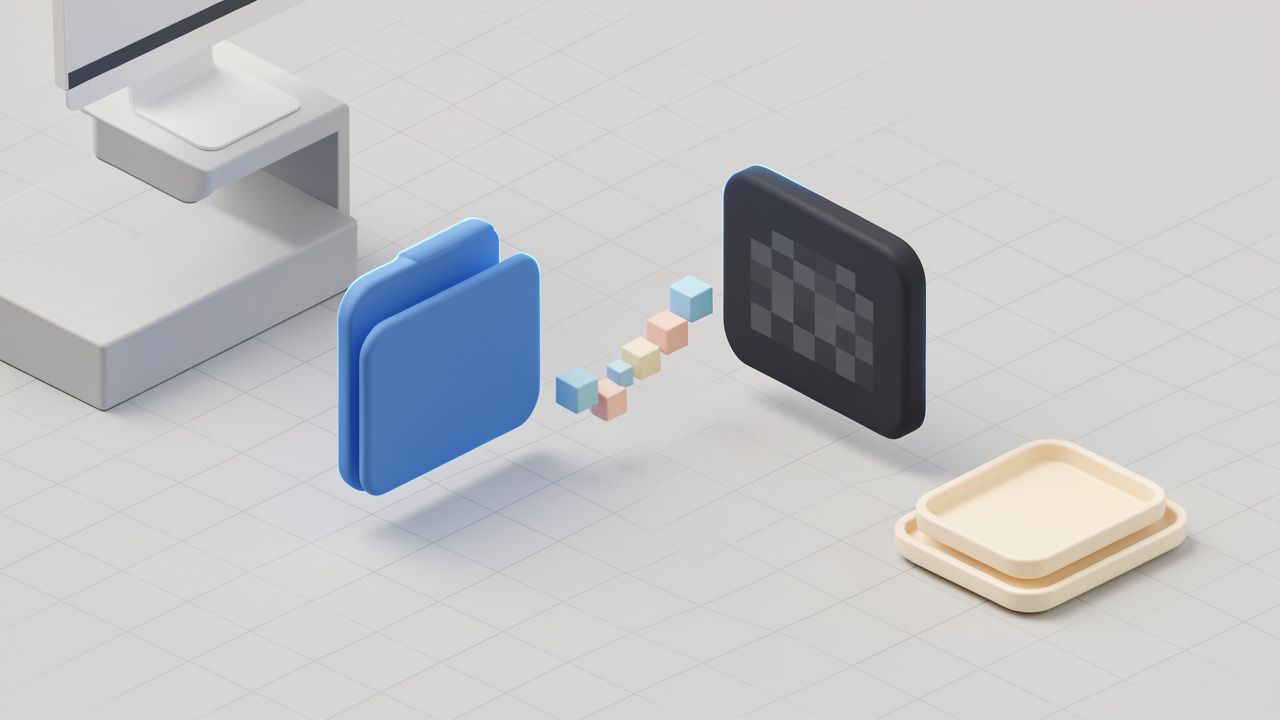
WebP를 PNG로 변환하는 일은 실제로 모든 곳에서 작동해야 할 때까지는 간단하게 들립니다. 어쩌면 디자인 팀이 레거시 워크플로에서 투명한 이미지를 필요로 할 수도 있습니다. 어쩌면 CMS가 WebP 업로드를 거부할 수도 있습니다. 어쩌면 예기치 않은 문제 없이 편집할 수 있는 래스터 파일이 필요할 수도 있습니다.
다행스러운 소식은 WebP를 PNG로 변환하는 것을 쉽게 만들어 주는 빠른 온라인 도구, 신뢰할 수 있는 데스크탑 앱, 개발자 친화적 명령이 있다는 것입니다. 더 좋은 소식은 항상 변환할 필요가 없다는 점입니다. 많은 경우 WebP를 유지하는 것이 더 현명한 선택입니다.
1. WebP란 무엇이며 왜 PNG로 변환해야 하나요?
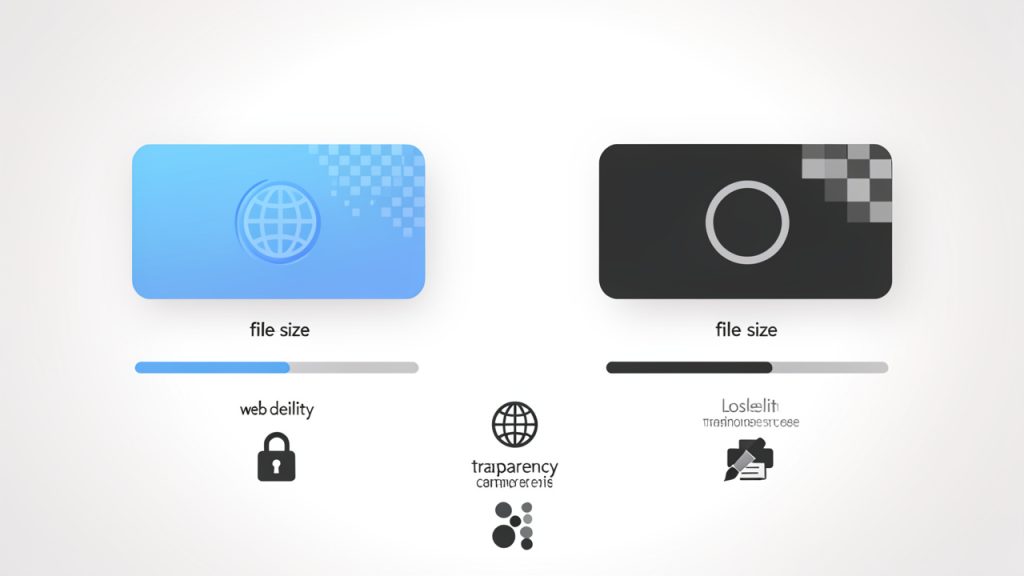
WebP는 구글이 만든 최신 이미지 포맷으로, 시각적 품질을 유지하면서 파일 크기를 줄이는 것을 목표로 합니다. 또한 손실 압축과 무손실 압축를 모두 지원하며, 투명도도 지원하여 로고, UI 자산, 잘라낸 이미지 등에 유용합니다.
PNG은 더 오래되었지만 여전히 매우 중요한 포맷입니다. 무손실 포맷이므로 재압축으로 인한 품질 저하 없이 이미지 데이터를 보존합니다. PNG은 브라우저, 운영 체제, 편집 앱, 인쇄 지향 워크플로우 전반에 걸쳐 널리 지원되기 때문에 스크린샷, 그래픽, 그리고 일관된 처리가 필요한 파일의 기본 선택으로 남아 있습니다.
Overview of WebP: origins, features, and typical use cases
WebP은 대역폭이 중요할 때를 especially 웹에 맞춰 설계되었습니다. 일반적으로 PNG보다 더 작은 파일을 제공하며, 콘텐츠에 따라 JPEG보다도 더 작아질 수 있습니다. 웹사이트, 반응형 이미지 전달, 전자상거래 목록, 성능이 중요한 콘텐츠 중심 페이지에 이상적입니다. 이미지가 브라우저에 표시될 예정이고 환경을 제어할 수 있다면 WebP는 종종 더 효율적인 형식입니다.
Overview of PNG: features, strengths, and when it’s preferred
정확한 시각적 충실도가 필요할 때 PNG가 돋보입니다. 특히 스크린샷, 아이콘, 다이어그램, UI 자산, 투명한 배경이 필요한 이미지에 좋습니다. 또한 소프트웨어 호환성이 중요할 때도 선호됩니다. 많은 구형 애플리케이션, 인쇄 도구, DAM 시스템, 콘텐츠 워크플로우에서도 PNG가 WebP보다 더 안정적으로 처리되는 경우가 많습니다.
Why conversion is needed: compatibility, editing, transparency, and printing
WebP를 PNG로 변환하는 가장 흔한 이유는 호환성 때문입니다. 일부 앱, 플랫폼, 레거시 시스템은 여전히 WebP를 수용하지 않습니다. 다른 경우에는 편집 파이프라인이나 대량 가져오기 워크플로우에서 WebP를 잘 받아들이지 못합니다. 많은 경우 PNG가 이미지 편집에 더 적합한 편이며, 포토샵 대안 소프트웨어, 데스크탑 뷰어, 자산 관리 도구에서 예측 가능한 동작을 하기 때문입니다. 인쇄 작업, 보관해야 하는 자산, 또는 시각적으로 일관성을 유지해야 하는 스크린샷이 있다면 PNG가 더 안전한 형식인 경우가 많습니다.
2. When you should and shouldn’t convert WebP to PNG
이 결정은 대부분의 사람들이 건너뛰는 것이지만, 중요합니다. PNG가 실제 문제를 해결할 때 변환이 유용합니다. 이유가 습관일 뿐이라면 WebP를 유지하는 것이 더 낫습니다.
When to convert: compatibility, editing, archiving, design work, screenshots and raster manipulation
파일이 레거시 앱에서 작동해야 하거나, WebP를 잘 처리하지 않는 도구에서 편집되어야 하거나, PNG를 기대하는 워크플로우에서 사용되어야 할 때 PNG로 변환하십시오. 또한 스크린샷, UI 목업, 기술 다이어그램, 주석을 달거나 리터치하거나 장기 보관을 위한 래스터 자산에 적합한 경우에도 좋은 선택입니다. 이러한 경우 PNG의 예측 가능성이 실용적인 장점으로 작용합니다.
When to keep WebP: web performance, storage, responsive images
이미지가 주로 웹 전달용이고 속도, 저장 효율성, 더 낮은 대역폭 사용을 중요시하는 경우 WebP를 유지하십시오. 현대 웹사이트의 경우 WebP가 더 나은 균형을 제공하는 경우가 많으며, 반응형 이미지를 통해 WebP를 제공하면 특히 사진이 많은 페이지의 페이로드 크기를 크게 줄일 수 있습니다.
Trade-offs: file size, quality, metadata, alpha/transparency fidelity
가장 큰 트레이드오프는 파일 크기입니다. PNG는 일반적으로 WebP보다 크며 때로는 훨씬 큽니다. 이는 저장 공간, 백업, 업로드, 페이지 무게에 영향을 줍니다. 품질은 더 미묘합니다. 원본 WebP가 손실형인 경우 PNG로 변환해도 손실된 디테일이 복원되지는 않습니다. 현재 해독된 픽셀만 보존됩니다. 투명도는 보통 잘 유지되지만 도구에 따라 색상 프로필과 메타데이터가 항상 전송되지 않을 수 있습니다. 간단한 규칙은 이렇습니다: 호환성이 파일 크기보다 더 중요하다면 변환하고, 성능이 보편적 편집 지원보다 더 중요하다면 WebP를 유지하십시오.
Quick decision checklist
- Will this image be edited, printed, or archived? PNG is often better.
- Will it be served on a modern website only? WebP is often better.
- Does the target app reject WebP? Convert it.
- Is file size critical? Keep WebP if possible.
3. Quick online tools to convert WebP to PNG
If you need the fastest path, online converters are hard to beat for one-off conversions, quick proofs, and non-sensitive assets. Popular services include CloudConvert, Convertio, Ezgif, FreeConvert, and Online-Convert. They vary by batch support, metadata handling, file-size limits, and privacy posture. CloudConvert is flexible and supports batch jobs and an API. Convertio is fast and easy. Ezgif is lightweight and approachable for simple image tasks. FreeConvert and Online-Convert offer broad format support and more tuning options on paid tiers. For privacy-sensitive images, avoid third-party uploads and use an offline method instead.
CloudConvert: https://cloudconvert.com, Convertio: https://convertio.co, Ezgif: https://ezgif.com, FreeConvert: https://www.freeconvert.com, Online-Convert: https://www.online-convert.com
Security and privacy considerations for uploading images
온라인 도구는 편리하지만 위험을 초래합니다. 이미지에 고객 작업물, 비공개 제품 샷, 민감한 문서, 내부 스크린샷 또는 개인 식별 정보가 포함되어 있다면 제3자 서비스에 업로드하는 것이 부적절할 수 있습니다. 메타데이터도 또 다른 문제입니다. EXIF 데이터에는 카메라 정보, 위치, 타임스탬프, 소프트웨어 세부정보가 포함될 수 있습니다. 일부 변환기는 메타데이터를 자동으로 제거하고, 다른 도구는 일부를 보존합니다. 프라이버시가 중요하다면 아무 것도 가정하지 말고 도구의 동작을 확인하십시오. 파일이 기밀인 경우 오프라인 데스크톱 방법을 사용하는 것이 좋습니다.
4. Converting WebP to PNG on desktop
Desktop conversion gives you more control, better privacy, and stronger batch workflow support. It is the right choice when you work with many files or care about repeatability.
Windows: built-in and third-party options
Windows users sometimes try Photos or Paint first. The trouble is that built-in tools can be inconsistent depending on version and installed codecs. A more dependable option is IrfanView, which is fast for image conversion and batch processing when the proper plugins are installed. The common workflow is to open the WebP file, choose save or export, and select PNG.
Websites: https://www.microsoft.com/windows, https://www.irfanview.com
macOS: Preview, ImageMagick, GraphicConverter
On macOS, Preview is often enough for individual files: open the WebP, then export as PNG. For more control, ImageMagick is excellent for batch jobs, repeatable conversions, and automation. GraphicConverter provides a polished GUI with deep format support for users who want extensive options.
Websites: https://www.apple.com, https://imagemagick.org, https://www.lemkesoft.de
Linux: ImageMagick, GIMP, command-line examples
Linux users typically rely on command-line tools. ImageMagick is the workhorse, and GIMP is a reliable GUI fallback. For a single file:
magick input.webp output.png
If your system uses the older command syntax:
convert input.webp output.pngFor batch conversion in a directory:
mkdir -p png आउट
for f in *.webp; do magick "$f" "png/${f%.webp}.png"; done
ImageMagick usually preserves transparency automatically when the source supports alpha.
Website: https://www.gimp.org
Batch conversion with desktop apps
Batch conversion is where desktop tools become much more efficient than online converters. IrfanView, GraphicConverter, and ImageMagick all support batch workflows. Processing dozens or thousands of files with consistent naming and predictable output makes desktop tools the smarter long-term option.
5. Command-line and developer-friendly methods
For developers, the command line is often the cleanest path because it is scriptable, auditable, and easy to integrate into build systems.
ImageMagick: commands and flags
ImageMagick can convert WebP to PNG, preserve alpha, and be integrated into shell scripts or CI jobs:
magick input.webp output.pngTo keep metadata when possible:
magick input.webp -define png:preserve-iCCP=true output.pngAvoid -strip unless you want metadata removed. For batch conversion:
for f in *.webp; do magick "$f" "${f%.webp}.png"; doneffmpeg: when to use it and example commands
ffmpeg is useful in media pipelines, especially when WebP is part of a broader video or animation workflow. For a single WebP frame:
ffmpeg -i input.webp output.pngFor animated WebP, ffmpeg can extract frames or inspect timing, though specialized WebP tools may be simpler for some tasks.
Website: https://ffmpeg.org
libwebp tools: dwebp usage and options
The libwebp toolkit offers dwebp, a precise decoder for WebP files. For a dedicated WebP-to-PNG path:
dwebp input.webp -o output.pnglibwebp tools can be easier to reason about than a general-purpose image suite when you need specific decoding behavior.
Website: https://developers.google.com/speed/webp
Node.js and Python libraries with sample code
For application code, use libraries that already understand both formats.
Node.js with sharp:
import sharp from "sharp";
await sharp("input.webp")
## .png()
  .toFile("output.png");
sharp is fast and widely used in production.
Python with Pillow:
from PIL import Image
img = Image.open("input.webp")
img.save("output.png", "PNG")
Pillow is ideal for scripts, automation, and lightweight batch jobs.
Websites: https://sharp.pixelplumbing.com, https://python-pillow.org
6. Automating conversion in workflows and CMS
Manual conversion does not scale. If your team handles images regularly, automation will save time and reduce mistakes.
Automated server-side conversion
A common pattern is convert-on-upload. Store the original WebP, then create a PNG derivative for compatibility or downstream systems. This lets modern browsers receive WebP while legacy systems, admin tools, or print workflows get PNG. Another pattern is on-demand conversion, useful when PNG output is rare and you do not want to store multiple variants. The trade-off is extra compute at request time.
Plugins and integrations for WordPress, Shopify, and headless CMSs
Many CMS platforms have plugins or media pipelines that can serve format-specific variants. WordPress users often rely on image optimization plugins that generate or serve WebP while allowing fallback formats. For Shopify and headless CMS setups, the image pipeline around the platform is usually where conversion logic belongs, for example a middleware function that converts WebP to PNG only for systems that require it.
Build-time conversion in static site generators
Static site generators such as Gatsby, Hugo, and Eleventy are a strong fit for build-time image processing. If the site is rebuilt during deployment, you can generate PNG derivatives once and cache them as part of the output. This is useful when one source image must produce both a WebP asset for the site and a PNG asset for tooling that still expects PNG.
7. Quality, color, and transparency pitfalls, and how to avoid them
Conversion is usually safe, but subtle issues can surprise you.
Common issues: color shifts, banding, alpha channel problems
Color shifts often happen when color profiles are ignored or reinterpreted by different tools. Banding can appear if gradients are limited or if a lossy WebP is decoded and then viewed in contexts that expose quantization artifacts. Alpha channel issues are less common, but they matter. If transparency is present, make sure the tool preserves it and the target app understands the PNG alpha channel correctly.
How to preserve transparency and color profiles
Prefer tools known to preserve alpha reliably, such as ImageMagick, libwebp’s dwebp, Pillow, or sharp. For color accuracy, use tools that keep embedded profiles when possible. Avoid unnecessary metadata stripping unless intentional. When moving assets between design software and web workflows, verify the image in the target environment as part of QA.
Testing and validation
Open the converted PNG in at least two different viewers and compare it against the original. For teams, automate basic checks for dimensions, transparency presence, file size thresholds, and checksum tracking so problems show up before assets ship.
8. Performance, storage, and best practices
PNG is dependable, but it can be expensive in storage terms, so be selective.
File size comparisons: WebP vs PNG
As a rough rule, WebP often beats PNG on file size by a wide margin for photographic content and many mixed images. PNG can be acceptable for simple graphics, but it grows quickly with color complexity. For example, a 1 MB WebP might become a 3 MB or 5 MB PNG, depending on the image.
When to use PNG-8 vs PNG-24 vs indexed palettes
If the image has a limited color set, PNG-8 or indexed palettes can dramatically reduce size, which helps icons, simple logos, and flat graphics. Use PNG-24 for full color and smooth gradients. Test indexed palettes visually before adopting aggressive color reduction.
Optimizing PNGs after conversion
After converting, further shrink the result with PNG optimizers such as pngcrush, optipng, or zopflipng. A typical workflow is convert first, then optimize the PNG. That keeps quality decisions separate from compression tuning.
Websites: http://optipng.sourceforge.net, https://pmt.sourceforge.io/pngcrush/, https://github.com/google/zopfli
9. Privacy, security, and legal considerations
Image conversion sounds harmless, but in business settings it can carry real risk.
Risks of uploading images to third-party converters
Third-party converters may store files temporarily, log metadata, or process uploads on infrastructure outside your control. For internal prototypes that may be fine. For client materials, unreleased product images, or sensitive screenshots, use offline tools.
EXIF, IPR, and redistribution concerns
EXIF metadata can reveal camera details, timestamps, and sometimes location data. When converting and redistributing assets, review metadata intentionally. Also remember conversion does not change ownership or usage rights. If you do not have the right to reuse an image, converting it does not make it safer to publish.
Recommended safeguards and policies for teams
Define when online conversion is allowed and when offline tools are mandatory. Use offline tools for anything confidential, strip metadata when appropriate, and document which conversion pipeline is used for public assets. That keeps compliance and process hygiene under control.
10. Troubleshooting and FAQs
Why does my converted PNG look different?
Common causes include color profile differences, lossy source compression, or viewer discrepancies. If the source WebP was lossy, some detail loss is permanent. Try a different conversion tool, check whether metadata and profiles were preserved, and compare the image in a second viewer.
How do I convert animated WebP to PNG?
A single PNG cannot preserve animation. Animated WebP must be handled as frames. If you need still images, extract each frame. If you need animation preserved, consider GIF or MP4. ffmpeg or specialized WebP tools can help with frame extraction.
I get errors with ImageMagick, what should I check?
Confirm your ImageMagick build includes WebP support, check file permissions and path names, and use the correct command syntax for your version. On newer systems, use magick instead of the older convert command.
How do I batch-convert thousands of images efficiently?
Use a script and process files in chunks. ImageMagick or sharp are common choices. Add logging, retry handling, and post-conversion optimization so the workflow remains stable at scale.
11. Cheat-sheet: commands and tools at a glance
| Task | Tool | Command |
|---|---|---|
| Convert one WebP to PNG | ImageMagick | magick input.webp output.png |
| Batch convert a folder | ImageMagick | for f in *.webp; do magick "$f" "${f%.webp}.png"; done |
| Decode with libwebp | dwebp | dwebp input.webp -o output.png |
| Convert in Node.js | sharp | sharp("input.webp").png().toFile("output.png") |
| Convert in Python | Pillow | img.save("output.png", "PNG") |
| Extract from animation workflow | ffmpeg | ffmpeg -i input.webp output.png |
For one-offs, use a trustworthy online converter for non-sensitive images. For offline desktop work, Preview, Paint, IrfanView, or GraphicConverter are convenient. For bulk server-side conversion, ImageMagick and sharp are strong general-purpose choices. For precision WebP decoding, use dwebp.
Checklist before converting: confirm whether you really need PNG, whether the file contains transparency, and whether metadata matters. After converting, verify dimensions, transparency, color, and file size.
12. Conclusion and recommended workflow
The best WebP to PNG workflow depends on the job. If you need speed and the file is harmless, an online converter is fine. If you need control, privacy, or batch processing, use ImageMagick, dwebp, sharp, or Pillow. If you are building a modern web stack, consider keeping WebP for delivery and generating PNG only where compatibility demands it.
A practical default is simple, keep WebP for performance, convert to PNG only when compatibility, editing, or workflow constraints require it. That approach saves storage, avoids unnecessary recompression, and keeps your image pipeline cleaner.
Next step: choose one offline method, test it on a sample image with transparency and metadata, and standardize that conversion path for your team.
답글 남기기