Every day, people lose time to simple file problems. A client sends a HEIC image your laptop cannot preview. A supplier uploads a spreadsheet in the wrong format. A PDF is too large to email, a video will not play on mobile, or a document needs to become editable before a deadline. These are small blockers, but they add up fast.
That is why Online convert tools have become a quiet productivity essential for small business owners, freelancers, developers, and anyone who works across devices and file types. Instead of installing heavy software for every format mismatch, you can use a browser-based tool to convert files in minutes. The appeal is obvious, less friction, lower cost, and faster turnaround.
What makes online conversion especially useful is its range. It is not just about turning one file into another. It often includes compression, resizing, format cleanup, OCR, media adjustments, and basic optimization. For users who want free, easy-to-use online tools, this makes online convert services a practical part of a modern digital workflow.
What is Online convert?
Online convert refers to web-based tools that let you change one digital format into another without installing desktop software. In the simplest sense, you upload a file, choose the output format, adjust any settings if needed, and download the converted result. That could mean turning a Word document into PDF, a PNG into JPG, an MP4 into GIF, or a CSV into XLSX.
The idea sounds basic, but the value is much bigger than the action itself. Format conversion solves compatibility problems between apps, devices, operating systems, and platforms. A freelancer might need to deliver a compressed PDF that opens cleanly on any device. A small business might need product photos resized and converted for faster website loading. A developer might need structured data transformed into a format that fits an API, database import, or reporting workflow.
File conversion becomes the bridge that keeps work moving when formats do not naturally line up.
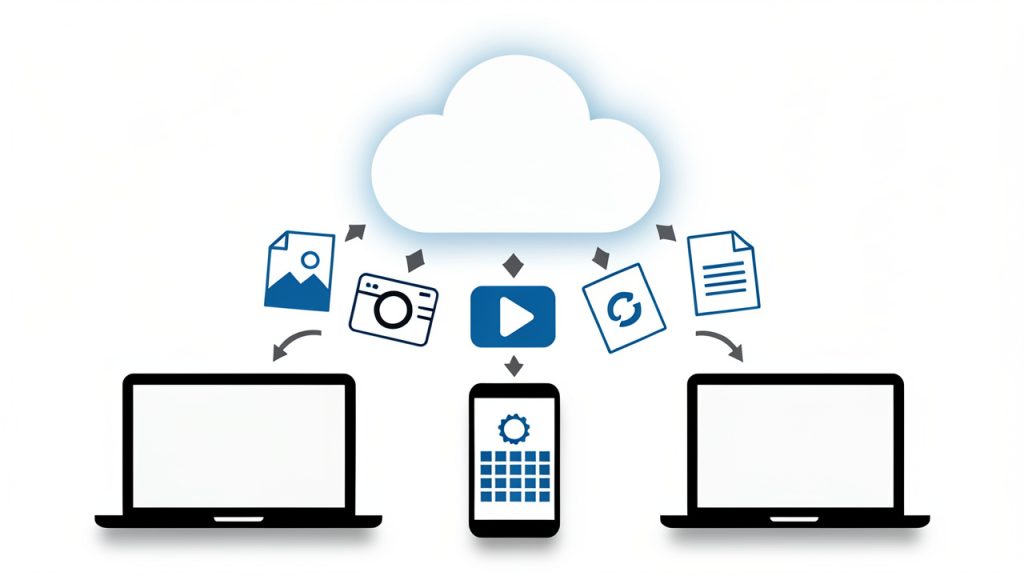
Another reason these tools have gained popularity is accessibility. Traditional conversion software can be expensive, complex, or device-specific. Browser-based tools lower that barrier. In many cases, a user can open a site, drag in a file, choose the target format, and finish the task in under five minutes. For people who prioritize speed and simplicity, that is a powerful advantage.
Key Aspects of Online convert
Format flexibility is the biggest strength
One of the strongest reasons people rely on Online convert platforms is the broad variety of supported formats. Good services typically cover documents, images, audio, video, ebooks, archives, and sometimes fonts or data files. That means a single tool can solve many unrelated problems across a workday.
This matters more than it first appears. If you run a small business, your tasks are rarely limited to one media type. You might prepare invoices, edit product images, compress promotional videos, and share presentations, all in the same week. Using separate software for each format creates friction. A flexible online converter reduces tool sprawl and shortens the gap between task and completion.
Ease of use often determines real value
A converter can support hundreds of file formats and still be frustrating if it is hard to use. The best online convert tools keep the workflow simple. You upload, select, adjust, and download. The interface is usually intuitive enough that even non-technical users can complete conversions without training.
For freelancers and productivity-minded users, this simplicity is not just convenience. It is part of efficiency. When a task is small, the setup cost matters. If a conversion requires software installation, account creation, plugin troubleshooting, or a steep learning curve, the time saved disappears. A clean browser-based experience keeps attention on the work, not the tool.
Conversion quality matters more than speed alone
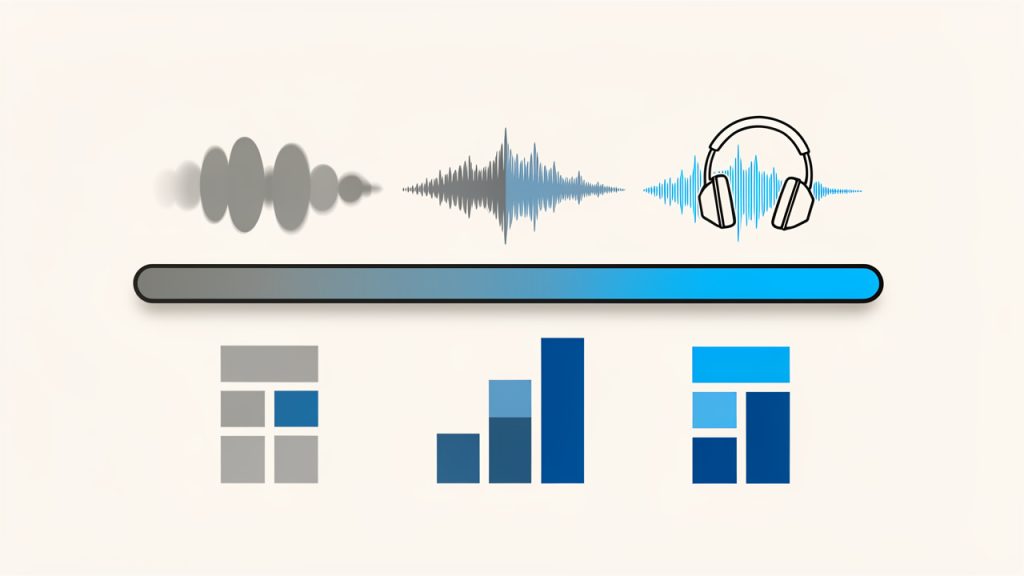
Fast conversion is useful, but accuracy and output quality are what separate a dependable tool from a disposable one. A poor image converter may reduce sharpness. A weak document converter may break formatting, tables, or embedded fonts. A low-quality video converter may produce files that technically work but look noticeably degraded.
This is where context matters. If you are converting a rough draft for internal use, small quality loss may not matter. If you are submitting legal documents, sales materials, portfolio assets, or downloadable customer resources, quality becomes critical. Smart users do not judge online convert tools only by how fast they process a file. They also judge how well the result preserves layout, readability, metadata, and usability.
Security and privacy should never be an afterthought
Many people focus on convenience first, but security is one of the most important aspects of any online conversion tool. When you upload a file, you are often sending business data, client information, contracts, financial documents, or creative work to a third-party service. That creates a trust question.
A reliable online convert platform should clearly explain file handling, deletion policies, encryption, and storage practices. If that information is missing or vague, caution is justified. For highly sensitive documents, local or offline tools may still be the better option. Convenience is valuable, but not at the cost of exposing confidential data.
Free does not always mean unlimited
Many users search for free online convert tools because they want quick results without buying software. That is reasonable, and many services do offer useful free plans. Still, free access usually comes with trade-offs. These may include file size limits, slower processing, daily conversion caps, fewer output options, or lower priority in the queue.
That does not make free tools bad. In fact, for occasional use, they are often more than enough. But it is worth understanding the model. If your workflow depends on frequent or large-volume conversions, you may eventually need a premium option or a mix of tools. The smartest approach is to match the tool to the workload rather than assume all free converters will scale smoothly.
Extra tools often provide hidden value
Many online convert services now include more than pure format conversion. They may offer file compression, image resizing, OCR for scanned PDFs, metadata editing, trimming for media files, or quality presets for web and mobile use. These features matter because real-world conversion tasks rarely happen in isolation.
Imagine you are preparing a brochure for email distribution. You may need to convert it to PDF, compress it, and ensure it opens cleanly on different devices. Or consider an ecommerce seller who needs to convert a product image, resize it for a marketplace, and reduce file weight for page speed. In both cases, the best tool is not only one that changes file type, but one that supports the full task.
Different users benefit in different ways
The value of Online convert depends on the user’s context. For a small business owner, it can reduce dependency on specialized software and help staff handle routine file tasks in-house. For freelancers, it can speed up delivery and improve compatibility with clients. For developers, it can assist with data transformation, asset preparation, and testing file behavior across systems.
This is why online conversion is best understood not as a niche utility, but as a workflow layer. It removes friction at the edges of digital work. The better your files move between people, platforms, and devices, the smoother your operations become.
How to Get Started with Online convert
Start with a clear use case
Before choosing a tool, identify what you actually need to convert and why. That sounds obvious, but many users start with the tool instead of the task. A person who only needs to convert invoices to PDF has different needs from someone transforming large video files or batch-processing product images.
When you define the use case first, it becomes easier to choose the right online convert service. You can focus on supported formats, output quality, file size limits, privacy expectations, and any extra features required. This prevents wasted time and reduces the chance of choosing a tool that looks good on the surface but fails on the details.
Test on a non-critical file first
If you are using a new online converter, start with a sample file rather than an important client asset or final deliverable. This lets you check how the platform handles formatting, image quality, naming conventions, and download behavior before trusting it with mission-critical work.
That test is especially important for documents with complex layouts, spreadsheets with formulas, and media files where quality loss can be subtle. A quick trial run can reveal whether the tool is dependable enough for your workflow. It is a small habit that prevents bigger mistakes later.
Compare tools based on practical criteria
Choosing an online convert platform is easier when you judge it by how it performs in everyday work, not just by its homepage claims.
| Criteria | Why It Matters | What to Look For |
|---|---|---|
| Supported formats | Determines whether the tool fits your tasks | Common and specialized input/output types |
| Output quality | Affects professionalism and usability | Good formatting retention, sharp media, stable files |
| Ease of use | Reduces time and frustration | Simple upload flow, clear settings, fast downloads |
| Security | Protects sensitive information | HTTPS, deletion policy, privacy transparency |
| File limits | Impacts larger or frequent jobs | Reasonable size caps, batch support if needed |
| Extra features | Saves time on related tasks | Compression, resize, OCR, optimization options |
This kind of comparison helps you think like a practical operator rather than a casual browser. For most users, the best online convert tool is the one that handles recurring tasks reliably, not the one with the longest feature list.
Build a simple workflow around recurring conversions
If you repeatedly convert the same types of files, create a lightweight process for it. Save source files in a consistent folder, name them clearly, and note the settings that produce the best output. Repetition creates opportunities for speed.
For example, a freelancer sending client deliverables every Friday might standardize images to a specific size and format. A small business might convert all scanned receipts to PDF and compress them before cloud storage. A developer may regularly transform exported data into cleaner import formats. These routines reduce decision fatigue and prevent avoidable errors.
Know when online tools are enough, and when they are not
Online convert services are excellent for convenience, but they are not perfect for every scenario. If you are working with highly sensitive files, massive datasets, large video renders, or complex design documents that must preserve every detail, a dedicated desktop or enterprise solution may be more appropriate.
That is not a weakness of online conversion. It is simply a matter of fit. Browser-based tools are strongest when speed, accessibility, and low setup matter most. Knowing where they shine helps you use them with confidence, rather than expecting them to solve every technical edge case.
A simple getting-started process
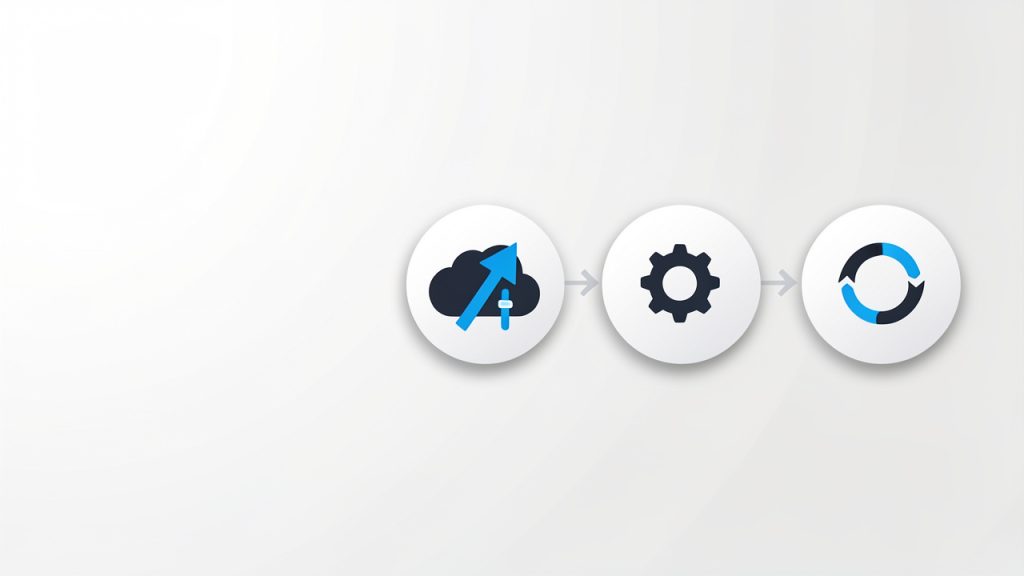
- Choose the file type you need to convert, such as PDF, JPG, MP4, DOCX, or CSV.
- Select a trusted online converter with clear privacy information and support for your format.
- Upload a test file and review any optional settings before processing.
- Download and inspect the result to confirm quality, formatting, and compatibility.
- Repeat with your real file once you are satisfied with the output.
This basic process keeps risk low and helps you learn quickly. After one or two successful tasks, using an online convert tool usually becomes second nature.
Conclusion
Online convert is ultimately about reducing friction in digital work. It helps bridge the gaps between formats, devices, software, and user expectations. For small business owners, freelancers, developers, and productivity-focused users, that translates into faster turnaround, fewer software headaches, and smoother collaboration.
The best next step is simple, identify one recurring file problem in your workflow and solve it with a reliable online conversion tool. Start small, test carefully, and pay attention to quality and privacy. Once you find a tool that fits, you will likely wonder how much time you used to lose on file issues that should have taken only minutes.