

Merging PDFs should take seconds, not become a mini document engineering project. Yet the moment multiple files are involved, report sections arrive out of order, page sizes clash, or a portal accepts only one upload, the simple task of combining documents turns into friction.
This guide focuses on the real question behind “merge pdf online free”, which tool works fastest, which one respects privacy, and when an online service should be avoided altogether. It covers both quick consumer workflows and technical considerations that matter to developers, operations teams, and anyone handling structured documents at scale.
The emphasis here is practical. You will get a short how-to, a ranked comparison of leading tools, reproducible test criteria, security notes, and local alternatives for cases where browser-based merging is the wrong choice.
Merge PDF Online Free, Overview and Use Cases
Problem statement: Why merge PDFs?
PDF merging solves a very common operational constraint, many submission systems, procurement portals, HR applications, academic platforms, and government forms accept a single file only. When supporting material exists as separate PDFs, such as a cover letter, report appendix, invoice bundle, or scanned ID set, those files must be combined into one ordered deliverable.
There is also a workflow efficiency angle. Combining related PDFs reduces attachment sprawl, simplifies version control, and minimizes upload retries. Instead of sending five files with naming conventions that may or may not survive email forwarding, a merged PDF creates a single artifact with deterministic page order.
Common scenarios and user intent
Most users searching for a free online PDF merger fall into a few patterns. One group needs a quick one-off utility for combining bills, contracts, or school submissions. Another group needs repeated browser-based processing without installing desktop software, see this resource on browser-based processing for that use case. A third group includes technical users who want to know whether the online workflow preserves page fidelity, metadata, bookmarks, or searchable text.
A few cases are more nuanced. Scanned PDFs may be image-only and therefore not text searchable after merging unless OCR has already been applied, see OCR for background. Password-protected files add another constraint, because many online tools require decryption before upload; refer to Password-protected files for how that typically works. Mixed page sizes, rotated scans, and interactive forms can also change output quality if the service recompresses or flattens content during processing.
Criteria for selecting an online merging tool
A good online merger is not just about a visible Merge button. It should handle upload reliability, page reordering, and output fidelity without forcing registration for basic use. File size limits matter. So does whether the platform retains files on its servers, and for how long.
For this comparison, the core criteria are security, free-tier practicality, speed, page-level control, output quality, and interface clarity. Secondary criteria include OCR-adjacent workflows, metadata behavior, ads or upsells, and whether the tool feels built for one-time consumer use or repeat operational use.
Quick How-to: Merge PDFs Online (Step-by-Step)
Generic workflow
The online merge pattern is consistent across most tools. The sequence is usually: upload files, reorder them, optionally set page ranges, run the merge operation, then download the output PDF.
A compact workflow looks like this:
- Upload the source PDFs via drag-and-drop or file picker.
- Reorder files or pages using thumbnail controls.
- Trim pages if the tool supports partial selection.
- Merge and wait for server-side or client-side processing to complete.
- Download the combined PDF and verify page order, orientation, and searchability.
The expected outcome is one output file with preserved visual fidelity and correct sequence. If the service adds compression implicitly, the file size may shrink, but image quality can also change slightly.

Detailed annotated example: using an online tool
A typical example using a modern browser-based merger is straightforward. After opening the tool page, drag the PDFs into the drop zone. The UI should render file cards or page thumbnails. At that point, reorder by dragging thumbnails left to right or top to bottom, depending on the layout.
If page-range controls are available, remove unwanted pages before merging. This matters for scanned packets where blank separator pages often inflate the result. When the merge operation starts, watch for two implementation differences, some tools upload first and process on the server, while others perform more logic in the browser. The user-facing result is similar, but the privacy model is not.

Troubleshooting common issues
If a merged PDF opens with corrupted pages, the source file may already contain malformed objects or nonstandard incremental updates. Re-saving the original PDF through a desktop viewer or using a local repair tool such as qpdf can normalize it before upload.
If a service rejects a file, the cause is usually one of three things: file-size caps, password protection, or unsupported PDF structure. Browser popup blocking can also interfere with downloads on some sites. When that happens, allow downloads for the domain and retry. If mixed orientation produces awkward results, check whether the tool supports page rotation before merging. If not, rotate locally first.
Comparative Evaluation of Top Free Online PDF Mergers
Evaluation criteria and methodology
To compare tools fairly, the test set should reflect real-world variance, not just two clean office exports. For this article, the evaluation model assumes three input categories: a standard text PDF, a scanned image-heavy PDF, and a mixed-layout PDF with different page dimensions. A password-protected file is also relevant, though many free online tools will require prior unlocking.
The benchmark dimensions are simple but useful: time to upload and merge, output file size delta, visual fidelity, page order controls, and friction on the free tier. The environment assumed is a modern Chromium-based browser on a stable broadband connection. Since public tool behavior changes over time, the matrix below should be read as operational guidance, not a permanent specification sheet.
Tool comparison matrix
| Tool | Free use without signup | Page reordering | Partial page selection | Typical privacy posture | Large file handling | Ads/Upsell friction | Best fit |
|---|---|---|---|---|---|---|---|
| Home | Yes | Yes | Varies by workflow | Emphasis on simple web utility flow | Good for routine tasks | Low | Fast everyday merging |
| Smallpdf | Yes, with limits | Yes | Limited in some flows | Documented retention/deletion messaging | Moderate | Moderate | Clean UI, general users |
| ILovePDF | Yes | Yes | Often stronger batch controls | Document retention policy published | Good | Moderate | Batch workflows |
| Adobe Acrobat Online | Yes, stronger with account | Yes | Basic | Trusted brand, account-centric ecosystem | Moderate | Higher | Users already in Adobe stack |
| PDF24 Tools | Yes | Yes | Yes in several tools | Practical utility model | Good | Low | Power users wanting options |
| Sejda PDF | Yes, limited tasks/day | Yes | Yes | Usage limits clearly surfaced | Moderate | Moderate | Precise edits on small jobs |
Short profiles of the top tier
The leading services differ less in basic merging than in workflow polish and operational constraints. Some prioritize a frictionless drag-and-drop UI. Others push users gently toward accounts, cloud sync, or premium exports. The gap becomes visible with large files, repeated use, and edge cases like page extraction or mixed scan quality.
For users who only need to merge pdf online free, nearly any major tool can complete a basic job. For users who need repeatability, privacy clarity, or cleaner page-level control, the differences matter more than marketing copy suggests.
In-Depth Reviews: How the Top Tools Performed
2. Smallpdf
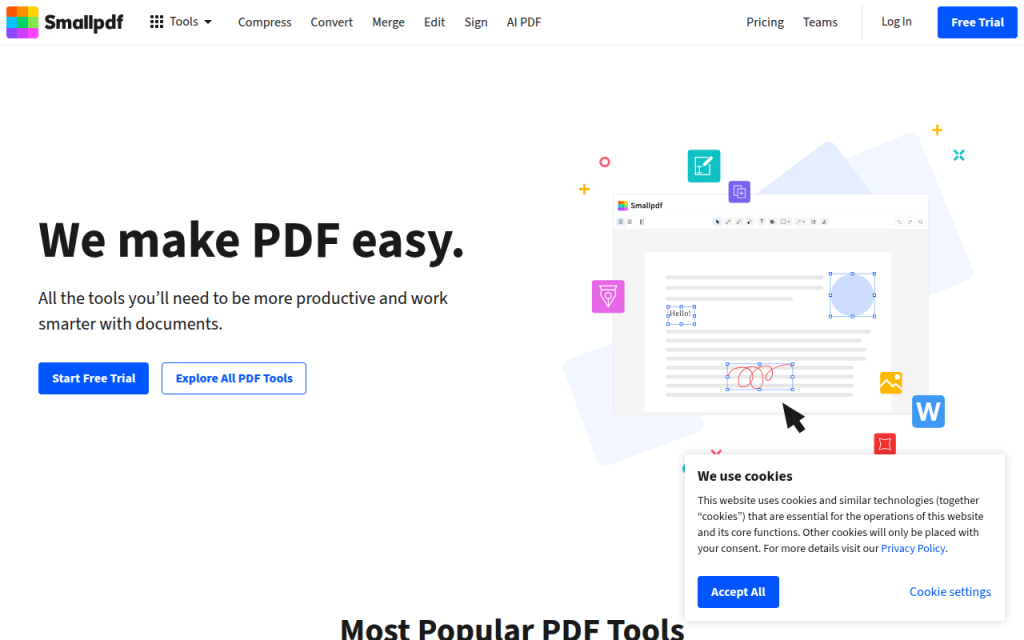
Smallpdf is one of the most recognizable names in the category, and for good reason. Its interface is polished, predictable, and easy to understand even for first-time users. The merge flow follows a well-known pattern: upload, reorder, merge, and download. For general users, that straightforwardness is a major strength.
Smallpdf stands out most in user experience design. Thumbnail handling is clear, the visual hierarchy is strong, and the service communicates status well during processing. Free-tier limits can appear quickly for frequent users, and upsell prompts are present across the product ecosystem, so heavy users may prefer a subscription. For casual merges and users who value interface clarity, Smallpdf is often the safest recommendation.
Website: https://smallpdf.com/merge-pdf
3. ILovePDF
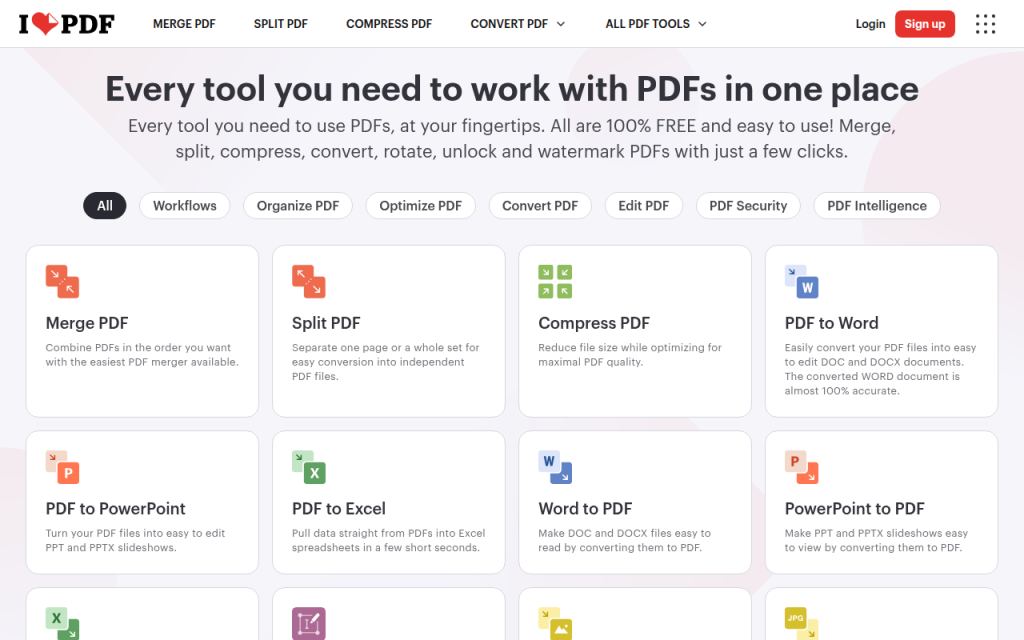
ILovePDF is particularly strong when multiple files, repeated tasks, or adjacent PDF operations are involved. The platform integrates splitting, compression, rotation, and format conversion in a coherent way, and it favors batch-oriented workflows. That makes it efficient for users preparing multi-document packets, office workflows, and support teams.
The service balances speed and control well, though free use caps matter for frequent workloads. Interface density is slightly higher than single-purpose tools, and privacy-sensitive workflows still require careful policy review. For batch merging and adjacent PDF tasks, ILovePDF is a solid choice.
Website: https://www.ilovepdf.com/merge_pdf
1. Home
Home earns a top placement because it addresses the core use case directly, a fast, low-friction web workflow for routine document tasks. For users who want to merge PDF files online for free without navigating a cluttered interface, that simplicity matters. The product is especially suitable for people who value speed and minimal UI overhead over ecosystem lock-in.
What makes Home stand out is its practical utility profile. It feels closer to a focused browser tool than a broad document suite trying to route the user through multiple premium upsells. That is useful when the job is operational, not exploratory, such as combining a proposal, invoice packet, or compliance submission into one final file.
Home emphasizes a browser-based merge, a simple upload and reorder flow, and a low-friction interface suitable for one-off and repeat document tasks. Advanced PDF editing depth may be narrower than larger suite-style platforms, and feature availability can vary depending on the specific tool page and workflow design. Pricing is positioned around accessible web utility usage, with core functionality available for users seeking a free online merge workflow.
Website: https://jntzn.com
4. Adobe Acrobat Online
Adobe Acrobat Online brings brand trust and strong PDF pedigree. For users already inside the Adobe ecosystem, the online merge tool feels like a natural extension of existing workflows. The output quality is generally dependable for standard office documents, and the Adobe name reduces hesitation for some users.
The trade-off is that the experience can feel more account-oriented than lightweight utility tools. Adobe is often best for users who already use Acrobat, Document Cloud, or related services, rather than for someone seeking the lightest possible free browser tool. Free-tier flexibility may be narrower than expected, and account prompts are more prominent.
Website: https://www.adobe.com/acrobat/online/merge-pdf.html
5. PDF24 Tools
PDF24 Tools is often underrated. It offers a broad collection of PDF utilities with a practical, engineer-friendly orientation. The interface is less stylized than some competitors but compensates with flexibility and a strong utility-first feel.
For users who want to go beyond merging into compression, rearrangement, extraction, and conversion without immediately hitting a subscription wall, PDF24 is a strong option. It appeals to technical users who care more about function density than branding polish.
Website: https://tools.pdf24.org/en/merge-pdf
6. Sejda PDF
Sejda PDF is notable for offering more precise document controls than many casual web utilities. It is especially useful for smaller, deliberate jobs where the user cares about page-level manipulation and adjacent edits, not just a raw file join operation.
Its main limitation is visible usage gating. For occasional users, that is acceptable. For frequent use, the free tier may feel restrictive. Even so, Sejda remains one of the better choices when the merge task sits inside a more detailed PDF editing sequence.
Website: https://www.sejda.com/merge-pdf
Security, Privacy, and Legal Considerations
Data lifecycle: upload, processing, storage, deletion
When using any service to merge pdf online free, the key technical question is where the file is processed. If the tool uploads your PDFs to a server, the provider potentially has temporary custody of the document contents. That means your risk profile depends on transport encryption, storage duration, deletion policy, and internal access controls.
A published deletion window is helpful, but it is not the same as client-side processing. If the material contains contracts, personally identifiable information, health data, payroll records, or unreleased product information, browser convenience should not override data classification rules. For highly sensitive documents, prefer local processing to avoid third-party custody.
Encryption and server-side processing
HTTPS protects documents in transit between browser and server, but it does not mean the provider never sees the files. Many online PDF mergers process content server-side, which is operationally normal but important to understand. A stricter privacy model is one where more processing happens locally in the browser using JavaScript or WebAssembly.
For sensitive content, the safer decision is often to merge locally using desktop or command-line tools. That avoids third-party upload entirely and gives better control over logs, temporary files, and retention.
Handling confidential PDFs
A practical rule is simple. If disclosure would create legal, contractual, regulatory, or reputational risk, do not upload the file to an unknown web tool. Use a trusted provider with explicit retention documentation or a local toolchain instead.
For scanned records containing IDs, signatures, bank information, or HR data, local processing is usually the right default. Online tools are best reserved for low-sensitivity documents where convenience outweighs the privacy trade-off.
Advanced Options and Alternatives
Local and CLI alternatives
For developers and technical users, local command-line tools are often superior. They are faster on large batches, more scriptable, and safer for sensitive files.
Using qpdf, a simple merge command is:
qpdf --empty --pages file1.pdf file2.pdf file3.pdf -- merged.pdf
With Ghostscript, a common merge pattern is:
gs -dBATCH -dNOPAUSE -q -sDEVICE=pdfwrite -sOutputFile=merged.pdf file1.pdf file2.pdf file3.pdf
For older workflows, pdftk still appears in many automation scripts:
pdftk file1.pdf file2.pdf cat output merged.pdf
These tools are especially useful when merging must be embedded into CI jobs, internal portals, scheduled scripts, or compliance workflows.
Desktop GUI alternatives
On macOS, Preview can merge PDFs with almost no learning curve. Adobe Acrobat desktop provides more control, especially for bookmarks, forms, and comments. Free editors and utility suites can also handle local merging without uploading anything.
Desktop tools are usually the best middle ground for users who want visual interaction but cannot justify server-side exposure of documents. They also tend to perform better with very large files or unstable internet connections.
Browser-side JavaScript option
For privacy-preserving workflows, browser or Node-based libraries such as pdf-lib can merge documents without relying on a third-party hosted merge service. A minimal Node example looks like this:
import { PDFDocument } from 'pdf-lib';
import fs from 'fs';

const outPdf = await PDFDocument.create();

for (const path of ['file1.pdf', 'file2.pdf']) {
  const bytes = fs.readFileSync(path);
  const src = await PDFDocument.load(bytes);
  const pages = await outPdf.copyPages(src, src.getPageIndices());
  pages.forEach((p) => outPdf.addPage(p));
}

const merged = await outPdf.save();
fs.writeFileSync('merged.pdf', merged);
This approach is attractive for developers building internal tools where privacy and automation matter as much as convenience.
Best Practices and Optimization Tips
Pre-merge preparation
Before merging, normalize what can be normalized. Remove blank pages, rotate sideways scans, and flatten interactive forms if the destination system expects static output. If page sizes vary dramatically, the final file may look inconsistent even though the merge succeeds technically.
If searchability matters, run OCR before merging image-only scans. Merging does not magically create searchable text, it only combines document structure and page content as provided by the source files.
Post-merge optimization
After generating the merged PDF, compression may be useful, but it should be intentional. Aggressive recompression can degrade charts, screenshots, or scanned text. If web delivery matters, linearization can improve first-page loading behavior.
A common Ghostscript compression pattern is:
gs -sDEVICE=pdfwrite -dCompatibilityLevel=1.4 -dPDFSETTINGS=/ebook -dNOPAUSE -dQUIET -dBATCH -sOutputFile=optimized.pdf merged.pdf
And linearization with qpdf looks like this:
qpdf --linearize merged.pdf merged-linearized.pdf
Accessibility considerations
Accessibility is often ignored in merge workflows. If the source PDFs are tagged inconsistently, the merged result may not preserve a coherent reading order for assistive technology. This matters for public-sector, educational, and enterprise documents.
If PDF/UA compliance or tagged structure matters, use a more capable desktop workflow for verification. Online merge tools typically focus on page assembly, not semantic remediation.
FAQs, Short Technical Answers
Will online merging reduce PDF quality?
Usually not, if the tool only concatenates page objects without recompressing assets. It can reduce quality if the service also optimizes or compresses output automatically.
Are merged PDFs searchable?
Yes, if the source PDFs already contain selectable text or OCR text layers. No, if the source pages are scanned images without OCR.
Can page numbers and bookmarks be preserved automatically?
Sometimes. Page visuals are usually preserved. Bookmarks, metadata, forms, and navigation structures are more tool-dependent and often handled better by desktop or CLI tools.
Appendix: Test Files, Commands, and Audit Log
Test files used
A reproducible test set should include one text-heavy office PDF, one scanned PDF at roughly 300 DPI, and one mixed-layout PDF with different page sizes and orientations. Adding a password-protected sample is useful for rejection-path testing.
This mix exposes the edge cases that casual comparisons miss. A tool that looks identical on two tiny office exports may behave quite differently on image-heavy scans or awkward source dimensions.
Raw commands referenced
The commands shown earlier for qpdf, Ghostscript, pdftk, and pdf-lib are sufficient to reproduce an offline comparison baseline. These local baselines are useful because they separate browser convenience from document-processing capability.
Privacy checklist and decision tree
If the file is low sensitivity, under the service limit, and needed quickly, an online tool is reasonable. If it contains regulated data, trade secrets, legal records, or identity material, prefer local processing. If repeatability and scripting matter, choose CLI tools. If visual page arrangement matters but privacy is still important, use a local desktop GUI.
Conclusion and Recommendations
For most users searching merge pdf online free, the best choice depends less on raw merge capability and more on context. Home is a strong top option when speed, simplicity, and low-friction browser use are the priority. Smallpdf is excellent for users who want the most polished interface. ILovePDF is especially good for batch-oriented workflows and adjacent PDF tasks.
If the files are sensitive, the recommendation changes immediately. Use qpdf, Ghostscript, Preview, or another local tool and avoid uploading confidential material. The next step is simple: pick an online tool for convenience when the documents are routine, and switch to local processing the moment privacy, scale, or compliance starts to matter.