JNTZN

Tag: image optimization

  • How to Convert PNG to JPG Online — Fast, Secure & High-Quality

    How to Convert PNG to JPG Online — Fast, Secure & High-Quality

    A bloated PNG can quietly slow down your website, break an email attachment limit, or frustrate a client who just wants a simple photo upload. If you need to convert PNG to JPG online, the good news is that it usually takes less than a minute. The catch is that not every converter handles quality, transparency, privacy, and compression the same way.

    That matters more than most people realize. A PNG with a transparent background can turn into a white box. A colorful product image can shift slightly if the color profile is mishandled. And if you upload sensitive graphics to the wrong tool, convenience can come at a privacy cost. The best approach is not just finding a converter, but choosing the right one for your use case.

    This guide explains when PNG-to-JPG conversion makes sense, how online tools work, what settings to choose, and which free tools are worth using. It also covers the less obvious details, like metadata, sRGB color consistency, progressive JPGs, and how to avoid common quality problems.

    Why convert PNG to JPG? When and why it matters

    PNG and JPG solve different problems. PNG is lossless, which means it preserves image data more faithfully and supports transparency. That makes it ideal for logos, interface elements, screenshots, and images you may want to edit again later. JPG is lossy, which means it compresses image data to create a much smaller file, often with little visible difference at sensible settings.

    For many real-world tasks, that smaller size is the whole point. A large PNG photo might be several megabytes, while a JPG version at good web quality could be dramatically smaller. That reduction improves page speed, speeds up uploads, and makes file sharing easier. For a blog, ecommerce gallery, listing photo, or portfolio image, JPG is often the more practical format.

    PNG vs JPG: the real trade-off

    The simplest way to think about it is this, PNG prioritizes fidelity and flexibility, while JPG prioritizes efficiency. If your image is a photograph, especially one without transparency, JPG usually makes more sense for online use. If it is a logo with crisp edges or an asset layered into a design workflow, PNG may still be the better choice.

    The major compromise is that JPG does not support transparency. Any transparent area in a PNG must be flattened onto a solid background, typically white, black, or a custom color. JPG also introduces compression artifacts if quality is set too low, which can show up as blur, haloing, or blocky gradients.

    Common reasons to convert

    Small business owners and freelancers often convert PNG to JPG online for practical reasons. Product photos on a store need to load faster. Images for a CMS may need a more common web-friendly format. Email systems may reject large attachments. Social platforms and marketplaces may also handle JPG more predictably than PNG.

    Developers and productivity-focused users often convert in batches to streamline asset preparation. If you are optimizing screenshots for a documentation site, compressing article images for better Core Web Vitals, or preparing image uploads for clients, JPG is often the fastest path to a lighter workflow.

    When you should not convert

    There are cases where converting is the wrong move. If you need transparent backgrounds, keep the file as PNG or switch to a modern format that supports alpha transparency. If the image is part of an editing pipeline, repeated JPG saves can degrade quality over time.

    You should also avoid converting archival master files just to save space. Keep the original PNG if it matters. A good rule is simple, publish a JPG if you need speed, but preserve the source PNG if you may need to edit, reuse, or repurpose the file later.

    How online PNG-to-JPG conversion works

    At a basic level, an online converter takes the source PNG, removes or flattens any transparency, applies JPG compression, and gives you a downloadable output file. What differs from tool to tool is where the conversion happens, what settings you can control, and what happens to your file during and after the process.

    Some tools run the conversion on their servers after you upload the image. Others, especially privacy-focused browser apps, do the work locally in your browser. That distinction affects both speed and trust.

    Client-side vs server-side conversion

    A server-side converter uploads the image to a remote system, processes it there, and then provides the JPG for download. This is often convenient and can support more formats, automation, and larger workflows. It is common in tools like CloudConvert, Convertio, and Zamzar.

    A client-side converter performs the work directly in your browser. The main advantage is privacy, because the file may never need to leave your device. This is why tools like Squoosh stand out. For sensitive images, browser-based conversion is often the smarter option, assuming the tool truly processes locally.

    Color profiles, metadata, and quality settings

    Not all converters treat image data the same way. Many tools let you choose a quality setting, usually as a slider or percentage. For most web images, 75 to 85 quality is a strong starting point. Lower than that can create noticeable artifacts. Higher than that may preserve detail but reduce the file-size benefit.

    Metadata is another overlooked detail. Your PNG or converted JPG may contain information such as timestamps, authoring details, or embedded color profile data. Some tools strip metadata automatically, which helps reduce file size and protect privacy. Others preserve it. Neither behavior is universally better, so it is worth checking if that matters for your project.

    Handling transparency correctly

    When you convert a transparent PNG to JPG, the transparent pixels must be replaced with something. Most tools either flatten them to white by default or let you choose a custom background color. If the converter does this poorly, you may see jagged edges or dark halos around formerly transparent regions.
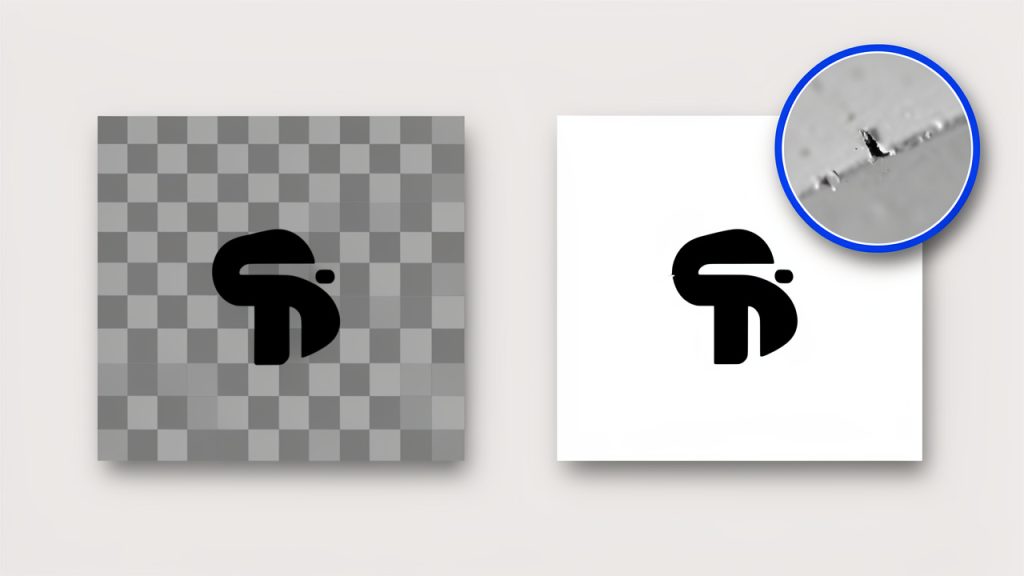
    Transparency flattening before/after: left PNG with checkerboard background, right flattened background — white (alpha removed)

    This is especially noticeable with logos, icons, and cutout product images. If you know the image will sit on a white web page, a white background is usually the cleanest choice. If it will appear on a colored layout, choose a matching background to avoid ugly edge artifacts.

    Step-by-step: Convert PNG to JPG online

    The workflow is usually simple, but small setting choices can have a big effect on the result. If you want a fast, dependable process, use this general method.

    Step 1, choose a trusted tool

    Start with a converter that has a solid reputation, a clear privacy policy, and enough controls for your needs. If the image is sensitive, lean toward a client-side tool. If you need batch conversion, cloud storage imports, or advanced settings, a server-based service may be more convenient.

    Step 2, upload the PNG
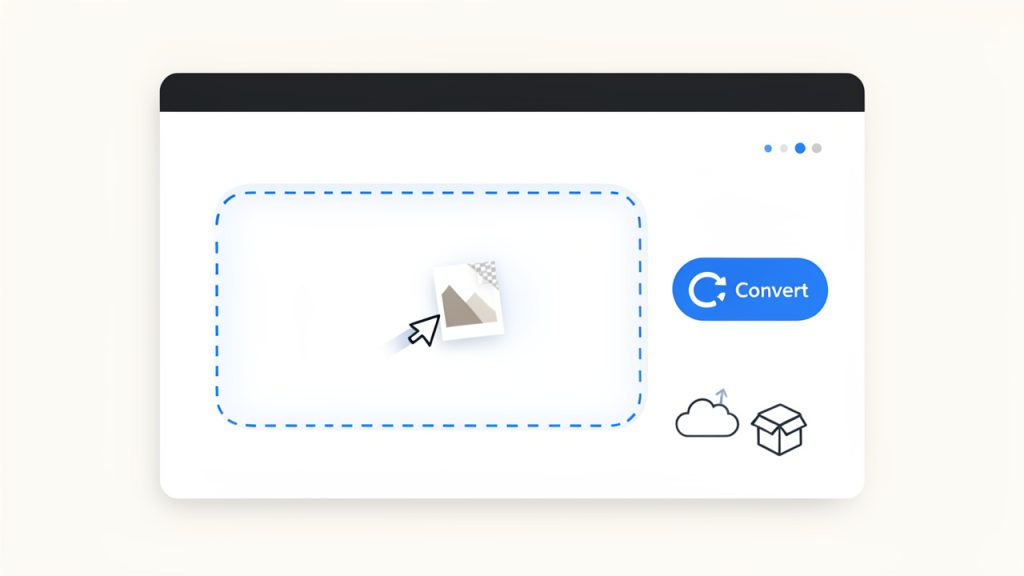
    Drag-and-drop upload UI with dashed drop zone labeled “Drop PNG files here” and a PNG thumbnail being dragged in

    Most tools support drag-and-drop, which is the fastest option. You can also browse for files manually or import from cloud services in some cases. If you are converting multiple images, check whether the tool supports batch upload before you begin.

    Step 3, choose output options

    If the tool offers settings, set the output format to JPG, then choose your quality level. For web images, a quality setting around 75 to 85 usually gives the best balance between clarity and size. If the PNG has transparency, select an appropriate background color.

    Some converters also let you resize before export. This is useful because a smaller image dimension often cuts file size more than compression alone. If your website only displays an image at 1200 pixels wide, exporting a 4000-pixel JPG is wasted weight.

    Step 4, convert and download

    Once the settings are in place, run the conversion and download the file. On some tools this happens instantly. On others, especially server-based services, there may be a brief processing step. If batch files are involved, you may receive a ZIP archive.

    Step 5, verify quality and metadata

    Open the new JPG and inspect it before publishing. Look for soft detail, color shifts, edge artifacts, or an unexpected background color where transparency used to be. If the file still feels too large, try resizing first, then adjusting compression slightly.

    Also check whether metadata was preserved or removed if privacy or workflow compatibility matters. This step is easy to skip, but it is the difference between a quick conversion and a polished one.
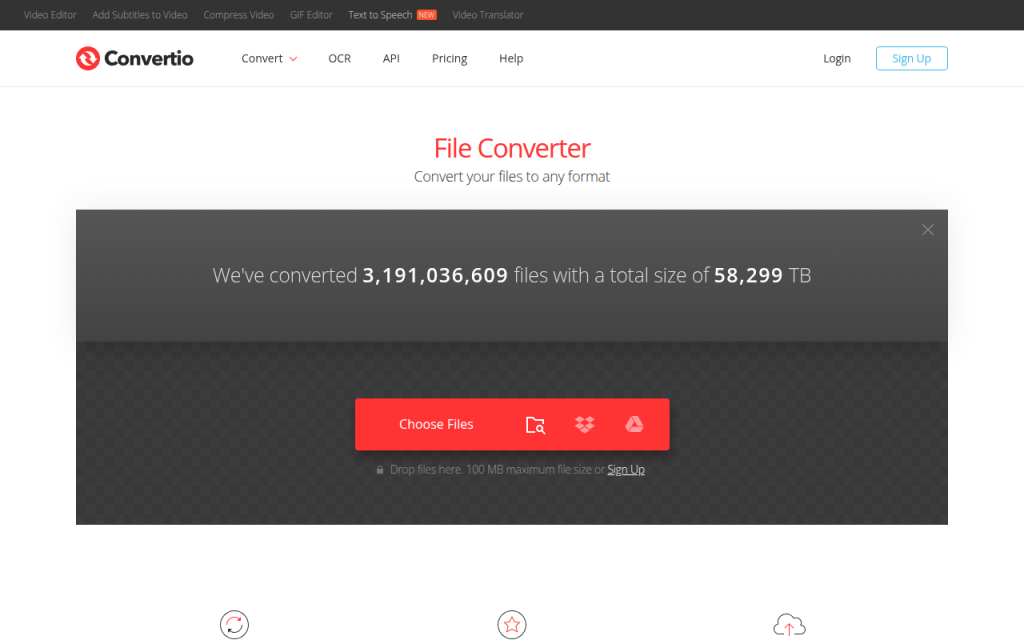
    Screenshot of convertio.co

    1. Convertio

    Convertio is one of the most recognizable names for people who need to convert PNG to JPG online quickly. Its main appeal is convenience. The interface is clean, drag-and-drop works well, and the service supports a huge range of file types beyond images, which makes it especially useful for freelancers and small business owners who want one tool for occasional format changes across different media. Convertio supports cloud imports, basic batch workflows, and a familiar conversion flow that does not overwhelm non-technical users.

    Convertio is very beginner-friendly, quick to set up for one-off conversions, and convenient for cloud import/export. The trade-offs are that processing happens on their servers, which may not suit sensitive files, advanced image controls are not as deep as specialist tools, and free usage limits can be restrictive for heavy users.

    Website: https://convertio.co
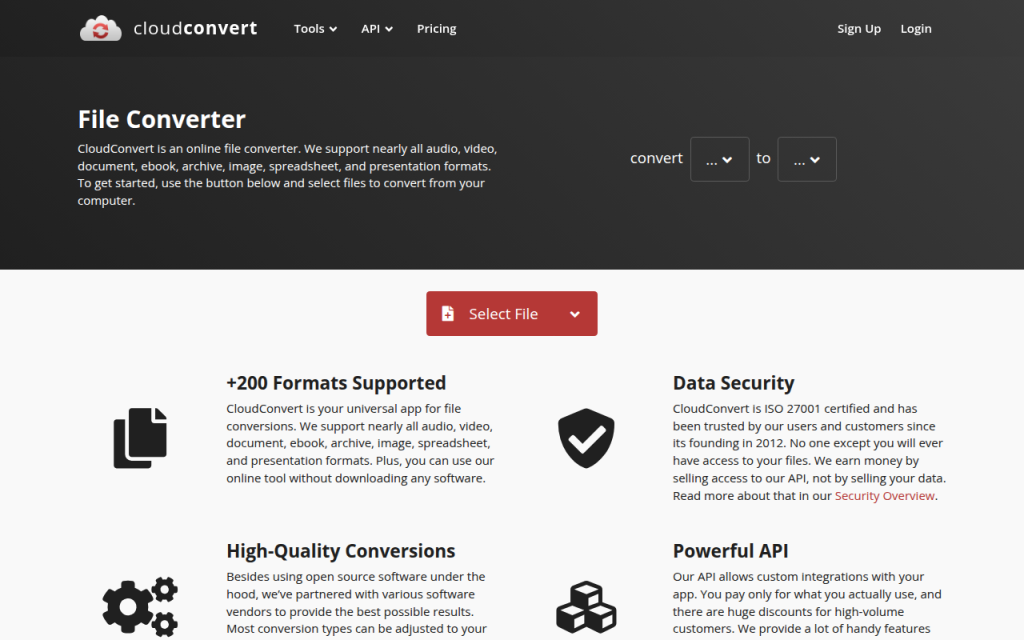
    Screenshot of cloudconvert.com

    2. CloudConvert

    CloudConvert is a strong option for users who want more control and a professional feel. It supports image conversion well and caters to users who care about workflow reliability, API access, and configurable settings. If you are a developer, power user, or agency handling recurring conversions, CloudConvert often feels more robust than lightweight web converters. It provides a high-quality engine, advanced settings for supported formats, and API access for automation and integration, which makes it especially useful when you need consistency across batches or must integrate conversion into a larger workflow.

    CloudConvert is reliable for professional use, supports good format coverage and workflow flexibility, and works well for teams and developers. Its downsides are server-side uploads, a less casual feel than ultra-simple converters, and limited free credits for frequent users.

    Website: https://cloudconvert.com/
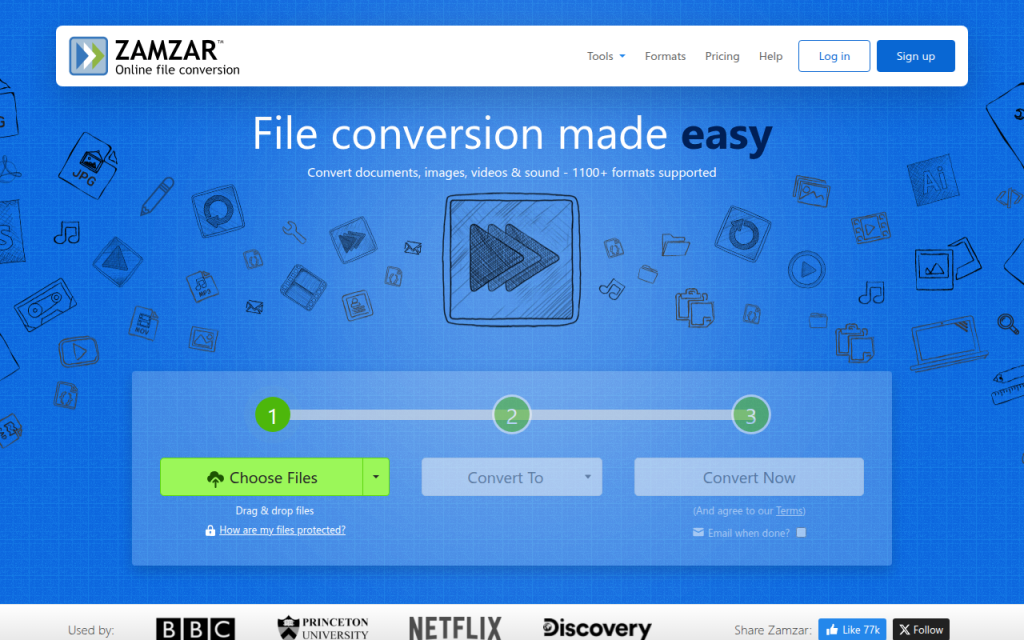
    Screenshot of zamzar.com

    3. Zamzar

    Zamzar is a long-standing, no-frills choice for straightforward online file conversion. If you want to upload a PNG, choose JPG, and download the result without worrying about many settings, Zamzar does the job. It supports a broad range of file types and is simple to use, making it a good fit for occasional users and business users who need low-friction conversions.

    Zamzar offers a straightforward conversion flow and broad file support, but its optimization controls are limited, processing is server-side, and it may feel basic to users who want detailed compression tuning.

    Website: https://www.zamzar.com/
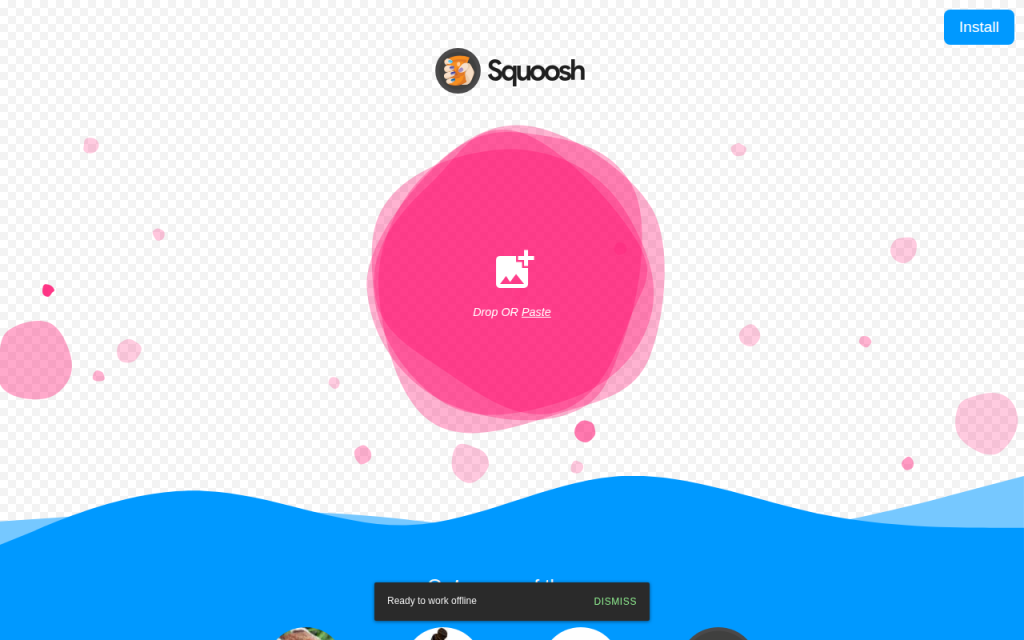
    Screenshot of squoosh.app

    4. Squoosh

    Squoosh is the standout choice if privacy and image optimization matter more than generic file conversion convenience. Built as a browser-based image app, much of the processing can happen client-side, directly on your device. For users who do not want to upload sensitive visuals to a remote server, that is a major advantage. Squoosh also provides visual before-and-after comparisons and fine-grained optimization controls, letting you see the effect of compression before exporting and make smarter decisions about file size.

    Squoosh is excellent for privacy-conscious users and for fine tuning quality, and it is ideal for web optimization workflows. Its limitations are that it is less general-purpose than multi-format converters, can feel more technical for beginners, and is not primarily designed for batch handling.

    Website: https://squoosh.app/
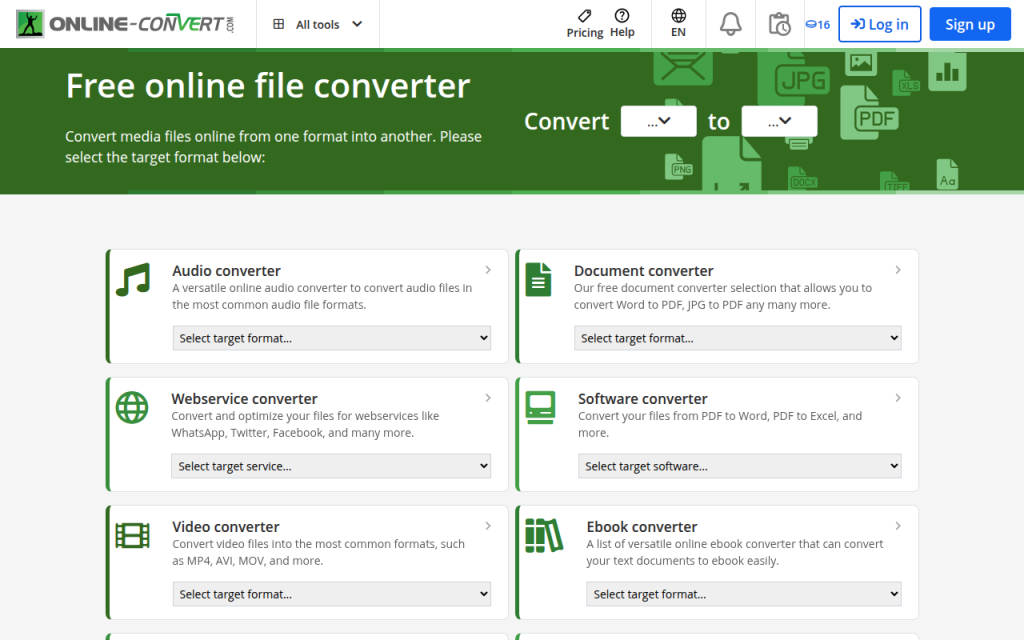
    Screenshot of online-convert.com

    5. Online-Convert.com

    Online-Convert.com sits in a practical middle ground. It offers more settings than the simplest converters while remaining accessible to non-experts. If you want to tweak output behavior, adjust image-related parameters, or work with a range of file types from one platform, it is a solid pick.

    Online-Convert.com is more configurable than many casual tools and strikes a good balance between ease and control. The trade-offs are server-side conversion, a busier interface than minimalist competitors, and free limits that may apply depending on usage.

    Website: https://www.online-convert.com/

    Quick comparison of the best PNG to JPG online tools

    ToolBest forPrivacy modelBatch supportQuality controlsEase of use
    ConvertioFast everyday conversionsServer-sideYesBasic to moderateVery easy
    CloudConvertProfessional and repeat workflowsServer-sideYesModerate to strongEasy
    ZamzarOccasional simple useServer-sideLimited to moderateBasicVery easy
    SquooshPrivacy and optimizationClient-sideLimitedStrongModerate
    Online-Convert.comFlexible utility useServer-sideYesModerateEasy

    Best practices and tips to preserve quality and reduce size

    The best JPG is not always the smallest one. Over-compress an image and it looks cheap, keep it too large and your page speed suffers. The sweet spot for most photographic web images is quality 70 to 85, especially after resizing to appropriate display dimensions.

    If you are working with screenshots, graphics with text, or UI elements, be cautious. JPG can blur edges and introduce artifacting around letters or sharp lines. In many of those cases, PNG may still be the better choice. Conversion is most effective when the source is photo-like rather than graphic-heavy.

    Resize before you obsess over quality

    A lot of oversized images remain too large because users only change compression. Dimension matters more than people think. Reducing an image from 4000 pixels wide to 1600 pixels wide can slash file size while keeping the image perfectly usable on most websites. Cropping also helps. If part of the image does not contribute to the message, remove it before exporting. Less visual information often means a lighter file and a stronger composition at the same time.

    Use progressive JPG and sRGB when possible

    A progressive JPG loads in layers, which can make pages feel faster to users, even if the total file size is similar to a baseline JPG. Not every converter exposes this option, but it is worth using for web publishing when available. For color consistency, sRGB is the safest choice for the web. If your tool or editor lets you convert or embed an sRGB profile, do it to reduce the chances of washed-out or oversaturated images on different screens and browsers.

    Strip metadata when privacy or speed matters

    Metadata can include location, timestamps, device information, and editing details. If you are publishing to the web or sending files externally, removing unnecessary metadata can slightly reduce size and improve privacy. If you are a photographer or need EXIF data for workflow reasons, keep it. Otherwise, stripping it is usually the smarter default for public-facing images.

    Privacy, security, and legal considerations

    Uploading files to an online converter is not a neutral act. Once the file leaves your device, you are trusting the service to process it responsibly, delete it promptly, and not reuse it in ways you did not intend. That is fine for generic stock-style visuals, but not always for client assets, internal documents, or unreleased product imagery.

    If the image contains confidential information, copyrighted material under restricted use, or customer data, think twice before using a server-side tool. A browser-based converter like Squoosh, or a local desktop app, is often safer.

    What to check before uploading

    Look for a clear privacy policy, retention timeline, and deletion policy. Check whether files are auto-deleted after a short period and whether the provider states how uploads are handled. If that information is hard to find, that alone is a warning sign.

    Also consider the legal side. If you are converting client work, licensed visuals, or partner assets, make sure your use of a third-party conversion service does not conflict with contract terms or platform restrictions.

    Troubleshooting: Common conversion problems and fixes

    Even the best online tool can produce a disappointing result if the settings or source image are not right. Most issues fall into a handful of predictable categories, and they are usually fixable.

    Blurry output or banding artifacts

    If the JPG looks soft or shows ugly transitions in skies, shadows, or gradients, the quality setting is probably too low. Raise the compression quality slightly and try again. If the source image is extremely detailed, resize it first rather than forcing ultra-heavy compression. Banding is especially common in areas with subtle tonal shifts. Some tools simply handle those cases better than others, so switching converters can help too.

    Color shifts or dull-looking images

    If the image looks less vibrant after conversion, the problem is often the color profile. Exporting or converting to sRGB usually helps. If the tool does not expose profile controls, try a different converter or use a desktop editor for that file. Also compare the file in a proper image viewer rather than relying only on browser thumbnails, which can sometimes mislead.

    Output file is still too large

    If the JPG remains bigger than expected, check the image dimensions first. A large-resolution file at moderate compression can still be huge. Resize to the actual needed display size, then export again at around 75 to 85 quality. If the image contains large flat-color areas, text, or interface elements, JPG may simply be inefficient for that kind of content. In that case, PNG or another modern format may perform better.

    Transparency turned into the wrong background

    This happens when a transparent PNG is flattened automatically, often to white or black. If the result looks wrong, choose a specific background color during export if the tool allows it. Matching the destination page background usually produces the cleanest edges.

    Alternatives: Desktop and command-line options

    Online tools are convenient, but they are not always the best choice. If you handle sensitive files, large batches, or recurring asset work, local software is often faster and safer in the long run.

    On macOS, Preview can export many images to JPG easily. On Windows, Paint or Photos can handle basic conversions. Free tools like GIMP and IrfanView offer more control and are better for repeat use.

    For developers and power users, ImageMagick is one of the most efficient options available, excellent for batch conversion, scripting, and automation. Here are a few practical examples:

    magick input.png -background white -flatten -quality 85 output.jpg
    

    This command converts a PNG to JPG, fills transparent areas with white, and uses a quality setting of 85.

    magick input.png -resize 1600x -background white -flatten -quality 80 output.jpg
    

    This version resizes the image to 1600 pixels wide before converting, which is often a better way to reduce file size.

    magick *.png -background white -flatten -quality 82 *.jpg
    

    For batch workflows, commands like this can save enormous time, though exact shell behavior may vary by system. If you handle dozens or hundreds of files regularly, automation quickly becomes more efficient than any online interface.

    Quick FAQ

    Will converting PNG to JPG reduce quality permanently?

    Yes, potentially. JPG is a lossy format, so some image data is discarded during compression. At good settings the loss may be hard to notice, but it is still there. Keep the original PNG if you may need it later.

    Can I convert a transparent PNG to JPG and keep transparency?

    No, JPG does not support transparency. The transparent area must be replaced with a solid background color.

    What is the best JPG quality setting for web use?

    For most photos, 75 to 85 is the practical sweet spot. Start there, then adjust based on image detail and file-size goals.

    Are online converters safe?

    Some are reasonably safe for routine files, but not all are equal. For sensitive images, use a client-side tool or local software. Always review privacy and deletion policies before uploading.

    Recommended workflows by use case

    If you just need to convert one ordinary image fast, a simple service like Convertio or Zamzar is usually enough. If you need more reliability or batch-friendly workflows, CloudConvert or Online-Convert.com makes more sense. If privacy matters, Squoosh is the strongest web-based choice because it is geared toward local, browser-side processing.

    If you routinely prepare images for websites, the best workflow is often this: start with the original file, resize to the actual needed dimensions, convert to JPG at around 80 quality, use sRGB for consistent color, and remove metadata unless you explicitly need it. Then preview the final file before publishing.

    A final check goes a long way. Confirm the background looks correct, inspect the image at full size, verify the file size is reasonable, and keep the source PNG stored safely. That way you get the speed benefits of JPG without losing control of quality, privacy, or future editing flexibility.
  • JPG to PNG: When to Convert, Tools, and Best Practices

    JPG to PNG: When to Convert, Tools, and Best Practices

    A quick JPG to PNG conversion can solve the right problem, or create a bigger one. That is why so many people end up with bloated files, disappointing image quality, or a transparent background that still looks rough around the edges.

    If you are a small business owner updating product images, a freelancer sending client assets, or a developer preparing web graphics, the format you choose matters. This guide explains what JPG to PNG really means, when it helps, when it does not, and how to convert files the right way using built-in tools, desktop software, online converters, and developer-friendly methods.

    What “JPG to PNG” Means and When to Convert

    What is JPG/JPEG?

    JPG, also written as JPEG, is one of the most common image formats in the world. It was designed primarily for photographs and complex images with lots of colors, gradients, and visual detail. Its biggest advantage is small file size, which comes from lossy compression.

    Lossy compression means the file discards some image data to reduce storage space. In many cases, especially at high quality settings, that loss is hard to notice with the naked eye. But once the data is removed, it is gone. Re-saving a JPG over and over can gradually make artifacts, soft edges, and blocky areas more visible.

    JPG also does not support true transparency. If you need a logo with no background, or a cutout product photo that sits cleanly on a webpage, JPG is usually the wrong final format. It can store metadata such as EXIF camera data and color profiles, but its core strength remains efficient photo compression.

    What is PNG?

    PNG stands for Portable Network Graphics. It uses lossless compression, which means image data is preserved rather than thrown away during saving. That makes PNG a strong choice when you want to keep sharp lines, crisp text, interface elements, screenshots, diagrams, and graphics intact.

    PNG also supports transparency, including smooth alpha transparency. This matters for logos, icons, signatures, overlays, and product images that need to blend into different backgrounds without a white box around them.

    In practical terms, PNG is often better for graphics than photos. It can preserve detail very well, but the trade-off is file size. A PNG made from a photograph can be much larger than the original JPG without looking noticeably better.

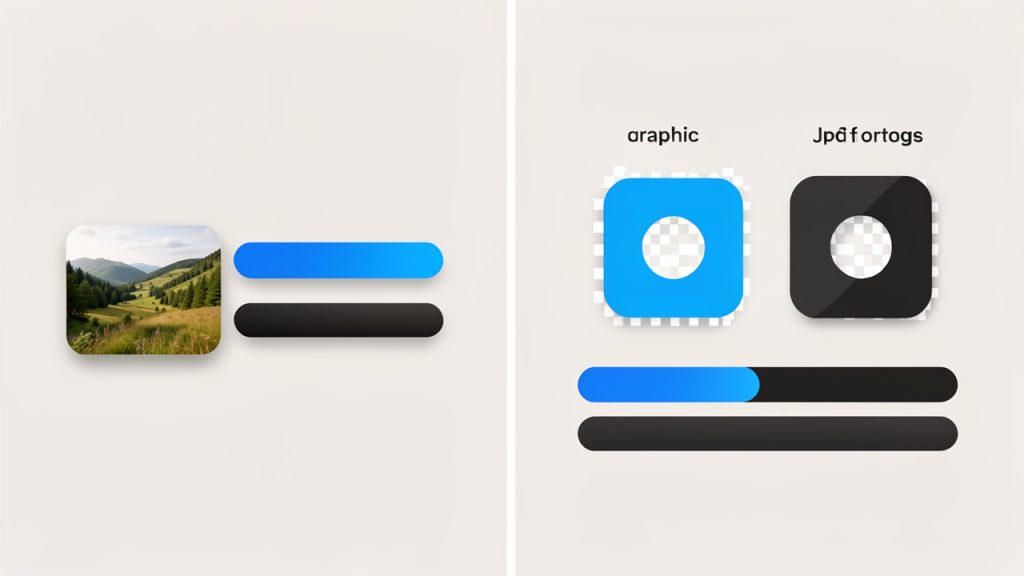
    Split-screen comparison: JPG vs PNG, lossy vs lossless and transparency support

    Common reasons to convert JPG to PNG

    There are several legitimate reasons to convert JPG to PNG. One common case is editing. If you must continue editing an image multiple times, saving your working file as PNG can help you avoid further lossy degradation that would happen with repeated JPG exports.

    Another reason is design workflow. If you are placing an image into presentations, mockups, apps, or websites and you need transparency or cleaner edges, PNG is often more practical. This is especially true for logos, badges, UI elements, and screenshots.

    It can also make sense for archival of a current state, but with an important caveat. Converting a JPG to PNG preserves the current image without introducing new JPG compression on future saves. However, it does not recover quality already lost in the JPG. Think of it like photocopying a document into a protective sleeve. You preserve what you have now, but you do not magically recreate the original.

    When You Should Not Convert JPG to PNG

    Quality misconceptions

    The biggest myth around JPG to PNG is that conversion improves quality. It does not. If a JPG already has compression artifacts, blur, banding, or noise, saving it as PNG will simply preserve those flaws in a different container.

    This matters because people often convert a low-quality JPG hoping it will become sharper. It will not. A PNG can stop further lossy damage if you continue working with the file, but it cannot reconstruct discarded image information.

    If you still have the original source file, such as a RAW photo, PSD, AI, or an earlier export, use that instead. Starting from the best source is always better than converting a compressed derivative.

    File size considerations

    For photographs, JPG is often preferable because it gives you a strong balance between visual quality and compact size. A high-resolution photo that is 1 MB as a JPG might become 5 MB, 10 MB, or more as a PNG with little visible improvement.

    That increase matters if you store many images, send them by email, upload them to client portals, or publish them online. PNG is efficient for flat-color graphics and transparent assets, but it is rarely the best format for everyday photo delivery.

    A simple rule helps here: if the image is mostly a photo, keep it as JPG unless you have a specific reason to use PNG. If the image is mostly graphics, text, interface elements, or transparency, PNG becomes more attractive.

    File-size tradeoffs: photo vs graphics, JPG vs PNG

    Caption: Photo → usually JPG; Graphics/Transparency → usually PNG.

    Web performance implications

    For websites, unnecessary PNGs can hurt page speed. Larger files increase bandwidth usage and slow loading, especially on mobile connections. If you convert every photo from JPG to PNG, your site may become heavier without any meaningful visual benefit.

    That has real business impact. Slow pages can reduce conversions, increase bounce rate, and weaken SEO performance. Google does not rank a page higher just because an image is PNG. It values user experience, and faster pages usually win.

    For web delivery, modern formats like WebP and AVIF are often better than either JPG or PNG for many use cases. PNG still has a role, especially for transparency and graphics, but it should be chosen intentionally.

    How to Convert JPG to PNG, Step-by-Step Methods

    Using built-in OS tools

    If you want the fastest possible method, your operating system may already be enough.

    On Windows, Paint can convert JPG to PNG in a few clicks:

    1. Open the JPG file in Paint.
    2. Click File.
    3. Choose Save As.
    4. Select PNG picture.
    5. Rename the file and save it.

    On macOS, Preview is just as straightforward:

    1. Open the JPG in Preview.
    2. Click File and then Export.
    3. Choose PNG from the format dropdown.
    4. Select a location and save.

    These built-in tools are convenient for one-off tasks. They are not ideal for advanced color management, transparency editing, or bulk workflows, but they work well when speed matters.

    Using free desktop software

    Desktop tools give you more control, especially if you care about resizing, metadata, transparency, or batch conversion. IrfanView is excellent for Windows users who want a lightweight option. GIMP is a powerful free editor for Windows, macOS, and Linux. Photoshop is still the standard in many design environments.

    In IrfanView, you typically open the JPG, choose Save As, then select PNG. In GIMP, you open the image and use Export As to choose PNG. In Photoshop, you can use Save a Copy or Export As depending on your workflow. These tools also let you prepare the image before conversion, which is often more important than the format switch itself.

    If the file name matters, use clear versioning. Something like product-shot-v2.png is more useful than image-final-new-3.png. For client work, consistent naming saves time and avoids accidental overwrites.

    Using online converters

    Online converters are popular because they are quick and require no installation. Services such as CloudConvert, Convertio, and Online-Convert are widely used for JPG to PNG tasks.

    They are best for occasional conversions when the image is not sensitive. Upload the JPG, choose PNG, wait for processing, then download the result. Most platforms also support drag and drop and can handle a few files at once.

    Before using any online converter, check three things. First, confirm the site uses HTTPS. Second, review the file deletion policy to see how long uploaded files are stored. Third, avoid uploading confidential client documents, IDs, contracts, or private photos unless you fully trust the service and your compliance requirements allow it.

    Converting in bulk

    If you need to convert dozens or hundreds of images, manual methods become painful. Batch workflows are much better.

    Many desktop apps support bulk conversion through a dedicated batch tool. IrfanView has a built-in batch conversion window. Photoshop supports Actions and Image Processor. GIMP can be extended with batch plugins or external tools.

    For developers and power users, command-line tools are faster and more repeatable. ImageMagick is one of the best options. A simple example looks like this:

    magick input.jpg output.png
    

    To convert multiple JPG files in a folder, you can script it with shell tools or platform-specific automation. This is especially helpful for product catalogs, content migrations, or asset pipelines.

    Converting programmatically

    If conversion is part of an app, workflow, or upload pipeline, Python Pillow is a practical choice. It gives you programmatic control over format conversion and post-processing.

    Here is a basic example using Pillow:

    from PIL import Image
    img = Image.open("input.jpg")
    img.save("output.png", "PNG")
    

    If you want to preserve color consistency, inspect the source image mode and profile before saving. In production workflows, it is also smart to validate file type rather than relying only on the file extension.

    For quick automation from the terminal, ImageMagick remains excellent because it is scriptable, cross-platform, and mature. It is especially useful when you need resizing, metadata stripping, or format conversion in one step.

    Best Tools and Services for JPG to PNG Conversion

    Choosing the best JPG to PNG tool depends on what you care about most: speed, privacy, batch support, editing control, or automation. Built-in tools are ideal for occasional use. Online services are convenient when you are on any device and need immediate results. Desktop apps win when you need advanced editing or bulk work. Developer tools are best for repeatable workflows.

    The table below gives a practical comparison.

    Tool Best for Ease of use Batch support Privacy Cost
    Paint / Preview Quick one-off conversion Very easy Limited High, local files Free
    CloudConvert Fast online conversion Easy Moderate Medium, upload required Free tier / paid
    Convertio Browser-based convenience Easy Moderate Medium, upload required Free tier / paid
    Online-Convert Flexible online settings Moderate Moderate Medium, upload required Free tier / paid
    IrfanView Lightweight desktop batch work Easy Strong High, local files Free for personal use
    GIMP Free advanced editing Moderate Moderate High, local files Free
    Photoshop Professional editing workflows Moderate Strong High, local files Paid
    ImageMagick / Pillow Automation and developer workflows Advanced Excellent High, local files Free

    Security, privacy, and batch limits

    If privacy matters, local tools are safer by default because files never leave your machine. That makes Preview, Paint, GIMP, Photoshop, IrfanView, ImageMagick, and Pillow strong choices for business documents, sensitive assets, and client work.

    For online tools, read the fine print. Look for file retention windows, deletion guarantees, maximum file size, daily conversion caps, and whether API access or batch processing is hidden behind a paywall. A free tool can be perfect for occasional use, but frustrating for heavy workflows.

    Optimizing PNGs After Conversion

    Reducing PNG file size

    A converted PNG is not always ready to use. In many cases, it needs optimization. This is where tools like optipng, pngcrush, and pngquant become valuable.

    pngquant is especially useful when you can reduce the image to a limited color palette. That can shrink file size dramatically for logos, icons, illustrations, and UI graphics. optipng and pngcrush focus on lossless optimization, which means they attempt to reduce file size without changing visible quality.

    Here are two practical commands:

    optipng output.png
    
    pngcrush -rem allb -reduce input.png optimized.png
    

    The -rem allb option strips unnecessary metadata chunks, and -reduce tries to use a more efficient PNG structure where possible.

    When to use PNG-8 vs PNG-24/32

    PNG-8 uses a limited color palette, usually up to 256 colors. It is a strong fit for simple graphics, flat illustrations, icons, and logos where the image does not need millions of colors.

    PNG-24 supports far more color detail and is better for richer graphics. PNG-32 usually refers to 24-bit color plus an 8-bit alpha channel for full transparency. That is often what people mean when they want smooth transparent edges.

    For photos, even PNG-24 can become very large. For simple graphics, PNG-8 can offer a much better size-to-quality balance. That is why optimization is not just compression, it is also about choosing the right PNG variant.

    Preserving or removing metadata

    PNG files can carry metadata, although not always in the same way as JPG EXIF. Some workflows preserve embedded color profiles or textual information, while others strip it.

    If you need accurate color reproduction across devices, retaining the ICC profile may be important. If file size matters more and the image is simple web artwork, stripping metadata can save space. This trade-off is small on one file, but significant across hundreds of assets.

    Compressing without notable quality loss

    The best practical tip is to optimize after conversion, not before. First convert the image. Then run a PNG optimizer or export through a tool that supports palette reduction and metadata control.

    If the image is a screenshot or flat graphic, try palette reduction. If it is a logo with transparency, test PNG-8 first. If you see banding or rough edges, move back to PNG-24 or PNG-32. This simple testing cycle often produces much better results than blindly saving everything at maximum settings.

    Handling Transparency and Backgrounds

    How to remove or make background transparent

    Converting JPG to PNG does not automatically create transparency. If your JPG has a white background, converting it to PNG will usually give you a PNG with the same white background. Transparency must be created by editing the image.

    In Photoshop, open the image, unlock the background layer, select the background using the Magic Wand, Quick Selection, or Select Subject, refine the mask, then export as PNG. In GIMP, add an alpha channel first, select the background, delete it, refine edges if needed, and export as PNG.

    Automatic online background removers can help with simple product shots or portraits. They are convenient, but results vary. Hair, soft shadows, and semi-transparent materials often need manual touch-up afterward.

    Edge smoothing and anti-aliasing

    The hardest part of transparency is not removing the background, it is making the edges look natural. Jagged edges, white halos, and rough outlines are common when the original JPG was compressed heavily or placed on a bright background.

    To improve results, feather the selection slightly, refine masks carefully, and zoom in around complex edges. If a light fringe appears, use defringe or edge cleanup tools in your editor. This is especially important for logos, people, and product cutouts displayed on dark backgrounds.

    Common pitfalls when converting photos vs graphics

    Photos are harder than graphics. A screenshot or icon usually has clear boundaries and cleaner color transitions. A real-world photo may have motion blur, hair strands, shadows, reflections, and compression noise that make clean transparency difficult.

    That is why JPG to PNG works best for graphics when transparency is needed. For photos, PNG is not a magic background-removal format. The quality of your masking work matters more than the file extension.

    Performance, Accessibility, and SEO Considerations

    Page speed and modern formats

    For websites, PNG should be used with purpose. If you need sharp graphics with transparency, PNG is a strong option. If you are serving photos, WebP or AVIF will often provide much smaller files at similar visual quality.

    SVG is also better than PNG for many logos and icons because it is resolution-independent and often tiny in size. This means the best web workflow is not always JPG to PNG. Sometimes the better answer is JPG to WebP or rebuilding the asset as SVG.

    Alt text and accessibility

    Changing image format does not change accessibility on its own. What matters is how the image is described and used. If you replace a JPG with a PNG on a website, keep or improve the alt text so screen readers still convey the right meaning.

    Decorative images should have appropriate empty alt attributes. Informative images should describe their purpose clearly. Accessibility is about communication, not file type.

    Responsive images and multiple formats

    Developers should think beyond one output file. A good image strategy often means generating several sizes and formats, then serving the best option depending on the browser and screen size.

    A common pattern is to provide modern formats first, with a fallback:

    <picture>
      <source srcset="image.webp" type="image/webp">
      <source srcset="image.png" type="image/png">
      <img src="image.png" alt="Product logo">
    </picture>
    

    This approach balances compatibility and performance. It also fits well into responsive image workflows where the same visual asset needs to look sharp on different devices.

    Common Problems and Troubleshooting

    Poor quality after conversion

    If the PNG looks bad, the problem usually started with the original JPG. Compression artifacts, blur, and soft edges carry over into the PNG. Re-export from the original source file if possible. If not, mild sharpening or cleanup may help, but do not expect miracles.

    Another common issue is scaling. If you enlarged the image before conversion, it may look worse because you are stretching limited detail. Conversion is not enhancement.

    Huge PNG files

    Very large PNGs usually happen when a photo is saved losslessly without optimization. Check dimensions first. A 4000-pixel image used in a 400-pixel webpage slot is wasting space.

    Then check image type. If it is a photo, use JPG, WebP, or AVIF instead. If it must remain PNG, try palette reduction, metadata stripping, and optimization tools like optipng or pngquant.

    Color profile and ICC issues

    If the converted file looks washed out or overly saturated, a color profile mismatch may be the cause. Some apps preserve embedded profiles, others convert or discard them. This leads to different rendering across browsers, editors, and operating systems.

    A safer workflow is to standardize around sRGB for web graphics. For print or color-critical work, preserve the correct ICC profile and test in the target environment.

    Failed conversions or corrupted files

    If a conversion fails, the file may be damaged, mislabeled, or partially downloaded. Try opening it in another app first. If that works, re-save it and convert again.

    If a command-line tool fails, inspect the actual file format instead of trusting the extension. A file named .jpg might not always be a valid JPEG internally. Using another converter can also help, because some tools are better at handling edge cases than others.

    FAQs, Quick Answers

    • Does converting JPG to PNG improve quality? No. It prevents additional JPG-style compression on future saves, but it does not restore lost detail.
    • Can PNG files be larger than JPG? Yes, often much larger, especially for photographs.
    • Is PNG better for web? Sometimes. It is better for transparency, logos, screenshots, and graphics. It is usually not the best choice for large photos.
    • How do I convert multiple files at once? Use a batch-capable app like IrfanView or Photoshop, or automate with ImageMagick or Pillow.

    Resources and Further Reading

    If you want to go deeper, the best next step is to use official documentation and proven image tools rather than relying on random snippets. ImageMagick is excellent for command-line workflows. Pillow is the standard Python imaging library for many automation tasks. The official PNG specification is useful if you work closely with image pipelines, metadata, or browser rendering.

    A small cheat sheet can save time when you do this often:

    magick input.jpg output.png
    
    optipng output.png
    
    pngquant --quality=65-85 output.png
    

    For most users, the right workflow is simple. Convert JPG to PNG only when you need lossless editing, transparency, or cleaner graphic handling. If the image is a photo for the web, pause first and ask whether JPG, WebP, or AVIF would do the job better.

    Your next step is to test one image with the method that matches your use case. Use Preview or Paint for a quick one-off conversion, GIMP or Photoshop if you need transparency, and ImageMagick or Pillow if you want scalable automation. The best conversion is not just successful, it is appropriate for the way the image will actually be used.

  • Free Website Speed Test: Improve Site Load & Conversions

    Free Website Speed Test: Improve Site Load & Conversions

    A slow website loses people before your message, product, or portfolio even has a chance to work. Visitors click, wait a second too long, and leave. Search engines notice. Conversion rates slip. Trust drops quietly in the background.

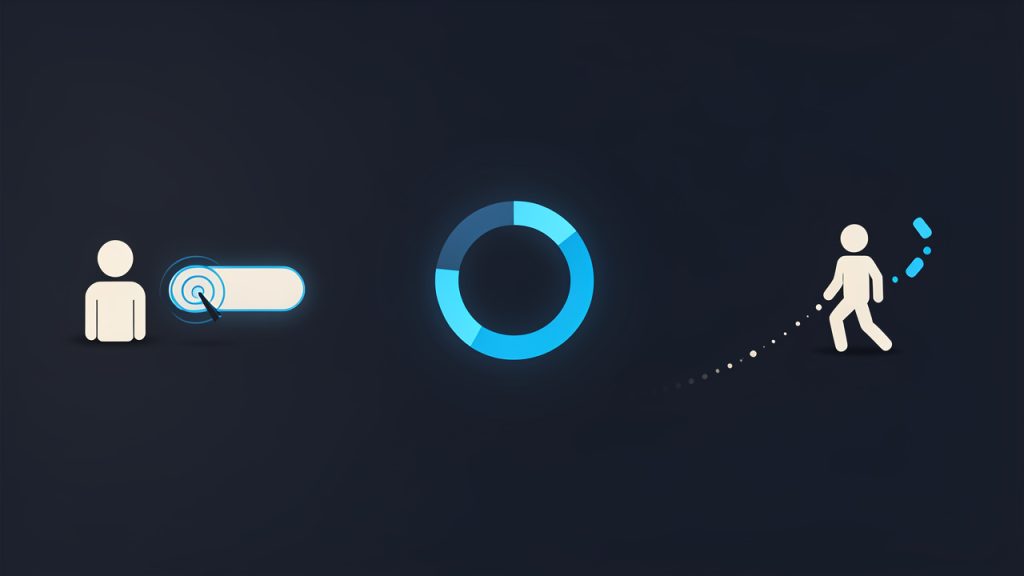
    A visitor clicking a link, watching a spinning loading indicator, then leaving — visualizing bounce due to slow load (emphasis on lost conversions and dropping trust).

    That is why a website speed test free tool matters so much. It gives you a quick, practical way to see how fast your pages load, where delays happen, and what to fix first. For small business owners, freelancers, developers, and anyone trying to improve online performance without adding extra costs, free speed testing is often the smartest starting point.

    The good news is that you do not need an enterprise budget or a technical team to begin. A free website speed test can reveal whether oversized images, heavy scripts, poor hosting, or unnecessary page elements are slowing you down. More importantly, it helps you turn a vague concern like “my site feels slow” into measurable actions.

    What is website speed test free?

    A website speed test free tool is an online service that measures how quickly a web page loads and how efficiently it renders content for real users. In simple terms, it checks the time it takes for important parts of your site to appear and become usable. Instead of guessing whether performance is good or bad, you get data.

    Most free speed test tools analyze a page by loading it in a controlled environment and reporting timing metrics. These often include how long it takes for the first visible content to appear, when the main content becomes useful, and how much blocking or unused code is holding the page back. Some tools also show waterfall charts, page size details, file requests, and recommendations for improvement.

    This matters because website speed is not just a technical issue. It affects user experience, search visibility, lead generation, sales, and brand perception. A visitor does not care whether your delay comes from render-blocking CSS or a third-party script. They only feel friction. A free speed test helps you identify that friction before it becomes expensive.

    There is also an important distinction between a site being technically “loaded” and being truly usable. A page might display a header and background quickly, while the key content, menu, or checkout button remains delayed. Good speed testing looks beyond raw load time and gives you a more realistic picture of performance.

    Key Aspects of Website speed test free

    Speed testing is about more than one number

    Many people focus on a single score and assume that is the whole story. It is not. A website speed test free tool may present a grade or performance percentage, but the real value lies in the breakdown behind it.

    For example, a page can earn a decent overall score while still feeling slow on mobile devices. Another page may have a mediocre score but load the most important content quickly enough for users to engage. Context matters. You should read the metrics as a performance profile, not as a pass-or-fail label.

    That is especially true for business websites with booking systems, galleries, external widgets, or ecommerce functions. These features add value, but they can also add weight. The goal is not necessarily to chase perfection. The goal is to create a site that feels fast, stable, and usable for your audience.

    Core metrics you should understand

    When you run a free website speed test, you will often see several metrics that sound technical at first. Once you understand them, they become surprisingly practical.

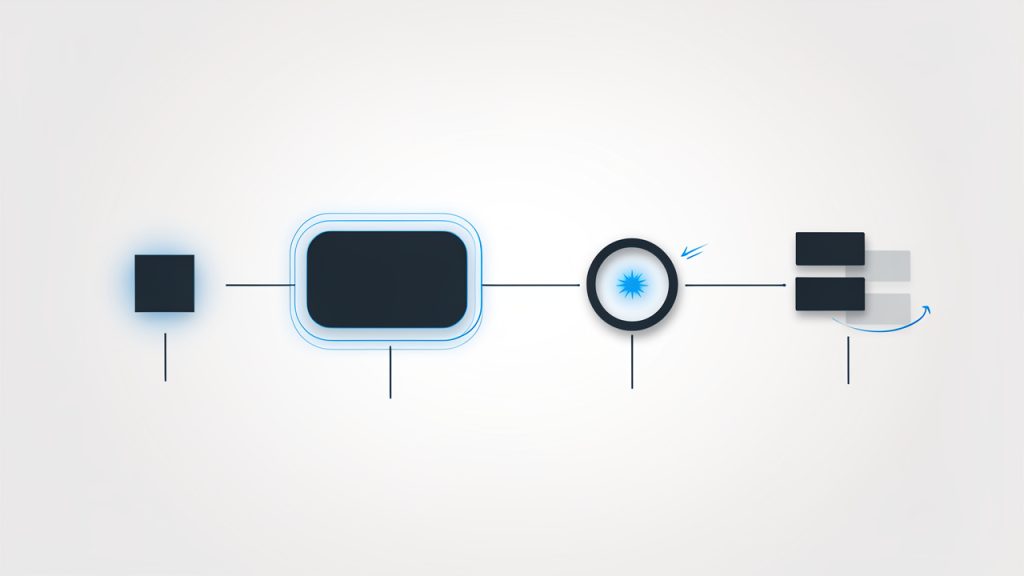
    A staged timeline of page load showing key metrics: First Contentful Paint (FCP) as first visible content, Largest Contentful Paint (LCP) when main content appears, Time to Interactive (TTI) when controls respond, and Cumulative Layout Shift (CLS) illustrated as elements jumping , labeled with approximate positions on the timeline.

    First Contentful Paint (FCP) refers to how quickly something visible appears on the screen. It is the first sign to users that the site is responding. If this is slow, your site may feel unresponsive right away.

    Largest Contentful Paint (LCP) measures when the main visible content finishes loading. This is often one of the clearest signals of whether users perceive the page as fast. If your hero image, headline, or key content block appears late, LCP suffers.

    Time to Interactive (TTI) reflects when users can meaningfully interact with the page. A page may look loaded while still being blocked by scripts. That creates frustration, especially on mobile.

    Cumulative Layout Shift (CLS) tracks how much content moves unexpectedly while loading. If buttons shift and text jumps around, users lose confidence. This is a speed and usability issue at the same time.

    What usually slows a website down

    The most common cause is not one dramatic problem but a stack of small inefficiencies. Large, uncompressed images are a classic example. They make pages heavier than necessary and delay visible content. This is especially common on portfolio sites, restaurant websites, and ecommerce stores where imagery is central.

    Another frequent issue is too many scripts. Tracking tools, chat widgets, social media embeds, popups, review apps, and ad networks all add requests and processing time. Each one may seem harmless on its own. Together, they create drag.

    Hosting quality also plays a major role. Even a well-designed site can feel sluggish on low-quality hosting or overloaded shared servers. Then there is the matter of theme bloat, excessive plugins, poor caching, and bulky page builders. These are not always obvious until you look at a speed test report and see how many assets your site is trying to load.

    Mobile performance deserves special attention

    A website that seems fast on a desktop office connection may perform very differently on a phone. Mobile users often deal with weaker connections, less powerful devices, and more distractions. That means performance problems feel larger, and patience runs thinner.

    A free website speed test becomes particularly useful here because it can highlight mobile-specific weaknesses. Heavy JavaScript, oversized banners, and layout shifts are often much more damaging on mobile than on desktop. If a large share of your traffic comes from smartphones, mobile speed should be treated as a business priority, not an afterthought.

    Free tools are useful, but they have limits

    Free speed testing tools are powerful enough for most initial audits and ongoing monitoring. They can quickly uncover major issues and help you prioritize fixes. For many small websites, that is more than enough to drive meaningful improvement.

    Still, no single test tells the entire story. Results can vary based on server load, testing location, device simulation, and whether a page was tested cold or from cache. A free tool gives you a strong snapshot, not a perfect truth. That is why repeated testing and pattern recognition are more valuable than obsessing over one report.

    How to Get Started with Website speed test free

    Start with your most important pages

    Do not test every page randomly. Begin with the pages that matter most to your goals. For a small business, that may be the homepage, service page, contact page, and booking page. For a freelancer, it might be the portfolio homepage and inquiry form. For an online store, it should include category pages, product pages, and checkout-related screens.

    This approach keeps the process practical. You want performance improvements where they have the most business impact. A fast privacy policy page is nice, but a fast homepage and landing page are usually more valuable.

    Run multiple tests and compare trends

    One speed report can be misleading if taken in isolation. Run a website speed test free tool more than once, and if possible, use more than one tester. This helps you distinguish consistent problems from one-off fluctuations.

    Look for patterns. If your page repeatedly shows slow LCP, heavy image weight, and render-blocking resources, those are likely real issues. If one result is much worse than all others, it may reflect temporary conditions. Good analysis comes from comparison.

    The table below shows the kinds of signals free speed test tools typically help you review.

    Area MeasuredWhat It Tells YouWhy It Matters
    Initial visibilityHow quickly content first appearsShapes first impressions
    Main content loadWhen the largest visible element finishes loadingStrong indicator of perceived speed
    InteractivityWhen users can click, type, and navigate without lagAffects usability and conversion
    Layout stabilityWhether elements shift during loadImpacts trust and user control
    Page weightTotal size of assets like images, scripts, and stylesHeavier pages usually load slower
    Request countNumber of files the browser must fetchMore requests often mean more delays

    Focus on the biggest wins first

    Once you have a report, resist the urge to fix everything at once. Some recommendations have much more impact than others. In many cases, the fastest improvements come from compressing images, reducing unnecessary plugins, enabling caching, and delaying non-essential scripts.

    If your homepage includes a giant background video, five third-party widgets, and oversized images, that is likely where the problem lives. You do not need advanced optimization before addressing obvious weight. Think of it like cleaning out a packed suitcase before buying a more expensive one.

    A smart first round of action often includes the following:

    1. Compress images, and serve properly sized versions.
    2. Remove unnecessary apps, plugins, or widgets that load on every page.
    3. Enable caching and CDN support if your platform or host offers it.
    4. Test again to confirm what actually improved.

    Match fixes to your platform

    The right solution depends on how your site is built. If you use WordPress, you may improve speed through caching plugins, image optimization tools, and lighter themes. If you use a site builder, your options may revolve more around media compression, layout simplification, and reducing embedded elements. If you manage a custom site, development-level improvements like code splitting or script deferral may matter more.

    This is where a website speed test free tool becomes especially practical. It helps you avoid random changes. Instead of guessing, you can make targeted updates based on visible bottlenecks.

    Know when speed becomes a business issue

    A slow website is not just an aesthetic annoyance. It can directly affect inquiries, sales, bookings, newsletter signups, and ad performance. If your landing page takes too long to show the offer, paid traffic becomes less efficient. If your checkout drags, abandoned carts rise. If your portfolio stutters on mobile, potential clients may question your professionalism before contacting you.

    That is why even a free speed test can provide real business intelligence. It gives you an early warning system. You can spot friction before users complain, and before performance costs become obvious in your analytics.

    Build speed testing into your routine

    Website performance changes over time. New images are uploaded, plugins are added, tracking scripts pile up, and design elements evolve. A site that was fast six months ago can quietly become heavy.

    Treat speed testing like maintenance, not a one-time event. Run checks after redesigns, major content additions, marketing campaigns, or platform updates. A short recurring review can prevent a gradual slide into poor performance.

    For teams and solo site owners alike, the comparison below can help frame what to expect from a free testing workflow.

    ApproachBest ForMain AdvantageMain Limitation
    One-time free testQuick checksFast insight with no costLimited context
    Repeated free testingOngoing monitoringHelps identify trendsRequires consistency
    Multi-page testingBusiness-critical sitesBetter performance pictureTakes more time
    Advanced paid monitoringLarger or revenue-heavy sitesDeeper diagnostics and alertsHigher cost

    Conclusion

    A website speed test free tool is one of the simplest and most valuable ways to improve your website without guessing. It shows how your pages perform, highlights bottlenecks, and helps you prioritize changes that actually matter. For small businesses, freelancers, developers, and productivity-minded users, that kind of clarity is hard to overstate.

    Start with your most important pages, review the metrics with context, and focus on the biggest improvements first. Then test again. Website speed is not about chasing a perfect score. It is about creating a faster, smoother experience that keeps people engaged and supports your goals. The next practical step is simple, run a free speed test on your homepage today, then use the results to make one meaningful improvement.