
A quick JPG to PNG conversion can solve the right problem, or create a bigger one. That is why so many people end up with bloated files, disappointing image quality, or a transparent background that still looks rough around the edges.
If you are a small business owner updating product images, a freelancer sending client assets, or a developer preparing web graphics, the format you choose matters. This guide explains what JPG to PNG really means, when it helps, when it does not, and how to convert files the right way using built-in tools, desktop software, online converters, and developer-friendly methods.
What “JPG to PNG” Means and When to Convert
What is JPG/JPEG?
JPG, also written as JPEG, is one of the most common image formats in the world. It was designed primarily for photographs and complex images with lots of colors, gradients, and visual detail. Its biggest advantage is small file size, which comes from lossy compression.
Lossy compression means the file discards some image data to reduce storage space. In many cases, especially at high quality settings, that loss is hard to notice with the naked eye. But once the data is removed, it is gone. Re-saving a JPG over and over can gradually make artifacts, soft edges, and blocky areas more visible.
JPG also does not support true transparency. If you need a logo with no background, or a cutout product photo that sits cleanly on a webpage, JPG is usually the wrong final format. It can store metadata such as EXIF camera data and color profiles, but its core strength remains efficient photo compression.
What is PNG?
PNG stands for Portable Network Graphics. It uses lossless compression, which means image data is preserved rather than thrown away during saving. That makes PNG a strong choice when you want to keep sharp lines, crisp text, interface elements, screenshots, diagrams, and graphics intact.
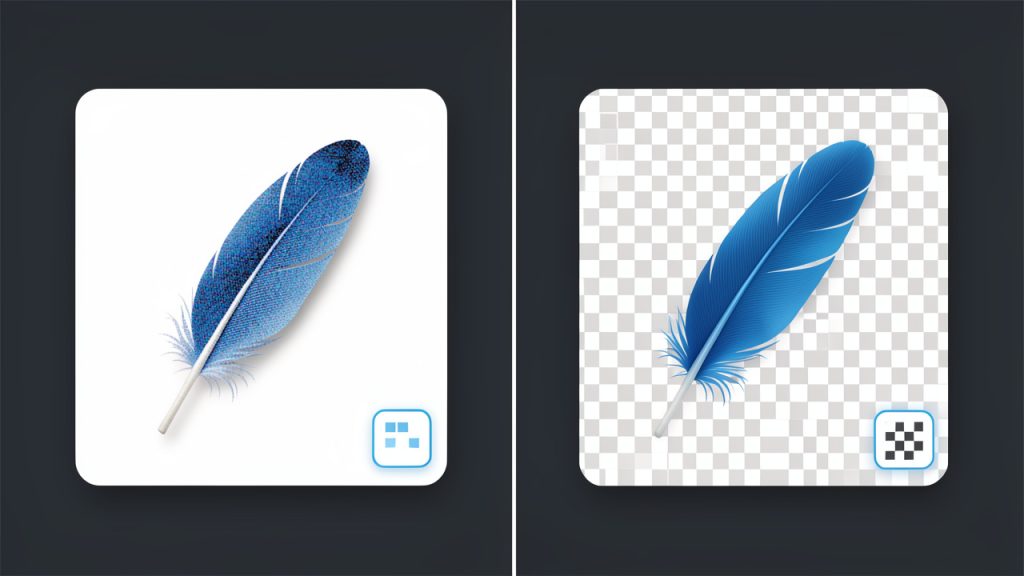
PNG also supports transparency, including smooth alpha transparency. This matters for logos, icons, signatures, overlays, and product images that need to blend into different backgrounds without a white box around them.
In practical terms, PNG is often better for graphics than photos. It can preserve detail very well, but the trade-off is file size. A PNG made from a photograph can be much larger than the original JPG without looking noticeably better.
Common reasons to convert JPG to PNG
There are several legitimate reasons to convert JPG to PNG. One common case is editing. If you must continue editing an image multiple times, saving your working file as PNG can help you avoid further lossy degradation that would happen with repeated JPG exports.
Another reason is design workflow. If you are placing an image into presentations, mockups, apps, or websites and you need transparency or cleaner edges, PNG is often more practical. This is especially true for logos, badges, UI elements, and screenshots.
It can also make sense for archival of a current state, but with an important caveat. Converting a JPG to PNG preserves the current image without introducing new JPG compression on future saves. However, it does not recover quality already lost in the JPG. Think of it like photocopying a document into a protective sleeve. You preserve what you have now, but you do not magically recreate the original.
When You Should Not Convert JPG to PNG
Quality misconceptions
The biggest myth around JPG to PNG is that conversion improves quality. It does not. If a JPG already has compression artifacts, blur, banding, or noise, saving it as PNG will simply preserve those flaws in a different container.
This matters because people often convert a low-quality JPG hoping it will become sharper. It will not. A PNG can stop further lossy damage if you continue working with the file, but it cannot reconstruct discarded image information.
If you still have the original source file, such as a RAW photo, PSD, AI, or an earlier export, use that instead. Starting from the best source is always better than converting a compressed derivative.
File size considerations
For photographs, JPG is often preferable because it gives you a strong balance between visual quality and compact size. A high-resolution photo that is 1 MB as a JPG might become 5 MB, 10 MB, or more as a PNG with little visible improvement.
That increase matters if you store many images, send them by email, upload them to client portals, or publish them online. PNG is efficient for flat-color graphics and transparent assets, but it is rarely the best format for everyday photo delivery.
A simple rule helps here: if the image is mostly a photo, keep it as JPG unless you have a specific reason to use PNG. If the image is mostly graphics, text, interface elements, or transparency, PNG becomes more attractive.
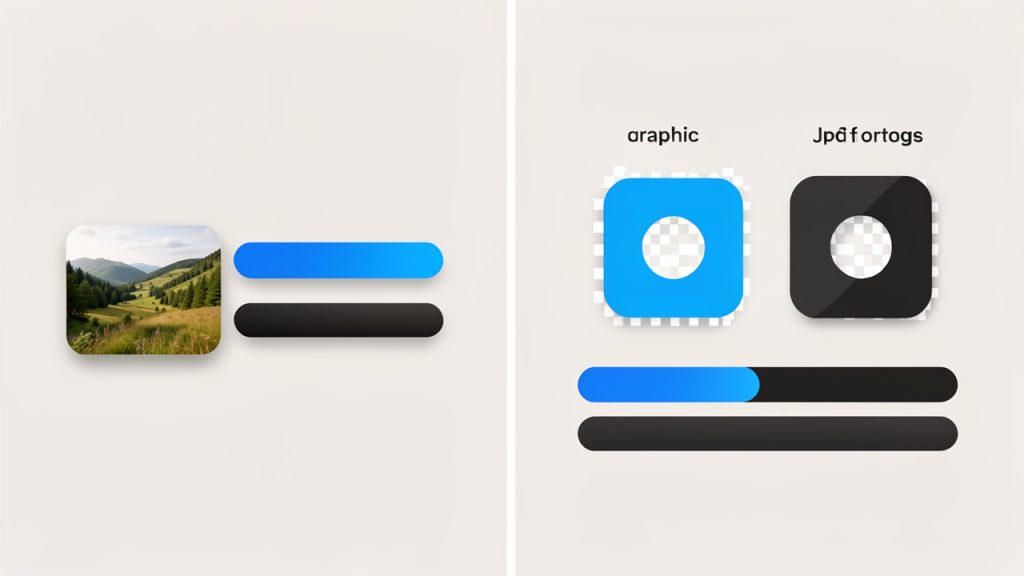
Caption: Photo → usually JPG; Graphics/Transparency → usually PNG.
Web performance implications
For websites, unnecessary PNGs can hurt page speed. Larger files increase bandwidth usage and slow loading, especially on mobile connections. If you convert every photo from JPG to PNG, your site may become heavier without any meaningful visual benefit.
That has real business impact. Slow pages can reduce conversions, increase bounce rate, and weaken SEO performance. Google does not rank a page higher just because an image is PNG. It values user experience, and faster pages usually win.
For web delivery, modern formats like WebP and AVIF are often better than either JPG or PNG for many use cases. PNG still has a role, especially for transparency and graphics, but it should be chosen intentionally.
How to Convert JPG to PNG, Step-by-Step Methods
Using built-in OS tools
If you want the fastest possible method, your operating system may already be enough.
On Windows, Paint can convert JPG to PNG in a few clicks:
- Open the JPG file in Paint.
- Click File.
- Choose Save As.
- Select PNG picture.
- Rename the file and save it.
On macOS, Preview is just as straightforward:
- Open the JPG in Preview.
- Click File and then Export.
- Choose PNG from the format dropdown.
- Select a location and save.
These built-in tools are convenient for one-off tasks. They are not ideal for advanced color management, transparency editing, or bulk workflows, but they work well when speed matters.
Using free desktop software
Desktop tools give you more control, especially if you care about resizing, metadata, transparency, or batch conversion. IrfanView is excellent for Windows users who want a lightweight option. GIMP is a powerful free editor for Windows, macOS, and Linux. Photoshop is still the standard in many design environments.
In IrfanView, you typically open the JPG, choose Save As, then select PNG. In GIMP, you open the image and use Export As to choose PNG. In Photoshop, you can use Save a Copy or Export As depending on your workflow. These tools also let you prepare the image before conversion, which is often more important than the format switch itself.
If the file name matters, use clear versioning. Something like product-shot-v2.png is more useful than image-final-new-3.png. For client work, consistent naming saves time and avoids accidental overwrites.
Using online converters
Online converters are popular because they are quick and require no installation. Services such as CloudConvert, Convertio, and Online-Convert are widely used for JPG to PNG tasks.
They are best for occasional conversions when the image is not sensitive. Upload the JPG, choose PNG, wait for processing, then download the result. Most platforms also support drag and drop and can handle a few files at once.
Before using any online converter, check three things. First, confirm the site uses HTTPS. Second, review the file deletion policy to see how long uploaded files are stored. Third, avoid uploading confidential client documents, IDs, contracts, or private photos unless you fully trust the service and your compliance requirements allow it.
Converting in bulk
If you need to convert dozens or hundreds of images, manual methods become painful. Batch workflows are much better.
Many desktop apps support bulk conversion through a dedicated batch tool. IrfanView has a built-in batch conversion window. Photoshop supports Actions and Image Processor. GIMP can be extended with batch plugins or external tools.
For developers and power users, command-line tools are faster and more repeatable. ImageMagick is one of the best options. A simple example looks like this:
magick input.jpg output.png
To convert multiple JPG files in a folder, you can script it with shell tools or platform-specific automation. This is especially helpful for product catalogs, content migrations, or asset pipelines.
Converting programmatically
If conversion is part of an app, workflow, or upload pipeline, Python Pillow is a practical choice. It gives you programmatic control over format conversion and post-processing.
Here is a basic example using Pillow:
from PIL import Image
img = Image.open("input.jpg")
img.save("output.png", "PNG")
If you want to preserve color consistency, inspect the source image mode and profile before saving. In production workflows, it is also smart to validate file type rather than relying only on the file extension.
For quick automation from the terminal, ImageMagick remains excellent because it is scriptable, cross-platform, and mature. It is especially useful when you need resizing, metadata stripping, or format conversion in one step.
Best Tools and Services for JPG to PNG Conversion
Choosing the best JPG to PNG tool depends on what you care about most: speed, privacy, batch support, editing control, or automation. Built-in tools are ideal for occasional use. Online services are convenient when you are on any device and need immediate results. Desktop apps win when you need advanced editing or bulk work. Developer tools are best for repeatable workflows.
The table below gives a practical comparison.
| Tool | Best for | Ease of use | Batch support | Privacy | Cost |
|---|---|---|---|---|---|
| Paint / Preview | Quick one-off conversion | Very easy | Limited | High, local files | Free |
| CloudConvert | Fast online conversion | Easy | Moderate | Medium, upload required | Free tier / paid |
| Convertio | Browser-based convenience | Easy | Moderate | Medium, upload required | Free tier / paid |
| Online-Convert | Flexible online settings | Moderate | Moderate | Medium, upload required | Free tier / paid |
| IrfanView | Lightweight desktop batch work | Easy | Strong | High, local files | Free for personal use |
| GIMP | Free advanced editing | Moderate | Moderate | High, local files | Free |
| Photoshop | Professional editing workflows | Moderate | Strong | High, local files | Paid |
| ImageMagick / Pillow | Automation and developer workflows | Advanced | Excellent | High, local files | Free |
Security, privacy, and batch limits
If privacy matters, local tools are safer by default because files never leave your machine. That makes Preview, Paint, GIMP, Photoshop, IrfanView, ImageMagick, and Pillow strong choices for business documents, sensitive assets, and client work.
For online tools, read the fine print. Look for file retention windows, deletion guarantees, maximum file size, daily conversion caps, and whether API access or batch processing is hidden behind a paywall. A free tool can be perfect for occasional use, but frustrating for heavy workflows.
Optimizing PNGs After Conversion
Reducing PNG file size
A converted PNG is not always ready to use. In many cases, it needs optimization. This is where tools like optipng, pngcrush, and pngquant become valuable.
pngquant is especially useful when you can reduce the image to a limited color palette. That can shrink file size dramatically for logos, icons, illustrations, and UI graphics. optipng and pngcrush focus on lossless optimization, which means they attempt to reduce file size without changing visible quality.
Here are two practical commands:
optipng output.png
pngcrush -rem allb -reduce input.png optimized.png
The -rem allb option strips unnecessary metadata chunks, and -reduce tries to use a more efficient PNG structure where possible.
When to use PNG-8 vs PNG-24/32
PNG-8 uses a limited color palette, usually up to 256 colors. It is a strong fit for simple graphics, flat illustrations, icons, and logos where the image does not need millions of colors.
PNG-24 supports far more color detail and is better for richer graphics. PNG-32 usually refers to 24-bit color plus an 8-bit alpha channel for full transparency. That is often what people mean when they want smooth transparent edges.
For photos, even PNG-24 can become very large. For simple graphics, PNG-8 can offer a much better size-to-quality balance. That is why optimization is not just compression, it is also about choosing the right PNG variant.
Preserving or removing metadata
PNG files can carry metadata, although not always in the same way as JPG EXIF. Some workflows preserve embedded color profiles or textual information, while others strip it.
If you need accurate color reproduction across devices, retaining the ICC profile may be important. If file size matters more and the image is simple web artwork, stripping metadata can save space. This trade-off is small on one file, but significant across hundreds of assets.
Compressing without notable quality loss
The best practical tip is to optimize after conversion, not before. First convert the image. Then run a PNG optimizer or export through a tool that supports palette reduction and metadata control.
If the image is a screenshot or flat graphic, try palette reduction. If it is a logo with transparency, test PNG-8 first. If you see banding or rough edges, move back to PNG-24 or PNG-32. This simple testing cycle often produces much better results than blindly saving everything at maximum settings.
Handling Transparency and Backgrounds
How to remove or make background transparent
Converting JPG to PNG does not automatically create transparency. If your JPG has a white background, converting it to PNG will usually give you a PNG with the same white background. Transparency must be created by editing the image.
In Photoshop, open the image, unlock the background layer, select the background using the Magic Wand, Quick Selection, or Select Subject, refine the mask, then export as PNG. In GIMP, add an alpha channel first, select the background, delete it, refine edges if needed, and export as PNG.
Automatic online background removers can help with simple product shots or portraits. They are convenient, but results vary. Hair, soft shadows, and semi-transparent materials often need manual touch-up afterward.
Edge smoothing and anti-aliasing
The hardest part of transparency is not removing the background, it is making the edges look natural. Jagged edges, white halos, and rough outlines are common when the original JPG was compressed heavily or placed on a bright background.
To improve results, feather the selection slightly, refine masks carefully, and zoom in around complex edges. If a light fringe appears, use defringe or edge cleanup tools in your editor. This is especially important for logos, people, and product cutouts displayed on dark backgrounds.
Common pitfalls when converting photos vs graphics
Photos are harder than graphics. A screenshot or icon usually has clear boundaries and cleaner color transitions. A real-world photo may have motion blur, hair strands, shadows, reflections, and compression noise that make clean transparency difficult.
That is why JPG to PNG works best for graphics when transparency is needed. For photos, PNG is not a magic background-removal format. The quality of your masking work matters more than the file extension.
Performance, Accessibility, and SEO Considerations
Page speed and modern formats
For websites, PNG should be used with purpose. If you need sharp graphics with transparency, PNG is a strong option. If you are serving photos, WebP or AVIF will often provide much smaller files at similar visual quality.
SVG is also better than PNG for many logos and icons because it is resolution-independent and often tiny in size. This means the best web workflow is not always JPG to PNG. Sometimes the better answer is JPG to WebP or rebuilding the asset as SVG.
Alt text and accessibility
Changing image format does not change accessibility on its own. What matters is how the image is described and used. If you replace a JPG with a PNG on a website, keep or improve the alt text so screen readers still convey the right meaning.
Decorative images should have appropriate empty alt attributes. Informative images should describe their purpose clearly. Accessibility is about communication, not file type.
Responsive images and multiple formats
Developers should think beyond one output file. A good image strategy often means generating several sizes and formats, then serving the best option depending on the browser and screen size.
A common pattern is to provide modern formats first, with a fallback:
<picture>
  <source srcset="image.webp" type="image/webp">
  <source srcset="image.png" type="image/png">
  <img src="image.png" alt="Product logo">
</picture>
This approach balances compatibility and performance. It also fits well into responsive image workflows where the same visual asset needs to look sharp on different devices.
Common Problems and Troubleshooting
Poor quality after conversion
If the PNG looks bad, the problem usually started with the original JPG. Compression artifacts, blur, and soft edges carry over into the PNG. Re-export from the original source file if possible. If not, mild sharpening or cleanup may help, but do not expect miracles.
Another common issue is scaling. If you enlarged the image before conversion, it may look worse because you are stretching limited detail. Conversion is not enhancement.
Huge PNG files
Very large PNGs usually happen when a photo is saved losslessly without optimization. Check dimensions first. A 4000-pixel image used in a 400-pixel webpage slot is wasting space.
Then check image type. If it is a photo, use JPG, WebP, or AVIF instead. If it must remain PNG, try palette reduction, metadata stripping, and optimization tools like optipng or pngquant.
Color profile and ICC issues
If the converted file looks washed out or overly saturated, a color profile mismatch may be the cause. Some apps preserve embedded profiles, others convert or discard them. This leads to different rendering across browsers, editors, and operating systems.
A safer workflow is to standardize around sRGB for web graphics. For print or color-critical work, preserve the correct ICC profile and test in the target environment.
Failed conversions or corrupted files
If a conversion fails, the file may be damaged, mislabeled, or partially downloaded. Try opening it in another app first. If that works, re-save it and convert again.
If a command-line tool fails, inspect the actual file format instead of trusting the extension. A file named .jpg might not always be a valid JPEG internally. Using another converter can also help, because some tools are better at handling edge cases than others.
FAQs, Quick Answers
- Does converting JPG to PNG improve quality? No. It prevents additional JPG-style compression on future saves, but it does not restore lost detail.
- Can PNG files be larger than JPG? Yes, often much larger, especially for photographs.
- Is PNG better for web? Sometimes. It is better for transparency, logos, screenshots, and graphics. It is usually not the best choice for large photos.
- How do I convert multiple files at once? Use a batch-capable app like IrfanView or Photoshop, or automate with ImageMagick or Pillow.
Resources and Further Reading
If you want to go deeper, the best next step is to use official documentation and proven image tools rather than relying on random snippets. ImageMagick is excellent for command-line workflows. Pillow is the standard Python imaging library for many automation tasks. The official PNG specification is useful if you work closely with image pipelines, metadata, or browser rendering.
A small cheat sheet can save time when you do this often:
magick input.jpg output.png
optipng output.png
pngquant --quality=65-85 output.png
For most users, the right workflow is simple. Convert JPG to PNG only when you need lossless editing, transparency, or cleaner graphic handling. If the image is a photo for the web, pause first and ask whether JPG, WebP, or AVIF would do the job better.
Your next step is to test one image with the method that matches your use case. Use Preview or Paint for a quick one-off conversion, GIMP or Photoshop if you need transparency, and ImageMagick or Pillow if you want scalable automation. The best conversion is not just successful, it is appropriate for the way the image will actually be used.