

Mobile users now make up a huge share of web traffic, yet many sites still handle mobile detection on JavaScript poorly. The result is familiar, slow-loading pages, broken touch interactions, unnecessary popups, or features that behave differently on phones and tablets than they do on desktops. For developers, freelancers, and small business owners trying to build practical, fast web experiences, this is not a minor detail. It directly affects usability, conversion, and customer trust.
The tricky part is that mobile detection on JavaScript is not a single technique. It can mean checking screen size, reading the user agent, detecting touch capability, or observing feature support in the browser. Each method solves a different problem, and each has limitations. The best approach is usually not to ask, “Is this a mobile device?” but rather, “What capabilities does this device and browser actually have?”
What is Mobile detection on javascript?
At its core, mobile detection on JavaScript is the process of identifying whether a visitor is likely using a mobile device, and sometimes what kind of mobile environment they are using. This information can be used to adapt navigation, optimize interactions, load lighter assets, adjust layouts, or tweak behaviors for touch-first use cases.
Many people assume this is as simple as checking if the screen is small. In practice, it is more nuanced. A small browser window on a desktop is not the same as a phone. A large tablet can have a screen wider than some laptops. A foldable device may change shape while the user is interacting with your app. JavaScript can help detect these situations, but only when you understand what signal you are actually measuring.
The older style of mobile detection relied heavily on the user agent string, which is a text identifier sent by the browser. For years, developers parsed this string to guess whether the device was an iPhone, Android phone, iPad, or desktop browser. That method still exists, but it is less reliable than it used to be. Browsers increasingly reduce or standardize user agent data for privacy and compatibility reasons. See more about the user agent string on MDN: user agent string.
Modern front-end development leans more toward responsive design and feature detection. Instead of making broad assumptions about device category, developers use CSS media queries and JavaScript checks to respond to viewport size, touch support, orientation, pointer type, network conditions, or browser features. This produces more resilient applications and reduces edge-case failures.
Why developers still use mobile detection
Even though responsive design handles much of the layout work, there are still practical reasons to detect mobile contexts with JavaScript. A business website might want to simplify a complex pricing table on smaller viewports. A booking app may switch from hover-driven interactions to tap-based controls. A dashboard could delay nonessential scripts for users on constrained mobile connections.
There is also a performance angle. If you know a user is likely on a mobile environment, you may choose to lazy-load high-resolution media, compress interactions, or avoid expensive animations. That does not mean serving a lesser experience. It means serving a more appropriate one.
Device detection versus capability detection
This distinction matters. Device detection tries to answer what the device is. Capability detection tries to answer what the browser can do. If your goal is to improve usability, capability detection is usually safer.
For example, if you want to know whether to show hover-based tooltips, checking for a “mobile” user agent is a weak solution. A better approach is to ask whether the device has a fine pointer or supports hover. That is a capability question, and JavaScript can work with those signals more effectively than a broad mobile label.
Key Aspects of Mobile detection on javascript
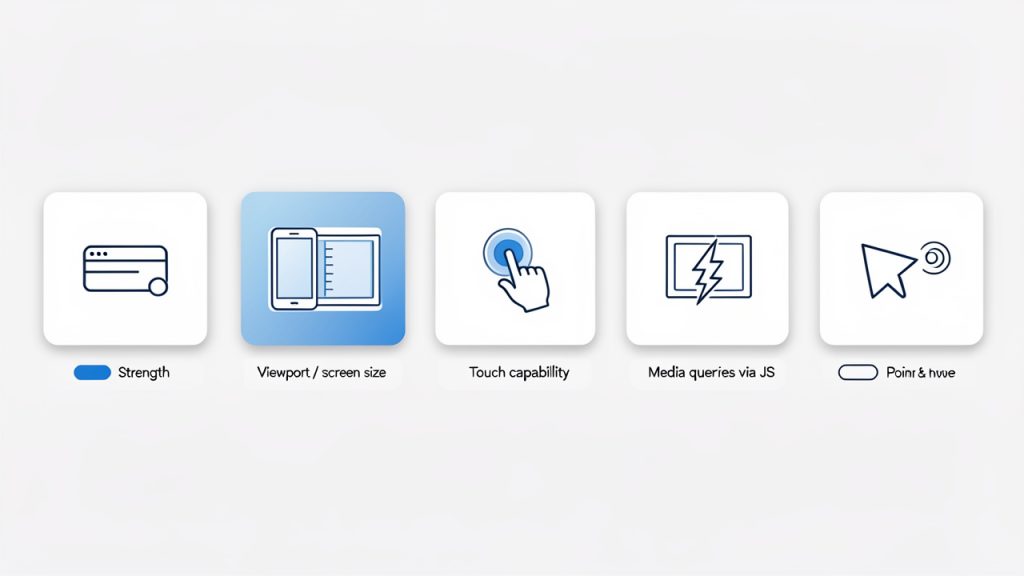
To make smart decisions, you need to understand the main detection methods and what they are good at. No single method is perfect, so the strength comes from using the right tool for the right job.
User agent detection
User agent detection is still widely used because it is simple and familiar. In JavaScript, developers often inspect navigator.userAgent and search for markers like Android, iPhone, or iPad.
function isMobileByUserAgent() {
  return /Android|iPhone|iPad|iPod|Opera Mini|IEMobile|WPDesktop/i.test(
    navigator.userAgent
  );
}

console.log(isMobileByUserAgent());
This approach can work for quick heuristics, especially in legacy codebases or analytics scripts. It is also helpful when you need rough categorization for known device families.
The downside is reliability. User agent strings can be spoofed, changed, or normalized across browsers. They are not future-proof, and they often break when new devices appear. If your business logic depends heavily on them, maintenance becomes painful.
Viewport and screen size detection
A more common pattern is to detect the viewport width and adapt behavior accordingly. This aligns closely with responsive web design and often matches what users actually experience on screen.
function isSmallViewport() {
  return window.innerWidth <= 768;
}

console.log(isSmallViewport());
This is useful when your concern is layout or available screen real estate. If a side menu should collapse below a certain width, viewport detection is a perfectly reasonable solution.
Still, it is important to be precise about what this means. It does not tell you whether the user is on a phone. It only tells you the current viewport is small. A resized desktop browser may trigger the same result. For many interface decisions, that is fine. For device classification, it is not enough.
Touch capability detection
Some developers equate touch support with mobile usage, but that shortcut can be misleading. Many laptops support touch, and some mobile browsers may behave differently than expected. Even so, touch capability is still valuable when your interface needs different gestures or controls.
function supportsTouch() {
  return (
    'ontouchstart' in window ||
    navigator.maxTouchPoints > 0 ||
    navigator.msMaxTouchPoints > 0
  );
}

console.log(supportsTouch());
This works best when you are answering a specific interaction question. If you need bigger tap targets, swipe gestures, or drag behavior tuned for touch, this check can help. If you are trying to decide whether the visitor is “mobile,” it is too broad on its own.
Media queries in JavaScript
JavaScript can also read the same kinds of conditions used in CSS media queries. This is often one of the cleanest ways to align styling and scripting logic.
const mobileQuery = window.matchMedia('(max-width: 768px)');

function handleViewportChange(e) {
  if (e.matches) {
    console.log('Likely mobile-sized viewport');
  } else {
    console.log('Larger viewport');
  }
}

handleViewportChange(mobileQuery);
mobileQuery.addEventListener('change', handleViewportChange);
This approach is especially useful when your UI changes dynamically. A user may rotate a phone, resize a browser, or move between split-screen modes. Media-query-based detection lets your scripts respond in real time instead of assuming the device state never changes.
Pointer and hover detection
A more modern and often overlooked strategy is checking input behavior. This matters because many mobile-specific UX issues are actually input issues.
const hasCoarsePointer = window.matchMedia('(pointer: coarse)').matches;
const supportsHover = window.matchMedia('(hover: hover)').matches;

console.log({ hasCoarsePointer, supportsHover });
A coarse pointer usually indicates finger-based interaction, while hover support tends to correlate with mouse or trackpad use. This is often more useful than broad mobile detection when deciding how menus, tooltips, and interactive controls should behave.
Comparing common approaches
The most effective mobile detection strategy depends on the question you are asking. The table below shows where each method fits best.
| Method | Best For | Strengths | Limitations |
|---|---|---|---|
| User agent detection, Rough device categorization | Rough device categorization | Simple, familiar, quick to implement | Fragile, spoofable, less future-proof |
| Viewport width, Layout and responsive behavior | Layout and responsive behavior | Matches screen space, easy to maintain | Does not identify actual device type |
| Touch detection, Touch-specific interactions | Touch-specific interactions | Good for gesture and tap-related logic | Touch does not always mean mobile |
| Media queries via JavaScript, Dynamic responsive behavior | Dynamic responsive behavior | Syncs with CSS logic, reacts to changes | Still focused on conditions, not device identity |
| Pointer and hover detection, Input-specific UX adjustments | Input-specific UX adjustments | Excellent for interaction design | Not a complete mobile classification system |
Why “mobile” is often the wrong target
One of the biggest mistakes in JavaScript mobile detection is treating all phones and tablets as a single category. A modern flagship phone on a fast connection can outperform an old desktop machine in some tasks. A tablet with a keyboard may behave more like a laptop than a phone. A foldable device can switch from narrow to wide layouts instantly.
That is why a context-first approach works better. If you need to adapt layout, use viewport logic. If you need to adjust interactions, use pointer and hover detection. If you need to reduce heavy effects on constrained devices, combine feature and performance signals. This gives you fewer false assumptions and a cleaner architecture.
How to Get Started with Mobile detection on javascript
The easiest way to begin is to stop chasing a perfect definition of mobile and instead define the exact behavior you want to change. That framing simplifies the implementation. You are no longer trying to identify every possible device. You are solving a specific user experience problem.
For example, if your navigation breaks on touch-first devices, focus on pointer and touch detection. If your content feels cramped on smaller screens, focus on viewport-based logic. If a third-party script causes slowdowns on smaller devices, focus on screen width, network-aware loading, and progressive enhancement.
Start with responsive design first
Before writing JavaScript detection logic, make sure your layout is already responsive with CSS. In many cases, CSS media queries solve the problem more elegantly than JavaScript. Mobile detection on JavaScript should usually support behavior, not replace responsive design.
When the visual layout and spacing are already responsive, your JavaScript becomes lighter and more intentional. You only add device-aware logic where interaction, performance, or conditional loading truly requires it.
Use feature detection for behavior changes
If the goal is to change how an interface behaves, feature detection is usually the right starting point. This means checking whether the browser supports a capability rather than trying to infer it from the device label. See more on feature detection: feature detection.
Here is a practical example that adapts a menu interaction based on hover support:
const canHover = window.matchMedia('(hover: hover)').matches;

const menuButton = document.querySelector('.menu-button');
const menu = document.querySelector('.menu');

if (canHover) {
  menuButton.addEventListener('mouseenter', () => {
    menu.classList.add('open');
  });

  menuButton.addEventListener('mouseleave', () => {
    menu.classList.remove('open');
  });
} else {
  menuButton.addEventListener('click', () => {
    menu.classList.toggle('open');
  });
}
This is a strong pattern because it adapts to how the user interacts, not what device name they happen to use. A touch laptop and a phone may both avoid hover-dependent logic, while a desktop browser keeps the richer mouse-friendly behavior.
Combine signals when necessary
Sometimes one signal is not enough. If you need to make a broader guess about mobile usage, combining checks can improve accuracy without pretending you have certainty.
function isLikelyMobile() {
  const smallScreen = window.matchMedia('(max-width: 768px)').matches;
  const coarsePointer = window.matchMedia('(pointer: coarse)').matches;
  const mobileUA = /Android|iPhone|iPad|iPod|Opera Mini|IEMobile|WPDesktop/i.test(
    navigator.userAgent
  );

  return smallScreen && (coarsePointer || mobileUA);
}

console.log(isLikelyMobile());
This still should not be used as a hard security or business-critical rule. It is a heuristic. For UI tuning, though, it can be practical when you need a fallback category for analytics or lightweight experience adjustments.
Watch for resize and orientation changes
One common mistake is checking once on page load and never updating again. Mobile conditions can change while the page is open. Orientation changes, split-screen apps, foldable devices, and browser resizing all affect the environment.
function updateDeviceState() {
  const mobileSized = window.matchMedia('(max-width: 768px)').matches;
  document.body.classList.toggle('mobile-sized', mobileSized);
}

window.addEventListener('resize', updateDeviceState);
window.addEventListener('orientationchange', updateDeviceState);
updateDeviceState();
This kind of event-based update keeps your interface aligned with the current context. It is especially important for dashboards, web apps, booking systems, and tools that remain open for long sessions.
Avoid common implementation mistakes
The first mistake is using user agent detection as the only source of truth. It feels convenient, but it creates hidden bugs over time. The second is using mobile detection to gate essential content. Users should not lose core functionality because your script guessed wrong.
Another common issue is overengineering. Not every site needs a complex device detection layer. If your goal is simply to stack cards on smaller screens or enlarge tap areas, CSS and a few targeted JavaScript checks are enough. Keep the logic tied to actual product needs.
A practical setup for most websites
For many business sites and web apps, a sensible approach looks like this:
- Use CSS media queries for layout and spacing.
- Use matchMedia() in JavaScript for behavior tied to viewport or input type.
- Use feature detection for touch, hover, or pointer-related interactions.
- Use user agent checks sparingly for edge cases or analytics, not as your main strategy.
That workflow gives you flexibility without making your front end brittle. It is also easier to test, explain, and maintain across projects.
Testing your mobile detection logic
Testing matters because mobile detection bugs often hide in edge cases. A page can seem fine in a desktop browser resized to phone width, then behave differently on an actual device with touch input and browser chrome.
Use browser developer tools for quick viewport checks, but also test on real phones and tablets whenever possible. Pay attention to orientation changes, keyboard overlays, tap behavior, hover states, and performance under slower conditions. If your site serves customers, not just developers, these details shape the user experience more than the detection method itself.
Conclusion
Mobile detection on JavaScript is less about identifying a perfect device category and more about choosing the right signal for the job. User agent detection can still help in limited cases, but modern development works better when you focus on viewport size, feature support, touch capability, and input behavior. That approach is more resilient, more accurate for UX decisions, and easier to maintain.
The next step is simple. Review one part of your site that behaves differently on phones, such as navigation, forms, media, or interactive widgets. Then ask what you really need to detect: screen space, touch, hover, or a rough mobile heuristic. Once you answer that clearly, your JavaScript becomes cleaner, and your users get a smoother experience on every device.