
JNTZN

Tag: productivity tools

  • Online Convert: Fast, Secure File Conversion for Workflows

    Online Convert: Fast, Secure File Conversion for Workflows

    Every day, people lose time to simple file problems. A client sends a HEIC image your laptop cannot preview. A supplier uploads a spreadsheet in the wrong format. A PDF is too large to email, a video will not play on mobile, or a document needs to become editable before a deadline. These are small blockers, but they add up fast.

    That is why Online convert tools have become a quiet productivity essential for small business owners, freelancers, developers, and anyone who works across devices and file types. Instead of installing heavy software for every format mismatch, you can use a browser-based tool to convert files in minutes. The appeal is obvious, less friction, lower cost, and faster turnaround.

    What makes online conversion especially useful is its range. It is not just about turning one file into another. It often includes compression, resizing, format cleanup, OCR, media adjustments, and basic optimization. For users who want free, easy-to-use online tools, this makes online convert services a practical part of a modern digital workflow.

    What is Online convert?

    Online convert refers to web-based tools that let you change one digital format into another without installing desktop software. In the simplest sense, you upload a file, choose the output format, adjust any settings if needed, and download the converted result. That could mean turning a Word document into PDF, a PNG into JPG, an MP4 into GIF, or a CSV into XLSX.

    The idea sounds basic, but the value is much bigger than the action itself. Format conversion solves compatibility problems between apps, devices, operating systems, and platforms. A freelancer might need to deliver a compressed PDF that opens cleanly on any device. A small business might need product photos resized and converted for faster website loading. A developer might need structured data transformed into a format that fits an API, database import, or reporting workflow.

    File conversion becomes the bridge that keeps work moving when formats do not naturally line up.
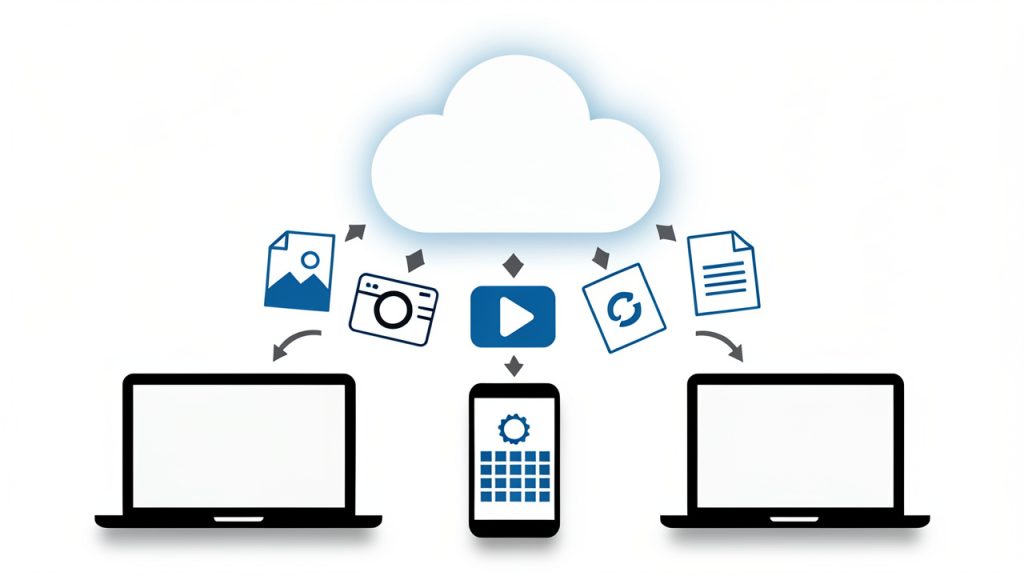
    A central 'online convert' cloud or bridge icon connecting a variety of file-type icons (PDF, DOCX, JPG/PNG, HEIC, MP4, GIF, CSV/XLSX, EPUB) and device icons (laptop, smartphone, tablet). Use arrows showing files flowing from devices into the cloud and back as converted formats — conveys 'file conversion as the bridge between apps, devices, and formats.'

    Another reason these tools have gained popularity is accessibility. Traditional conversion software can be expensive, complex, or device-specific. Browser-based tools lower that barrier. In many cases, a user can open a site, drag in a file, choose the target format, and finish the task in under five minutes. For people who prioritize speed and simplicity, that is a powerful advantage.

    Key Aspects of Online convert

    Format flexibility is the biggest strength

    One of the strongest reasons people rely on Online convert platforms is the broad variety of supported formats. Good services typically cover documents, images, audio, video, ebooks, archives, and sometimes fonts or data files. That means a single tool can solve many unrelated problems across a workday.

    This matters more than it first appears. If you run a small business, your tasks are rarely limited to one media type. You might prepare invoices, edit product images, compress promotional videos, and share presentations, all in the same week. Using separate software for each format creates friction. A flexible online converter reduces tool sprawl and shortens the gap between task and completion.

    Ease of use often determines real value

    A converter can support hundreds of file formats and still be frustrating if it is hard to use. The best online convert tools keep the workflow simple. You upload, select, adjust, and download. The interface is usually intuitive enough that even non-technical users can complete conversions without training.

    For freelancers and productivity-minded users, this simplicity is not just convenience. It is part of efficiency. When a task is small, the setup cost matters. If a conversion requires software installation, account creation, plugin troubleshooting, or a steep learning curve, the time saved disappears. A clean browser-based experience keeps attention on the work, not the tool.

    Conversion quality matters more than speed alone

    Fast conversion is useful, but accuracy and output quality are what separate a dependable tool from a disposable one. A poor image converter may reduce sharpness. A weak document converter may break formatting, tables, or embedded fonts. A low-quality video converter may produce files that technically work but look noticeably degraded.

    This is where context matters. If you are converting a rough draft for internal use, small quality loss may not matter. If you are submitting legal documents, sales materials, portfolio assets, or downloadable customer resources, quality becomes critical. Smart users do not judge online convert tools only by how fast they process a file. They also judge how well the result preserves layout, readability, metadata, and usability.

    Security and privacy should never be an afterthought

    Many people focus on convenience first, but security is one of the most important aspects of any online conversion tool. When you upload a file, you are often sending business data, client information, contracts, financial documents, or creative work to a third-party service. That creates a trust question.

    A reliable online convert platform should clearly explain file handling, deletion policies, encryption, and storage practices. If that information is missing or vague, caution is justified. For highly sensitive documents, local or offline tools may still be the better option. Convenience is valuable, but not at the cost of exposing confidential data.

    Free does not always mean unlimited

    Many users search for free online convert tools because they want quick results without buying software. That is reasonable, and many services do offer useful free plans. Still, free access usually comes with trade-offs. These may include file size limits, slower processing, daily conversion caps, fewer output options, or lower priority in the queue.

    That does not make free tools bad. In fact, for occasional use, they are often more than enough. But it is worth understanding the model. If your workflow depends on frequent or large-volume conversions, you may eventually need a premium option or a mix of tools. The smartest approach is to match the tool to the workload rather than assume all free converters will scale smoothly.

    Extra tools often provide hidden value

    Many online convert services now include more than pure format conversion. They may offer file compression, image resizing, OCR for scanned PDFs, metadata editing, trimming for media files, or quality presets for web and mobile use. These features matter because real-world conversion tasks rarely happen in isolation.

    Imagine you are preparing a brochure for email distribution. You may need to convert it to PDF, compress it, and ensure it opens cleanly on different devices. Or consider an ecommerce seller who needs to convert a product image, resize it for a marketplace, and reduce file weight for page speed. In both cases, the best tool is not only one that changes file type, but one that supports the full task.

    Different users benefit in different ways

    The value of Online convert depends on the user’s context. For a small business owner, it can reduce dependency on specialized software and help staff handle routine file tasks in-house. For freelancers, it can speed up delivery and improve compatibility with clients. For developers, it can assist with data transformation, asset preparation, and testing file behavior across systems.

    This is why online conversion is best understood not as a niche utility, but as a workflow layer. It removes friction at the edges of digital work. The better your files move between people, platforms, and devices, the smoother your operations become.

    How to Get Started with Online convert

    Start with a clear use case

    Before choosing a tool, identify what you actually need to convert and why. That sounds obvious, but many users start with the tool instead of the task. A person who only needs to convert invoices to PDF has different needs from someone transforming large video files or batch-processing product images.

    When you define the use case first, it becomes easier to choose the right online convert service. You can focus on supported formats, output quality, file size limits, privacy expectations, and any extra features required. This prevents wasted time and reduces the chance of choosing a tool that looks good on the surface but fails on the details.

    Test on a non-critical file first

    If you are using a new online converter, start with a sample file rather than an important client asset or final deliverable. This lets you check how the platform handles formatting, image quality, naming conventions, and download behavior before trusting it with mission-critical work.

    That test is especially important for documents with complex layouts, spreadsheets with formulas, and media files where quality loss can be subtle. A quick trial run can reveal whether the tool is dependable enough for your workflow. It is a small habit that prevents bigger mistakes later.

    Compare tools based on practical criteria

    Choosing an online convert platform is easier when you judge it by how it performs in everyday work, not just by its homepage claims.

    Criteria Why It Matters What to Look For
    Supported formats Determines whether the tool fits your tasks Common and specialized input/output types
    Output quality Affects professionalism and usability Good formatting retention, sharp media, stable files
    Ease of use Reduces time and frustration Simple upload flow, clear settings, fast downloads
    Security Protects sensitive information HTTPS, deletion policy, privacy transparency
    File limits Impacts larger or frequent jobs Reasonable size caps, batch support if needed
    Extra features Saves time on related tasks Compression, resize, OCR, optimization options

    This kind of comparison helps you think like a practical operator rather than a casual browser. For most users, the best online convert tool is the one that handles recurring tasks reliably, not the one with the longest feature list.

    Build a simple workflow around recurring conversions

    If you repeatedly convert the same types of files, create a lightweight process for it. Save source files in a consistent folder, name them clearly, and note the settings that produce the best output. Repetition creates opportunities for speed.

    For example, a freelancer sending client deliverables every Friday might standardize images to a specific size and format. A small business might convert all scanned receipts to PDF and compress them before cloud storage. A developer may regularly transform exported data into cleaner import formats. These routines reduce decision fatigue and prevent avoidable errors.

    Know when online tools are enough, and when they are not

    Online convert services are excellent for convenience, but they are not perfect for every scenario. If you are working with highly sensitive files, massive datasets, large video renders, or complex design documents that must preserve every detail, a dedicated desktop or enterprise solution may be more appropriate.

    That is not a weakness of online conversion. It is simply a matter of fit. Browser-based tools are strongest when speed, accessibility, and low setup matter most. Knowing where they shine helps you use them with confidence, rather than expecting them to solve every technical edge case.

    A simple getting-started process
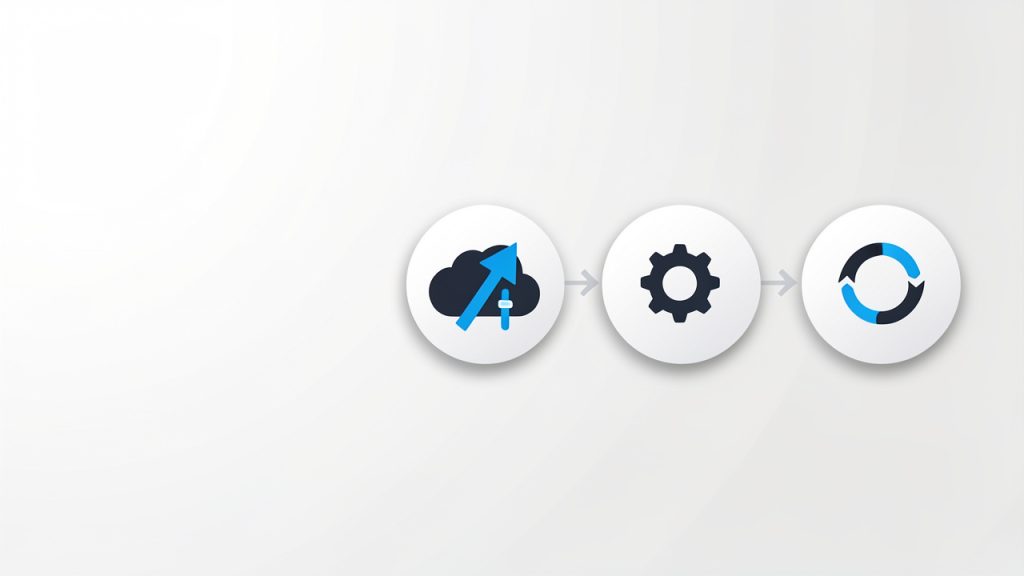
    A simple four-step flow graphic: 1) Upload (arrow into cloud), 2) Select/Adjust settings (gear or sliders), 3) Convert/Process (spinning/processing icon), 4) Download & Inspect (download arrow and magnifying glass). Each step shown with a clear icon and short label to illustrate the getting-started process.

    1. Choose the file type you need to convert, such as PDF, JPG, MP4, DOCX, or CSV.
    2. Select a trusted online converter with clear privacy information and support for your format.
    3. Upload a test file and review any optional settings before processing.
    4. Download and inspect the result to confirm quality, formatting, and compatibility.
    5. Repeat with your real file once you are satisfied with the output.

    This basic process keeps risk low and helps you learn quickly. After one or two successful tasks, using an online convert tool usually becomes second nature.

    Conclusion

    Online convert is ultimately about reducing friction in digital work. It helps bridge the gaps between formats, devices, software, and user expectations. For small business owners, freelancers, developers, and productivity-focused users, that translates into faster turnaround, fewer software headaches, and smoother collaboration.

    The best next step is simple, identify one recurring file problem in your workflow and solve it with a reliable online conversion tool. Start small, test carefully, and pay attention to quality and privacy. Once you find a tool that fits, you will likely wonder how much time you used to lose on file issues that should have taken only minutes.


  • Productivity Tools List: Build a Focused, Minimal Stack

    Productivity Tools List: Build a Focused, Minimal Stack

    The modern workday is rarely short on effort. It is short on clarity. Tasks arrive from chat, email, tickets, meetings, documents, and personal notes, then compete for attention until even simple work starts to feel fragmented. That is why a well-structured productivity tools list matters. It is not just a catalog of apps. It is a practical system for reducing friction, preserving focus, and making execution more predictable.

    For developers and efficiency-minded professionals, the challenge is usually not access to software. It is tool sprawl. A new note app solves one problem, a new project board solves another, and a calendar extension promises to optimize time, yet the overall workflow becomes harder to manage. The right approach is to understand what each category of productivity software is designed to do, how the tools interact, and where overlap creates complexity instead of value.

    This guide breaks down a practical productivity tools list, explains the key categories, and shows how to build a setup that supports deep work rather than constant switching. The goal is not to use more tools. The goal is to use fewer tools, more intentionally.

    What is Productivity tools list?

    A productivity tools list is a structured collection of software, platforms, and utilities that help individuals or teams plan, execute, track, automate, and complete work more efficiently. In plain terms, it is a reference model for the tools that support output. That can include task managers, note-taking apps, calendars, communication platforms, automation services, file organization systems, and focus aids.

    The phrase often gets treated like a generic roundup, but in practice it should be more precise than that. A useful productivity tools list does not simply name popular applications. It groups them by operational function. That distinction matters because choosing a tool should begin with the job it performs in the workflow, not with brand familiarity.

    For example, a developer may need one tool for issue tracking, another for documentation, and another for blocking distractions during coding sessions. A founder or operations lead may need a knowledge base, a recurring task manager, and a lightweight collaboration layer. The tools differ, but the principle remains the same. Each tool should have a clearly defined role in the system.

    A strong list also accounts for environment. Solo users tend to prioritize speed, low setup overhead, and flexible capture. Teams tend to prioritize visibility, permissions, integration, and auditability. That is why the best productivity stack is rarely universal. It is contextual, shaped by role, team size, project complexity, and tolerance for maintenance.

    Why the concept matters more than the app names

    The market is saturated with software that claims to improve efficiency. Some tools are genuinely excellent. Others are polished distractions. What separates effective systems from expensive clutter is role definition. If a calendar app is also being used as a task manager, reminder system, planning board, and knowledge archive, the workflow eventually degrades.

    A better method is to view a productivity tools list as an architecture. Each category handles a specific operational domain. Tasks manage commitments. Notes store information. Calendars manage time allocation. Communication tools move decisions. Automation tools remove repetition. File systems preserve access and version clarity.

    A layered architecture diagram showing core productivity categories as interconnected modules (Task & Project Management, Notes & Knowledge, Calendar & Scheduling, Communication, Automation, Focus Tools, File Storage). Arrows indicate interactions/integrations between modules and a central 'workspace' hub that reduces fragmentation.

    That architectural view is especially important for technical professionals. Developers often work across local environments, repositories, documentation, issue trackers, CI pipelines, and team chat. Without a clear system, context switching becomes the hidden tax on output. The tools are not the work, but they strongly influence how much uninterrupted work becomes possible.

    Key Aspects of Productivity tools list

    The most useful way to evaluate a productivity tools list is by category. That approach makes comparison clearer and reduces the tendency to select tools based on trend rather than necessity.

    Task and project management tools

    Task management tools sit at the center of most productivity systems because they answer a basic operational question: what needs to happen next? The simplest versions are personal to-do managers. More advanced platforms support dependencies, priorities, recurring tasks, team ownership, and workflow states.

    For solo work, the best task tools tend to be fast, low-friction, and easy to trust. If adding a task feels like opening a control panel, the system will be abandoned. For team work, visibility becomes more important. The platform should make status, blockers, due dates, and responsibility obvious without requiring constant meetings.

    Tools in this category often include personal managers such as Todoist or Microsoft To Do, and more structured platforms such as Trello, Asana, ClickUp, Jira, and Linear. The differences are less about quality than operational design. Jira is built for structured engineering workflows. Trello emphasizes visual simplicity. Linear focuses on speed and product development efficiency.

    Note-taking and knowledge management tools

    Ideas that are not captured are usually lost. Information that is captured poorly is almost as bad. That is why note-taking and knowledge management tools deserve a distinct place in any serious productivity tools list.

    A quick-capture note app helps preserve thoughts, snippets, links, and decisions in real time. A knowledge system goes further. It organizes long-term reference material, meeting notes, internal documentation, research, and process definitions so they remain usable over time. For developers, this may include architecture notes, API references, debugging patterns, or onboarding documents.

    Notion, Obsidian, Evernote, OneNote, and Confluence each approach this domain differently. Notion is highly flexible and often used as a combined wiki and workspace. Obsidian appeals to users who want local-first note graphs and markdown workflows. Confluence is common in larger teams that need structured documentation and enterprise permissions.

    The core criterion is not feature count. It is retrieval speed. If useful information cannot be found when needed, the repository becomes a graveyard rather than a productivity asset.

    Calendar and scheduling tools

    Time is different from tasks. A task list shows obligation. A calendar shows capacity. Confusing the two creates predictable failure. That is why a good productivity tools list separates scheduling tools from general task systems.

    Google Calendar, Outlook Calendar, Calendly, Motion, and Sunsama represent different scheduling philosophies. Some tools manage meetings. Others support time blocking, planning, or dynamic prioritization. A strong calendar setup allows users to see where focused work can actually occur, instead of assuming open time exists somewhere later.

    For developers, this distinction can be critical. A day can appear light in terms of meetings but still be fragmented beyond usefulness. Calendar tooling helps identify contiguous blocks for coding, reviewing, writing, or planning. It makes work visible in time, not just in abstract quantity.

    Communication and collaboration tools

    Many productivity problems are communication problems wearing a different label. Delays happen because ownership is vague. Work gets duplicated because decisions are buried in chat. Tasks drift because there is no durable link between discussion and execution.

    Communication tools such as Slack, Microsoft Teams, and email clients remain essential, but they become productive only when paired with clear usage boundaries. Chat should support rapid coordination, not serve as the permanent home for key decisions. Important outcomes should move into tasks, docs, or project records.

    Collaboration tools also include shared whiteboards, document editors, and meeting systems. Google Workspace, Microsoft 365, Zoom, and Miro often sit in this layer. Their value lies in reducing coordination overhead, particularly in distributed teams where information otherwise fragments across time zones and tools.

    Automation and integration tools

    If a recurring process can be defined, some portion of it can usually be automated. This is where tools like Zapier, Make, IFTTT, and native app integrations become valuable. They reduce repetitive handoffs, sync data between platforms, and eliminate manual copying that adds no real value.

    Automation is especially useful in workflows that cross tool boundaries. A form submission can create a task. A ticket update can trigger a notification. A completed action can archive a file or move a record to another system. These small automations compound. They reduce cognitive load because the user no longer has to remember every administrative follow-up.

    Developers often extend this layer with scripts, webhooks, and API-based workflows. In technical environments, the highest-value automation is usually not flashy. It is the quiet removal of routine process friction.

    Focus and time management tools

    Not all productivity software is about organizing work. Some tools exist to protect attention. That function is increasingly important because digital environments are optimized for interruption.

    Focus tools include website blockers, Pomodoro timers, ambient concentration apps, and analytics platforms that show how time is actually spent. RescueTime, Forest, Freedom, and Session are common examples. These tools are most effective when paired with a deliberate work model, such as scheduled deep work blocks or notification batching.

    For knowledge workers, attention is the scarce resource. For developers, uninterrupted attention can determine whether a hard problem gets solved in one hour or remains unresolved all day. Focus software does not create discipline on its own, but it can make distraction more expensive and concentration easier to sustain.

    File storage and document organization

    Even the best tasks and notes become less useful if the underlying documents are disorganized. Cloud storage and file management tools form the infrastructure layer of a productivity system. Google Drive, Dropbox, OneDrive, and Box are obvious examples, but the real issue is not where files live. It is whether naming conventions, folder structure, and permissions support fast retrieval.

    A mature productivity tools list includes this category because document search, version control, and access management directly affect execution speed. A misplaced contract, outdated spec, or inaccessible asset can stop progress as effectively as a missing task.

    Developers often solve part of this problem through repositories and version control, while non-code artifacts still require conventional document systems. The strongest setups treat storage as part of the productivity architecture, not as an afterthought.

    Comparison of core productivity tool categories

    Category Primary Function Best For Common Risk
    Task Management Tracking actions, owners, deadlines Personal planning, team execution Overcomplication, too many statuses
    Knowledge Management Storing notes, docs, reference material Documentation, research, internal processes Poor structure, low retrieval speed
    Calendar and Scheduling Allocating time and coordinating availability Meetings, time blocking, workload visibility Treating calendar as task dump
    Communication Real-time and asynchronous coordination Team collaboration, decision flow Decision loss inside chat threads
    Automation Reducing repetitive manual work Cross-tool workflows, recurring process steps Brittle setups, low maintenance discipline
    Focus Tools Protecting attention and measuring time use Deep work, distraction control Using tracking without behavior change
    File Storage Preserving and organizing documents Shared assets, version access, archive Naming chaos, permission confusion

    What makes a tool actually productive

    A productive tool reduces total system friction. That sounds obvious, but many tools only reduce friction locally while increasing it globally. A new app might make meeting notes easier to write while forcing the team to search one more place for information. Another might automate a niche process while adding a layer of maintenance nobody owns.

    The practical test is simple. A tool should improve at least one of these variables: speed, clarity, consistency, or focus. Ideally, it improves more than one. If it does not, then it is probably adding novelty rather than productivity.

    This is where a unified environment can help. In some setups, using a central workspace such as Home makes sense because it reduces fragmentation between information, tasks, and routine operations. The value is not in having another dashboard. The value is in lowering the cost of context switching and making the workflow easier to navigate day after day.

    How to Get Started with Productivity tools list

    Building a useful productivity setup starts with diagnosis, not downloads. Most people know they are inefficient in a general sense, but they have not mapped where the inefficiency actually occurs. Before selecting any software, it helps to identify the points where work slows down, disappears, or becomes unnecessarily repetitive.

    In practice, these bottlenecks usually appear in four places. Capture fails, so ideas and tasks are forgotten. Prioritization fails, so everything looks urgent. Retrieval fails, so notes and documents cannot be found. Execution fails, so attention keeps breaking before meaningful progress happens. A solid productivity tools list should address each of these failure modes directly.

    Start with workflow mapping

    The first step is to define the lifecycle of work. For an individual, that may look like capture, plan, schedule, execute, review. For a team, it may include intake, assignment, collaboration, handoff, delivery, and retrospective. Once the lifecycle is visible, tool categories become easier to assign.

    A simple horizontal workflow map showing the lifecycle of work: Capture → Plan → Schedule → Execute → Review. Include branches for team workflows (Intake → Assignment → Collaboration → Handoff → Delivery → Retrospective) and icons for common failure points (capture fails, prioritization fails, retrieval fails, execution fails).

    This is the stage where many people discover they do not need ten tools. They need one task manager, one knowledge base, one calendar, and a small set of integrations. The goal is to cover the workflow with the fewest moving parts possible.

    A useful constraint is to avoid duplicate purpose. If two apps manage tasks, one should be removed. If notes live in three places, consolidation should become a priority. Every redundant tool adds search cost and decision fatigue.

    Choose tools by role, not popularity

    Popular software is not always the best software for a given workflow. A tool should be selected based on operational fit. That means considering interface speed, integration quality, mobile access, offline support, collaboration features, and maintenance burden.

    A developer may prefer markdown-based notes and issue-centric project tracking. A manager may prefer structured dashboards and calendar-heavy planning. A freelancer may benefit most from simple task capture and invoicing automation. There is no single correct stack, but there is a correct method for choosing one.

    The following baseline stack works for many users as a starting model:

    1. Task manager for commitments and follow-up.
    2. Notes or wiki tool for knowledge capture and reference.
    3. Calendar for time blocking and scheduling.
    4. Communication platform for coordination.
    5. Automation layer for repetitive workflows.

    That is enough to build a highly functional system. More tools should be added only when a clear gap exists.

    Build conventions before scale

    Tools fail less often because of missing features than because of missing rules. Even the best software becomes chaotic without conventions. Tasks need naming logic. Notes need structure. Files need a standard format. Shared work needs ownership definitions.

    For teams, this is non-negotiable. A project board without clear status definitions quickly turns into visual noise. A wiki without page standards becomes difficult to search and harder to trust. A chat tool without channel discipline creates endless re-asking of the same questions.

    For individual users, conventions matter just as much. A simple rule such as “all actionable items go into one task system” can remove a surprising amount of mental overhead. So can a consistent note template for meetings, research, or debugging sessions.

    Integrate carefully, then review behavior

    Once the core tools are chosen, integrations can improve flow dramatically. Calendar events can link to project records. Task completions can trigger updates. Notes can connect to action items. The point is not to automate everything. It is to reduce repeated mechanical effort.

    After setup, the system should be reviewed after one or two weeks. This is where behavior becomes visible. Are tasks being captured consistently? Are notes searchable? Is the calendar reflecting real work time? Are distractions still breaking focus? If the answer is no, the issue may be the workflow, the conventions, or the tool itself.

    This review cycle is what turns a productivity tools list into a functional operating system. Without review, most setups decay into partial adoption and silent inconsistency.

    A sample decision framework

    Need Recommended Tool Type Selection Criterion
    Too many loose tasks Task manager Fast input, recurring tasks, reminders
    Scattered knowledge Notes or wiki platform Search quality, structure flexibility, linking
    No time for deep work Calendar and focus tools Time blocking, notification control
    Repeated manual steps Automation platform Reliable integrations, low maintenance
    Team confusion on ownership Project management tool Assignees, status visibility, reporting

    Common mistakes to avoid

    The most common mistake is overbuilding too early. People often design complex systems for an ideal future version of themselves rather than for their current behavior. The result is abandonment. A lightweight system used consistently is far more effective than an elaborate setup used intermittently.

    Another mistake is measuring productivity by app count. More software does not imply more control. In many cases, the opposite is true. Every new tool creates another interface to learn, another source of notifications, and another place where information can drift.

    A third mistake is ignoring maintenance. Productivity systems require periodic cleanup. Completed projects should be archived. Old notes should be organized or deleted. Automations should be checked. Permissions should be reviewed. Without maintenance, even a strong system becomes noisy over time.

    Conclusion

    A useful productivity tools list is not a random collection of trending apps. It is a deliberate framework for managing tasks, knowledge, time, communication, automation, focus, and files with minimal friction. The strongest setups are simple, role-based, and built around actual workflow constraints rather than software enthusiasm.

    The next step is practical. Audit the tools already in use, identify overlap, and define one clear purpose for each remaining category. Then standardize the way those tools are used. If a central workspace such as Home can reduce switching and unify routine work, it is worth evaluating as part of that simplification effort. Productivity improves when the system becomes easier to trust, easier to navigate, and easier to maintain.

  • Productivity Tools for Work: Build a Focused Stack

    Productivity Tools for Work: Build a Focused Stack

    Work rarely becomes difficult because people lack effort. It becomes difficult because attention is fragmented, priorities are unclear, and every task arrives with its own app, alert, and deadline. That is why productivity tools for work matter. They do not create discipline by themselves, but they can reduce friction, compress decision-making, and make focused execution far more realistic.

    A knowledge worker at a desk overwhelmed by many floating app windows and icons

    For developers and knowledge workers, the problem is even sharper. A normal day can involve code editors, issue trackers, documentation systems, chat platforms, cloud consoles, meetings, and personal notes, all competing for context. The right productivity stack does not simply help a person “do more.” It helps them do the right work with less cognitive waste.

    What are productivity tools for work?

    Productivity tools for work are software applications, platforms, and systems designed to improve how tasks are planned, executed, communicated, tracked, and completed. In practical terms, these tools reduce operational overhead. They help people organize work, automate repetitive steps, centralize information, and preserve context across teams and projects.

    This category is broader than many people assume. It includes task managers, calendars, note-taking software, time trackers, project management platforms, collaboration suites, documentation systems, automation tools, password managers, and focus applications. A text editor with strong plugins can be a productivity tool. So can a shared knowledge base or a meeting transcription app. The defining factor is not the label, but the outcome: less time lost to coordination, searching, switching, and repetition.

    For developers, productivity tools often operate at multiple layers. One layer is personal execution, such as task capture, time blocking, and note organization. Another layer is team coordination, including sprint planning, issue assignment, and asynchronous updates. A third layer is workflow automation, where integrations connect systems so that status changes, notifications, builds, and approvals happen with minimal manual intervention.

    A three-layered stack diagram for developers: personal execution, team coordination, workflow automation

    The most effective tools do not just store information. They shape behavior. A well-designed task system encourages prioritization. A shared documentation platform improves reuse and onboarding. A calendar tool with strong scheduling logic protects deep work. In this sense, productivity software is partly technical infrastructure and partly operational design.

    Key aspects of productivity tools for work

    Task management and prioritization

    A large percentage of workplace inefficiency comes from ambiguity. People often know they are busy, but cannot clearly identify what matters now, what can wait, and what is blocked. Task management tools address this by giving work a visible structure. They convert mental clutter into explicit objects: tasks, owners, due dates, dependencies, and status fields.

    The real value is not the checklist itself. It is the ability to define a system of execution. For example, a developer handling multiple tickets can use a task manager to separate urgent production issues from strategic architecture work. Without that separation, the day becomes reactive. With it, work can be sequenced according to impact, urgency, and available focus time.

    Strong prioritization tools also create historical visibility. Teams can inspect where time is actually being spent, identify bottlenecks, and detect recurring work that should be automated. This is where many organizations move from being merely busy to being operationally mature.

    Communication and collaboration

    Communication tools are often treated as simple messaging channels, but they are among the most influential productivity tools for work because they determine how interruptions propagate. A poorly configured chat platform can destroy concentration. A well-managed collaboration environment can accelerate decisions while preserving focus.

    The distinction lies in communication design. Synchronous channels are useful for urgent issues, live debugging, and fast alignment. Asynchronous channels are better for status updates, documentation links, and decision records. Teams that understand this difference usually work more efficiently because they stop forcing every interaction into real-time conversation.

    For distributed teams, collaboration tools also function as memory systems. Message threads, shared documents, comments, and linked tasks preserve context. That context reduces duplicate questions and makes onboarding easier. Instead of repeatedly asking why a decision was made, a team member can inspect the documented trail and proceed with confidence.

    Knowledge management and documentation

    A team without documentation pays a tax on every repeated task. That tax appears in onboarding delays, duplicated troubleshooting, inconsistent processes, and reliance on a few individuals who become informal knowledge bottlenecks. Documentation platforms, internal wikis, and structured note systems are therefore central productivity assets, not administrative extras.

    The best knowledge tools support fast capture and reliable retrieval. Capturing ideas is easy. Finding them three weeks later is the real test. Search quality, tagging, linking, version history, and collaborative editing all matter because workplace productivity depends on accessible knowledge, not merely stored knowledge.

    This is one area where a platform like Home can be useful when teams need a cleaner operational center. If work, notes, and routines are scattered across too many disconnected applications, a more unified environment can reduce switching costs and make core information easier to maintain and act on.

    Time management and focus protection

    Time management software is often misunderstood as surveillance or rigid scheduling. At its best, it is neither. It is a way to align time usage with work type. Deep engineering work requires uninterrupted blocks. Administrative work can often be grouped. Meetings can be constrained. Personal focus patterns can be observed and used intentionally.

    Calendars, time-blocking systems, Pomodoro timers, and time analysis tools all support this process. Their purpose is not to fill every hour. Their purpose is to make invisible patterns visible. If a person discovers that most coding work is being interrupted every 12 minutes, the solution is not motivation. The solution is structural change.

    Focus tools become especially valuable in environments saturated with notifications. A worker who disables non-essential alerts, batches communication windows, and reserves protected work sessions can often outperform someone working longer hours with constant interruptions. Productivity is tightly coupled with attention quality, not just duration.

    Automation and integration

    Repetitive work is one of the clearest signals that a workflow can be improved. Copying data between systems, sending routine reminders, updating statuses manually, or recreating the same report each week are all candidates for automation. This is where productivity tools move from passive support to active operational leverage.

    Automation platforms connect applications through triggers, conditions, and actions. A support ticket can create a task automatically. A merged pull request can update project status. A form submission can populate a database and notify the correct team. Each individual automation may save only a few minutes, but across a team, the cumulative gain is substantial.

    Integrations also reduce context switching. Instead of visiting five tools to understand one project state, workers can centralize critical signals. This lowers mental overhead and decreases the chance of missing updates. For technical teams, integration quality is often more important than the feature list of any single product.

    Security, reliability, and scalability

    A productivity stack that saves time but creates security risk is not a real improvement. Developers and teams should evaluate tools not only for usability, but also for access controls, auditability, backup practices, and compliance alignment. Sensitive information flows through productivity systems constantly, including credentials, roadmaps, client data, and internal discussions.

    Reliability matters just as much. If a task platform is slow, a documentation tool loses edits, or a sync process fails unpredictably, users stop trusting the system. Once trust erodes, people build shadow workflows in spreadsheets, local notes, or personal chat messages, and the organization loses consistency.

    Scalability is the longer-term consideration. A tool that works for a solo freelancer may fail for a 50-person engineering team. Permission models, template systems, reporting features, and integration support become more important as work grows in complexity. Choosing tools with a view toward future workflows prevents painful migrations later.

    Choosing tool categories and team balance

    Categories that matter most in day-to-day operations

    When people search for the best productivity tools for work, they often compare products before they define requirements. That reverses the correct sequence. The better approach is to identify workflow categories first, then evaluate products inside each category. Most work environments rely on some combination of task management, communication, documentation, scheduling, file storage, and automation.

    A developer, for instance, may need an issue tracker for engineering tasks, a personal note system for design ideas, a team documentation platform for architecture records, and a calendar system that can protect coding blocks from meeting sprawl. If all four categories are covered well, productivity improves substantially even without a large software budget.

    The table below shows how common tool categories map to workplace outcomes.

    Tool Category Primary Function Typical Benefit Common Risk
    Task Management Track work items and priorities Better execution clarity Over-engineering workflows
    Team Chat Fast communication and coordination Faster response times Constant interruption
    Documentation Store and retrieve shared knowledge Reduced duplication Stale or unmaintained content
    Calendar and Scheduling Allocate time and meetings Better focus planning Overscheduled days
    Automation Platforms Remove manual repetitive work Higher operational efficiency Fragile or opaque automations
    Time Tracking Measure effort and patterns Better planning accuracy Micromanagement if misused

    The pattern is consistent. Every category has upside and trade-offs. A tool becomes productive only when its implementation aligns with actual work behavior. Adding software without process discipline often increases complexity instead of reducing it.

    Personal productivity versus team productivity

    A common mistake is optimizing only for the individual. A person may have a beautifully organized personal system while the team around them operates in fragmented ways. In that case, the personal gain remains limited because collaboration still creates delays, duplicate effort, and confusion.

    Personal productivity tools help with capture, planning, focus, and recall. Team productivity tools help with visibility, alignment, handoffs, and accountability. Both are necessary. A developer can maintain excellent private notes, but if architectural decisions live only there, the team gains little value. Conversely, a team can have a robust project board, but if individuals lack a method for handling daily priorities, execution still degrades.

    The strongest setups connect the two levels cleanly. Personal tasks should map to team goals. Team documentation should support individual execution. Meeting decisions should create trackable actions. This is the difference between a collection of apps and a real productivity system.

    The hidden cost of tool sprawl

    Many organizations do not suffer from too few tools. They suffer from too many. Tool sprawl occurs when each new problem is addressed with another platform, often without integration, governance, or retirement of the old system. Over time, the stack becomes noisy and expensive, and people stop knowing where truth lives.

    This issue is especially common in technical environments because teams adopt specialized software rapidly. One tool handles project planning, another handles docs, another stores snippets, another captures retrospectives, and another sends alerts. Each may be good individually, but together they can create a high-friction environment.

    Reducing tool sprawl does not mean collapsing everything into one product at any cost. It means being deliberate. Teams should identify core systems of record, define where certain information belongs, and retire redundant workflows. In many cases, a platform like Home is most valuable not because it adds another feature, but because it consolidates routine work patterns into a more coherent operating space.

    How to get started with productivity tools for work

    Choosing productivity tools should begin with observation, not shopping. Before selecting software, it is necessary to understand where work is actually slowing down. That may be task overload, constant interruptions, poor handoffs, missing documentation, or too much manual updating between systems. Tools are effective only when they are matched to a real constraint.

    A simple starting framework is to audit one normal workweek. Track where delays occur, where information gets lost, and which repeated actions feel unnecessary. If meetings generate unclear follow-up, a task and note system may be the priority. If project knowledge is trapped in chat, documentation should come first. If status reporting consumes too much time, automation may produce the fastest return.

    A practical setup sequence

    For most individuals and teams, implementation is easier when done in a stable order. The sequence below reduces confusion and prevents premature complexity.

    1. Define the workflow problem, identify whether the main issue is planning, communication, documentation, focus, or repetitive admin work.
    2. Select one primary tool per category, and avoid testing multiple overlapping platforms at the same time.
    3. Create minimal structure, using a small number of projects, tags, statuses, or folders rather than an elaborate taxonomy.
    4. Establish team rules that decide where tasks live, where decisions are documented, and what belongs in chat versus project systems.
    5. Review after two weeks, remove friction, simplify fields, and automate only the steps that repeat consistently.

    This order matters because most tool rollouts fail from overconfiguration. People build complex boards, labels, templates, and automations before they have validated basic usage. A lightweight system that people actually use is more productive than a sophisticated one nobody trusts.

    Start small, then standardize

    The first version of a productivity system should be intentionally modest. For a solo professional, that may mean one task manager, one note system, and a disciplined calendar. For a team, it may mean one project board, one documentation repository, and one communication standard for decisions and updates.

    Once basic adoption is stable, the next step is standardization. Naming conventions, task templates, document formats, and recurring meeting notes all reduce variability. This may sound bureaucratic, but in practice it removes decision fatigue. When every sprint ticket follows a known format and every project page contains the same key sections, people spend less time interpreting structure and more time doing work.

    Standardization is particularly valuable for developers, who often move between implementation and coordination. Structured workflows reduce the amount of mental decompression required when switching contexts.

    Evaluate tools by workflow fit, not hype

    Software selection is often distorted by popularity. A tool may be widely recommended and still be wrong for a given team. The better evaluation method is to test workflow fit. Does the software support how work actually moves? Does it integrate with existing systems? Can it scale without becoming administratively heavy? Is the interface fast enough for daily use?

    This is also where teams should assess hidden costs. A feature-rich platform can require significant maintenance. A simpler product may produce better results if it lowers setup time and training overhead. Productivity is not gained from having more toggles. It is gained from reducing friction at decision points.

    A useful comparison lens is shown below.

    Evaluation Factor What to Ask Why It Matters
    Ease of Adoption Can a new user become productive quickly? Lowers rollout friction
    Integration Support Does it connect to core tools already in use? Reduces manual transfer work
    Flexibility Can it support current and future workflows? Prevents early replacement
    Search and Retrieval Can information be found fast? Preserves context and knowledge
    Governance Are permissions and visibility controllable? Supports security and scale
    Maintenance Load How much admin work does the tool create? Prevents system fatigue

    If a team is already overwhelmed, low-maintenance tools usually outperform highly customizable ones. Precision matters, but so does operational simplicity.

    Build habits around the tools

    Even excellent productivity tools fail when they are treated as passive containers. They need rituals. A task system needs a daily review. A documentation tool needs ownership and update rules. A calendar needs explicit focus blocks. Automation needs monitoring so failures are visible and fixable.

    Habits are what transform software into process. A weekly review, for example, can surface stale tasks, blocked dependencies, and mismatched priorities. A post-project documentation pass can preserve lessons before context fades. A shared protocol for meeting outcomes can ensure that discussion becomes action rather than disappearing into chat history.

    This is why adoption strategy is as important as selection strategy. The tool itself rarely solves the problem alone. The combination of tool, workflow, and habit is what drives measurable gains.

    Conclusion

    The best productivity tools for work do not simply help people move faster. They help them work with greater clarity, lower friction, and stronger alignment. Task systems improve prioritization. Documentation tools preserve knowledge. Communication platforms shape collaboration. Automation removes repetitive effort. When these elements are chosen deliberately and used consistently, productivity becomes a property of the system, not just an individual struggle.

    The next step is practical. Identify the single biggest source of friction in your current workflow, then choose one tool category that directly addresses it. Implement a minimal version, use it for two weeks, and refine based on real behavior. If the goal is a cleaner, more centralized working environment, a solution like Home may be worth considering as part of that simplification. The objective is not more software. It is better work, with less waste.