JNTZN

Author: basti

  • How to Use a Calorie Calculator to Set Realistic Nutrition Targets

    How to Use a Calorie Calculator to Set Realistic Nutrition Targets

    If you have ever typed your age, weight, and activity level into a calorie calculator and wondered whether the result means anything in real life, you are not alone. Most people want a simple number. What they actually need is a useful starting point they can trust, test, and adjust.

    A good calorie calculator can help you lose fat, maintain your weight, support muscle gain, or simply understand how much energy your body uses each day. The problem is that many tools give a number without context. This guide fixes that. You will learn what a calorie calculator does, how the main formulas work, how to pick the right activity level, which free tools are worth using, and how to turn one estimate into a practical plan.

    What Is a Calorie Calculator and Why It Matters

    Definition of calories and caloric needs

    A calorie is a unit of energy. In nutrition, it describes how much energy food provides and how much energy your body uses to stay alive, move, digest food, and recover from activity. Think of calories as your body’s fuel budget. Every day, your body spends energy on basic functions like breathing and circulation, then spends more on walking, training, working, and everything else you do.

    Your caloric needs are the total number of calories required to maintain your current weight. Eat consistently above that level and weight tends to increase over time. Eat consistently below it and weight tends to decrease. That sounds simple, and at a high level it is. But the exact number varies by body size, muscle mass, age, sex, genetics, health status, and activity patterns.

    This is where a calorie calculator becomes useful. It does not tell you the perfect number for life. It gives you a data-informed estimate that is good enough to begin with.

    How calorie calculators work

    Most calorie calculators estimate two key values: BMR and TDEE.

    BMR, or basal metabolic rate, is the number of calories your body would burn at complete rest over 24 hours. It is the energy needed for basic survival, not for exercise or normal daily movement. Popular formulas such as Mifflin-St Jeor and Harris-Benedict estimate BMR using age, sex, height, and weight.

    TDEE, or total daily energy expenditure, takes that resting number and multiplies it by an activity factor. That activity multiplier accounts for exercise, walking, chores, work demands, and general movement. A sedentary person may use a multiplier around 1.2, while a highly active person may fall closer to 1.7 to 1.9.

    The relationship is straightforward: BMR × activity multiplier = TDEE. If your estimated BMR is 1,500 calories and your activity factor is 1.55, your estimated TDEE is about 2,325 calories.
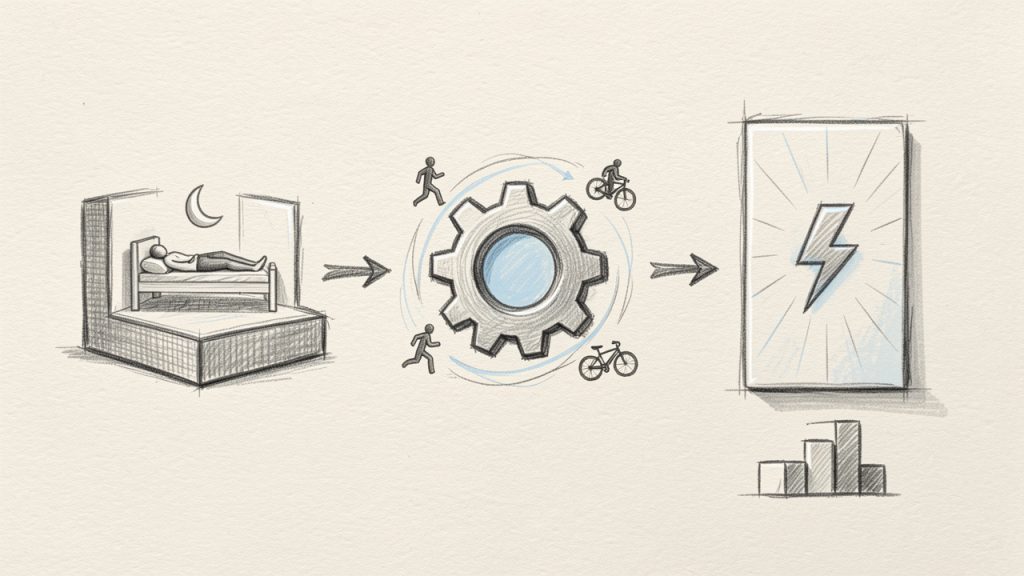
    Diagram showing how BMR and activity multiplier combine to produce TDEE: a base block labeled “BMR (resting calories)” with an arrow into a multiplier cog labeled “Activity factor (e.g., 1.2–1.9)” producing an output block labeled “TDEE (total daily energy expenditure)”. Include a small numeric example (BMR 1500 × 1.55 = 2325).

    That number becomes your starting point for maintenance. From there, you adjust up or down based on your goal.

    Who benefits from using a calorie calculator

    A calorie calculator is helpful for far more than weight loss. Someone trying to lose body fat can use it to create a moderate calorie deficit. Someone struggling to gain weight can use it to build a controlled surplus. A person who wants to maintain weight while improving food quality can use it as a reality check.

    Athletes often use calorie calculators to support training, recovery, and performance. In medical settings, calorie estimates can inform nutrition planning for older adults, patients managing chronic disease, or people recovering from illness, although these cases often require professional oversight.

    For everyday users, the value is practical. Instead of guessing, you begin with a reasoned estimate. That alone can save weeks of frustration.

    How to Use a Calorie Calculator: Step-by-Step Guide

    Gather the required inputs

    A typical calorie calculator asks for age, sex, height, weight, activity level, and goal. These inputs matter because they influence how much energy your body is likely to use.

    Age matters because metabolism often declines gradually over time, partly due to changes in lean body mass and activity. Sex matters because males and females usually differ in body composition and hormonal profile. Height and weight matter because larger bodies generally require more energy.

    The most commonly misreported input is activity level. Many people choose “moderately active” because they work out a few times a week. But if they sit at a desk most of the day and only train for 30 minutes, their real-world expenditure may be lower than expected. A calculator is only as good as the inputs you give it.

    Choosing the right formula

    For most adults, Mifflin-St Jeor is the best default. It is widely considered more accurate than older formulas for modern populations and is commonly used in reliable calorie calculator tools.

    Harris-Benedict is older and still common, but it can overestimate needs in some users. It is not useless, just less favored when a more current option is available.

    Katch-McArdle can be useful if you know your body fat percentage with reasonable accuracy. Because it uses lean body mass, it may better reflect calorie needs in very muscular individuals. The catch is that many body fat estimates from home scales are rough. If the body fat number is wrong, the result can drift.

    Setting your goal: loss, maintenance, or gain

    Once you have a maintenance estimate, the next step is adjusting it for your goal. For weight loss, a moderate deficit of about 10 to 20 percent below maintenance is often a smart starting range. Another common method is subtracting about 300 to 500 calories per day.

    For weight gain, a smaller surplus often works better than people expect. Roughly 150 to 300 calories above maintenance can be enough for gradual lean mass gain, especially in trained individuals trying to minimize fat gain.

    For maintenance, stay near estimated TDEE and watch the trend over a few weeks. Day-to-day scale changes mean very little on their own. The trend matters.

    As a rough rule, a daily deficit of 500 calories is often associated with about one pound of weight loss per week, but the classic 3,500 calories per pound rule is only a broad approximation. Real bodies adapt, and the rate often slows over time.

    Adjusting for special circumstances

    Pregnancy, breastfeeding, older age, high-volume athletic training, thyroid disorders, diabetes, and certain medications can all affect calorie needs. In these cases, a calorie calculator is still useful, but it should be treated more cautiously.

    Older adults may need fewer calories overall, with more emphasis on protein, strength training, and nutrient density. Athletes may need significantly more energy than generic calculators predict, especially during heavy training blocks. People with metabolic or endocrine conditions should consider input from a doctor or registered dietitian before making aggressive changes.

    Common Formulas Explained (with Examples)

    Mifflin-St Jeor formula

    The Mifflin-St Jeor equation estimates resting calorie needs using weight in kilograms, height in centimeters, age in years, and sex.

    For men: BMR = 10 × weight + 6.25 × height – 5 × age + 5

    For women: BMR = 10 × weight + 6.25 × height – 5 × age – 161

    Take a 35-year-old woman who weighs 70 kg and is 165 cm tall. Her estimated BMR would be:

    10 × 70 = 700
    6.25 × 165 = 1031.25
    5 × 35 = 175

    So, 700 + 1031.25 – 175 – 161 = 1395.25 calories per day

    If she is lightly active, using a multiplier of 1.375, her estimated TDEE is about 1,919 calories. If her goal is fat loss, a 15 percent deficit would put her near 1,630 calories per day.

    Harris-Benedict equation

    The Harris-Benedict formula is another classic method. It remains popular because it is simple and familiar, but it is older and may be less accurate for some people.

    Its main advantage is historical use and availability in many tools. Its main drawback is that newer equations often perform better in contemporary settings. If a calorie calculator uses Harris-Benedict, the result is still a helpful estimate, but you should be ready to validate it against actual progress.

    Katch-McArdle formula

    The Katch-McArdle formula is especially relevant when body fat percentage is known:

    BMR = 370 + (21.6 × lean body mass in kg)

    Suppose a 90 kg man has 20 percent body fat. His lean body mass is 72 kg. That gives:

    370 + (21.6 × 72) = 370 + 1555.2 = 1925.2 calories

    If he trains hard and falls around an activity factor of 1.55, his TDEE is roughly 2,984 calories. For a lean bulk, he might start at 3,150 to 3,250 calories and monitor weekly trends.

    Quick estimates and online calculators vs clinical measures

    Online tools are convenient, free, and usually accurate enough to start. They are not the same as clinical measurement. More advanced methods such as indirect calorimetry, DEXA, and bioelectrical impedance can provide more data, especially around body composition, but they cost more and are not always necessary.

    For most people, the best approach is simple: use a reputable calorie calculator, apply a sensible goal adjustment, then compare the estimate with your real-world results over 2 to 4 weeks.

    Activity Levels and Accurate Estimation

    Defining activity multipliers

    Choosing the right activity level is where many calorie calculator estimates go off track. The labels sound simple, but daily life is messy. Someone can train four times per week and still have a mostly sedentary lifestyle if the rest of the day is spent sitting.

    Here is a practical guide:

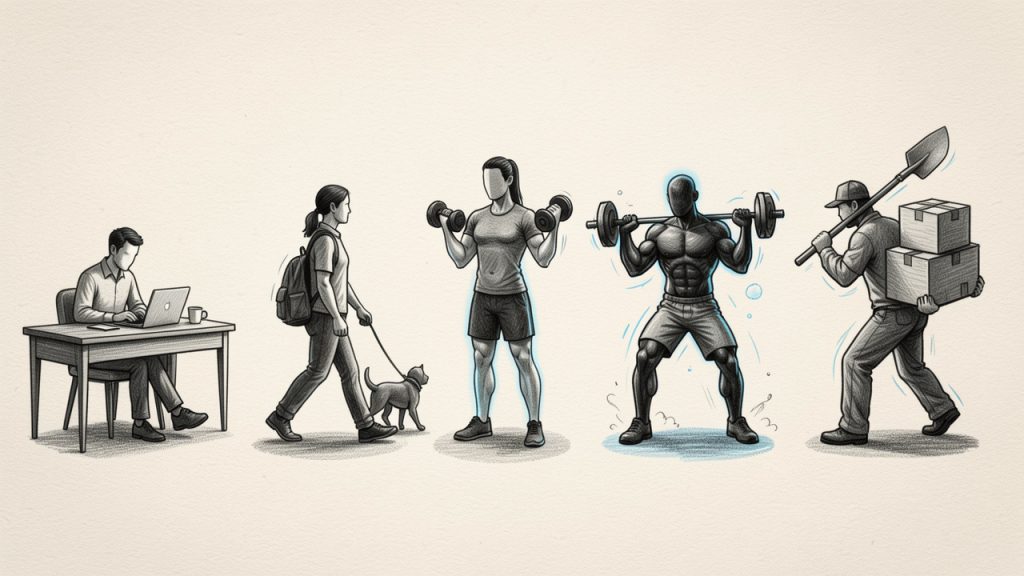
    Activity Level Multiplier Typical Profile
    Sedentary 1.2 Desk job, little exercise, low daily movement
    Lightly active 1.375 Light exercise 1 to 3 days per week, some walking
    Moderately active 1.55 Moderate exercise 3 to 5 days per week, decent daily movement
    Very active 1.725 Hard training 6 to 7 days per week, active job or lots of movement
    Extra active 1.9 Intense training, physical labor, or two-a-day sessions

    Visual table of activity levels: five illustrated silhouettes or icons (desk worker, light walker, gym-goer, frequent trainer, manual laborer) with their labels, multipliers (1.2, 1.375, 1.55, 1.725, 1.9), and one-sentence typical profile under each.

    Estimating real activity

    A more accurate estimate includes NEAT, which stands for non-exercise activity thermogenesis. This is the energy you burn from walking around, standing, fidgeting, doing errands, and handling normal tasks. For many people, NEAT has a larger impact than formal workouts.

    Occupational activity matters too. A warehouse worker, nurse, landscaper, or server will often have much higher daily expenditure than a remote office worker, even if their gym time is the same.

    Common mistakes to avoid

    The biggest mistake is counting workouts twice. If you choose a higher activity multiplier because you exercise regularly, do not also add large chunks of “exercise calories” on top unless your tool is designed for that method.

    Another frequent issue is trusting treadmill or smartwatch calorie numbers as precise. They can be directionally useful, but they are not exact. Wearables are often better at measuring steps and activity patterns than true calorie expenditure.

    Tools to track activity

    Wearables, heart rate monitors, step counts, and activity logs can all help you refine your estimate. The smart way to use them is not to believe every calorie number. Use them to understand patterns. Are you averaging 3,000 steps or 11,000? Are you active only during workouts, or all day?

    That pattern gives context to your calorie calculator result and helps you choose a more realistic multiplier.

    Personalizing Calorie Targets: Beyond the Calculator

    Monitoring progress and adjusting calories

    A calorie calculator gives you a starting point. Your body provides the final answer. After 2 to 4 weeks, review your average body weight, measurements, energy, hunger, and training performance.

    If your goal is fat loss and your weekly average weight is barely changing, reduce intake by about 100 to 200 calories per day or increase movement slightly. If weight is dropping too fast and energy is poor, add back 100 to 200 calories.

    A practical decision rule helps. If you want to lose weight and the trend is less than about 0.5 lb per week, tighten calories modestly. If you are trying to gain and nothing changes for several weeks, increase by 150 to 200 calories daily.

    Macronutrients and meal timing

    Calories matter most for weight change, but macronutrients shape how that process feels and performs. Protein is especially important for satiety and muscle retention. Many active adults do well with roughly 1.6 to 2.2 grams of protein per kilogram of body weight, especially during weight loss or muscle gain phases.

    Carbohydrates support training and recovery. Fats support hormones and overall nutrition. Meal timing is not magic, but it can help with adherence. Some people manage hunger better with larger meals. Others prefer spreading food across the day.

    The best plan is not the most impressive one. It is the one you can follow consistently.

    Psychological and behavioral factors

    The most accurate calorie calculator in the world cannot fix an unsustainable plan. If your target leaves you constantly hungry, socially isolated, or mentally exhausted, adherence will collapse.

    High-volume foods, consistent meal structure, adequate protein, sleep, and stress management all make calorie targets easier to follow. This is where many people succeed or fail. The number matters. The system matters more.

    When to seek professional guidance

    If you have a medical condition, a history of disordered eating, major weight changes, unexplained fatigue, or sports performance goals, professional support can save time and reduce risk. A registered dietitian, doctor, or sports nutritionist can interpret your calorie calculator result within the context of health, labs, medications, and lifestyle.

    Common Questions and Myths About Calorie Counting

    Will all calories affect weight equally?

    At the level of body weight, total calorie intake still drives the main trend. But not all calories affect your body in the same way. Protein has a higher thermic effect, meaning your body uses more energy to digest it. Different foods also vary in satiety, which affects how much you naturally eat later.

    So yes, 2,000 calories is still 2,000 calories in energy terms. But 2,000 calories from minimally processed, protein-rich meals often feels very different from 2,000 calories of highly refined snack foods.

    Is counting calories necessary for health?

    No. Many healthy people never count calories. A calorie calculator is a tool, not a requirement. Some users prefer portion guides, habit-based coaching, or hunger-based eating.

    Still, calorie counting can be extremely useful when progress has stalled, goals are specific, or awareness is low. It is often better viewed as a temporary skill than a lifelong obligation.

    Do metabolic adaptations make calculators useless?

    No. They make calculators imperfect, not useless. During dieting, energy expenditure can decrease through lower body mass, reduced movement, and metabolic adaptation. During overfeeding or increased training, expenditure can also shift.

    This is exactly why a calorie calculator should be paired with monitoring and adjustment. The estimate gets you close. The feedback loop gets you accurate.

    Are calorie counts on food labels accurate?

    Food labels are helpful, but not exact. There can be error in both labeling and portion measurement. Restaurant calorie counts can vary even more. That does not mean tracking is pointless. It means you should think in ranges, not pretend every number is exact to the single calorie.

    Practical Tools: Best Free Calorie Calculators and Apps

    What to look for in a good tool

    A good calorie calculator should be clear about its formula, easy to use, and realistic about limitations. Transparency matters. If a tool gives you a number but does not explain BMR, TDEE, or activity assumptions, it is less useful than it looks.

    Personalization also matters. Some tools are better for general weight management, while others are stronger for athletes, macro planning, or habit tracking.

    Recommended free calorie calculators and apps

    ToolDomainBest ForProsCons
    MyFitnessPal Calculator and Appmyfitnesspal.comWeight loss, food logging, general usersLarge food database, easy tracking, integrates with wearablesFood entries can vary in accuracy, some features locked behind premium
    Precision Nutrition Calculatorprecisionnutrition.comHabit-based coaching, macro guidancePractical recommendations, behavior-friendly approachLess detailed for users who want deep manual control
    Nike Training / Nike ecosystem toolsnike.comActive users combining training and nutrition awarenessStrong fitness ecosystem, useful for active routinesNot primarily a dedicated calorie calculator
    Calculator.net Calorie Calculatorcalculator.netQuick web-based estimatesFast, transparent, includes formula logicMore functional than personalized
    Mayo Clinic calorie tools and health resourcesmayoclinic.orgHealth-conscious users seeking trusted contextStrong health credibility, accessible guidanceLess flexible than tracker-first apps

    How to choose based on your goal

    If your main goal is fat loss and you want daily logging, a tracker such as MyFitnessPal is often the most practical. If you dislike obsessive tracking and prefer broader guidance, Precision Nutrition’s style may feel more sustainable.

    If you are focused on athletic performance, choose a tool that works alongside training data, body weight trends, and macro planning. If your use case is clinical monitoring or health management, prioritize trustworthy health institutions and professional guidance over flashy app features.

    Case Examples and Worksheets

    Sample profile 1: Sedentary adult losing weight

    Consider a 42-year-old woman, 165 cm tall, 82 kg, desk job, walking occasionally, no structured training. Using Mifflin-St Jeor:

    BMR = 10 × 82 + 6.25 × 165 – 5 × 42 – 161
    BMR = 820 + 1031.25 – 210 – 161 = 1480.25

    With a sedentary multiplier of 1.2, TDEE is about 1776 calories. A 15 percent deficit gives a target near 1510 calories.

    If after 4 weeks her average loss is only 0.2 lb per week, she could reduce by another 100 to 150 calories or increase daily steps meaningfully.

    Sample profile 2: Young athlete gaining lean mass

    Now take a 23-year-old man, 180 cm, 75 kg, resistance training 5 days per week, active campus lifestyle.

    Mifflin-St Jeor gives:
    BMR = 10 × 75 + 6.25 × 180 – 5 × 23 + 5
    BMR = 750 + 1125 – 115 + 5 = 1765 calories

    With a multiplier of 1.55, TDEE is about 2736 calories. For gradual lean mass gain, a surplus of 250 calories gives a target around 2985 calories.

    If body weight does not increase after 3 to 4 weeks, raising intake to about 3135 calories may be reasonable.

    Sample profile 3: Middle-aged adult maintaining weight

    A 50-year-old man, 178 cm, 85 kg, walks daily and lifts 3 times per week.

    BMR = 10 × 85 + 6.25 × 178 – 5 × 50 + 5
    BMR = 850 + 1112.5 – 250 + 5 = 1717.5 calories

    At a moderate activity factor of 1.55, estimated TDEE is about 2662 calories. If his goal is maintenance, he might begin around 2600 to 2700 calories and adjust based on a 2 to 4 week weight trend.

    Printable quick worksheet

    InputYour Number
    Age
    Sex
    Height
    Weight
    Estimated body fat % (optional)
    Activity level
    Formula used
    BMR
    TDEE
    Goal
    Calorie target
    Protein target
    Average weekly weight change
    Adjustment after 2 to 4 weeks

    Use this decision rule: if progress is slower than expected for 2 to 4 weeks, adjust calories by 100 to 200 per day. If progress is too fast and recovery, mood, or performance are suffering, bring calories up modestly.

    Safety, Special Considerations, and FAQ

    Safe calorie limits and warning signs

    Aggressive calorie restriction can backfire quickly. Very low-calorie diets should not be self-directed without medical supervision. Persistent dizziness, fatigue, irritability, menstrual disruption, binge eating, poor training recovery, and obsessive thoughts about food are signs that your current plan may be too aggressive.

    As a general principle, aim for a moderate deficit, not the fastest possible result. Sustainable progress almost always wins.

    Medical conditions and special populations

    People with diabetes, thyroid disease, gastrointestinal disorders, kidney disease, or a history of eating disorders should not rely on a calorie calculator alone. Pregnancy, breastfeeding, and adolescence also require special care because energy needs are dynamic and nutrient demands are high.

    If there is any concern about disordered eating behaviors, professional support matters more than any number on a calculator. In the United States, support can begin through organizations such as the National Eating Disorders Association (nationaleatingdisorders.org) or a licensed clinician.

    Short FAQ

    A calorie calculator is usually best treated as a starting estimate, not a final prescription.

    For weight loss, a moderate 10 to 20 percent deficit is often more sustainable than a large cut.

    For muscle gain, a small surplus usually works better than a large surplus if you want to limit excess fat gain.

    If your results do not match the estimate after 2 to 4 weeks, adjust the target rather than abandoning the process.

    Conclusion and Next Steps

    A calorie calculator works best when you understand what it is actually estimating. It uses formulas such as Mifflin-St Jeor, Harris-Benedict, or Katch-McArdle to estimate resting needs, then scales them using activity to predict your daily energy expenditure. That estimate is useful, but only when paired with honest inputs, realistic goals, and follow-up adjustments.

    Your next step is simple. Choose a reputable calculator, enter accurate data, pick a modest goal, and track your average progress for the next 2 to 4 weeks. Then adjust by 100 to 200 calories if needed. That is how a calorie calculator becomes a real decision-making tool instead of just another number on a screen.

  • BMI Calculator — Quick Weight-for-Height Assessment

    BMI Calculator — Quick Weight-for-Height Assessment

    A BMI calculator is one of those deceptively simple tools that can answer a question many people quietly carry around: Am I in a healthy weight range for my height? In a few seconds, it turns two basic inputs, height and weight, into a number that offers a quick snapshot of body size relative to height. That speed and simplicity are exactly why BMI calculators remain so widely used online, in clinics, and in workplace wellness programs.

    For busy people who prefer practical tools over complicated health jargon, a BMI calculator is appealing because it removes guesswork. You do not need lab tests, expensive apps, or wearable devices to use one. You just need accurate measurements and a basic understanding of what the result means, and just as importantly, what it does not mean.

    What is a BMI calculator?

    A BMI calculator is an online or offline tool that computes Body Mass Index, a numerical value derived from your weight and height. The purpose is to estimate whether your weight is proportionate to your height according to widely recognized categories. It is often used as a quick screening method rather than a full health diagnosis.

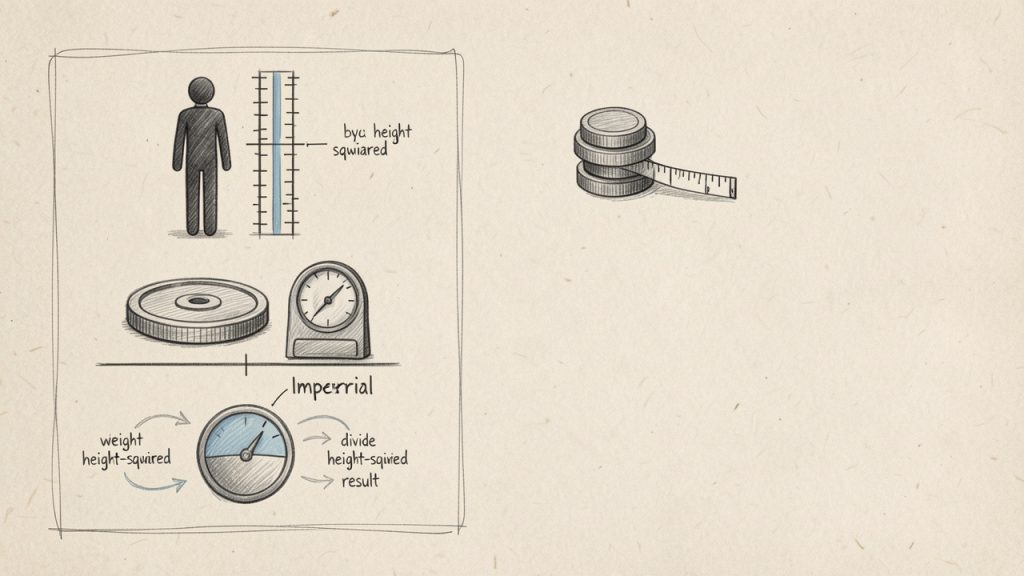
    The formula behind BMI is straightforward. In metric units, BMI equals weight in kilograms divided by height in meters squared. In imperial units, the calculation adjusts for pounds and inches. Most online calculators handle the math automatically, which is why they are so popular with users who want an instant answer without manual conversion.

    BMI formulas: metric and imperial with worked examples

    What makes a BMI calculator useful is not just the number itself, but the context around it. The result is usually grouped into standard ranges such as underweight, healthy weight, overweight, and obesity. These categories help people, healthcare providers, and wellness programs identify whether further attention may be needed.

    That said, BMI is a screening tool, not a complete measure of health. It does not directly measure body fat, muscle mass, bone density, or where fat is stored in the body. A highly muscular person may register a high BMI without having excess body fat, while another person may fall into a so-called normal range and still have health risks that BMI alone cannot detect.

    Why people use a BMI calculator

    The biggest reason people use a BMI calculator is convenience. It gives immediate feedback and creates a starting point. If someone is beginning a health journey, reviewing workplace wellness goals, or tracking changes after lifestyle adjustments, BMI can serve as a baseline metric.

    It is also common in broader health systems because it is standardized. That consistency allows doctors, researchers, and public health organizations to compare trends across large populations. For individuals, this standardization can be helpful, as long as the number is interpreted with common sense and not treated as the only indicator that matters.

    Standard BMI categories

    The most commonly used adult BMI categories are shown below.

    BMI scale showing standard adult categories with an indicator dot

    BMI RangeCategory
    Below 18.5Underweight
    18.5 to 24.9Healthy weight
    25.0 to 29.9Overweight
    30.0 and aboveObesity

    These ranges are widely recognized for adults, but they are not applied exactly the same way for children and teens. Younger age groups are typically assessed using age- and sex-specific percentile charts rather than adult BMI cutoffs.

    Key aspects of BMI calculator

    To use a BMI calculator well, it helps to understand both its strengths and limitations. On the positive side, BMI is simple, accessible, and fast. Those three qualities make it ideal for online tools aimed at users who want quick results without complexity. It is also useful for trend tracking. If your BMI changes over time alongside changes in diet, activity, or routine, that shift can help you spot progress or potential issues.

    Another important aspect is accuracy of input. A BMI calculator is only as good as the numbers entered. Small mistakes in height or weight can change the result enough to move someone from one category to another. This is especially true for shorter individuals, where even minor height errors can noticeably affect the score.

    BMI calculators also vary in how much context they provide. Some tools only display the number. Better calculators explain the category, offer unit switching between metric and imperial, and clarify that BMI is not a diagnosis. The best versions combine simplicity with useful interpretation, helping users avoid drawing overly dramatic conclusions from a single number.

    BMI versus other health measurements

    BMI is often more meaningful when paired with other indicators. For example, waist circumference can offer insight into abdominal fat, which is associated with higher metabolic risk. Body fat percentage can provide a more direct view of composition, although measuring it accurately usually requires specialized methods or devices.

    Blood pressure, cholesterol, blood sugar, fitness level, sleep quality, and daily activity all add valuable context too. A person with a BMI in the healthy range but poor cardiovascular markers may still need lifestyle changes. Likewise, someone with a BMI above the standard range may be metabolically healthy and physically active.

    This is why professionals often treat BMI as a first-pass filter. It is useful because it is easy. It is limited because health is more complex than one equation.

    Who should be cautious when interpreting BMI

    Certain groups should be especially careful not to overinterpret BMI results. Athletes and strength-trained individuals often carry more lean mass, which can push BMI upward without indicating poor health. Older adults may experience changes in body composition that BMI does not capture well. Pregnant individuals also require separate assessment methods, since normal weight changes during pregnancy do not fit standard BMI interpretation.

    People from different ethnic backgrounds may also face different risk patterns at the same BMI levels. This does not make BMI useless, but it does mean context matters. A calculator can provide a useful signal, but it cannot replace individualized assessment.

    Benefits and limitations at a glance

    AspectWhy It HelpsWhere It Falls Short
    SimplicityFast, easy to use, no special equipmentCan feel overly reductive
    AccessibilityFree online tools are widely availableQuality of explanations varies
    StandardizationUseful for broad comparisons and trackingDoes not reflect individual nuances well
    Screening valueGood starting point for health conversationsNot a diagnosis or full risk profile
    Ease of trackingHelpful for monitoring general trendsCan be misleading if used alone

    How to get started with a BMI calculator

    If you want to use a BMI calculator effectively, start with clean data. Measure your weight under consistent conditions, ideally at the same time of day and with similar clothing. For height, avoid guessing. Even a rough estimate can distort the result more than people expect.

    Once you have accurate numbers, enter them into a calculator that supports the units you prefer. Most modern tools allow either kilograms and meters or pounds and inches. After you receive the BMI result, look at both the number and the category, but stop short of assigning it too much power. It is a clue, not a verdict.

    A practical way to approach BMI is to treat it as part of a broader personal dashboard. If your result is outside the healthy range, that may be a prompt to examine eating habits, movement, sleep, stress, and medical history. If your BMI falls within the healthy range, that is useful to know, but it should not automatically be taken as proof that everything else is optimal.

    A simple way to use BMI in real life

    1. Measure accurately: Use current, realistic height and weight values.
    2. Calculate once, then track over time: Focus on trends instead of obsessing over daily changes.
    3. Add context: Consider waist size, fitness, energy levels, and any existing health markers.
    4. Act on patterns: If the number raises concerns, use it as a reason to seek better habits or medical advice.

    This approach keeps the tool useful without turning it into a source of anxiety. Health metrics are most powerful when they guide action, not when they trigger self-judgment.

    Choosing a good online BMI calculator

    Not all calculators are equally helpful. A good BMI calculator should feel intuitive, load quickly, and explain the result in plain language. It should also clarify that BMI is intended for general screening, not definitive diagnosis.

    For productivity-minded users, this matters more than it might seem. A clean, trustworthy tool saves time and reduces confusion. When a calculator is well designed, the user can move from input to insight without distractions, pop-ups, or vague explanations.

    If you are using one regularly, it also helps to choose a calculator that works well on mobile. Many people check health metrics on the go, between meetings, during breaks, or while setting personal goals alongside work and family responsibilities. A fast, free tool fits naturally into that routine.

    When to talk to a professional

    There are times when a BMI result should lead to a deeper conversation. If the number is significantly above or below the usual range, or if it changes quickly without a clear reason, speaking with a healthcare professional is a smart next step. The same applies if you have symptoms such as fatigue, shortness of breath, persistent pain, or metabolic concerns.

    A professional can interpret BMI alongside family history, medications, lab work, physical activity, and body composition. That fuller picture is where real health decisions should be made. The calculator opens the door. It should not be the final word.

    Conclusion

    A BMI calculator remains useful because it does one thing very well, it offers a quick, accessible estimate of whether your weight is proportionate to your height. For people who want a free, easy-to-use online tool, that simplicity is a major strength. It provides a starting point, helps track trends, and encourages more informed health conversations.

    The smartest next step is to use BMI as one part of a bigger picture. Check your numbers accurately, review the result with context, and pair it with other markers that reflect your overall well-being. If something looks off, use that insight to make practical changes or get professional guidance. A good calculator gives you a number. A better approach turns that number into action.

  • Best Free Online Grammar Checker: Compare Top Tools

    Best Free Online Grammar Checker: Compare Top Tools

    A single typo can make a freelance proposal look careless, a client email sound rushed, or a landing page quietly lose trust. That is why so many people search for an online grammar checker free solution, not because they want perfect prose, but because they want a fast, reliable second pair of eyes before they hit publish or send.

    The good news is that free grammar tools are genuinely useful now. The bad news is that they are not all useful in the same way. Some are better for email and day-to-day business writing. Some are stronger for style and readability. Others help multilingual users catch awkward phrasing that basic spellcheck misses. If you pick the wrong one, you may end up with lots of noisy suggestions and not much real improvement.

    This guide compares the best free online grammar checkers, explains how they work, and shows you how to choose one based on your writing, privacy needs, and workflow. It also covers the part most roundup articles skip, namely where these tools fail, when a free plan is enough, and how to use them without blindly accepting every change.

    What is an Online Grammar Checker and How Does It Work?

    An online grammar checker is a web-based or app-based writing assistant that scans your text for grammar, punctuation, spelling, clarity, style, and sometimes tone. At a basic level, it looks for mistakes such as subject-verb disagreement, repeated words, missing commas, and misspellings. More advanced tools also flag wordiness, passive voice, awkward phrasing, and inconsistent tone.

    That broad feature set is why free grammar tools have become popular with students, consultants, marketers, developers, and small business owners. They do more than spellcheck. A standard spellchecker might catch teh instead of the. A grammar checker may also suggest changing There is many reasons to There are many reasons, or point out that your should actually be you’re.

    Definition and core functions

    Most modern checkers focus on five core areas. The first is grammar, which covers sentence structure and agreement. The second is punctuation, such as commas, apostrophes, and capitalization. The third is spelling, including contextual spelling mistakes. The fourth is style, which includes clarity, concision, and readability. The fifth is tone, which tries to estimate whether your writing sounds formal, confident, friendly, or overly blunt.

    Tone matters more than many people realize. If you write sales emails, support replies, proposals, or cover letters, grammar is only part of the job. The wording also needs to sound appropriate for the reader. Some AI-assisted tools now try to help with that, although their tone detection is still imperfect.

    How modern checkers use rules, statistical models, and AI

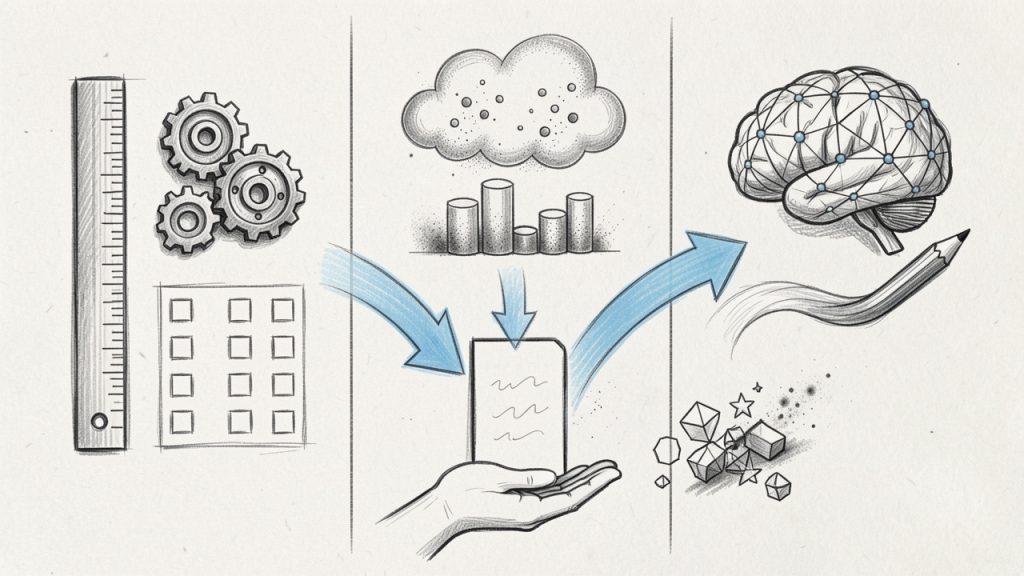
    A simple infographic illustrating how modern grammar checkers work: three parallel lanes labeled 'Rule-based checks' (handwritten rules → flagged errors), 'Statistical models' (corpus comparison → probability-based suggestions), and 'AI/suggestions' (neural model → rewrite suggestions), with arrows merging into 'User suggestions' and a note 'May overcorrect / can miss jargon'.

    Older grammar checkers relied heavily on rule-based systems, using hand-built language rules such as, “a singular subject usually takes a singular verb.” Rule-based tools are often transparent and good at catching predictable errors, but they can be rigid. Newer tools mix those rules with statistical language models and AI-based writing suggestions. In simple terms, the software does not just ask, “Does this break a grammar rule?” It also asks, “Does this phrase look unusual compared to how fluent writers usually write?” That combination is why modern tools catch more subtle issues than the grammar software of a decade ago.

    AI is not infallible. It can overcorrect intentional phrasing, misunderstand industry jargon, and flatten creative voice. A grammar checker is best seen as a smart assistant, not a final editor.

    Where they run

    Free online grammar checkers now show up in several formats. The most common is the web editor, where you paste text into a browser and review suggestions. Many also offer browser extensions that work inside Gmail, LinkedIn, Google Docs, and other web apps. Some provide desktop apps, mobile keyboards, or integrations for Microsoft Word.

    For productivity-minded users, integrations matter almost as much as accuracy. A good checker you never remember to open is less useful than a slightly less powerful one that works wherever you write.

    Why Use a Free Online Grammar Checker? Benefits and Typical Use Cases

    A free grammar checker saves time in a way manual proofreading rarely can. It scans instantly, flags obvious issues, and helps you clean up first drafts before you spend mental energy polishing. For busy professionals, that speed is often the main benefit.

    There is also a consistency advantage. If you write lots of emails, support documentation, proposals, blog posts, or product copy, a grammar checker helps maintain a baseline level of quality. It catches errors you stop seeing because you are too close to the text.

    Common benefits

    The biggest benefit is simple, fewer avoidable mistakes. That matters whether you are a solo founder emailing leads or a developer writing documentation. Small errors do not always destroy credibility, but repeated errors chip away at it.

    Another advantage is that these tools act like a lightweight editorial pass. They can spot duplicate words, long-winded sentences, and clunky transitions. Even when you reject the actual suggestion, the alert itself can help you notice where the sentence needs another look.

    Use cases by audience

    For students, free tools are helpful for drafts, essays, personal statements, and discussion posts. They can reduce surface-level mistakes, although they should not be trusted as the only check for academic writing.

    For professionals and freelancers, free grammar checkers are especially useful for proposals, invoices, outreach emails, reports, and website copy. These are high-frequency writing tasks where speed matters.

    For non-native English speakers, grammar checkers can be even more valuable. They often catch article usage, preposition choices, and awkward constructions that basic spellcheck misses. Tools with paraphrasing or rewrite suggestions can also help users sound more natural.

    For content creators and marketers, the best tools do more than fix grammar. They improve readability and help adjust tone for a landing page, newsletter, social post, or blog article.

    When a free tool is enough

    A free grammar checker is usually enough if you mainly need basic grammar, punctuation, spelling, and light clarity improvements. That covers most short business writing, casual professional communication, and first-pass editing.

    You may need a premium plan, or human editing, if you require advanced rewrites, plagiarism detection, deep style analysis, team features, or support for sensitive client content. Academic manuscripts, legal writing, investor documents, and brand-critical marketing copy often deserve more than a free automated check.

    Top Free Online Grammar Checkers (Side-by-Side Overview)

    The tools below are among the most widely used options for anyone searching for an online grammar checker free solution. Each one takes a slightly different approach. Some prioritize all-purpose correction. Others focus on readability, multilingual support, or rewrite assistance.

    Quick comparison table

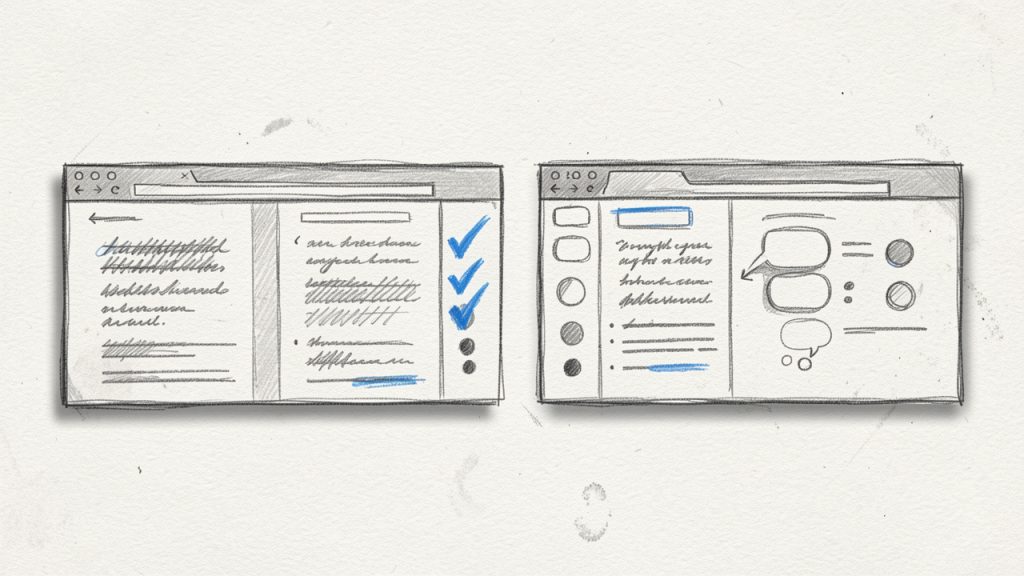
    Tool Best For Free Plan Strengths Main Limitations on Free Tier Platforms
    Grammarly General business writing Strong grammar, punctuation, browser support Advanced style, tone rewrites, plagiarism gated Web, browser, desktop, mobile
    LanguageTool Multilingual users, privacy-conscious users Good grammar checks across multiple languages Some advanced suggestions limited Web, browser, desktop, mobile
    QuillBot Grammar Checker Quick cleanup and paraphrasing-adjacent workflows Simple grammar correction, easy interface Broader writing features split across tools Web, browser extensions
    ProWritingAid Writers who want deeper analysis Good reports and style guidance Many advanced reports and usage limits Web, browser, desktop, Word
    Hemingway Editor Readability and clarity Great for simplifying dense writing Not a true grammar-first checker Web, desktop
    Ginger ESL users and sentence rewrites Helpful corrections and rewrite support Free tier can feel restricted Web, desktop, mobile

    Clean side-by-side browser mockup showing five editor screenshots (Grammarly, LanguageTool, QuillBot, ProWritingAid, Hemingway) with each tool’s name, a short 'Best for' label, and checkmarks highlighting strengths vs. limitations — visualizing the quick comparison table.

    1. Grammarly

    Grammarly is still the default recommendation for many users because it balances ease of use, broad platform support, and solid free grammar checking. The free version is particularly good for catching everyday mistakes in emails, documents, and browser-based writing fields. If you live in Gmail, Google Docs, LinkedIn, or Slack, its extension is convenient.

    Its biggest strength is accessibility. You do not have to change your writing process much. Grammarly meets you where you already work, then highlights issues in real time. For freelancers, consultants, and small teams, that frictionless experience is often more important than having the deepest editorial analysis.

    Key features

    Grammarly provides real-time grammar and spelling checks, a browser extension for web writing, and tone and clarity signals in many contexts. It also offers desktop and mobile apps so you can get suggestions across devices.

    Pros and cons

    Grammarly is very easy to start using, and its free tier covers general mistakes well. Integration across common writing platforms is excellent. On the downside, many advanced suggestions are locked behind premium, the tool can overflag stylistic choices, and privacy-sensitive users may want to review policies carefully.

    The free plan is enough for basic correction, while premium features add advanced rewrites, vocabulary suggestions, and plagiarism checking.

    Website: https://www.grammarly.com

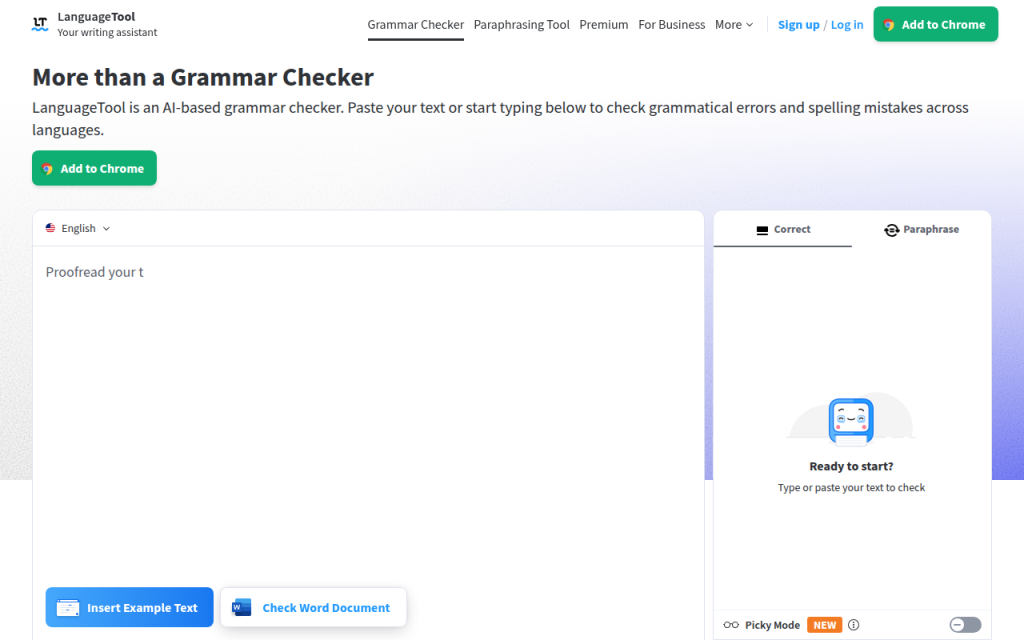
    Screenshot of languagetool.org

    2. LanguageTool

    LanguageTool is one of the strongest choices if you want a free grammar checker that supports multiple languages and offers a practical balance between usability and flexibility. It is especially appealing for international users, multilingual teams, and anyone writing in more than English alone.

    It does not feel as tightly locked into one ecosystem. It works through a web editor, via extensions, and in several app environments. It also has a reputation for being a practical option for users who care about control and language coverage.

    Key features

    LanguageTool offers grammar and style checking in many languages, browser extensions and office integrations, a picky mode for stricter checks, and options that appeal to privacy-aware users.

    Pros and cons

    LanguageTool provides excellent multilingual support and useful style suggestions with flexible setup options. Some advanced recommendations are limited to paid plans, the interface can feel utilitarian compared to rivals, and not every suggestion is equally polished across languages.

    Its free version is generous for everyday writing, while paid plans unlock fuller style suggestions and higher usage limits.

    Website: https://languagetool.org

    3. QuillBot Grammar Checker

    QuillBot is known more broadly for paraphrasing, but its grammar checker is a solid free option for users who want a quick browser-based cleanup tool. It is especially useful if your workflow already includes QuillBot’s rewriting or summarizing features.

    For students, bloggers, and non-native speakers, QuillBot feels approachable. The interface is simple, and the tool focuses on fast corrections rather than overwhelming you with deep editorial reports. That makes it good for short drafts and quick revisions.

    Key features

    QuillBot provides fast, approachable grammar corrections with a simple interface and easy access to paraphrasing tools when you want rewrite options.

    Pros and cons

    QuillBot is quick to use and works well for fast fixes. Advanced writing help is spread across separate tools, and it is less comprehensive than some dedicated grammar-first options. It’s also less ideal for enterprise or workflow-heavy users.

    Website: https://quillbot.com

    Screenshot of prowritingaid.com

    4. ProWritingAid

    ProWritingAid is better thought of as a deeper writing analysis platform than a lightweight spellcheck replacement. Its free functionality can help everyday users, but it shines most with longer-form writers who want feedback on style, pacing, readability, repetition, and structure.

    For fiction writers, bloggers, and long-form content marketers, this extra depth is valuable. Where some tools simply say “change this,” ProWritingAid helps you understand broader writing patterns. That said, its interface can feel more analytical than casual users need.

    Key features

    ProWritingAid delivers grammar and style reports, detailed writing analytics, and integrations for Word and browser workflows, making it useful for long-form editing.

    Pros and cons

    ProWritingAid is excellent for deeper style analysis and reporting, which suits serious writers and editors. It can feel heavy for simple email editing, free usage limits are noticeable, and there is a learning curve compared with simpler tools.

    The free plan offers limited access, while premium expands the number of reports, integrations, and document support.

    Website: https://prowritingaid.com

    5. Hemingway Editor

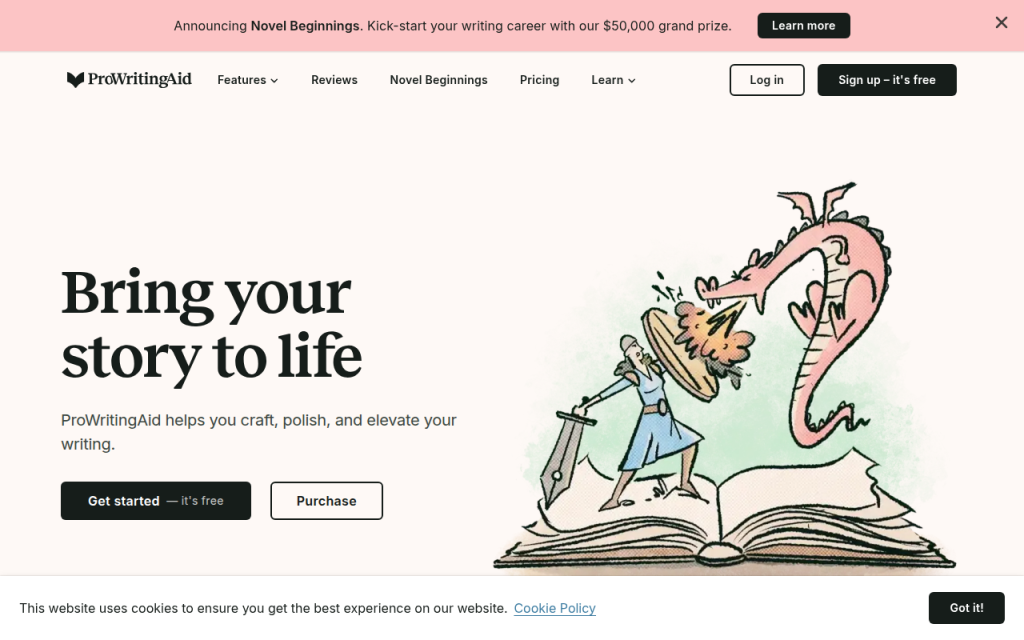
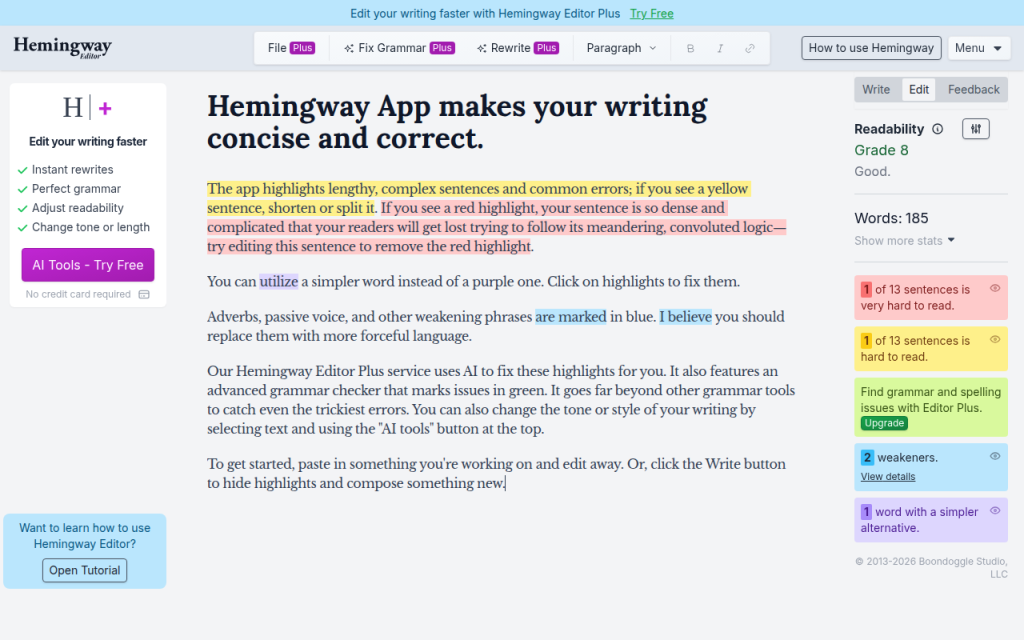
    Screenshot of hemingwayapp.com

    Hemingway is not the strongest pure grammar checker on this list, but it deserves a place because it solves a different problem extremely well, readability. If your writing is technically correct yet still hard to read, Hemingway can be more useful than a grammar-first tool.

    It highlights long sentences, dense phrasing, excessive adverbs, and passive voice. For website copy, blog content, sales pages, and internal documentation, that kind of clarity feedback can be more valuable than catching a missing comma.

    Key features

    Hemingway emphasizes readability by highlighting complex sentences, dense phrasing, and passive constructions, and it provides a distraction-free interface for focused editing.

    Pros and cons

    Hemingway is excellent for simplifying dense writing and is very useful for readability-focused editing. It is not a comprehensive grammar checker, can push writing toward oversimplification, and is less helpful for nuanced correctness issues.

    There is a free web version, with desktop options available separately.

    Website: https://hemingwayapp.com

    6. Ginger

    Ginger has long focused on helping users improve sentence construction, making it particularly useful for ESL learners and business users who want rewrite-style support. It combines grammar correction with phrasing assistance in a way that feels practical for everyday communication.

    Its interface and brand may not feel as dominant as Grammarly’s, but it still earns attention for users who care about sentence-level fixes and alternative wording. It can be a useful secondary tool when a first checker catches errors but does not help enough with flow.

    Key features

    Ginger provides grammar correction alongside sentence rephrasing, with desktop and mobile support for users who want alternative wording suggestions.

    Pros and cons

    Ginger is helpful for non-native English speakers and offers useful rewrite-style support. Free tier limitations are noticeable, it is less widely integrated than top rivals, and the interface is less streamlined than some newer tools.

    Ginger uses a freemium model, with more robust writing assistance available in paid plans.

    Website: https://www.gingersoftware.com

    How to Choose the Right Free Grammar Checker for Your Needs

    The best free grammar checker is not necessarily the one with the most features. It is the one that fits your writing habits, tolerance for noise, and privacy requirements. If you write short emails all day, you want speed and browser integration. If you write long articles, you may care more about readability and style analysis.

    Accuracy also depends on what you write. A tool that performs well on general business English may struggle with legal language, technical documentation, creative dialogue, or industry shorthand. The right question is not “Which tool is best?” but “Best for what kind of writing?”

    Decision factors that matter

    Start with accuracy for your use case by pasting in a real sample, not a polished paragraph from a homepage. Check privacy, especially if you handle client data, contracts, medical information, or internal business content. Then evaluate language support, integrations, interface quality, and the likely cost to upgrade if the free plan feels too limiting.

    A browser extension is a huge advantage for many users, but not for everyone. Some people prefer a clean web editor because they do not want suggestions popping up in every text field online. Others want offline or desktop support because they write in Word or work with sensitive documents.

    Quick decision checklist

    If you want the shortest path to a good choice, use this simple filter: for general business convenience, start with Grammarly. For multilingual or privacy-aware needs, try LanguageTool. Students who want quick web-based edits will find QuillBot approachable. Long-form writers and editors benefit from ProWritingAid. Marketers focused on readability should use Hemingway. ESL users needing sentence help may prefer Ginger.

    Red flags to watch for

    A free tool stops being helpful if the privacy policy is vague, upload limits are too restrictive, or the interface buries basic suggestions behind constant upgrade prompts. Also be cautious if a tool offers very little detail on how it handles stored text, shared data, or AI training. Poor context awareness is another red flag; if a tool keeps flagging correct industry terms or pushing obviously wrong changes, it may create more editing work than it saves.

    Step-by-Step: Using a Free Online Grammar Checker Effectively

    Most people get mediocre results from grammar tools because they use them too late or trust them too much. The best workflow is not “paste text, accept all, done.” It is a short editing sequence where the tool helps you think more clearly.

    Preparing your text and context

    Before checking grammar, decide who the writing is for and how formal it should sound. A sales email, support response, investor update, and blog post all need different wording. If the tool allows tone or audience context, use it. Even a rough context cue improves suggestions.

    Next, clean up obvious issues yourself. Remove duplicate fragments, unfinished sentences, and placeholder notes. Grammar tools work better when the draft is complete enough to show your intended meaning.

    Best practices for accepting or rejecting suggestions

    Treat every suggestion like a junior editor, not a law. Ask two questions: Is the suggestion technically correct, and does it improve the sentence for this audience? Sometimes the answer to the first is yes and the second is no. For example, a tool might suggest simplifying a sentence that is deliberately formal because you are writing a proposal or legal notice. In that case, precision may matter more than simplification, so reject the change.

    How to combine tools for better results

    A strong workflow often combines one grammar checker with one readability tool and a final human pass. You might use Grammarly or LanguageTool for correctness, then Hemingway for clarity, then do a final manual read for tone and nuance. If you publish professionally, especially in academic, legal, or brand-sensitive contexts, consider grammar software as the first screen, not the final authority.

    Privacy, Security, and Data Concerns with Free Grammar Tools

    Privacy is one of the most overlooked parts of choosing an online grammar checker free tool. Many people paste client emails, contracts, internal strategy documents, resumes, or product roadmaps into these platforms without thinking about where that text goes.

    Because these tools often process writing in the cloud, your text may be transmitted to remote servers for analysis. That does not automatically make a tool unsafe, but it means you need to read the privacy terms more carefully than most roundup posts suggest.

    What to check in a privacy policy

    Look for plain answers to these questions: How long is text retained? Is content used to improve models or services? Is data shared with subprocessors or third parties? Can you delete stored content? Are there different terms for free users versus business users? If the language is overly vague, that is worth noticing. A privacy policy should tell you enough to understand the risk level, not force you to guess.

    Safer options for sensitive content

    If you work with sensitive information, the safest options are typically local editing tools, on-device solutions, or paid business plans with stronger contractual protections. In some cases, open-source or self-hosted language tools can make sense for technical teams.

    For many solo users, a practical middle ground is to avoid pasting highly sensitive text into web editors and instead use desktop integrations or anonymized drafts wherever possible.

    Practical tips to reduce risk

    If you need a grammar check on sensitive material, remove names, account numbers, pricing details, internal code names, and confidential identifiers first. Replace them with placeholders, run the check, then restore the original details locally. That extra minute is often worth it. Good writing is valuable, but not at the cost of exposing information that should stay private.

    Limitations and Common Mistakes of Free Grammar Checkers

    Free grammar tools are useful, but they have blind spots. They are strongest on surface-level correctness and weakest on context, nuance, voice, and specialized language. This matters because the closer your writing gets to persuasion, creativity, or technical precision, the more costly a bad suggestion can be.

    They also struggle with intentional rule-breaking. Creative writing often uses fragments, repetition, or unusual punctuation for effect. Marketing copy sometimes does the same. A tool may flag those choices as errors even when they are doing their job.

    Typical false positives and false negatives

    A false positive is when the tool flags something that is not actually wrong. For example, in the sentence “Let’s move fast. Really fast.” a checker may dislike the fragment. But in marketing copy, that fragment may be intentional and effective.

    A false negative is when the tool misses a real problem. For example, “We help startups scale securely, quickly, and without increasing operational complexity for teams that are already overloaded” may be grammatically acceptable, but still too dense for easy reading. Some grammar tools will let that pass.

    Jargon can also confuse checkers. A developer writing “containerized microservices” or a finance professional writing “EBITDA adjustments” may trigger irrelevant suggestions, especially in tools trained mostly on general-purpose prose.

    When to get human editing

    If the stakes are high, human review still matters. That includes investor decks, legal terms, grant applications, academic submissions, thought leadership articles, and major website copy. A human editor can understand subtext, persuasion, and audience expectations in ways a free grammar checker cannot. Use software to catch what is obvious, then apply judgment or a human pass to refine what matters.

    Advanced Tips: Getting Better Results From Any Grammar Tool

    You can improve almost any grammar checker by giving it better input and using it in the right sequence. This matters even more now that many tools mix rules with AI suggestions.

    How to give AI-based tools better context

    If the tool allows custom instructions or rewrite context, be specific. Tell it the audience, desired tone, reading level, and purpose. For example, “Rewrite for a busy B2B client, concise, confident, and polite” will usually produce better results than asking for a generic improvement. Context helps the model choose between technically valid but stylistically different options.

    Combining rule-based and AI suggestions

    A useful pattern is to trust rule-based corrections more for punctuation, agreement, and spelling, while treating AI-style rewrites as optional ideas. Rules are often reliable for mechanics. AI can be great for clarity, but it is also more likely to distort your meaning. This separation keeps you from accepting a polished-sounding sentence that is less accurate than the original.

    Build a personal editing checklist

    The most effective writers do not rely only on tools. Create a short style checklist for recurring issues, such as sentence length, jargon, headline tone, Oxford comma preference, contractions, or preferred product names. Once you know your patterns, grammar tools become more useful because you are not asking them to define good writing for you. You are using them to support standards you already understand.

    Frequently Asked Questions

    Are free grammar checkers reliable enough for academic work?

    They are reliable enough for basic proofreading, but not for final academic review. They can catch surface-level issues, yet they may mishandle discipline-specific wording or make style suggestions that do not fit academic conventions. For important submissions, combine a grammar tool with manual review and, if possible, a human editor or supervisor.

    Do grammar checkers store or use my writing to train models?

    Sometimes, depending on the tool and plan. Policies differ. Some services retain text temporarily for processing, some may use data for service improvement under certain terms, and some business tiers offer stronger protections. Always review the current privacy policy before uploading sensitive content.

    Can they detect plagiarism?

    Some can, but plagiarism detection is usually not fully included in free plans. Even when available, it is often part of a premium feature set or a separate product. If plagiarism screening matters for academic or publishing reasons, confirm exactly what the free tier includes before relying on it.

    Conclusion, Quick Recommendations and Next Steps

    If you want the safest all-around starting point, begin with Grammarly for general writing convenience or LanguageTool if you need multilingual support or want a strong alternative. Choose Hemingway if readability is your primary goal, ProWritingAid if you write long-form content, and QuillBot or Ginger if you want quick sentence help and easy web-based editing.

    The best next step is practical. Take one real piece of writing, such as an email, proposal, blog intro, or support reply, and test it in two tools from this list. Compare not just how many errors they find, but whether the suggestions actually improve the message. That small test will tell you more than any feature page.

    For further improvement, keep a trusted style reference nearby, such as the AP Stylebook, Chicago Manual of Style, or your own internal brand guide. A free online grammar checker is excellent for catching mistakes. Your judgment is what turns clean writing into effective writing.

  • Best QR Code Generator Online: Choose, Create, Compare

    Best QR Code Generator Online: Choose, Create, Compare

    A good QR code generator online can turn a plain link, menu, contact card, or payment request into something people can scan in seconds.

    A bad one can leave you with blurry exports, broken redirects, weak analytics, or a printed code you cannot change after 1,000 flyers are already out the door.

    That is why choosing the right tool matters. Small business owners want something fast and affordable. Freelancers care about branding and ease of use. Developers often need APIs, automation, and predictable output. This guide covers all three angles, with a practical how-to, a balanced comparison, and a clear decision framework so you can pick the right online QR code generator without trial and error.

    What is an online QR code generator?

    Quick definition and how it works

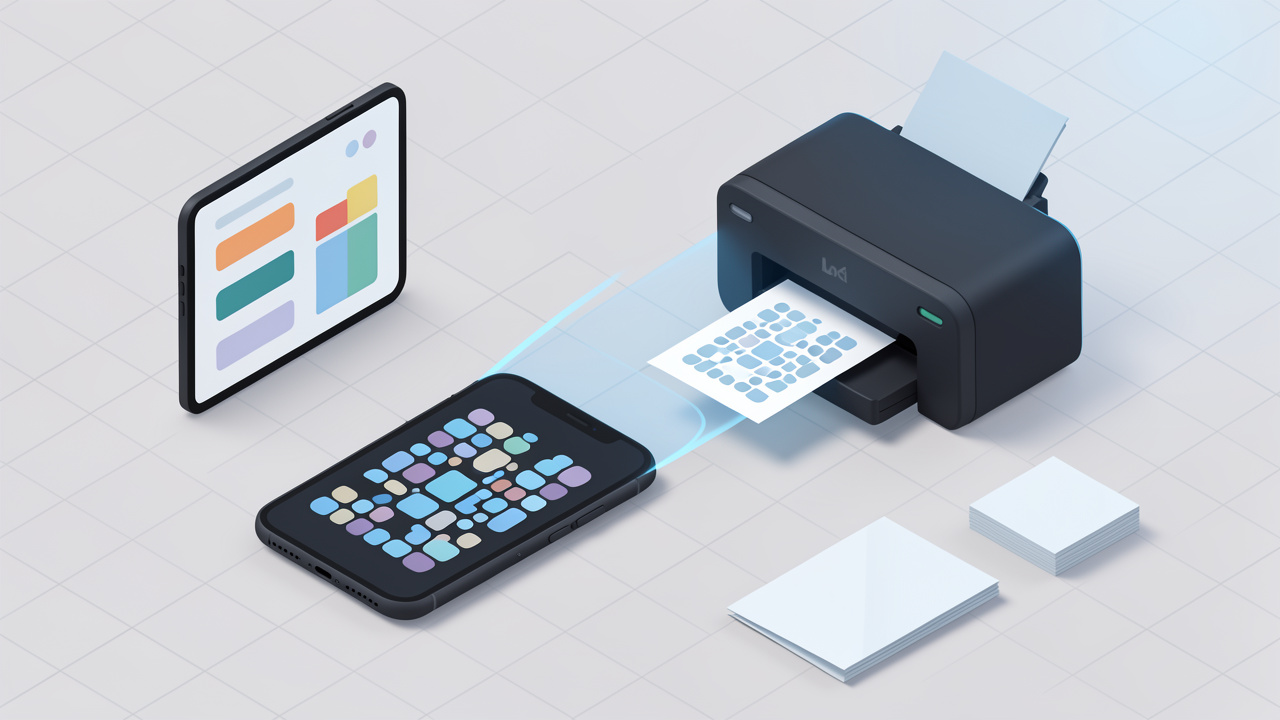
    An online QR code generator is a web-based tool that converts information into a scannable QR code image. Instead of installing software, you open a browser, choose a content type, paste in your data, and download the finished code as an image or vector file.

    Behind the scenes, the tool encodes your content into a matrix of square modules. A phone camera reads that pattern, reconstructs the data, and triggers an action such as opening a URL, joining Wi-Fi, saving a contact, or displaying text. Most generators also let you choose export formats like PNG, SVG, or PDF, and many offer design controls such as colors, frames, and logo placement.

    QR codes also include error correction, which allows the code to remain scannable even if part of it is damaged or covered. That is useful on packaging, signage, or business cards. But higher error correction can make the pattern denser, so customization needs to be handled carefully.

    Common QR code types (URL, vCard, Wi‑Fi, text, email, SMS, PDF, event)

    Most online tools support the most common QR code formats used by businesses and individuals. A URL QR code is the simplest and most common, often used for websites, menus, forms, landing pages, app downloads, and portfolios.

    A vCard QR code stores contact details so someone can save your name, phone number, email, and company instantly. Wi‑Fi QR codes let guests join a network without typing a password. Email and SMS QR codes prefill communication details, which is useful for support or lead capture. PDF and file-based QR codes point users to downloadable assets such as brochures or manuals. Event QR codes can contain calendar information like date, time, and location.

    For business use, URL and dynamic landing page codes dominate because they are flexible and measurable. For personal use, vCard, Wi‑Fi, and text codes are often enough.

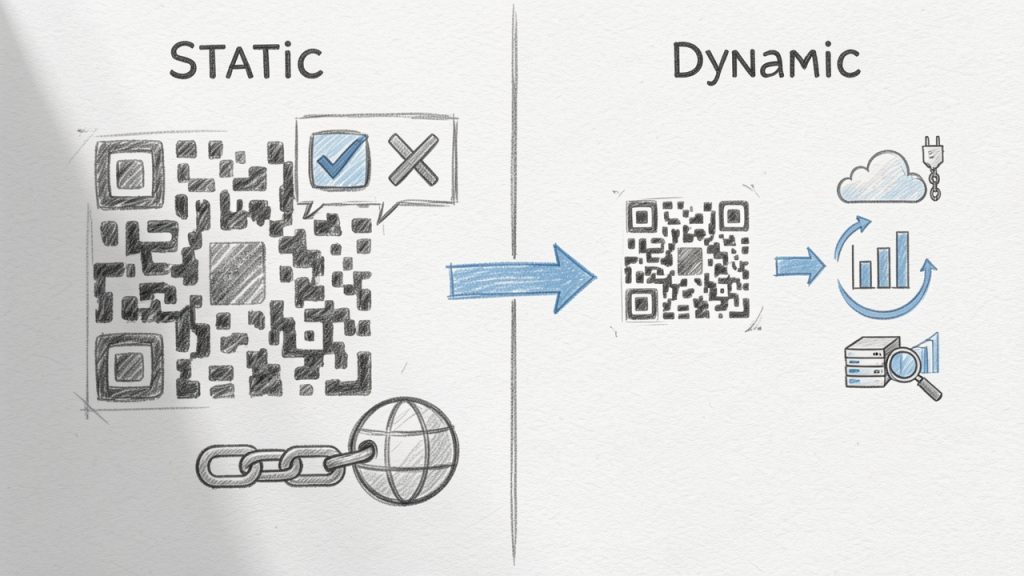
    Static vs dynamic QR codes, key differences and use cases

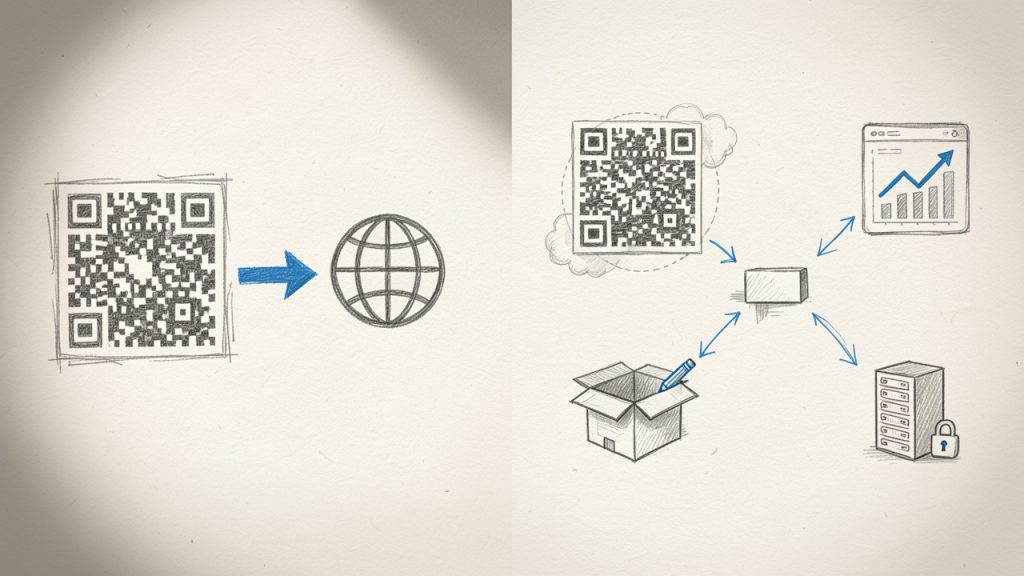
    A static QR code directly stores the final content. If you encode a URL into it, that URL is permanent. Static codes are usually free, simple, and ideal for information that will not change, such as a personal website, a permanent portfolio link, or a stable support page.

    A dynamic QR code points to a short redirect URL managed by the provider, which means you can change the final destination later without changing the printed code. This is extremely useful for restaurant menus, campaigns, product packaging, event materials, and any situation where content may evolve after printing.

    Dynamic codes also enable scan analytics, device insights, geographic trends, and campaign management. The trade-off is that they usually require a paid plan and depend on the provider’s infrastructure. If the subscription ends or the provider changes limits, your code behavior may be affected, so provider reliability is a real selection factor, not just a pricing detail.

    Diagram comparing static vs dynamic QR codes: left panel shows a static QR encoding a final URL, right panel shows a dynamic QR pointing to a short redirect URL, editable destination, and analytics dashboard

    Side-by-side diagram comparing static vs dynamic QR codes: left encodes a full URL, right points to a provider-managed redirect with editable destination and analytics

    Why use an online QR code generator, benefits and limitations

    Benefits, speed and accessibility

    The main appeal of a QR code generator online is speed. You can go from idea to downloadable file in under a minute, without installing desktop software or dealing with graphic design tools. That matters when you need a code for a flyer, invoice, event badge, or product insert right away.

    Online tools are also accessible from anywhere. A freelancer can create a vCard QR code on a laptop, a café owner can update a menu from a tablet, and a marketer can build campaign codes from a browser while collaborating with a remote team. Many platforms provide templates, brand color controls, logo options, and multiple file formats so the same code can be used on social posts, posters, print collateral, and packaging.

    Limitations, privacy and reliability

    Not every free tool is truly free in practical terms. Some add watermarks, limit high-resolution exports, or gate dynamic codes behind a subscription. Others let you build a code but retain control over tracking links, analytics dashboards, or branded landing pages.

    Privacy is another real issue. If you create dynamic QR codes through a third-party platform, that provider may process scan data, destination URLs, campaign names, or visitor metadata. For basic use, that may be acceptable. For healthcare, finance, internal operations, or regulated customer data, it may not be.

    Reliability matters too. If you print a dynamic code on packaging and the provider’s redirect service fails, users hit a dead end. For mission-critical use, you want strong uptime, account controls, and a clear understanding of what happens if your plan lapses.

    When to choose a free tool versus paid or enterprise solutions

    A free tool makes sense when you need static QR codes, simple exports, and no analytics. It is perfect for portfolio links, Wi‑Fi access cards, contact sharing, internal labels, or one-off printed materials where the destination will not change.

    A paid tool is better when you need dynamic redirects, tracking, campaign organization, editable destinations, multiple team members, or brand consistency across many codes. An enterprise solution becomes worthwhile when QR codes are tied to customer journeys, asset management, retail packaging, large events, or compliance-sensitive workflows.

    How to pick the best QR code generator for your needs

    Key criteria you should check

    Start with the use case, not the tool. If you need a QR code for a business card, almost any solid generator will do. If you need to manage 500 product QR codes, rotate destinations seasonally, and export data into your reporting stack, your shortlist gets much smaller.

    The most important criteria are content type support, static versus dynamic options, analytics quality, customization controls, and export formats. For print, SVG and PDF matter because they scale cleanly. For digital use, PNG is often enough. If you are a developer or part of an ops team, look for API access, bulk generation, and campaign-level organization.

    Security and privacy checklist

    Before committing to a platform, ask simple but important questions. Does the site use HTTPS? Does it explain how scan data is stored? Can you restrict team access? Is there a way to delete codes or export ownership data? Does the provider document privacy compliance or data processing terms?

    If you plan to collect user interactions through dynamic codes, especially in the EU or similar regulated markets, your privacy posture matters. QR scan analytics can include location patterns, device types, and timestamps. Even when data is aggregated, it can still fall into a broader compliance conversation.

    Budget and licensing considerations

    Pricing models vary more than people expect. Some tools are free for unlimited static codes but charge for dynamic ones. Others price by code volume, scan volume, or feature tier. A design platform may include QR generation as part of a broader subscription, while enterprise tools package analytics, integrations, and support into higher monthly contracts.

    If you are comparing costs, calculate the total value of one printed mistake. A paid dynamic plan may cost less than reprinting menus, shelf talkers, or event materials because a destination changed.

    Step-by-step guide, create a QR code online

    Step 1, choose the QR code type and enter content

    Begin with the end action you want the user to take. If the goal is to drive traffic, use a URL QR code. If the goal is contact sharing, use a vCard. If it is convenience in a physical location, Wi‑Fi may be the right fit.

    Keep the destination clean and purposeful. For links, use final URLs that are mobile-friendly and fast-loading. If you are tracking campaigns, apply UTM parameters consistently so analytics are meaningful after the scan.

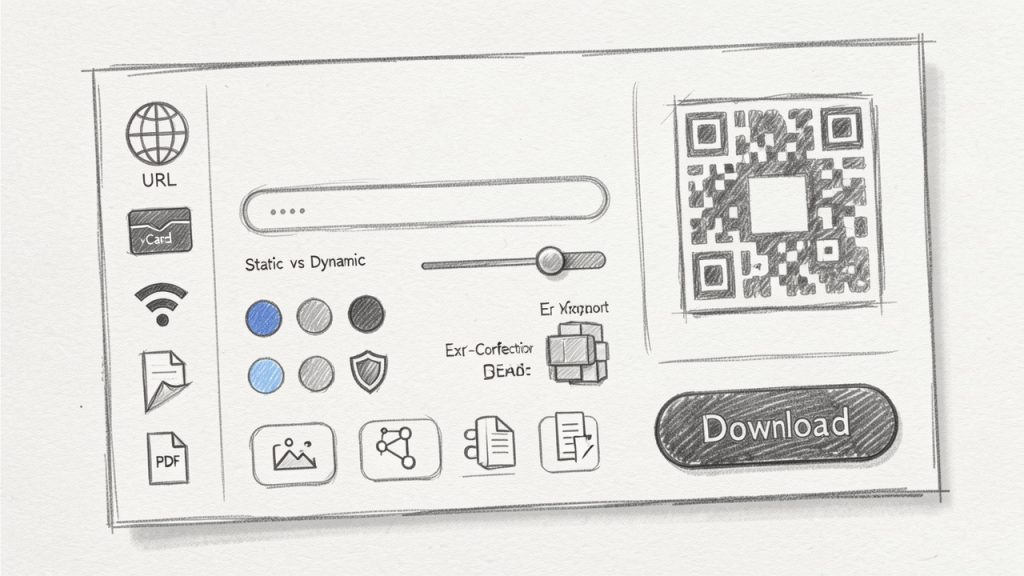
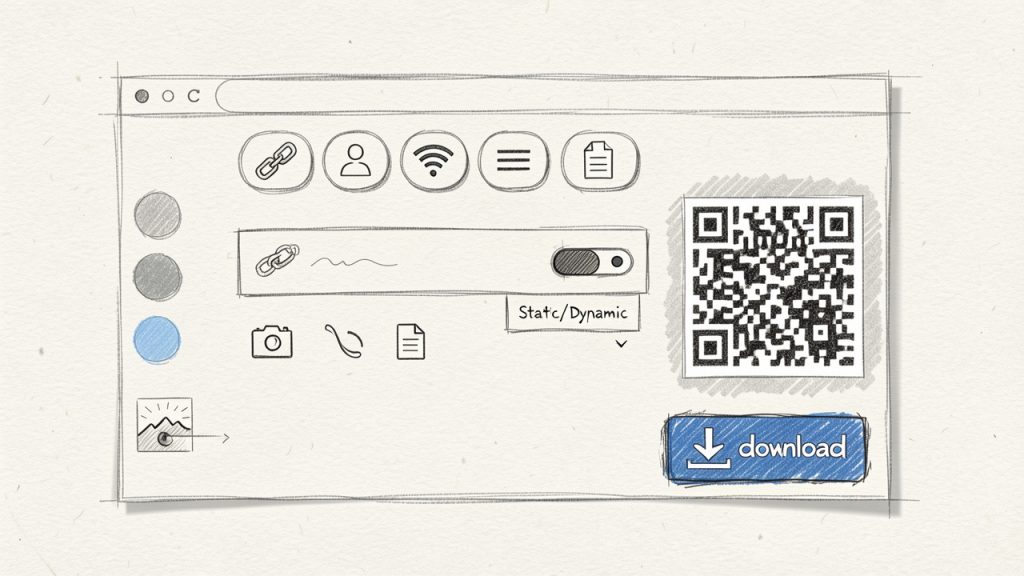
    Screenshot-style mockup of an online QR code generator interface showing content-type options, input field, static vs dynamic toggle, customization controls, export format buttons, and a prominent Download button

    Browser-based QR code generator interface showing content-type buttons, input field with a sample URL, Static/Dynamic toggle, export format dropdown, color & logo customization controls, and a live QR preview

    Step 2, select static or dynamic and set redirect options

    Choose static if the destination will stay fixed. Choose dynamic if you might need to update the destination later, pause a campaign, A/B test landing pages, or review scan analytics.

    For dynamic campaigns, define naming conventions early. A label like “Spring Poster” is not enough at scale. Use structured names such as “2026-Q2-Retail-Window-NYC-A” to make later reporting and management straightforward.

    Step 3, customize design with accessibility in mind

    A branded QR code can look great, but scan reliability always comes first. Maintain strong contrast between foreground and background. Dark code on a light background is still the safest choice. Avoid busy backgrounds, low-contrast color pairs, and oversized logos that eat into the scannable area.

    If you add a logo, use an appropriate error correction level and test aggressively. Decorative frames can improve response rates because they signal action, but keep the quiet zone, the blank margin around the code, intact.

    Step 4, set tracking and test across devices

    If your platform offers analytics, enable them before launch. Use campaign naming and UTM structure that match the rest of your marketing stack. That way, scans can be tied back to source materials, locations, or placements.

    Then test on multiple devices, under real conditions. A code that scans perfectly on a new flagship phone in bright office light may struggle on an older budget phone in a dim restaurant. Test both iPhone and Android if possible, and check common camera apps rather than relying on a single scanner app.

    Step 5, download the right file format for print or web

    Use PNG for quick digital use, social graphics, or slide decks. Use SVG for logos, signage, packaging, and any design that may be resized. Use PDF when delivering assets to printers or embedding in production-ready materials.

    For print, avoid tiny codes. In many real-world cases, at least 2 x 2 cm is a practical minimum for close-range scanning, while posters and signage usually need more. If the scanning distance increases, the code size should increase too. A useful rule of thumb is that the scanning distance should be roughly ten times the code width.

    Comparison: Top online QR code generators (features, pricing, pros & cons)

    Overview of evaluated tools

    The tools below are among the most visible and useful options for people searching for a QR code generator online. They differ in philosophy. Some focus on free static generation and design flexibility. Others focus on dynamic campaigns, enterprise controls, or template-driven design workflows.

    Tool Best For Static Codes Dynamic Codes Analytics Design Customization API/Automation Typical Pricing Position
    QRCode Monkey Free, high-quality static codes Yes Limited via related services Limited Strong No major public focus Free-first
    QR Code Generator by Egoditor General business use Yes Yes Yes Good Limited compared with enterprise tools Freemium
    Beaconstac Teams, enterprise, analytics Yes Yes Strong Good Yes Premium
    QRStuff Straightforward business use Yes Yes Moderate Moderate Limited Mid-range
    Canva Design-first users Yes Limited depending on workflow Limited Excellent in design context No Subscription ecosystem

    QRCode Monkey

    QRCode Monkey is one of the most popular choices for people who want a free online QR code generator with strong visual customization. It is especially appealing to freelancers, designers, and small businesses that need high-resolution codes quickly without getting pulled into a complex subscription flow.

    Features include high-resolution PNG and SVG exports, logo and color customization, and support for multiple content types. Its simplicity and quality output make it a reliable pick for brochures, posters, packaging mockups, or business cards.

    Its main advantages are ease of use and excellent free static QR code generation with strong customization for visual branding. The downsides are limited analytics and dynamic management, which make it less suitable for enterprise workflows that require campaign tracking or API automation.

    Website: https://www.qrcode-monkey.com

    QR Code Generator by Egoditor

    This platform balances consumer simplicity and business functionality. It supports both static and dynamic QR codes, offers editable destinations and basic scan analytics, and provides business-ready templates for common use cases like promotions, menus, and landing pages.

    It is a good fit for marketers, local businesses, agencies, and teams who want editable destinations and tracking without committing to enterprise pricing. Advanced analytics may be limited compared with enterprise platforms, and free access is narrower than static-only tools, so costs can rise as usage grows.

    Website: https://www.qr-code-generator.com

    Beaconstac

    Beaconstac is geared toward serious business use where dynamic QR codes, analytics, team controls, integrations, and operational reliability matter. It supports advanced dynamic QR management, campaign analytics, team and enterprise features, API and integration support, and is built for compliance-aware environments.

    This tool is strong for scale and governance, making it suited to packaging, retail, field marketing, customer journeys, and multi-location campaigns. The trade-offs are higher cost and increased setup discipline to get full value, so it may be overkill for basic personal use.

    Website: https://www.beaconstac.com

    QRStuff

    QRStuff is an established, practical option for users who want a broad selection of QR content types without a design-heavy workflow. It supports many content types, static and dynamic options, and a simple interface, which makes it useful for educators, small businesses, and non-designers.

    Its appeal is breadth and familiarity rather than cutting-edge design controls. Customization is less polished than some competitors and analytics depth may not satisfy larger teams, but it remains a solid practical option for many scenarios.

    Website: https://www.qrstuff.com

    Canva

    Canva is not a dedicated QR platform, but it is valuable for users who already design flyers, menus, posters, and social graphics there. Generating a QR code inside a layout saves time and preserves visual consistency, which is why many small businesses prefer it.

    Canva’s strength is context and template integration rather than deep analytics or dynamic campaign management. If you need enterprise-level tracking or API access, a dedicated QR platform will be a better fit.

    Website: https://www.canva.com

    Best practices and real-world use cases

    Print marketing (posters, business cards, flyers)

    In print, placement matters almost as much as the code itself. A QR code tucked into a crowded corner of a flyer often underperforms, even if it scans fine. Give it room, pair it with a clear call to action, and make the destination match the user’s context. A poster in a shop window should not send users to a cluttered homepage; it should route to the exact offer.

    For business cards, use a QR code to reduce friction. A vCard or booking link often performs better than a generic homepage. For posters and public signage, expect scan rates to depend heavily on visibility, urgency, and the clarity of the action promised.

    Restaurants and menus

    Restaurant QR codes need durability and trust. If the code links to a PDF menu that loads slowly, the user experience breaks immediately. A mobile-friendly webpage is often better than a heavy file. The code should be easy to wipe clean, physically visible, and not buried among decorative patterns.

    Dynamic QR codes are especially valuable here because menus change. One printed table card can continue working across seasonal updates, item changes, or language variations.

    Events and ticketing

    For events, QR codes can handle registration, maps, agenda pages, and ticket validation. Security matters more in this context. If codes grant access or reveal attendee information, do not treat them as casual marketing assets.

    A dynamic QR setup can help rotate destinations or disable outdated pages after the event. It also allows organizers to track where attendee engagement is strongest, such as entrances, booths, or printed schedules.

    Product packaging and inventory

    On packaging, QR codes often outlive the original campaign timeline, which makes dynamic management especially useful. A code can first support a launch page, then later route to instructions, warranty registration, or updated compliance information.

    For inventory or asset tracking, reliability beats decoration. Use high contrast, consistent labels, and durable materials. Fancy styling rarely helps in warehouse conditions.

    Contactless payments and check-ins

    Payment and check-in flows raise the stakes because users expect speed and confidence. If you link to payment pages, use trusted domains and clear branding. If you support venue check-ins, consider privacy disclosure and how long associated data will be retained.

    Troubleshooting and FAQs

    Why won’t my QR code scan?

    The most common causes are low contrast, insufficient size, poor print quality, broken quiet zone, or over-customization. If you inserted a large logo, changed the eye shapes, and used a gradient on a dark background, the design may simply be too aggressive.

    Start by testing the plain black-and-white version. If that scans reliably, add branding back gradually.

    How to track scans and where analytics might be misleading

    Scan analytics are useful, but they are not perfect. A “scan” may represent a camera recognition event, a redirect hit, or a user who never fully loaded the destination page, depending on the provider. That means QR platform data and web analytics may not match exactly.

    Use QR scan data as directional insight, then confirm behavior with landing-page analytics and campaign tags.

    How to change destination after printing

    You can only change the destination after printing if the QR code is dynamic. Static codes are fixed once generated.

    If flexibility matters, always choose dynamic for printed materials with any chance of future updates.

    Legal and privacy questions

    If your QR setup collects scan metadata or routes users to forms, privacy obligations may apply. In GDPR-sensitive contexts, be transparent about data collection, minimize unnecessary tracking, and coordinate with your legal or compliance team when scan data links to identifiable individuals.

    Recommended workflow and checklist before launch

    A reliable QR workflow prevents expensive mistakes. Treat QR codes like mini digital products, not just images. Define the objective, assign ownership, test under real conditions, and keep a version record of every live code.

    Before launch, confirm the destination URL, mobile usability, print size, contrast, file format, and device testing coverage. After launch, monitor scan trends, landing-page conversions, and failure signals such as sudden drop-offs or geographic anomalies.

    StageWhat to CheckWhy It Matters
    Pre-launchDestination URL, UTM tags, mobile page speedPrevents broken journeys
    Design reviewContrast, quiet zone, logo size, CTA textProtects scan reliability
    TestingiPhone, Android, bright light, dim light, print sampleReduces real-world failure
    DeploymentFinal export format, print proof, version namingAvoids production mistakes
    Post-launchScan trends, page conversions, redirect statusEnables optimization

    Resources and tools

    Quick references (size and print table, contrast rules)

    A few practical guidelines go a long way. Keep contrast high, preserve the quiet zone, and scale the code to match the expected scanning distance. For close-up materials like table tents or business cards, a modest size may work. For walls, posters, or storefront glass, increase size generously.

    Use Case Recommended Starting Size Best Format
    Business card 2 x 2 cm SVG
    Flyer or brochure 2.5 to 3 cm SVG or PDF
    Table tent/menu card 3 to 4 cm SVG or PDF
    Poster 4 cm and up SVG or PDF
    Packaging label Depends on viewing distance, often 2.5 cm+ SVG

    Links to tools and further reading

    For tool evaluation, start with the official sites mentioned in this guide. For standards and technical background, consult authoritative references such as ISO-related materials, printer guidelines, and analytics platform documentation. Also review your web analytics setup so scan traffic is categorized properly.

    Free assets (print-ready templates, QR test checklist)

    If you build QR codes regularly, create your own internal assets: a print proof template, a naming convention sheet, and a device testing checklist. These lightweight documents save more time than hopping between tools.

    Conclusion, which QR generator should you use?

    If you want the best free QR code generator online for static, high-quality, customizable exports, QRCode Monkey is an easy recommendation. If you want a balanced business tool with dynamic options, QR Code Generator by Egoditor is a practical fit. If analytics, team management, and scale are priorities, Beaconstac is the stronger choice. If you prefer straightforward breadth, QRStuff still holds up. If your workflow starts in design, Canva is the most convenient.

    The right choice depends less on the QR code itself and more on what happens after the scan. Pick the tool that matches your need for flexibility, measurement, and reliability.

    Then test it like it matters, because once a QR code is printed, it often does.

  • Free PDF to Word Converter: Convert PDFs to Editable DOCX

    Free PDF to Word Converter: Convert PDFs to Editable DOCX

    You have a PDF that needs editing, a client asking for a Word file, or a contract trapped in a scanned image. Converting a PDF into an editable Word document is one of those everyday productivity tasks that can save hours of manual retyping. Fortunately, there are reliable, free ways to do it that work for small business owners, freelancers, developers, and anyone who values speed and accuracy.

    This article explains what a free Pdf to word converter actually does, the trade-offs to expect, how conversion works behind the scenes, and clear, practical steps to get the job done quickly and safely. Read on to choose the right approach for your file type, privacy requirements, and desired outcome.

    What is a Pdf to word converter?

    A Pdf to word converter is a tool that transforms a Portable Document Format file into an editable Microsoft Word document, usually .doc or .docx. The goal is to preserve the original layout, text, images, tables, and fonts as closely as possible while producing content you can change, comment on, or repurpose.

    Not all conversions are the same. A simple text PDF created from a Word export converts with high fidelity because the PDF already contains selectable text. A scanned PDF, which is an image of each page, requires optical character recognition, or OCR, to extract text. OCR adds complexity and often requires trade-offs between accuracy, formatting, and speed.

    Side-by-side illustration showing (A) a 'digital PDF' with selectable text and embedded layout metadata, and (B) a 'scanned PDF' that is an image of a page requiring OCR. Label differences (selectable text vs image, OCR required) and show typical outcomes after conversion.

    Think of conversion like translating a printed newsletter into a document template. You want the translation to keep headlines, columns, and images in place, but you also want the text to be editable without extra cleanup. A good free converter balances that, and this article helps you pick one depending on the file you have and the result you need.

    Key Aspects of Pdf to word converter

    Accuracy and formatting fidelity

    When you search for Pdf to word converter, accuracy will be the central concern. Tools differ in how well they preserve fonts, spacing, columns, headers and footers, and image placement. Converting a one-page resume is usually straightforward, but multi-column brochures, complex tables, or documents with custom fonts often need manual tweaks after conversion.

    Accuracy generally depends on how the PDF was created. PDFs generated from digital sources like Word or InDesign contain embedded text and layout information that converters can map to Word styles. Scanned documents require OCR, which introduces possible misreads for unusual fonts, low-resolution scans, or handwritten notes.

    OCR and scanned documents

    A free converter that includes OCR is essential if your PDF is a scan. OCR analyzes the pixels and predicts letters and words. Modern OCR is quite good with printed text at reasonable resolution, but expect to proofread and correct errors, especially in columnar layouts and tables.

    Some free OCR tools let you choose the language, output format, and recognition accuracy. Higher accuracy may increase processing time, and cloud-based OCR tools might upload files to remote servers, which raises privacy considerations.

    Privacy and security

    Privacy is a major factor for business and freelance users. Free online converters often process files on remote servers. If you are converting confidential contracts, financial statements, or personally identifiable information, verify the service’s privacy policy and retention rules. Desktop or open-source solutions that run locally avoid the upload step and keep data on your machine.

    Always check whether the converter uses encryption during upload, how long temporary files are retained, and whether the provider explicitly deletes files after conversion. When in doubt, use an offline method.

    File size limits and batch conversion

    Free online converters commonly impose file size limits or daily quotas. If you work with large PDFs or need bulk conversions, these restrictions can slow workflows. Desktop tools usually handle larger files and batch processing more efficiently, but may require more setup.

    Batch conversion capability is a practical consideration for agencies and freelancers who need to convert dozens of files at once. A free desktop solution or scripted approach tends to scale better than free web forms.

    Compatibility and output quality

    Not all converters produce the same .docx structure. Some convert visually, embedding text into text boxes and fixed positions, which preserves appearance but makes editing awkward. Others reconstruct paragraph styles and headings, which creates a more natural editing experience in Word. For long-form documents or those you plan to revise, prefer tools that produce editable flow text rather than fixed-position blocks.

    Speed and convenience

    For quick one-off conversions, an online free converter is often the fastest option. For repetitive work, desktop tools and integrated solutions like Google Docs or Microsoft Word may save time. Developers may prefer command-line or API-based free tools they can script into pipelines.

    How to Get Started

    Quick decision guide

    Begin by evaluating three factors: sensitivity of the document, complexity of layout, and how often you need to convert files. If the document is confidential, choose an offline method. If layout is complex and fidelity matters, test a couple of tools and compare the outputs. If you convert frequently, invest time in a desktop or scripted solution.

    Decision flowchart that helps choose a conversion method: start with three questions (document sensitivity, layout complexity, frequency). Branch to online free converters (fast, upload), desktop/Word/LibreOffice (local, better for privacy/large/batch), open-source/CLI (scriptable, technical), or mobile apps (on-the-go).

    Prerequisites

    Before converting, ensure the PDF is high enough quality for OCR if needed. Scanned PDFs should be at least 200 to 300 DPI for better OCR accuracy. Make sure you have an editor that can open .doc or .docx files, and confirm you have permission to convert and edit the document. As a safety measure, keep a copy of the original PDF before conversion.

    Step-by-step: Converting with a free online tool

    1. Upload the PDF file to the converter website.
    2. Select the output format as Microsoft Word (.doc or .docx).
    3. Choose OCR options if your file is a scanned image.
    4. Start the conversion and wait for the process to finish.
    5. Download the resulting Word document and open it for proofreading.

    This process is fast for simple documents and convenient when you are away from your main workstation.

    Step-by-step: Converting offline using desktop software

    1. Open Microsoft Word and choose File, Open, then select the PDF.
    2. Allow Word to convert the PDF to an editable document.
    3. Review the converted document and correct any formatting or OCR errors.
    4. Save the file as .docx.

    If you prefer open-source, LibreOffice can import PDFs and let you export to editable document formats, though results vary with layout complexity.

    Tips for best results

    Start with the highest-quality PDF available. If the PDF contains multiple languages, select the appropriate OCR language. After conversion, focus on headings, lists, tables, and special characters during proofreading. If fonts are missing, substitute similar ones to maintain layout while keeping text editable.

    Comparison table: Types of free converters

    Type

    Cost

    Best for

    Pros

    Cons

    Online free converters

    Free, sometimes limited

    Quick single-file conversions

    Fast, no install, easy UI

    File size limits, potential privacy concerns

    Desktop converters (Word, LibreOffice)

    Free with existing software

    Frequent users, large files

    Local processing, no upload needed

    Variable fidelity with complex layouts

    Open-source tools and CLI

    Free

    Developers, automated workflows

    Scriptable, no vendor lock-in

    Requires setup, technical knowledge

    Mobile apps

    Free tiers available

    Scanning and quick edits on the go

    Handy for fieldwork, built-in camera OCR

    Ads, in-app limits, privacy trade-offs

    Handling complex elements: tables, images, and forms

    Tables often cause the most trouble during conversion. Simple tables typically convert cleanly, but nested tables or those with merged cells may break into image elements or text blocks. If preserving table data is critical, consider extracting tables to CSV using a tool designed for table recognition, then reinsert or rebuild them in Word.

    Images generally convert as embedded images that retain position. For forms and fillable fields, converting to Word will not preserve form functionality. If you need an editable form, consider recreating it in Word or using form-building tools after conversion.

    Privacy-conscious workflows

    If privacy matters, run conversions locally whenever possible. Use desktop applications, virtual machines, or open-source CLI tools that keep files on your device. If you must use online services, choose providers with clear data-deletion policies and TLS encryption. Avoid uploading files containing sensitive personal data or financial information unless the service explicitly supports secure workflows.

    Common pitfalls and how to fix them

    A frequent issue with a free Pdf to word converter is layout breakup, where paragraphs become text boxes or headings lose their styles. To fix this, paste the text into a fresh document and reapply styles, or use Word’s Find and Replace to remove extra line breaks.

    Another pitfall is misrecognized characters after OCR, such as confusion between 0 and O or l and 1. A quick skim for common patterns and language-specific spell-check tools substantially reduces these errors.

    Finally, images or graphics may lose resolution during conversion. If image quality is critical, extract the original images from the PDF before conversion and reinsert high-resolution copies into the Word document.

    When to choose paid tools

    Free converters cover many needs, but paid solutions become worthwhile for high-volume workflows, guaranteed security, batch automation, or the best possible fidelity for complex layouts. If you often convert legal documents, marketing collateral, or large manuals, evaluate paid options that offer enterprise-grade OCR, batch processing, and SLAs for data handling.

    Conclusion

    A Pdf to word converter is an indispensable tool for modern productivity when used with an awareness of its limits. For quick edits and one-off files, free online converters are efficient, while desktop and open-source solutions are better for privacy and bulk work. Understand whether your PDF contains selectable text or scanned images, choose the right tool for fidelity and privacy, and always proofread the converted Word file.

    Next step: try a short test conversion with a non-sensitive PDF to compare results. If you need help choosing tools based on a specific document type or workflow, share a brief description and I will recommend a tailored approach.

  • How to Remove Image Background for Free — Quick & Professional

    How to Remove Image Background for Free — Quick & Professional

    Removing the background from an image does not have to be expensive or technically intimidating. Whether you sell products online, create social posts, build websites, or prepare presentations, a clean subject on a transparent background makes your visuals pop and improves professionalism. This article explains how to remove the background from an mage, what to expect from free tools, and practical steps to produce high-quality cutouts without costly subscriptions.

    You will learn the difference between automated and manual methods, how to choose the right approach for your workflow, and quick tactics to improve results. The goal is to give small business owners, freelancers, and productivity-minded users a clear, actionable path to remove backgrounds effectively while avoiding common traps like low-resolution output or hidden watermarks.

    What is it?

    Removing a background means isolating the main subject of an image and replacing or making the surrounding area transparent. When you remove a background from an image, you use tools or techniques that let you create a transparent PNG, a clipped object for placement on colored banners, or a neatly masked subject for more advanced editing. The end result can be used for product listings, profile pictures, marketing assets, or layered designs.

    There are two broad approaches. Automated tools use machine learning and edge detection to create a quick cutout with minimal input, often delivered in seconds. Manual methods rely on selection tools, masks, and brushwork, giving precise control for difficult edges like hair or transparent materials. Both approaches produce a similar goal, but they trade speed for control.

    Simple two-column diagram comparing approaches: one column labeled 'Automated' with a lightning bolt icon, a one-click web tool screenshot thumbnail, and a stopwatch indicating speed; the other column labeled 'Manual' with a brush and pen icon, a layered editor thumbnail, and a control/precision icon, plus a small caption 'Speed vs Control'.

    Technical concepts helpful to understand include alpha channels, masks, and clipping paths. An alpha channel stores transparency information so parts of the image can be fully or partially transparent. Masks allow non-destructive editing, letting you refine edges without permanently altering the original pixels. Clipping paths are vector outlines often used in eCommerce to guarantee crisp silhouettes.

    Side-by-side example: left — original product photo with background; right — the subject isolated on a transparent checkerboard (PNG), with a small label showing 'Export: PNG / WebP'. This demonstrates the expected end result of removing a background.

    Key Aspects of a background remover

    Accuracy versus convenience

    When considering free background removal, accuracy and convenience usually move in opposite directions. Fully automated web tools are convenient and fast, often delivering usable results for simple subjects on contrasting backgrounds. For complex scenes, manual refinement will be necessary to achieve professional quality. Understand that a single-click solution may require subsequent touch-ups to remove halos, preserve hair detail, or handle semi-transparent objects.

    Output formats and resolution

    Most users who remove backgrounds want a transparent result. PNG is the most common free format for transparency, while WebP can offer smaller file sizes with transparency support. Free tools sometimes limit output resolution, so check whether the tool preserves original image size or downsamples. If you plan to print or display large images, prioritize tools that maintain full resolution.

    Privacy and data handling

    Free online services may process images on remote servers. If your images contain sensitive information or unreleased product photos, consider an offline tool or verify the service privacy policy. Many reputable tools state they delete files after processing, but always confirm data retention policies before uploading proprietary assets.

    Batch processing and workflow

    Volume matters. For single images, an automated free tool is usually faster. For catalogs or multiple items, look for a method that supports batch processing. Some free desktop apps and web services offer batch options, while others require manual repetition. Time spent organizing a consistent shooting setup, with a solid background and even lighting, can drastically reduce time spent editing later.

    Cost traps and licensing

    A background remover can conceal limitations. Free tiers might add watermarks, impose daily credits, or restrict commercial use. Read the terms, and if you need high-volume or commercial licensing, evaluate paid plans. Free tools are excellent for testing and occasional use, and for long-term business consistency, plan whether a subscription is worth the efficiency gains.

    How to Get Started

    Before you begin, gather a few simple prerequisites to improve every result and speed up your workflow.

    • High-resolution image: Higher pixel counts retain detail after masking.
    • Contrasting background: A solid, contrasting background makes automatic detection more accurate.
    • Good lighting: Even lighting reduces shadows and color spill that confuse algorithms.
    • Original file: Keep the original unedited file so you can retry different methods.

    Follow these steps to remove a background quickly using a typical free online tool, then use the alternative offline method if you prefer local editing.

    1. Upload your image to the free background removal tool of your choice.
    2. Allow the automatic process to detect and remove the background.
    3. Inspect the result at 100 percent zoom for edge artifacts and missed areas.
    4. Use the refine brush or eraser to fix hairlines, semi-transparent edges, or small leftover pixels.
    5. Export the final cutout as a PNG with transparency or WebP if file size is a concern.
    6. Save a copy with a layer mask in a layered format if you plan further edits.

    If you prefer an offline method for privacy or precise control, use a free editor such as GIMP or a web-based editor that supports masks. Open the image, create a duplicate layer, and use selection tools such as the foreground select, path tool, or quick mask to isolate the subject. Convert the selection to a mask and paint in or out to refine edges. Export as a transparent PNG when satisfied.

    Tips to improve difficult cases

    Working with hair, fur, glass, or motion blur can be challenging. Refine masks with feathering and contrast adjustments, manually paint on masks with a soft brush at low opacity to smooth transitions, and use color decontamination tools to remove background color bleeding from edges. For shiny or transparent objects, accept that some reflection or transparency is part of the object; sometimes adding a subtle shadow on a new layer gives a more natural result than trying to fully isolate transparent materials.

    Troubleshooting common problems

    If your cutout shows color fringes, add a small negative or positive contract to the mask edge to remove halos. If the tool fails on low-contrast subjects, try converting the image to higher contrast temporarily, perform the selection, then reapply to the original image. When hair is lost, switch to manual brush refinement and work at a high zoom level for precision.

    Comparison of Free Background Removal Methods

    Method

    Ease of use

    Quality

    Output format

    Best for

    Limitations

    Automated web AI

    Very high

    Good for simple subjects

    PNG/WebP

    Single images, speed

    May downscale, limits/credits

    Web-based editor (manual + auto)

    High

    Very good with refinement

    PNG, layered exports

    Fast manual fixes, browser-based

    Learning curve, browser performance

    Desktop editor (GIMP)

    Moderate

    Professional with time

    PNG, PSD export via plugins

    Privacy, full control

    Requires skill, manual work

    Mobile apps

    Very high

    Varies, often good

    PNG

    Quick social media edits

    Quality varies, in-app purchases

    Vector-based tracing

    Moderate

    Crisp for flat graphics

    SVG, PNG

    Logos and icons

    Not suitable for photos, manual paths needed

    Conclusion

    Removing a background from an image for free is accessible and practical for business owners, freelancers, and developers who need clean visuals without heavy investment. Automated tools provide speed and convenience for straightforward images, while free desktop editors offer the privacy and precision needed for high-value or complex subjects. Pay attention to output formats, privacy policies, and any usage limits that may affect commercial workflows.

    Next step, pick one approach and try it with a recent product photo or portrait. Practice with a high-contrast image to build confidence, then tackle more challenging shots as you learn masking techniques. If your needs grow, consider a paid option for batch processing and guaranteed resolution, but for many day-to-day tasks, free solutions deliver excellent results.

  • JSON Escape


    What is a JSON escape / unescape tool?

    A JSON escape / unescape tool is a utility that escapes special characters in a JSON string (e.g., converts double quotes " to \" or newlines to \n) and unescapes those characters back to their original form, making JSON human-readable or suitable for use in various environments.


    Why You Should Use a JSON Escape Tool

    1. Prevent JSON Syntax Errors

    • Certain characters (like quotes " or backslashes \) can break your JSON if not escaped.
    • Escaping ensures the resulting string is valid JSON.

    2. Embed User Input or Raw Text Safely

    • If you’re saving logs, code snippets, or user input inside JSON, escaping prevents issues like:
      • Unintended string termination
      • Broken JSON structure

    3. Support for Special Characters

    • Characters like newline (\n), tab (\t), and Unicode symbols must be properly encoded to avoid display or parsing issues.

    4. Avoid Security Risks

    • Escaping prevents malformed data or injections that might be exploited when JSON is parsed in browsers or other applications.

    How a JSON Escape Tool Works

    1. Accepts a raw string as input
      Example: swiftKopierenBearbeitenShe said: "That's awesome!\n"
    2. Scans the string for special characters
      These include:
      • " → double quote
      • \ → backslash
      • Control characters (\n, \r, \t, \b, \f)
      • Non-ASCII characters (sometimes)
    3. Replaces them with escaped sequences CharacterEscaped Form"\"\\\Newline\nTab\tUnicode\uXXXX Escaped result: jsonKopierenBearbeiten"She said: \"That's awesome!\\n\""
    4. Outputs a valid JSON string
      • You can now insert this into any JSON document, API request, or data file without breaking it.
  • CSS Formatter


    What is a CSS formatter?

    A CSS formatter is a tool that organizes and beautifies CSS code by adding proper indentation, spacing, and line breaks. It improves readability and consistency in CSS files.


    Why Should You Use a CSS Formatter?

    1. Improves Readability

    • Formats your code with consistent indentation, spacing, and structure.
    • Makes it easier for you and your team to quickly scan and understand styles.

    2. Enforces Consistency

    • Teams often have style guides (e.g., indentation size, bracket placement).
    • A formatter ensures every file follows the same rules — automatically.

    3. Easier Debugging

    • Clean, organized CSS helps you quickly find and fix issues.
    • You can spot duplicate selectors, unnecessary rules, or typos more easily.

    4. Better Version Control

    • When code is formatted consistently, diffs in Git (or other version control) are cleaner.
    • You avoid messy diffs due to inconsistent spacing or indentation.

    5. Faster Development

    • Tools like Prettier, CSScomb, or online formatters can auto-format your code.
    • You spend less time formatting manually and more time building.

    6. Professionalism

    It improves collaboration and makes onboarding easier for new developers.

    Well-formatted code looks clean and polished — a sign of attention to detail.


    How Does It Work?

    A CSS formatter parses the CSS code into its structural components (selectors, properties, values), reorganizes the code with consistent indentation, line breaks, and spacing, and outputs the formatted CSS while preserving its functionality.

  • HTML Formatter


    What is an HTML Formatter

    An HTML Formatter is a tool that takes raw or minified HTML code and reorganizes it with proper indentation, spacing, and structure to make it more readable and maintainable.

    Raw HTML can be compact, messy, or difficult to navigate—especially when generated dynamically or written without formatting. An HTML formatter “cleans it up” for human eyes.


    Why Should You Use an HTML Formatter?

    Improved Readability
    Proper indentation and line breaks make it easier to understand the structure of your HTML document.

    Easier Debugging
    Clean HTML helps you quickly identify mismatched tags, missing elements, or nested issues.

    Code Consistency
    Team projects benefit from uniform formatting, making collaboration smoother.

    Better Maintenance
    Well-formatted code is easier to update and extend over time.

    Learning and Teaching
    Beginners can better understand how elements nest and relate when HTML is clearly formatted.


    How Does It Work?

    A Hex to RGB Converter works by:

    An HTML Formatter works in three main steps:

    1. Parsing
      The tool reads the HTML code and analyzes its structure (tags, nesting, attributes, etc.).
    2. Structuring
      It determines the proper hierarchy of tags and how deeply each element is nested.
    3. Outputting Formatted HTML
      It rewrites the code with line breaks and indentation that reflect the document’s structure.

    Code Example:

    Unformatted HTML:

    <div><h1>Title</h1><p>Hello <b>World</b></p></div>

    Formatted HTML:

    <div>
      <h1>Title</h1>
      <p>
        Hello <b>World</b>
      </p>
    </div>
  • Hex to RGB Converter

    Hex to RGB Converter


    What is a Hex to RGB Converter

    A Hex to RGB Converter is a tool that converts color values from hexadecimal (hex) format to RGB (Red, Green, Blue) format.

    RGB Format: Represents colors using three numbers (e.g., rgb(255, 87, 51)), each ranging from 0 to 255, corresponding to the intensity of red, green, and blue.

    Hex Format: Used in HTML and CSS, it’s a 6-digit code (e.g., #FF5733) that represents colors using hexadecimal values.


    Why Should You Use a Hex to RGB Converter?

    Design Flexibility: Some design tools or frameworks require RGB values, even if your design uses hex codes.

    Color Adjustments: RGB makes it easier to manipulate brightness or transparency programmatically.

    Cross-Platform Consistency: Developers often need to convert colors between formats depending on where and how they are being used (web, mobile, graphics).

    Ease of Understanding: RGB format is more intuitive when adjusting colors manually or applying effects like opacity or gradients.


    How Does It Work?

    A Hex to RGB Converter works by:

    1. Splitting the 6-digit hex code into three 2-digit pairs:
      • First 2 digits = Red
      • Next 2 digits = Green
      • Last 2 digits = Blue
    2. Converting each pair from hexadecimal to decimal.

    Example:

    • Hex: #FF5733
    • Red: FF → 255
    • Green: 57 → 87
    • Blue: 33 → 51